

Set up access presets
Build a named, narrowed permission set once and apply it to as many members as you like, instead of unticking the same permissions for each person.
When several people should do less than their role allows — three site supervisors who shouldn't touch payroll, say — you can build that narrowed set once and apply it by name. An access preset is a role with some of its permissions taken out, and it is applied to a member in one click.
A preset can only take permissions away. It can never give someone a permission their role doesn't include.
Who can manage presets
You need the Manage roles & permissions permission, which Owners, Admins and Managers have. Without it, the section shows No access.
Owners and Admins can manage every preset. Managers have two limits, so they can't use a preset to change their own access or that of someone at their level:
- A Manager can't create, edit or delete a preset built on the Admin role.
- A Manager can't edit or delete a Manager preset once it is applied to themselves, to another Manager or Admin, or to a pending invitation for one of those roles. Ask an Owner or Admin to change it.
Open Settings in the sidebar, then Access presets under Organization. You can also reach it from Resources → Users with the Access Presets button above the Members list.
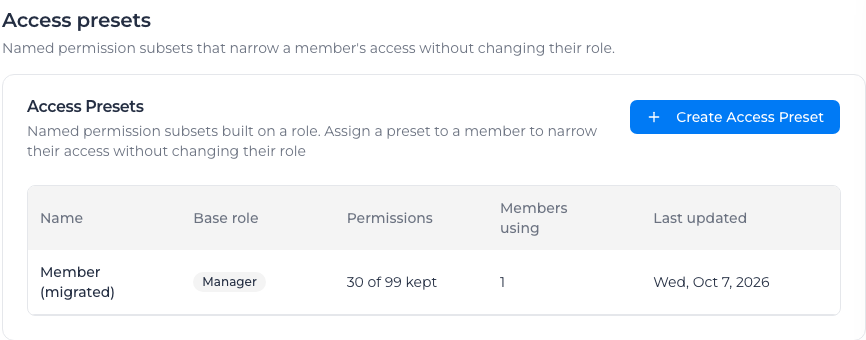
Each preset shows its Base role, how many permissions it keeps under Permissions (30 of 99 kept), how many people have it under Members using, and when it last changed. When Access by location is available to your account, the list also shows each preset's Location and Business Units, and the Access by location switch sits above it.
Find the presets that reach a location
When your account limits access by location, the list also shows each preset's Location and Business Units, and a location filter appears above it. Choose a location to see only the presets that give access there:
- a preset with access to all locations;
- a preset whose locations include the one you chose, or a location above it;
- a preset where only some permissions are limited to locations, and one of those lists reaches the location you chose.
A preset that uses each member's own locations is listed with Per member: whether it reaches the location depends on who has it. Choose All locations to see every preset again. If none match, the list says "No presets give access at this location".
Create a preset
- Select Create Access Preset.
- Give it a Name. Members see this name, so name it after the job: Site Supervisor, Payroll Officer.
- Choose the Base role. Presets are built on Admin or Manager only — the other roles already hold too few permissions for narrowing to mean anything.
- Optionally pick a starting point under Start from a template: Site Supervisor, Payroll Officer or Estimator. A template only fills the form in; everything stays editable.
- If Assignar has made Access by location available to your account, choose the preset's locations and Business Units under Access by location. See Limit access by location.
- Under Kept permissions, clear the box of every permission this preset should not include. A ticked box is a permission the member keeps.
- Select Create.
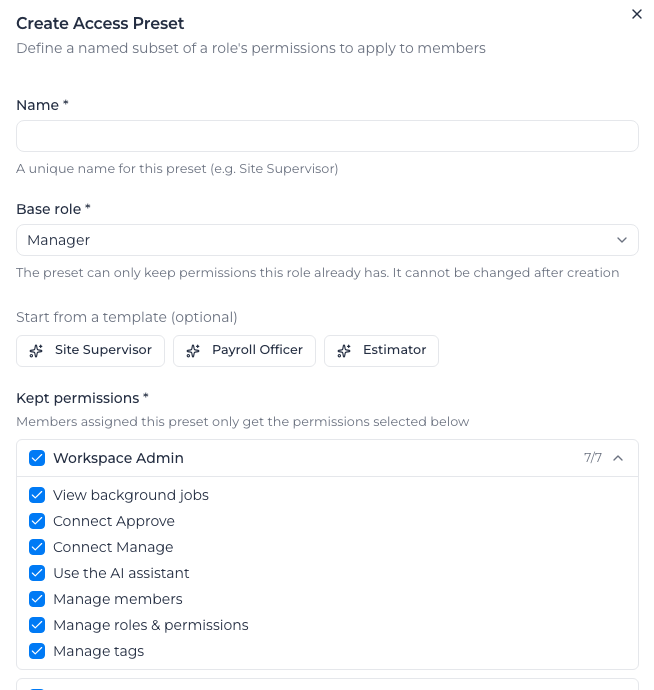
Choose the base role carefully — it is fixed once you save. Editing a preset later shows "The base role cannot be changed. Create a new preset to target a different role". To narrow a different role, build a second preset.
Each permission group shows how many of its permissions the preset keeps, so you can check a group at a glance without opening it.
Start from an existing preset
When a new preset should be close to one you already have, copy it instead of starting again.
- Open the actions menu (⋯) on the preset's row and choose Create from preset.
- The panel opens already filled in: the name is Copy of …, with the same base role, the same kept permissions and the same location and Business Unit access. Change the name and anything else you need.
- Select Create.
The copy is a new preset. Nobody is moved onto it, and changing it later doesn't change the preset you copied.
You can only copy what you could give yourself. If the preset you copy keeps a permission you can't grant, the copy leaves it out. If its access reaches further than yours, Assignar Pay won't create the copy and tells you which permission goes too far. Narrow that permission's access and try again.
Archived locations, Business Units and asset classes aren't copied. If that leaves a list with nothing in it, the copy doesn't fall back to every location: choose new ones under Access by location before you select Create. If Access by location isn't available for your account yet, the copy can't be created, and the panel tells you why.
Apply a preset to someone
- In the sidebar, select Resources, then Users.
- Select the person's row to open their access panel.
- Under Access preset, choose the preset. The list offers only presets built on that person's access level.
- Select Save.
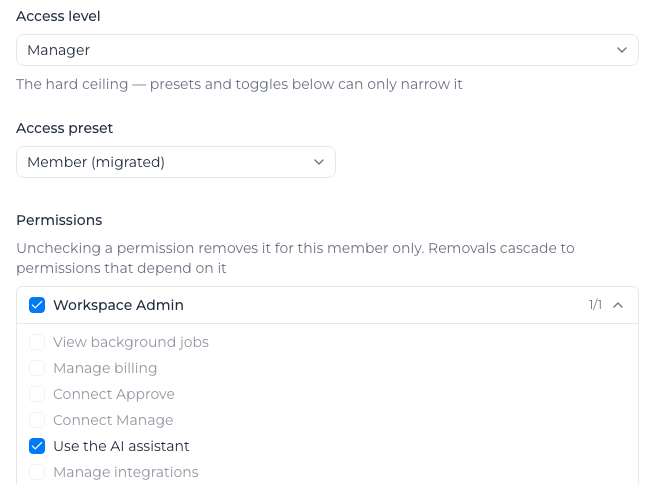
Their Access Preset column on the Members list now shows the preset's name, and the permissions it removed appear greyed out in their panel with "Removed by the … preset".
Applying a preset clears any permissions you had removed for that person individually. When they have some, the panel warns "⚠ Choosing a preset clears … per-member removals" before you save. The preset's own list is what applies from then on.
To take a preset off someone, choose Default (… access) and save. They go back to their role's full access.
If the list is empty, you see "No presets exist for this access level — create one under Settings → Access Presets". Presets are per role, so a preset built on Manager never appears for an Admin.
Change what a preset keeps
Select the preset's row, tick or clear permissions, and save. The change applies immediately to everyone using it, so check Members using before you widen or narrow one.
You can rename a preset here too. The name is only a label — renaming changes nobody's access.
Delete a preset
Select the preset's row and choose Delete Access Preset. Assignar Pay asks "Are you sure you want to delete … This action cannot be undone."
Deleting a preset widens access. Everyone using it reverts to their role's full permissions, and the dialog says so: "… member(s) currently use this preset and will revert to FULL … access — their access will WIDEN." It also tells you "No members currently use this preset" when deleting is safe. Move people onto another preset first if full access isn't what you want them to have.
Location limits are the exception. When deleting a preset would widen its members' locations, Business Units or asset classes, you can't delete it while a member or a pending invitation uses it. You see "This preset limits access by location or Business Unit and members or invitations still use it. Move them to another preset first".
If something goes wrong
- "Failed to load access presets. Please refresh the page": the list didn't load. Refresh and open the section again.
- "The base role cannot be changed. Create a new preset to target a different role": a preset's base role is fixed at creation. Build a new preset instead.
- "The selected preset does not match the member's access level": you changed the person's access level and the preset belongs to the old one. Pick a preset built on their new level, or Default.
- "You don't have permission to change this member's access": you no longer hold Manage roles & permissions, or that person is no longer below you.
What else narrows access
A preset is one of three things that decide what someone can do. Their role sets the ceiling, a preset takes a fixed set away, and you can remove individual permissions for one person on top — see Adjust someone's access.
Where someone can use those permissions is set by Access by location, once Assignar has made it available to your account.
To see what each role holds before you narrow it, see the Permissions reference.