

Supplier quick start
A short path for a supplier to accept a portal invite, see purchase orders, and invoice against them.
A customer has invited you to their supplier portal.
Accept the invitation
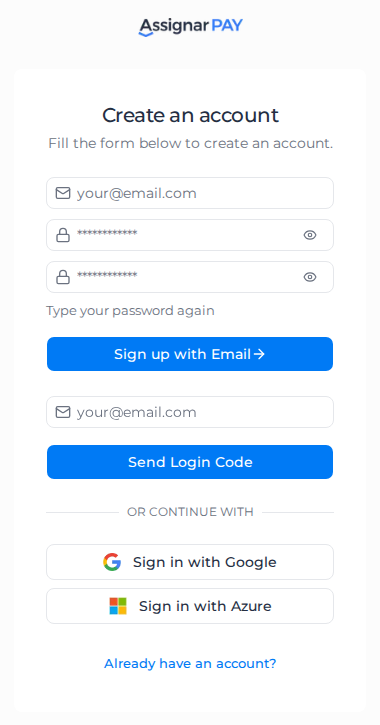
Open the invitation email from your customer, create your account, and land on Purchase Orders.
If you already use Assignar Pay for your own business, sign in. Your customer's portal appears as another organization.
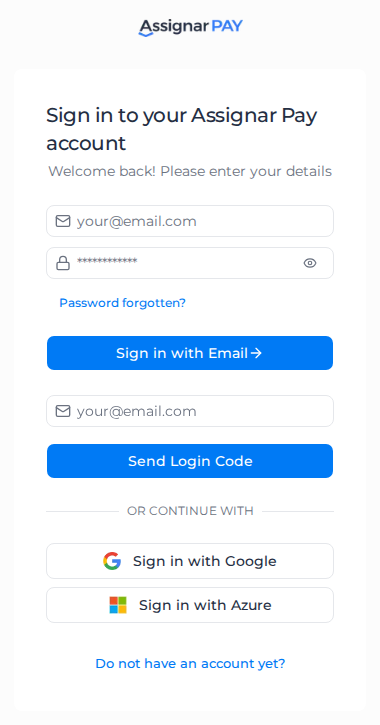
See Sign in for the first time and Sign in to Assignar Pay.
Invoice a purchase order
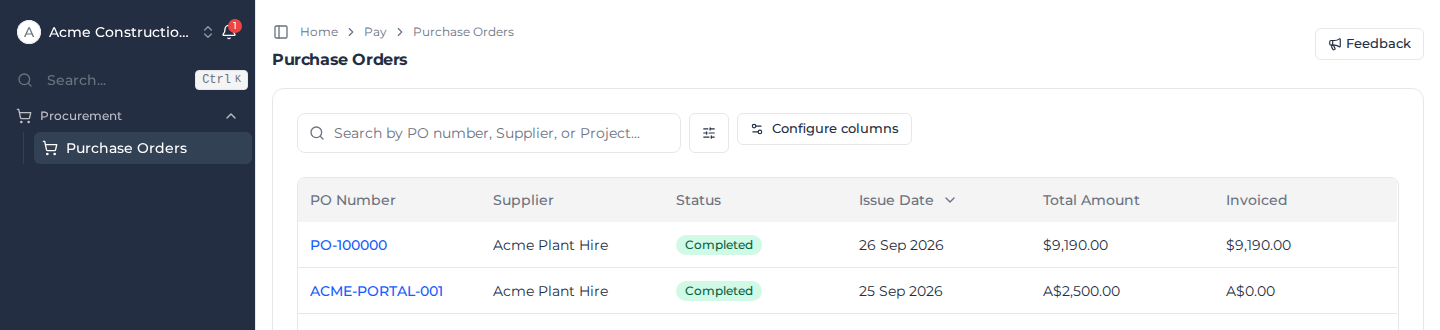
Open Procurement, then Purchase Orders, to see the approved orders issued to your company. See See your purchase orders.
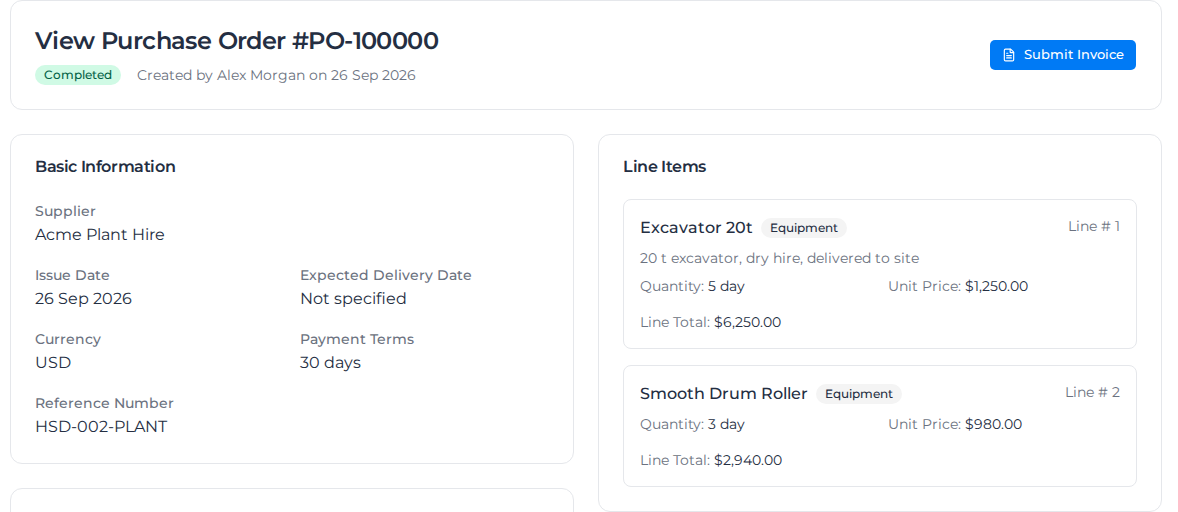
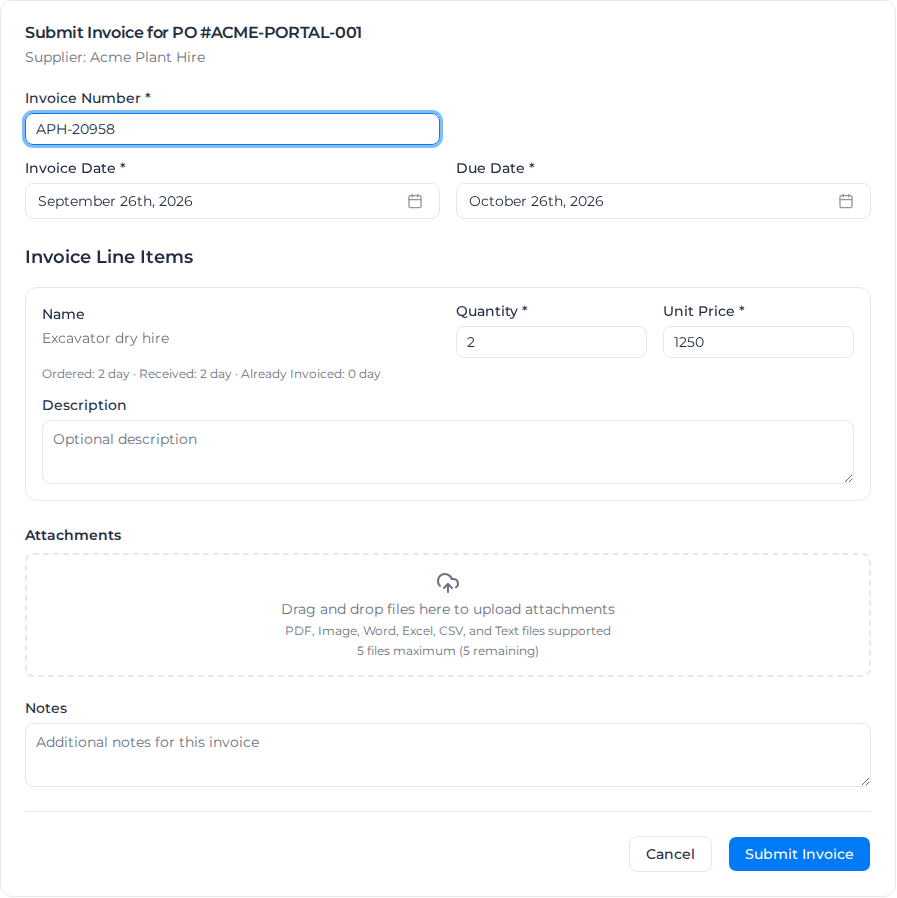
Open an order and select Submit Invoice, and attach your invoice file and delivery dockets. See Invoice a purchase order and Follow up an invoice.
Submit your workers' time
When a purchase order covers labour, go to Procurement, then Submit time. See Submit your workers' time.
Create your own supplier workspace
This is separate from a customer's invitation. To publish what you sell, create a supplier workspace.
What you can see
See Supplier role for what you can and cannot see.
To invite a supplier, see Invite a supplier to the portal.
A Subcontractor Hub invitation is a different email, and it expires after 30 days. See Accept an invitation.