

Adjust someone's access
Take individual permissions away from one member without changing their role, and put them back.
A role gives everyone who holds it the same permissions. When one person should do less than their role allows, for example a Manager who shouldn't delete projects, you remove those permissions for that person alone. Their role stays the same.
You can't give anyone a permission their role doesn't include. To give more, change their role; see Manage your team.
Narrowing several people the same way? Build it once as an access preset and apply it by name instead of repeating yourself here — see Set up access presets.
Who can adjust access
You need the Manage roles & permissions permission, which Owners, Admins and Managers have. You can open the access of people below your own role only, so a Manager can adjust Field users and Visitors. You can't open your own access, the Primary Owner's, or a pending invitation.
Remove permissions from one person
- In the sidebar, select Resources, then Users. The Members tab opens.
- Select the person's row. Their access opens in a panel, with their name and a badge showing where their access comes from.
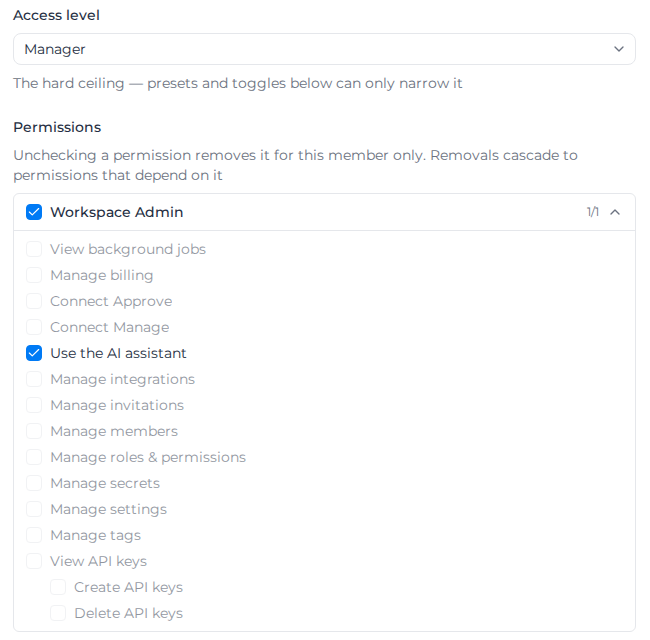
- Under Permissions, clear the box of each permission they shouldn't have. Permissions are grouped into Workspace Admin, Sales & Revenue, Operations, Procurement, Payroll & Rates and Sensitive Data, and each group shows how many of its permissions they hold. The box beside a group's name clears or ticks all of them.
- Select Save. Assignar Pay shows Member access updated, and their Access Preset column now reads Custom.
To see what each role holds by default, see the Permissions reference.
Apply a preset instead
The same panel has an Access preset list above Permissions. Choosing a preset applies a ready-made narrowed set in one step, and is the better choice when more than one person needs it. The list offers only presets built on that person's access level; Default (… access) takes a preset off again.
Choosing a preset clears the permissions you removed for this person individually. When they have some, the panel warns "⚠ Choosing a preset clears … per-member removals" before you save — from then on the preset's own list is what applies.
Building, changing and deleting presets is covered in Set up access presets.
Choose their locations
When Assignar has made Access by location available to your account, the panel has an Access by location section for anyone whose access is limited by location. There you choose the person's own Locations and Business Units, marked Assigned to the member, beside any list that comes From the preset. See Choose locations for one member.
Check what they'll see by location
When your organization has Access by location, the panel shows an Access preview for the person. It counts the workers, assets and projects they see once Access by location is on, so you can check a preset or their own locations before it affects them. It works while Access by location is still off.
The preview reads their saved access. If you change anything in the panel, select Save and the counts update.
If your own access is limited to some locations or Business Units, the counts include only records inside them, totals too. The preview says "Counts include only records inside your own locations and Business Units."
Each area shows which Locations, Business Units and, for assets, Asset classes apply to the person, and whether that list comes From the preset or is Assigned to the member. Rows shows whether they see all rows, their designated workers, or their own rows only. Then the counts:
- From your locations: what their own locations and Business Units give them, out of everything in your organization.
- Shared by a location: assets another location shares with theirs. For workers this is (allocation only): they can put those workers on a job, but don't see their timesheets or pay.
- Via crew (project details only): projects they see because someone from their locations is allocated to one of its orders. They see the project's details only.
Workers (timesheets and pay, by home location) counts the workers whose timesheets and pay they reach through each worker's home location. Everyone still sees the full worker list.
Below the counts, the preview flags records that use your default location because they have no location of their own. It also flags records with no Business Unit: a person limited to some Business Units doesn't see them, so give those records a Business Unit if they should.
If the preview shows "Could not load the access preview.", select Try again.
Check why they can or can't see a record
When someone can't find a record, or sees one they shouldn't, use Check a record below the preview:
- Choose the Record type.
- Type 2 or more characters of its number or name in Number or name, then select the record.
- Read the answer. It says if the person can see the record and which rule decides it.
When the record is hidden, the answer names the missing link: the location or Business Unit that isn't in their list, an asset class they aren't given, a record with no Business Unit, or a permission removed for them. It also names where their list comes from, so you know if you change the preset, its setting for that permission, or their own list. A timesheet is never shown through crew access: the answer names the worker's home location and the location of the project or order instead. For an invoice, purchase order or supplier invoice, every project and order on it must be in their scope, and the answer names the first one that isn't.
You can only find records that you can see yourself. The answer uses the person's saved access, so select Save first if you changed anything. If it shows "Could not explain access.", select Check a different record and try again. Customer, supplier, field and visitor users aren't limited by location, so the check doesn't apply to them.
Read the permission list
The panel lists every permission in Assignar Pay, including the ones the person can't have. Point at a greyed-out permission to see why:
- "Not included in the Manager access level": their role doesn't include it. Only a different role can give it.
- "Removed by the … preset": an access preset applied to them takes it away. To give the permission back, change the preset or take it off them; Reset to default doesn't remove a preset, and changing their role does.
- "Removed for this member — their access level grants it": someone removed it for this person. Tick it to give it back.
Some permissions depend on another and are listed indented under it. Create timesheets, for example, needs View timesheets. Clearing a permission also clears the ones that depend on it, and ticking one also ticks what it needs. Point at a permission before you change it to see "Also removes: …" or "Also restores: …".
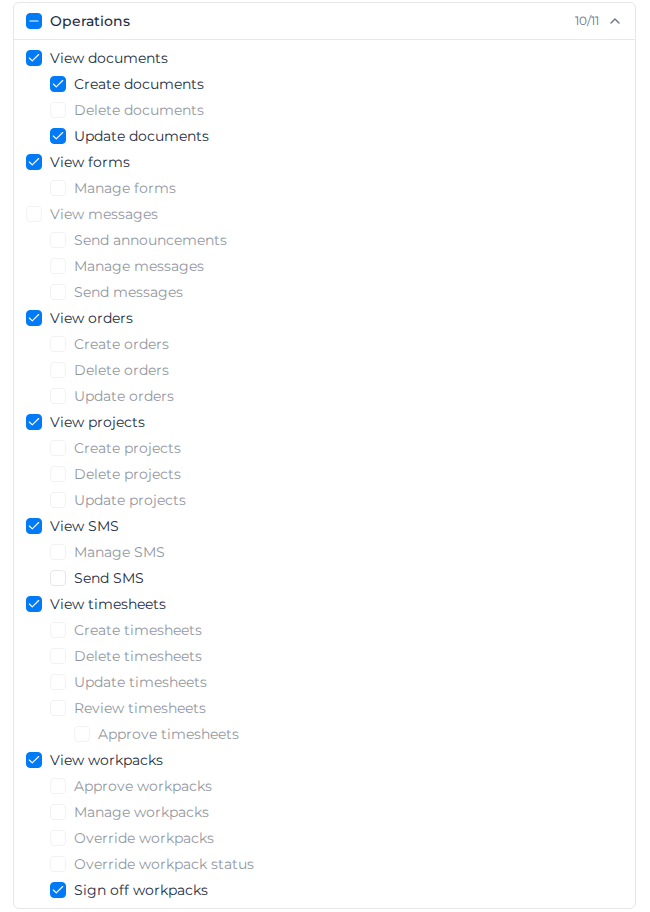
See sensitive worker data, in the Sensitive Data group, works differently from the rest. Owners and Admins have it, and you can remove it from them like any other permission. For a Manager the row is greyed out with "Managers get this only from an access preset that includes it". You can only give it back to someone if you have it yourself; otherwise the row shows "You can't grant this because you don't have it yourself". See Permissions reference for what it covers.
Give permissions back
- To give back one permission, tick it and select Save.
- To give back everything you removed, select Reset to default, then Save. This clears the permissions removed for this person. It keeps their access level and any preset.
Change their role here
The Access level list at the top of the panel changes the person's role, the same as Update Role on the Members list. It offers only the roles below yours.
If the person has an access preset, changing their role removes it, so they get the new role's full access. Permissions you removed for them stay removed after a role change. If the new role includes some of them, the panel warns "⚠ This access level grants …, but … of them stay removed for this member. Re-check them below to restore." Tick them if the person should have them, then select Save.
If saving fails
- "You don't have permission to change this member's access": you no longer have Manage roles & permissions, or the person is no longer below you.
- "The member or preset no longer exists": the person is no longer a member of your organization. Reload the Members list.
- "Couldn't verify your permissions right now. Please try again" and "Failed to update member access. Please try again": nothing was saved. Select Save again.