

Owner quick start
A short path to sign in, set up your organization, and invite your team.
1. Sign in or accept your invitation
Sign in, or open the email titled "You have been invited to join a team" and accept the invitation. The link lasts 7 days. If it has expired, ask another Owner to resend it.
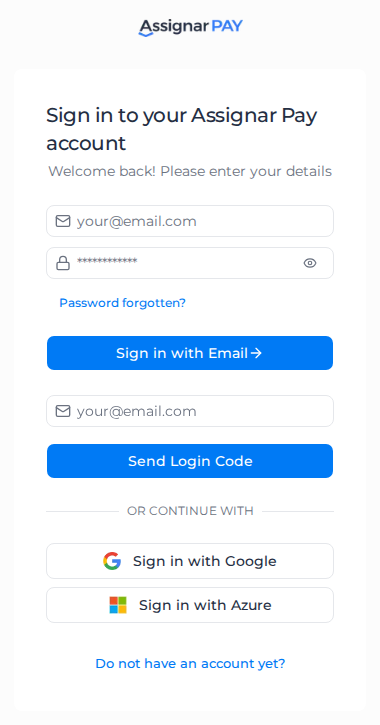

See Sign in to Assignar Pay, especially Accept an invitation, and Fix sign-in problems.
2. Set up your organization
Create your organization, check the region, enter your company details, connect Assignar Operations if you use it, set up tax, and continue your invoice numbering.
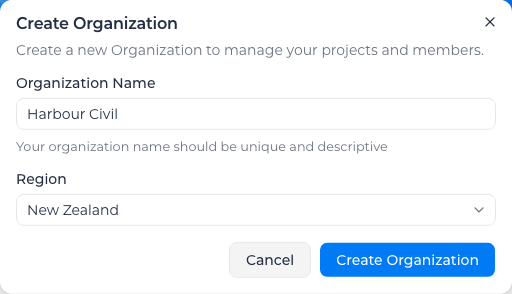
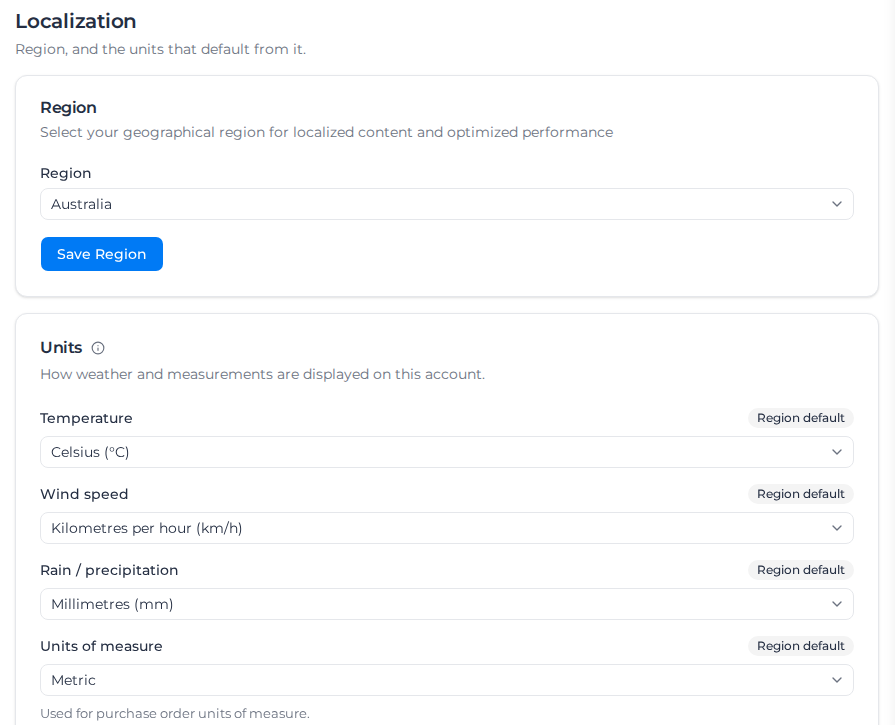
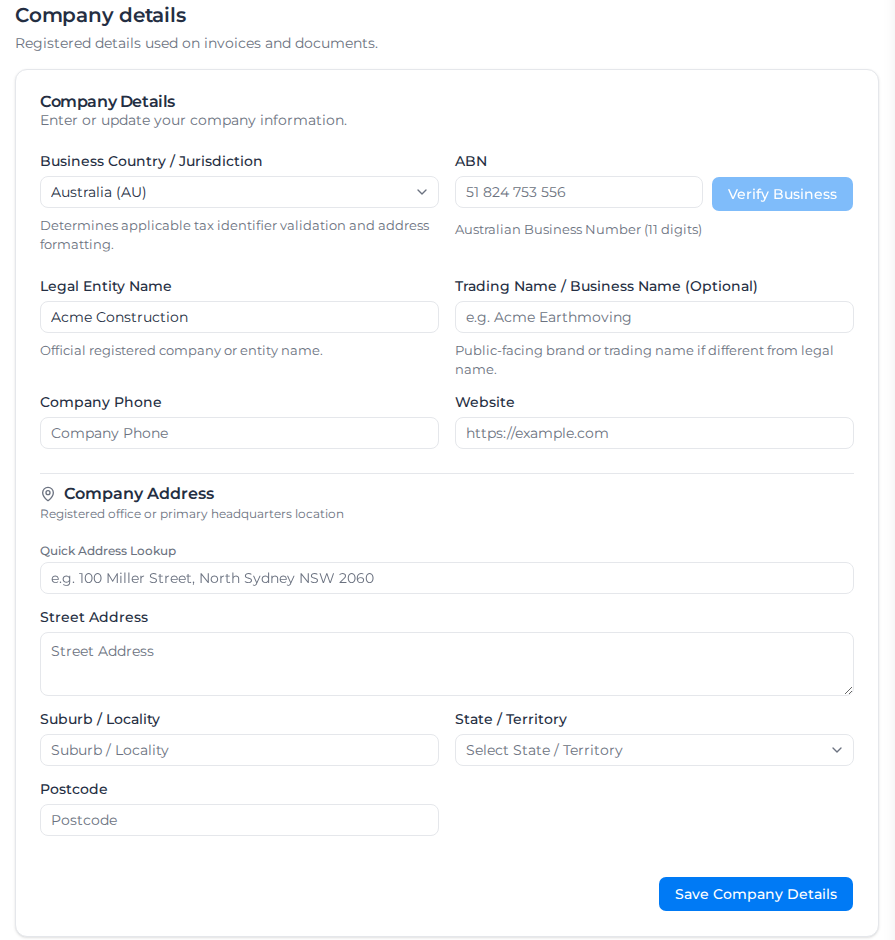
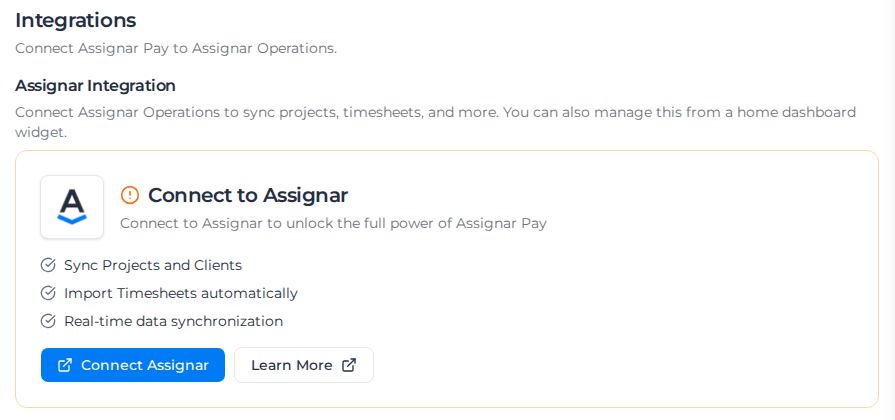
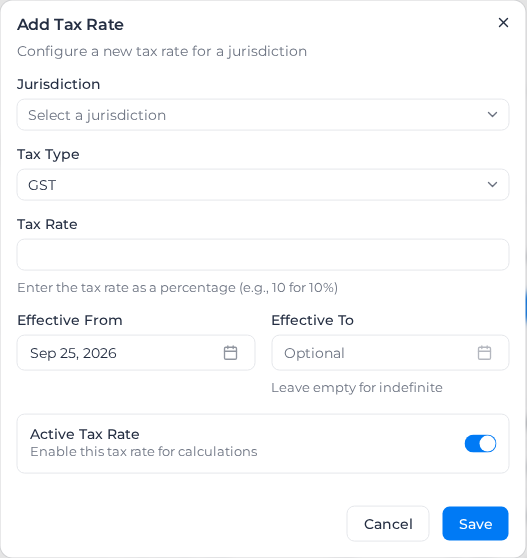
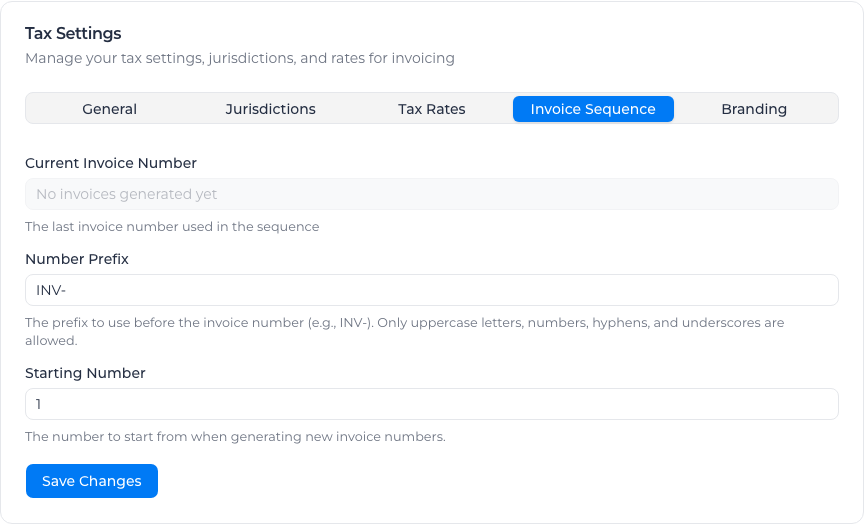
Follow Set up your organization.
3. Find your way around
Use the sidebar on the left. If you belong to more than one organization, switch from the organization name at the top of the sidebar.
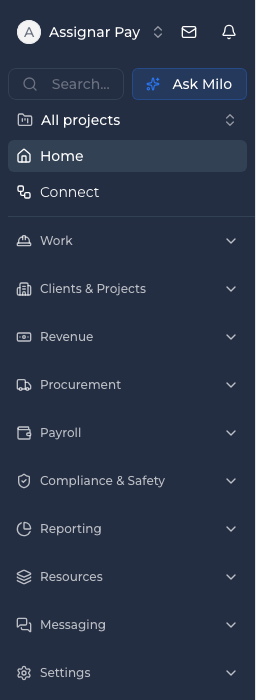
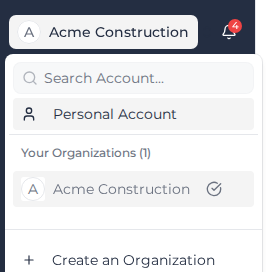
See Getting started and Switch organizations.
4. Invite your team and choose roles
Invite the office and the crew, and choose a role for each person.
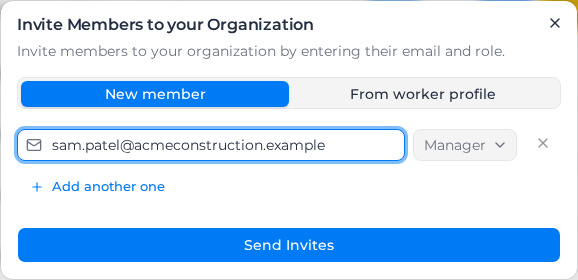
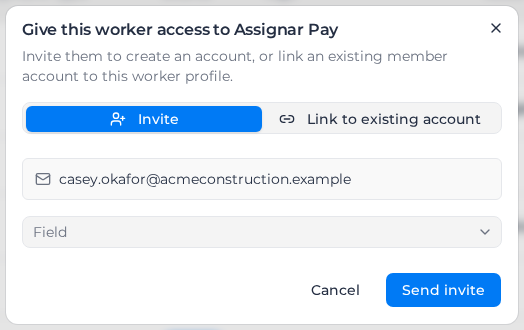
See Manage your team and Roles and permissions.
5. What only an Owner can do
Billing belongs to Owners. One Owner is the Primary Owner, and only they can use Transfer Ownership.
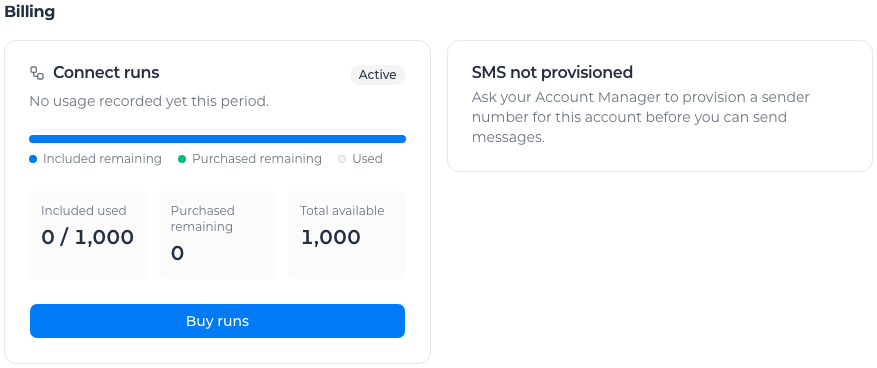
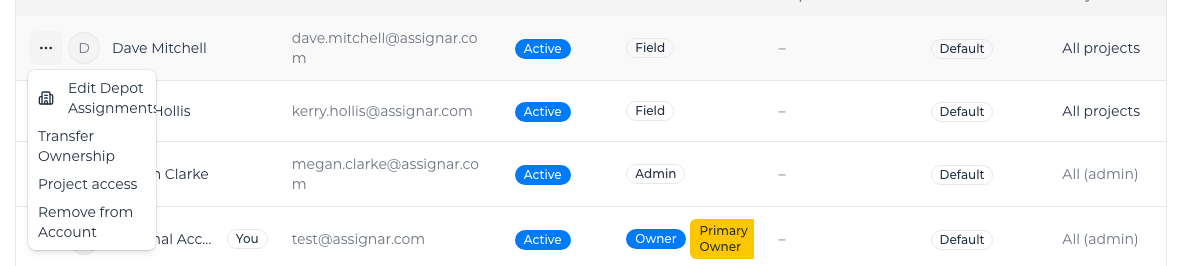
See Owner role.