

Field quick start
A short path for a Field worker to download Assignar Pay, accept their invite, check in, submit a timesheet, and opt in to SMS.
Use this page to get into Assignar Pay before your first day on site.
Download Assignar Pay
- iPhone: Assignar Pay on the App Store. The app needs iOS 16.4 or later.
- Android: Assignar Pay on Google Play (
com.assignar.pay).
Accept your invite
The invite arrives by email only. The subject is "You have been invited to join a team". Open the link and follow Accept an invitation on Sign in to Assignar Pay. The link lasts 7 days.
If the link has expired, or the page shows Invite not found or expired, ask the office to send it again. They resend it from your worker profile or from Members, and the new link lasts another 7 days. See Fix sign-in problems. The office uses Give a worker a login and Change or cancel an invitation.
Check in and file a timesheet
In the app or on the web, open My Shifts.
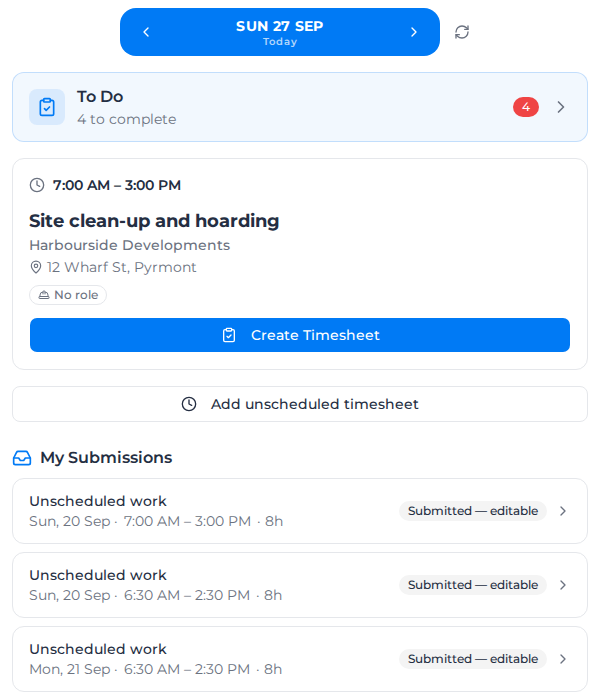
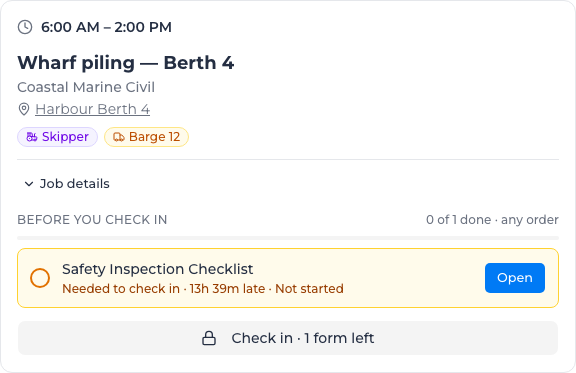
Check in to your shift. If the office has required forms on the shift, finish those first. See Complete required forms on a shift.
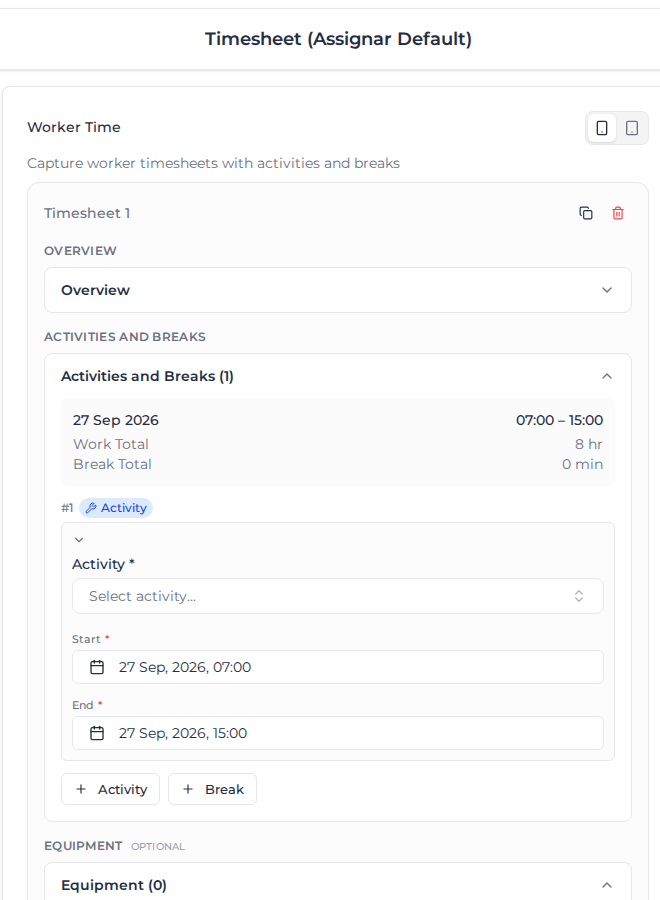
File a timesheet for the hours you actually worked.
The full steps are in Use My Shifts: confirm or decline a shift, check in, file a timesheet and record work nobody scheduled.
Turn on text messages
You opt in yourself, after you have signed in. The office cannot do it for you.
In the Pay app:
- Tap your avatar at the top of Home to open Account.
- Under Mobile number, enter your mobile in international format. For Australia, start with
+61and then the rest of the number, for example+61412345678. - Tick both boxes.
- Select Save mobile.
If you tick only one box, the number is saved and text messages stay off.
On the web, open Settings, then Profile. The card is the same one.
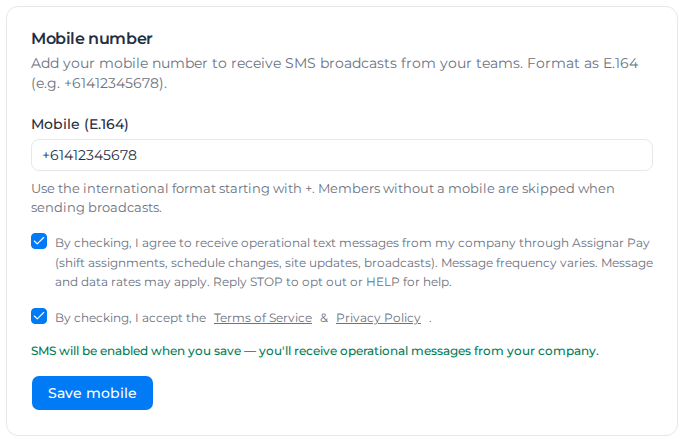
The full rules are in Text your crew, under Ask your team to opt in.
Work without signal
If you will lose signal on site, download your work before you leave coverage. See Work offline in Assignar Pay mobile.
What you'll see
Field role lists what you can open, and what stays with the office.