

Set up scheduling
Who can use the scheduling board and My Shifts, and how to set your working week, default shift times, the clock format times use, and how early workers can check in.
Scheduling needs the module switched on for your organization (see Scheduling). Switching it on also sets up the timesheet form your workers use from My Shifts.
Who can use it
| Who | Can |
|---|---|
| Owners, Admins and Managers | Open the board, create and edit orders, and allocate workers and assets |
| Owners and Admins | Also change the scheduling settings and fatigue rules |
| Field workers, and anyone who can view timesheets | See only their own shifts, in My Shifts |
These are the default roles. What someone can do follows their permissions to view and manage orders. See Manage your team. Anyone without access sees "Permission Denied" instead of the board.
Set your working week and default shift
- In the sidebar, select Settings, then General.
- Under Operations, select Scheduling.
- Under Working days, select the days your company works. Monday to Friday is the default, and at least one must stay selected.
- Under Default shift times, set Start and End. The default is 7:00 AM to 3:00 PM, or 07:00 to 15:00 when your organization shows times in 24-hour format. An end time earlier than the start is an overnight shift, and the form says "Overnight — ends the next day". The start and end can't be the same ("Start and end time must differ").
- Turn on Workers confirm a shift before starting work if workers must confirm a shift before they check in or file a timesheet. It's off by default; see Confirm or decline a shift.
- Select Save Scheduling Settings. You see "Scheduling settings updated".
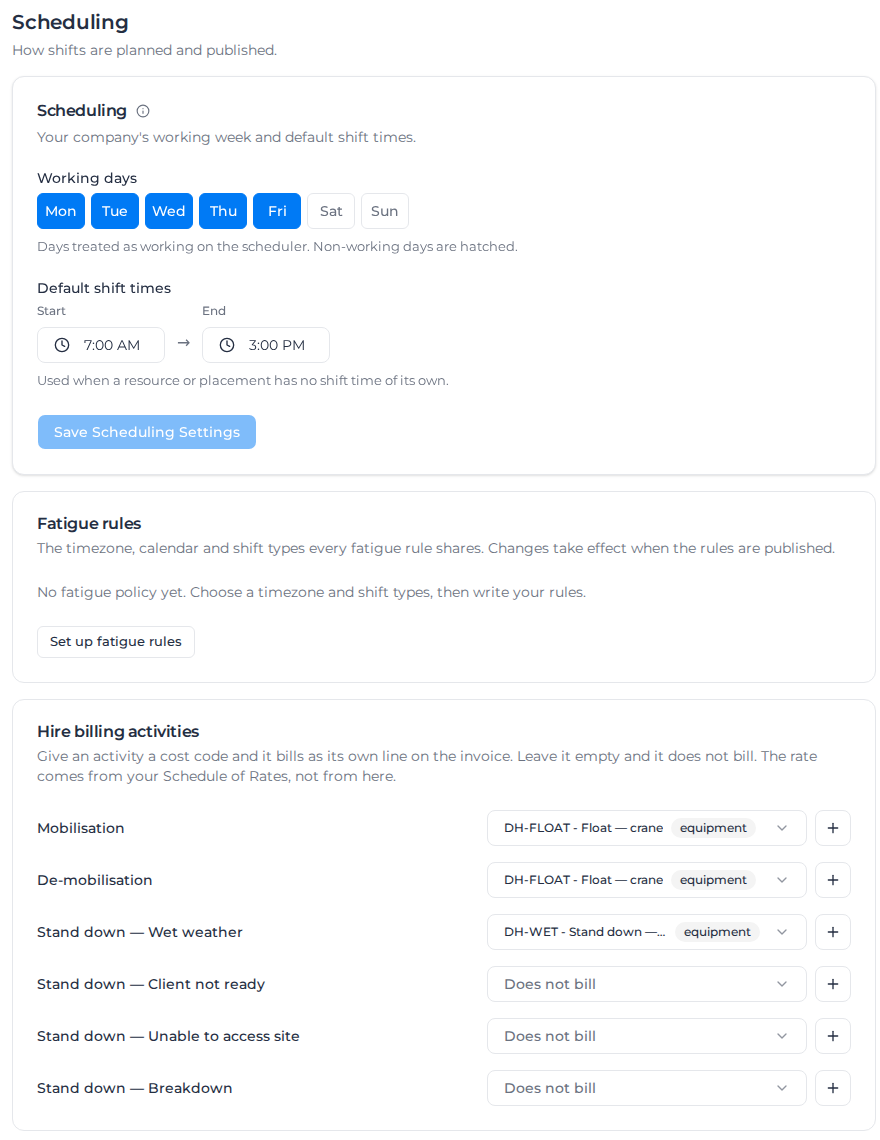
The working days are the days a new order's roles run on unless you change them, and the days the board shades as non-working. The default shift is the time a new role starts with, and the time used for a worker you place with no role. Everyone in your organization sees the same working week. With Asset Maintenance on, asset utilization counts these days too. Public holidays aren't set here.
The same section links to your fatigue rules (Set up fatigue rules). Hire billing, the section after it, sets the activity each part of a hire carries (on hire, mobilisation, de-mobilisation and each stand-down reason). Your Schedule of Rates then prices each activity. See Bill a dry hire.
Show times in 12-hour or 24-hour format
Times show in 12-hour format (7:00 AM–3:00 PM) unless you change it. That includes the board, orders, hires, My Shifts, printed schedules, timesheets, pay, report timestamps, forms and the PDFs printed from them, messages, evidence exports, and emails that include a time. A time saved in a spreadsheet or CSV stays as it was stored.
- In the sidebar, select Settings, then General.
- Under Organization, select Localization.
- Under Time display, select 24-hour (07:00–15:00) or 12-hour (7:00 AM–3:00 PM). It saves as soon as you select it. You see "Time display updated".
The time pickers on the board and in orders follow the same format, and so do the time fields you edit on timesheets, pay rules, charge rules, the site register and a toolbox talk. Switching the format changes how a time is shown and typed. A time you already saved stays that time.
Shift notifications sent to your workers use the organization's clock, even when you have chosen a different one for yourself.
Anyone can pick a different format for themselves without changing it for everyone else:
- Select your name at the bottom of the sidebar, then Settings.
- Under Time display, select 24-hour or 12-hour. It saves as soon as you select it. You see "Time display saved". Other devices you're signed in on switch over within an hour.
To follow your organization's format again, select Use my organization's setting.
Change the message workers receive
Notify workers on the scheduler sends each worker an in-app notice. When Notification method is SMS, a worker who can receive texts also gets one text.
- In the sidebar, select Settings, then General.
- Under Operations, select Scheduling.
- Under Allocation notices, edit In-app allocation notice and SMS. Edit with Milo opens the assistant for the same two messages. Milo shows a preview and how many texts the sample uses, and it saves only after you confirm.
- Select Save Scheduling Settings. You see "Scheduling settings updated".
Each message can include your organisation, the day, the start, the end, the order, and the place. The text can also include Shift link. The day, the start and the end have to stay in both messages. The text has to include the shift link, and it cannot contain another web address. If you leave a message empty, save is refused: "Write the message workers will receive."
Preview shows the message for a sample shift. Under the text it also shows how many texts that sample uses and the SMS credits for one worker. A character outside the standard text alphabet, such as an emoji, shortens one text to 70 characters, and the page says so while you type. When the sample needs more than one text, the page warns you. Save is refused only when the date, the times and the link themselves cannot fit in one text: "This SMS cannot fit in one text even after the place, the label and the organisation name are removed. Shorten the wording around the date, times and link."
An organisation that never edits these keeps the original wording. To go back to it, paste that wording in and save.
The worker's text includes a link. With Assignar Pay installed, the link opens that shift. Otherwise the page offers App Store or Play Store, and Continue in the browser. The page does not show the shift. After the worker signs in, they land on the shift. Someone who is not that worker sees the same page, with no shift details.
Limit how early workers check in
When your workers check in to their shifts (Enable check in / out is on), you can stop them starting the clock long before a shift starts.
- In the sidebar, select Settings, then General.
- Under Operations, select Timesheets.
- Under Check in / out, enter a number of minutes from 0 to 240 in Earliest check-in. For example, 30 lets a worker check in from 30 minutes before the shift's start, and 0 from the start itself. Leave it empty to let workers check in at any time, which is the default.
- Select Save Check In / Out Settings. You see "Check in / out setting updated".
The limit counts back from the shift's start on the schedule, in your organization's time. It applies to checking in to a shift only: a worker checking in without a shift can do it at any time, and breaks, checking out and closing a worker's day from the office are never held up. A day already running when you change the setting carries on.
Until check-in opens, the worker's Check in button in My Shifts shows when it opens; see Use My Shifts. Pay Mobile follows the same limit.
Set location rules for check-in and check-out
You can compare each check-in and check-out with the project site, or with the order's pin when the project has no site geometry.
- In the sidebar, select Settings, then General.
- Under Operations, select Timesheets.
- Under Location rules, choose what happens Outside the allowed places: Do nothing, Flag for review, or Block the tap.
- Set the Radius, from 25 to 5,000 metres (82 to 16,404 feet). Organizations that use imperial units enter it in feet. Turn on Allow check-in at the order's depot to allow the depot as a second place, or Require location to check in and out to refuse a recent tap with no coordinates.
- Select Save Check In / Out Settings.
Flag for review records the tap and marks the timesheet for a reviewer. Block the tap also refuses a recent tap outside every allowed place and tells the worker how far away they are. A tap recorded earlier while the worker was offline is still recorded and flagged, because the time worked must be kept.
To use a depot, open it in Settings → Locations and look up its address. The coordinates are saved with the depot and used for its fence.
A recent tap with no coordinates is refused when Require location to check in and out is on. A backdated tap with no coordinates is recorded and flagged No location. Uncertain accuracy is flagged for review, never blocked just because it is worse than the radius. An order with no site geometry, order pin or allowed depot has no fence to be outside, so its taps are not refused either. A tap stamped more than 2 minutes in the future is refused.
Before your workers file timesheets
- Each worker needs a login linked to their worker record, which happens when they accept their invite. Without one, My Shifts says "No worker profile is linked to your account. Ask your administrator to link you to a worker."
- Set up the activities your workers choose from when they file time, with a cost code for each, in the sidebar under Resources, then Activities. Include break activities as well as work activities, because workers record their breaks with them.
- Keep a default timesheet form. Switching Scheduling on creates one for you, and you can choose another on a form's Settings tab; see Build a form. If your organization has no default timesheet form, Create Timesheet in My Shifts can't be selected.
- Give workers their roles and tags so the board can suggest the right people. You can also change them from the board; see Find workers and assets.