

Create and edit an order
Add an order for a job, set its dates, status and owners, and list the roles, plant and shifts it needs so they show on the scheduling board.
An order is one job for a client, usually under one of their projects. It carries the job's dates, status and budget, and your crew's time, costs and invoices are recorded against it. With Scheduling, the order also says what the job needs each day, and the board shows those needs for you to fill.
Owners, Admins and Managers can create and edit orders. From Clients & Projects, saving an order also needs the Job Costing module; without it, Create order and Save stay greyed out there.
Create an order
- Open the order form in one of these ways:
- In the sidebar, select Clients & Projects, then Clients & Projects. Select Create, then Order.
- On a client's card, select Project or Order, then Order. The client is filled in for you.
- On the scheduling board, select New Order.
- On the Details tab, enter the Order Name and choose the Client.
- Check the Start Date, which starts as today. For an End Date, turn off Ongoing and pick a date, or type the number of working Days and the end date is worked out for you. Leave Ongoing on for a job with no end date yet.
- Add a Site address, Tags and the client's Project if you use them. See Set the site address and Colour an order on the board.
- Open Details (Status, currency, supplier, owners & more) to set the order's Status, Currency, Contract Amount, Supplier, Description and Owners. A new order's status is New.
- To keep the bid or contract with the order, drop the file under Bid document (up to 4.5 MB).
- If Scheduling is on, add what the job needs on the Roles & shifts tab (below).
- Select Create order. You see "Order created successfully".
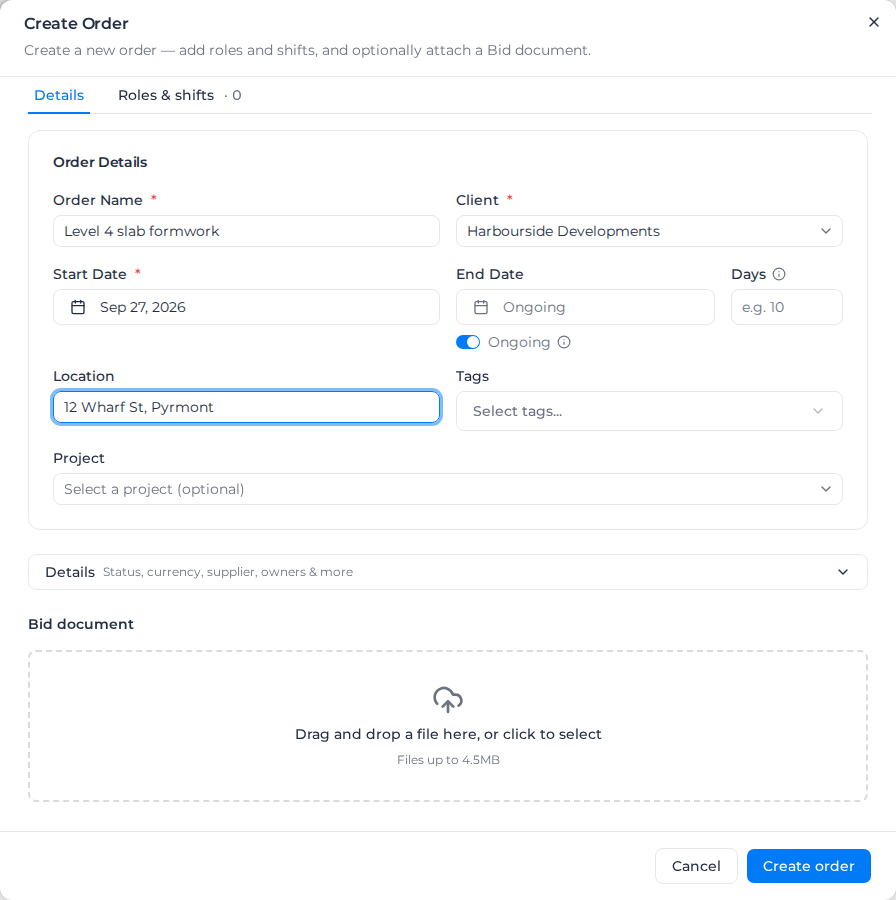
If the order name or client is missing, the field says "Order name is required" or "Client is required". When something on the other tab is incomplete, you see "Some details are missing — check the highlighted fields."
If your organization is connected to Assignar Operations, the form also offers Push Order to Assignar Operations. When the order is saved but the push or the document upload fails, the message says so; the order is kept, so retry from the order.
An order created from an approved bid is set up from the bid instead. See Send and track a bid.
Set the site address
The site address is where the crew goes. It shows on the order's row on the board, and workers can open it in maps from My Shifts.
- Type in Search for an address and pick a match to fill Site address, or type the address straight into Site address.
- If the order's project has sites set up, you can pick a Project site instead.
- Otherwise, use Address book, which starts on No favourite. Pick a saved address to fill Site address, or select Save to address book to keep the one you just entered. With a saved address picked, type a Name and leave the field to rename it, or select Remove. If a save doesn't go through, you see "Could not save that address".
If your organization has more than one location, the form also has Belongs to. It records which part of your business the order belongs to, and is separate from the site address. See Choose where records belong.
If you save an order with no roles, the form warns that the board hides orders with no demand unless you turn on Show Orders with no demand in range (see Read the board).
Colour an order on the board
Give an order its own colour on the scheduling board to tell kinds of work apart at a glance, such as civil, rail or night works. The colour comes from one of your order tags, so every order with that tag can share it.
- On the Details tab, find Colour on the scheduler under Tags.
- Pick a tag. The tag is added to the order's Tags if it isn't there already.
- Save the order.
To add a colour, select New colour, type a Name, pick a colour and select Add. For a colour that isn't in the palette, select + after the swatches and type its hex code, such as #800000. The colour is saved as an order tag and picked for this order, and anything else you've changed in the order stays as it was. If you type the name of a tag you already have, that tag is picked instead. You need permission to manage tags to add one; without it, New colour isn't shown and you pick from the tags you have.
The colour shows on the order's cards, bars and rows across the board: the grid, cards, the calendar, and its shifts on the Workers and Assets views. A small dot beside the order number shows its status, and pointing at it names the status. A shift with a clash keeps its red edge. To see every order in its status colour instead, see Colour orders by status.
To go back to status colours, choose By status. Removing the tag from the order, or deleting the tag, does the same. You need permission to edit orders to change the colour.
Change the colour from the board
You don't have to open the order. On the board, select the order's ⋮ menu, then Colour: (it reads the current colour, such as Colour: By status), and pick a tag, By status or New colour. The colour saves straight away, and the tag is added to the order if it wasn't there. You need permission to edit orders to see Colour: in the menu.
Add several orders at once
You can add orders in three ways:
- One at a time with the order form, as above.
- From Assignar Operations, with Create, then Import on Clients & Projects, if your organization is connected to it. See Connect with Operations.
- Up to 1,000 at a time by uploading a CSV or Excel file to Milo, or pasting the list into the chat. Each row needs an order title, and any client or project it names must already exist. A row with the same title as an existing order updates it. Milo fills in the order's details only, so add roles and shifts afterwards by editing the order. See Import data with Milo.
Add roles and shifts
The Roles & shifts tab is there when your organization has Scheduling. Each line on it is something the job needs every working day, and the number beside the tab name counts them.
- Under Working days, check the days the job runs. They start as your company's working days.
- Add a line:
- Labour for people in a role, such as Carpenter.
- Asset for a machine of an asset class, such as Excavator.
- Operator + asset for a person and the machine they run, booked together.
- Choose the role (Select role) or asset class (Select asset class).
- Beside it, set qty (how many each day) and the start and end times. On the row under it, pick the weekdays.
- The line runs for the Whole order unless you change it. Select Whole order to give it its own From and To dates inside the order's dates, then select Done.
To tell lines of the same role apart, select + Description on the line and type a short note under the role, such as Deliver 3rd load 550 CW. It's optional and can be up to 120 characters. The board shows it on the line's cards, on a hire line, and when you point at or select a booking in the Workers and Assets views. The schedule export prints it under the role, and the worker sees it on their shift in My Shifts.
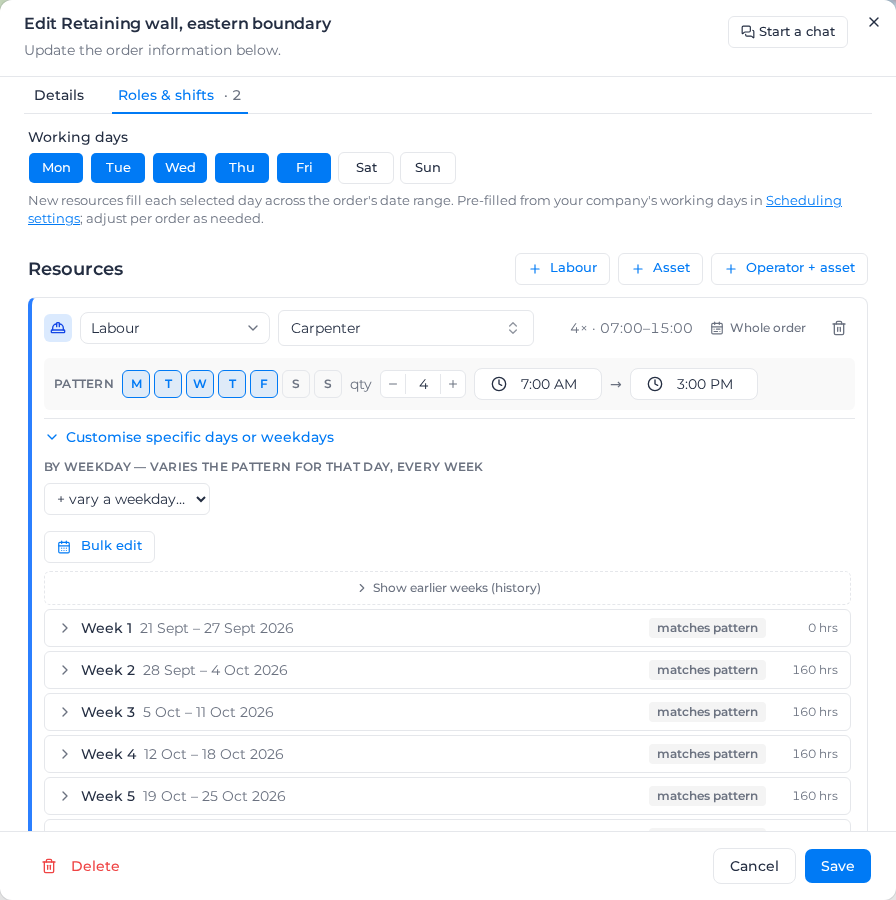
To change one weekday every week, or just some days, select Customise specific days or weekdays at the bottom of the role:
- By weekday varies the pattern for that day every week: choose it from + vary a weekday….
- Each week is listed, marked matches pattern or modified. Open a week to change a day's quantity or times, turn a day Off or Turn on, or Reset week.
- Bulk edit changes several days at once: select them, set the quantity and times, and select Apply to (it names how many days).
If a line isn't complete, saving is blocked with a message such as "Each labour and operator resource needs a role.", "Each asset and operator resource needs an asset class." or "A resource's start and end time must differ."
An asset line can also run as a Duration instead of Daily, for plant that stays on site. See Put plant on hire.
Edit an order
Open the order and change what you need, then select Save. You see "Order updated successfully".
- On the scheduling board, select Edit on the order's row. Shared with workers, at the bottom of the dialog, is where you add files the crew can open. See Share files with workers.
- In Clients & Projects, open the client's card with the arrow on its right and select the order's name.
When a change would take people off shifts already booked, such as removing a line, turning a day off or moving the dates in, you're asked first: "Cancel upcoming scheduled allocations?" lists who is affected. Select Remove shifts & save to go ahead, or Cancel to change nothing. The shifts are cancelled in the same save as your change, so either both happen or neither does, and shifts on days already past are kept. If the check can't run, nothing is saved and you can try again. When you change a line's times, you can tick Update these shifts to the new times; unticked, booked shifts keep their times and the board flags the difference.
Changes only reach today and later days. Days already worked keep what was planned for them. See Change past days.
To delete an order, open it and select Delete, then confirm. You see "Order deleted successfully". This can't be undone.
Once an order has had shifts on it, it can't be deleted, even after they're removed. A machine on hire blocks it too, until you remove the machine from its line. You see "This order has been scheduled, so it can't be deleted: that would erase its shift history and the timesheets linked to it. Change its status instead."
Build the schedule from a bid
When an order comes from an approved bid, its Roles & shifts tab offers the roles and plant the bid priced, with a day count worked out from the bid's hours. You see "Roles and shifts proposed by" the bid, with the bid's hours next to what the plan schedules.
Adjust the days, a start delay or the shift for each row, then select Add (for example Add 3 roles). Nothing is saved until you save the order. From the bid, Manage orders shows each order's schedule and an Open roles & shifts link; see Send and track a bid.