

Change the board view
Zoom the board to days, weeks or months, see it by worker or asset, switch to cards or a calendar, group and sort the orders, and choose which fields show.
Everything about how the board looks is in the view menu in the toolbar, which reads what you're looking at, such as Grid · Week 2W. The board remembers your choices, and they are kept in the page address, so you can bookmark a view or send it to someone.
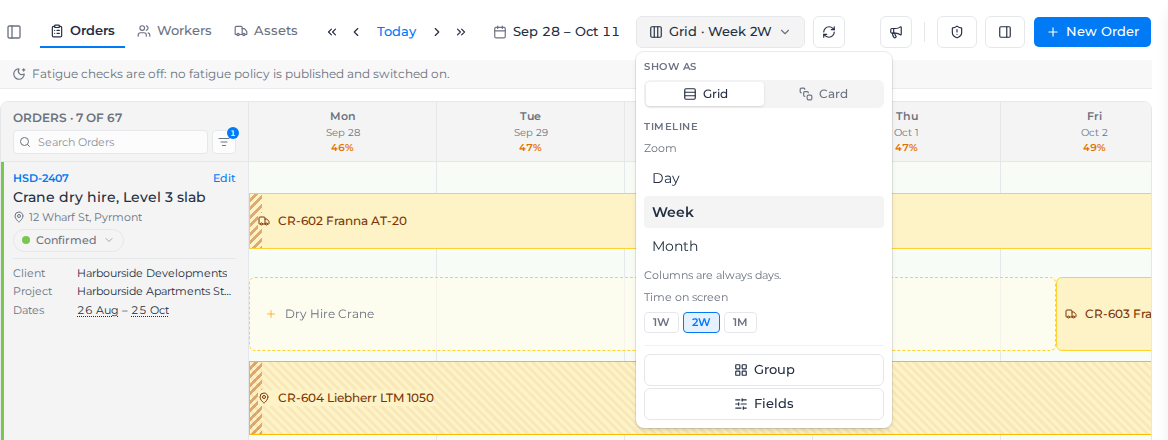
Zoom in or out
Under Timeline, Zoom sets how wide each column is and Time on screen sets how much you see at once. At Day, Week and Month every column is one day. Quarter and Year are for planning months ahead, so their columns are a week or a month.
| Zoom | Time on screen | Good for |
|---|---|---|
| Day | 1D, 2D or 3D | Dispatch on the day: every role, time and name on one line |
| Week | 1W, 2W or 1M | Everyday planning. This is where the board starts. |
| Month | 1M, 3M, 6M or 1Y | Planning ahead. Days shrink to a small block you can still drop someone on. |
| Quarter | 3M or 6M | Seeing the next few months, a week per column |
| Year | 6M, 1Y or 2Y | The long view, a month per column |
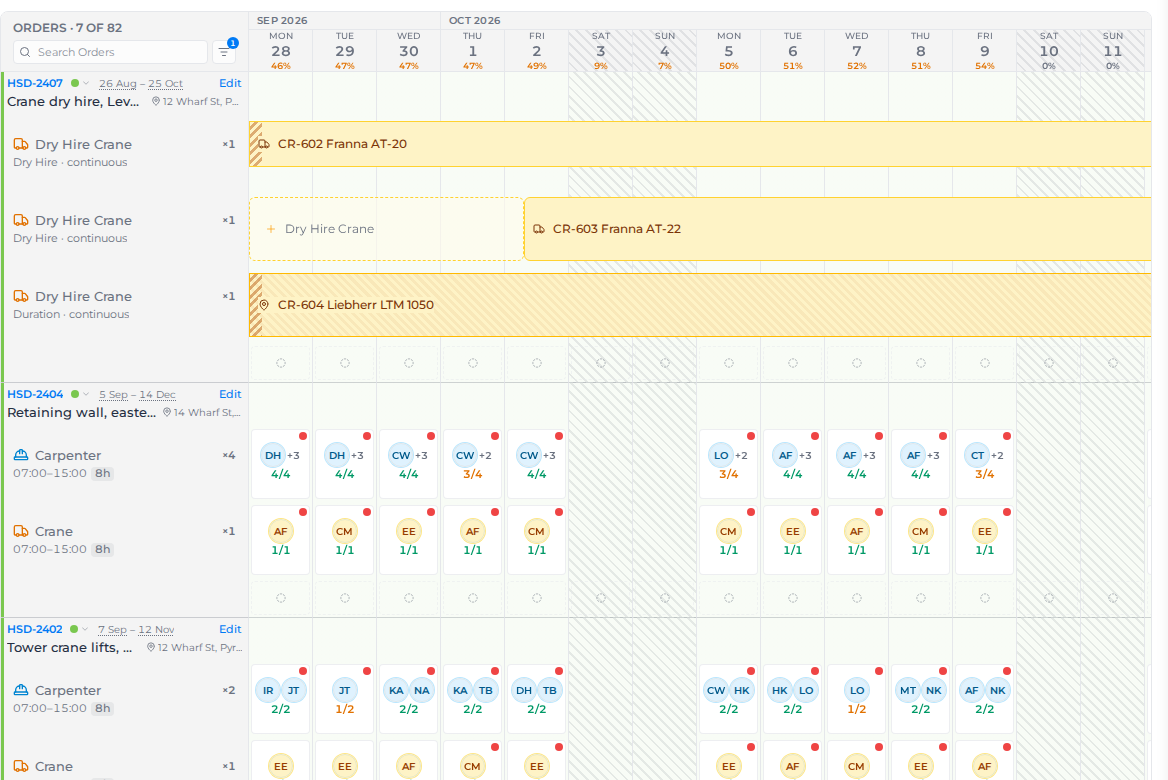
At Quarter and Year, every order shows as its bar across its dates, and a blue line marks today. ‹ and › step one week or one month at a time.
To see what an order needs, select its name. It opens in place, read-only, with a row for each role that has something in the weeks or months on screen. To change its status, use Status in the order's ⋮ menu. Each week or month shows how many of the shifts that role needs are filled, such as 8/10. A solid chip is fully filled, a pale one is partly filled, a dashed one has no one booked yet, and an amber one has more booked than needed. Point at a chip to see the figure day by day (week by week at Year) and who is booked. A line that hires a machine for a span, rather than by the day, is tagged Dry hire or On site, as on its lane at Week, and shows that span as a bar instead: solid where a machine is on hire, dashed where none is booked. A hire with no end date runs until its order ends. Point at the bar to see the machine on hire that day, its dates, and any mobilisation, de-mobilisation or stand down.
To work on the order, select a chip, or a hire bar at the week or month you want. The board opens that week, or that month, at Week and shows only that order, under a banner. Select Back to Quarter or Back to Year to return to where you were, or Show my board to stay at Week with all your orders. While the banner shows, your saved filters are paused, not changed. View by week in the order's ⋮ menu also opens it at Week: at this week while it's running, otherwise at its first week.
These zooms are on the Orders view only; on Workers and Assets the board shows the same months at Month.
See the board by worker or asset
The Orders, Workers and Assets tabs at the left of the toolbar change what each row is:
- Orders: one row per order, showing what it needs each day. You fill roles here.
- Workers: one row per person, showing the shifts they hold each day and how many overlap.
- Assets: one row per machine, with its shifts and hires.
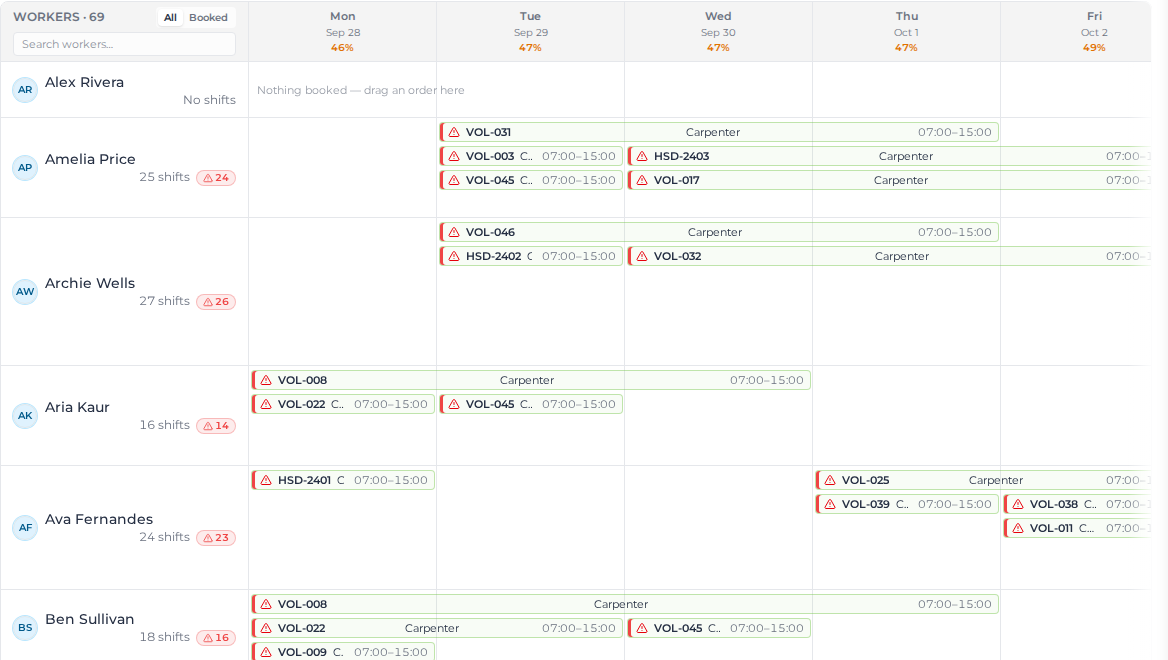
Each shift on these views takes its order's colour, or its order's status colour when the order has none. See Colour an order on the board. Select a shift to see its order's Status among its details. At Month zoom, a run of days on the same job draws as one bar, labelled with the order, role and times as space allows. Select a shift to see its details and open its order.
If your account limits access by location, you see the shifts on orders in your locations. When one of your workers or machines is booked on an order outside them, that shift shows as a grey Busy block with its role and hours, and no order. You can't open, move or remove it, but it still counts when the board looks for double bookings and for who is free.
To narrow the rows, search the list, and choose All, Booked (at least one shift in the dates on screen) or Not booked (nothing on any day on screen). Use Not booked to find who or what is free. A machine out on hire counts as booked.
To narrow further, select Filter beside the search. On Workers, choose one or more Roles; on Assets, one or more Asset classes. You can also choose one or more Tags. Each list can be searched. Within a list, anyone with any of the values you chose shows; with both lists set, a row has to match both. A number on Filter shows how many filters are on, and Clear filters removes them. Filters only change which rows show, not the shifts on them.
Each view remembers its own search, choice and filters.
A worker who is no longer active, or an archived machine, shows only while it still has shifts in the dates on screen, marked Inactive. Nothing new can be booked or moved onto it, so swap its shifts to someone active.
Book someone from their row
On Workers and Assets, select Orders in the toolbar to open the order list. Drag an order onto a person's or machine's day.
Assign to order opens: under "Which role on this order?", choose the role and select Assign. Choose Unassigned to book hours with no role.
To book them on every remaining day of the role, hold Shift as you drop the order, or tick Every remaining day in Assign to order. It names the last day and says how many days it books and skips before you select Assign. Days the role is off, days they're already booked on it and past days are skipped, as when you drag a booking's end. An operator brings the machine on each day it's free. It stops at the role's end, else the order's, and never goes past the last day on screen. To book further ahead, widen Time on screen. The message that follows has Undo, which takes off every day it booked. For an operator, the first day is booked through the pair dialog and stays when you undo the rest.
The order list has its own search and a sort menu: Start date: earliest first (the default), Start date: latest first, Name: A–Z, Name: Z–A, Date created: newest first and Date created: oldest first. Orders with no date sort last. Use Date created: newest first to find an order you've just created.
Show no-demand orders, under the sort menu, is on to start with. It also lists orders with nothing to fill in the dates on screen, each marked No demand, so you can still drag them onto a row. Turn it off to list only orders with demand. These choices are remembered in your browser, and don't change the Show Orders with no demand in range filter on the Orders view.
Create an order from a free day
When a job comes in for a worker or machine you can see is free, start the order from their row:
- At Day or Week zoom, hover over an empty day, today or later, on their row.
- Select Create order. The order form opens with that day as the start and end date, and a line for the worker or machine already added.
- Choose the client, and the project if there is one, change anything else the job needs, and select Create order.
The board books them on that day and stays where you were. Select Cancel instead and nothing is created. Create order only shows if you can create orders.
The line that's added depends on who you started from:
- A worker with one role gets a line for that role.
- A worker with no role, or several, gets no line, and the form says so.
- A machine gets a line for its asset class, but no operator line; add one if the job needs an operator. A machine with no asset class gets no line, and the form says so.
When no line was added, add the one they'll fill before you save. If the order then has one line on that day, they're booked on it. If it has several, Assign to order opens so you can choose. If it has none, they're booked with no role, and the board tells you. If you change the line so it doesn't run on that day, Assign to order opens after you save.
If the order saves but the booking doesn't, the board says the order was created but they aren't booked on that day. The order is kept: drag it from Resources onto the row to book them.
Move a booking to someone else or another day
Drag a shift onto another person's or machine's row, on any day. The board moves it as soon as you let go, and the message that follows has Undo.
- A drag moves the one day you picked up. To move every day of a booking, hold Shift as you start dragging.
- While you drag, the days it will land on are outlined: blue where it can go, red where it can't, and grey dashed while the board is still checking. Red days are past, days the order doesn't run, or days that person or machine is already on that order, and each one says why. When the other half of a pair is booked with someone else that day, the day names it, for example "Crane booked". A day that's only red because another day of the booking can't move says which one, for example Blocked by Fri. Red days are skipped when you let go, and the message says how many, for example "Moved 2 shifts · 1 skipped".
- Past days, and shifts with a filed timesheet, stay where they are and can't be picked up.
- A shift that pairs an operator with a machine moves as a pair to another day, unless the other half is on hire or has a filed timesheet. Moved to someone else on the same day, only the half you dragged changes.
- If the other half is already on that day by itself, waiting for an operator or a machine, the shift pairs with it instead of being refused. The message says so, for example "Moved 3 shifts · paired with Crane", and Undo leaves the other half waiting again.
- Hires can't be dragged or swapped. Change them from the hire itself.
To change who's on a shift without dragging, select it and choose Swap…. On a booking that runs several days, Replace on starts at This booking, which swaps every day of it still to come. Choose This shift only to swap just the day you selected. Under Swap with, pick who takes over, then select Swap.
If none of the days could move, the message names the first thing in the way and how to clear it, for example "Crane is already on ORD-1024 on Fri 16 Oct. Remove it there first, or move fewer days." Undo isn't possible once the shift has been moved again, and says "Couldn't undo, the board changed".
Add or remove days from a booking
Hover a booking and drag either end. Drag it out to book the same role on more days, or in to take days off. The board changes as soon as you let go, and the message that follows has Undo.
- While you drag, the booking stretches or shrinks with the pointer and says what letting go will do, for example "Added 2 days · 2 skipped".
- A day it can't take is outlined red and says why: Past, Role off (the role doesn't work that day), Outside role dates (the role hasn't started or has ended), Already booked, Timesheet filed or On hire. Those days are skipped. A weekend or other day your organisation doesn't work is shaded instead. Past days and shifts with a filed timesheet stay when you drag in.
- Dragging past a weekend or another day off books the days after it as a new bar. Each stretch of days has its own ends to drag.
- A new day takes that day's times from the order.
- An operator paired with a machine brings the machine on the new days when it's free. Where the machine is already there by itself, waiting for an operator, the operator pairs with it. When it's booked with someone else, the operator is booked alone, and the message names the machine and how many days.
- Taking days off removes only the row you're on. The other half of a pair stays booked, and the message offers to take it off those days too, through Remove from shifts.
- Hires have no ends to drag.
A thin banner over the board lists these actions. Close it with × and it stays closed.
Take a booking off
Select the shift and choose Remove from this shift. It's offered for a single shift, today or later. If the shift pairs an operator with a machine, only the row you're on comes off, and the other half stays booked. Choose Remove both to take both off.
On a booking that runs several days, choose Remove…. Remove from shifts opens with This booking selected, which takes off every day of it still to come. Choose This shift only for just the day you selected. Past days and shifts with a filed timesheet are skipped, and the message that follows has Undo.
Switch to cards or a calendar
Under Show as, choose Card to see one card per order for a single day, with its roles, how full each is and who is on it. Choosing Card moves the board to one day; choose Grid to go back. Cards are available on the Orders view. A role whose times run past midnight shows a moon next to its times.
Cards open and close, and Expand all cards and Collapse all cards are in the view menu. Select a role on a card to see Recommended people for it in the Resources panel, and use the card's Day actions menu (⋮) to change the whole day. People under No role count in the card's totals, and the card is flagged when someone is placed but isn't covering a role that's short. A crew placed together shows as one chip in the crew's colour; see Deploy a crew.
Choose Calendar to see one to three days, or one week, hour by hour, and draw new orders on the time they need. See Plan orders on a calendar.
Collapse orders to their bars
On the Grid, every order has a bar across its dates, in the order's colour, or its status colour when it has none. Select an order's name to collapse it to one line with just its bar, and select the name again to open it. To collapse or open every order at once, use the button next to the order count, or Collapse all orders and Expand all orders in the view menu. Hover over a bar to see its dates. The board remembers which orders you collapsed on this computer.
Change an order's dates from its bar
Drag an order's bar to change its dates without opening the order. The bar shows the dates it will land on while you drag, and Esc puts it back.
- Move the order: drag the middle of the bar. The order moves by working days, and its roles, day changes and bookings move with it. An order with work on a non-working day, or that starts or ends on one, moves by exactly the days you drag instead. Anything that lands on a day its role doesn't run is listed before it saves. Moved bookings show as not yet notified, so notify the crew of their new days.
- Change the start or end date: drag either end of the bar. A role that ran to that date follows it, so making the order longer makes its roles longer too.
At Quarter and Year the bar drags to any day, as it does at Week. Days are narrow there, so watch the dates on the bar as you drag.
If the change would remove bookings or day changes, the board lists them and asks first. Otherwise it saves straight away, and Undo puts everything back.
When your organization enables client financial controls, moving bookings or extending a hire follows the client's allocation policy. Undo follows that policy when it restores bookings or extends a hire. You can still remove bookings or change dates without moving bookings or extending hires.
Once an order has started, only its end date can be dragged, and past days never change. Completed and invoiced orders can't be dragged. An order with a hire can be made longer or shorter, but to move it, change its dates in the order. You need permission to edit orders.
Group and sort the orders
Select Group in the view menu:
- Group rows by and Then group by: Client, Project or Status, or None. Groups open and close, and the board remembers which you closed. Grouped by Project, each project shows a solid bar for its own start and end dates, with a lighter bar under it for the dates its orders run.
- Sort: Job no., Order name, Start date or Status, Ascending or Descending.
Choose what shows
Select Fields in the view menu to turn parts of the board on or off. The cards and the grid offer the same switches, apart from two noted below, and each one changes both:
- Show utilization: the day's load % across every order, under each date. This one applies on every view; the other fields apply to the Orders view.
- Order details: Status, Location, Client, Project, Dates, Source Bid, Order tags, Client tags, Project tags, Description and Client contacts, then a switch for each of your order custom fields. On the grid these sit under the order's name at Day and Week, and the row grows to fit them.
- Schedule details: Shift times, Fill counts, Slot description, Deployed crews and Status tint. Status tint colours the order's days on the grid and the whole card on the cards, in the order's colour or its status colour. An order with its own colour keeps it on its bar and card with Status off. The cards also have Crew & equipment and Hires; the grid shows who is booked and each hire in its day cells instead.
Colour orders by status
Colour by, under Fields in the view menu, sets how the board colours orders on every view:
- Order colour: orders with a colour use it, with a dot for their status, and other orders follow their status. This is where the board starts.
- Status: every order is coloured by its status.
A custom field starts off, except one that was set to show on the scheduler card before custom fields moved into Fields: those start on. If you have no order custom fields yet, the dialog says so, and people who can manage settings get a link to add one. If your custom fields can't be loaded, the dialog says so; select Retry.
To show or hide roles and tags on the people in the Resources panel, use the settings button beside its search. See Find workers and assets.