

Find workers and assets
Use the Resources panel to find who and what is free, see suggestions for a role, and change a worker's roles and tags without leaving the board.
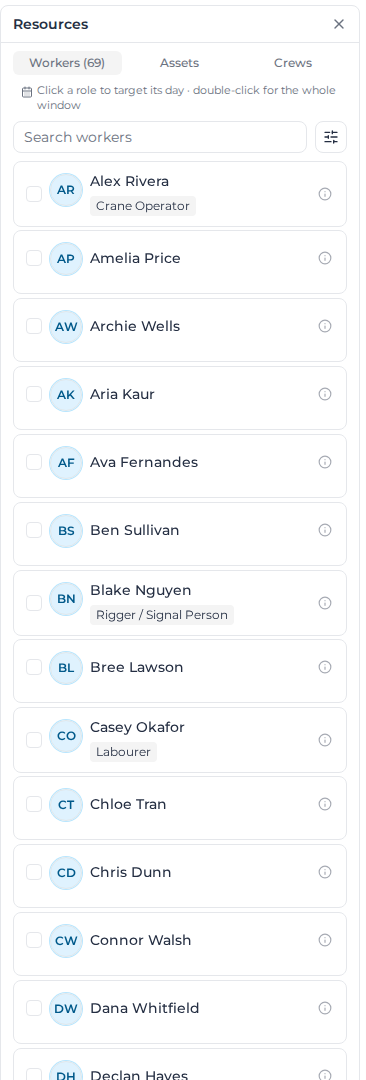
The Resources panel is where you find the people and plant to place on the board. Open it with the panel button in the toolbar, next to New Order. It has three tabs: Workers, Assets and Crews.
Search and narrow the list
- Type in Search workers (or Search assets) to find someone by name.
- Select the settings button beside the search to choose what each row shows (Show roles, Show class, Show tags) and to Filter by tags. The panel remembers your tag filter.
Each row shows the worker's roles or the asset's class, and their tags if you show them. On the Assets tab, an asset's description appears under its name when it has one.
See who is free
When you've picked a day or several days on the board, each row says whether that person or machine is free for the shift you're filling:
| Label | Means |
|---|---|
| Available | Nothing booked on the days you picked |
| Booked today | Already booked that day, at a time that doesn't overlap this shift |
| Conflict | Booked at a time that overlaps this shift |
| Off night shift | Coming off an overnight shift that runs into the day, with the time it ends |
The labels only look at what's booked on the board, not leave or rosters. Anyone busy moves to the bottom of the list, but you can still place them. While the board is still checking, rows say Checking….
When you're filling a particular role, from its add list or with the role selected on a card, each worker also shows whether they hold the competencies the role requires on the days you picked:
| Label | Means |
|---|---|
| Compliant | Meets every mandatory requirement on every day |
| Compliant · conditional | Compliant, but on at least one day only through a credential with a warning status, such as Subject to review. Shown in amber |
| Compliant 3/5 days or Lapses and a date | Meets the requirements on some of the days only |
| Non-compliant | Misses a mandatory requirement, for example a credential that's missing, expired or Temporarily unfit |
| Not assessed | The role has no competency requirements |
Hover over a label to see the reasons day by day. For a conditional credential, that lists the credential, its status and its review date, and adds Review overdue once the review date has passed. Temporarily unfit counts like a missing credential, and an expired credential reads as expired whatever its status. Status names follow your Terminology settings.
Competency labels are warnings only; you can still place anyone. To set the requirements, see Set role requirements. For conditional statuses such as medicals, see Set up your catalog.
Once someone is placed, a shield marker on their initials shows they're compliant only through a credential with a warning status, in that status's colour. Hover over it for the credential, status and review date, or select it to open their signals, which read "Compliant for this shift, but with conditions". For a worker who isn't compliant, the signals read "Compliance Alert: Worker is non-compliant for this shift" and name the credential and its status.
See suggestions for a role
Select a role on a card to target its day, or double-click it to target every day on screen. The panel then shows Recommended for that role: only the people who hold the role, or machines of that class. Free, compliant workers come first, and non-compliant workers, then those Not assessed, come last. A Compliant · conditional worker ranks like any other compliant worker. A long list shows Showing top and a number. When nobody holds the role yet, it says so, for example "No workers hold the Carpenter role yet."
Select the role again, or another one, to change what's targeted. Clear the selection to go back to the full list.
Place several at once
Tick several rows, then drag any of them onto the board to place them all; the panel says, for example, "3 selected — drag any to place all". With several days picked, one drop covers every day, and the panel shows Adding to and the number of days. See Allocate workers and assets.
See a worker's week and change their details
Select the View resource details button on a row to open that worker or asset:
- Tags and Roles (or the asset's class) can be changed here, without leaving the board.
- Below them, every shift they hold in the dates on screen, or "No deployments in this range."
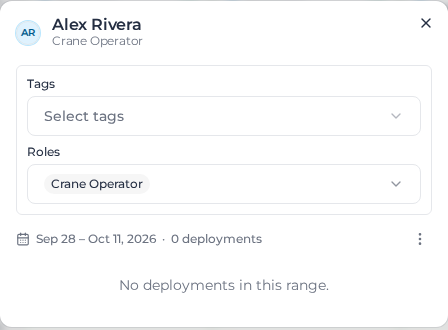
Changing an asset's class also changes the cost codes its job costing uses, and the window says so before you save.
The Crews tab holds your saved crews. See Deploy a crew.