

Read the board
Move between dates, read each order's row and role cards, and find the orders you want with search and filters.
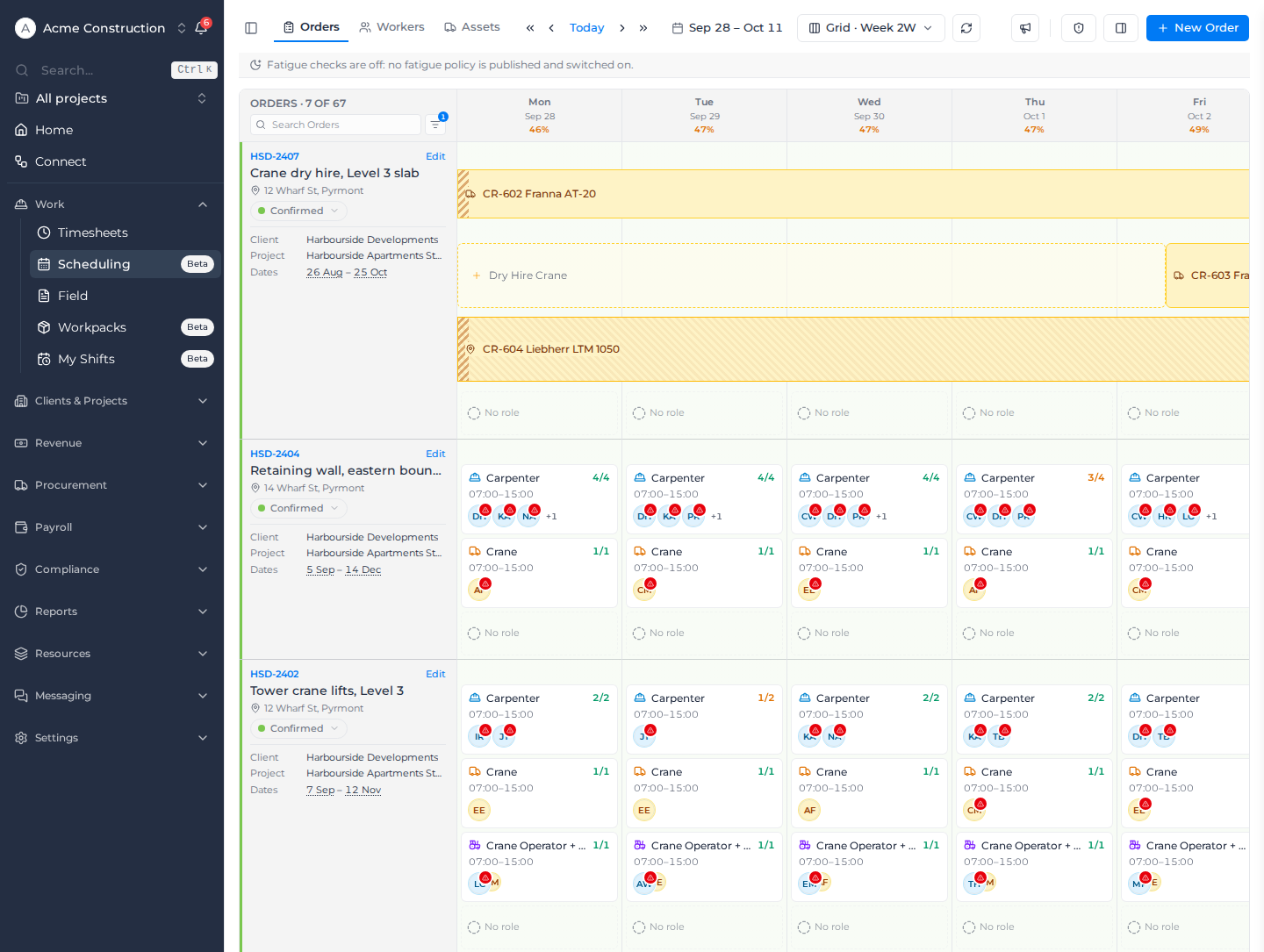
The board lists your orders down the left and the days across the top. Each day cell shows what the order needs that day and who is on it. To open it, select Work, then Scheduling in the sidebar.
Move between dates
The toolbar across the top holds, from left to right:
- Orders, Workers and Assets, which change what each row is. See Change the board view.
- The outer arrows move a whole window back or forward (for example Previous 2 weeks), the inner arrows move one day, and Today brings you back to today.
- The dates on screen, such as Sep 28 – Oct 11. Select them to pick a date.
- The view menu, which reads what you're looking at, such as Grid · Week 2W.
- Refresh reloads the board. Export prints it as a PDF (see Export the board).
- On Orders, select Resources to find the people and plant you place (see Find workers and assets). On Workers and Assets, select Orders to open the order list.
- New Order opens the order form.
- Owners and Admins also see a shield button for Fatigue rules.
Today's column is highlighted, non-working days are hatched, and days before today can be looked at but not changed. Your working days come from your scheduling settings. See Change past days.
Under each date is the day's utilisation: how much of that day's need across the orders on screen is filled. Workers and assets that have since left or been archived don't count as filling it. To hide utilisation, turn it off under Fields in the view menu.
Read an order's row
The left of each row shows the order's number and name, its location, its status and, under them, the Client, Project and Dates.
- Select Edit to change the order without leaving the board.
- Select the status to change it from the board.
- Select the start or end date to jump the board to it.
An order that still has shifts booked stays on the board even after you shorten its dates, so you can still see and change those shifts.
Read the role cards
Inside each day, every role the order needs that day is a card:
- The role or asset class and its shift times, such as Carpenter 07:00–15:00. A card marked Retimed runs at different times from the order's usual pattern on that day.
- The line's description from the order, when it has one, such as Deliver 3rd load 550 CW, on its own line under the shift times. A long description is cut short; hover over it to read all of it. On the month view, hover over the card or the role's name instead; on the quarter and year views, hover over the role's name or a fill count.
- How full it is. 3/4 means three of four placed. The count is plain while nobody is placed yet, green when the role is exactly filled, amber when it's partly filled and red when it has more than it needs.
- The people or machines placed on it, shown by initials. +1 (or a higher number) holds those that don't fit; select it to see them all.
- add places someone without dragging, and + pair on an operator line places a worker and a machine together. See Allocate workers and assets.
- The Day actions menu (⋮) at the top right of the day changes the whole day. See Make bulk changes.
Under the cards, No role holds anyone placed on the order that day without a role. A shift marked "Resource removed — still booked, no longer scheduled" is still booked, but the role it filled has been taken off the order.
A small red marker on someone's initials is a warning, such as a double booking. Select the person, then View signals, to read it. See Allocate workers and assets.
Find the orders you want
The heading above the order list counts what's showing, such as Orders · 7 of 67.
- Type in Search Orders to narrow the list by order name or number.
- Select the filter button beside it to open Filter Orders. Choose a Client, a Project or an Order status, or switch on Operator / asset TBC to see only orders with half of an operator pair still to book. The button shows how many filters are on, and Clear filters removes them.
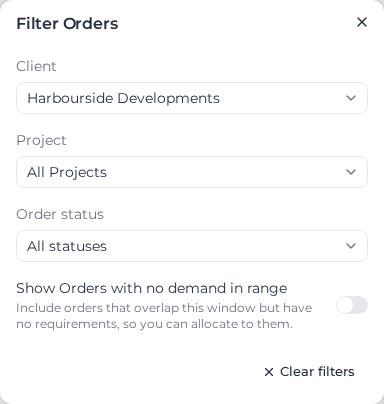
The board shows only orders with something needed in the dates on screen. To see an order with no roles yet, so you can place someone on it anyway, turn on Show Orders with no demand in range in the same panel. An order with no start date still shows, with a No start date badge.
When nothing matches, the board says so, for example "No orders here — page to another window, or create one to start scheduling." If you jump to an order your filters hide, you see "That order is hidden by your current filters."
To group and sort the rows, use Group in the view menu. See Change the board view.
When part of the board doesn't load
Days that fail to load show "Failed to load — Retry". Select Retry to load just those days, or Refresh in the toolbar to reload everything.