

Make bulk changes
Change the times or quantities for a whole day, add a role to one day, and replace or remove one person across many shifts at once.
Most changes aren't one shift at a time. The start moves for the whole day, a role needs two more people, or someone goes on leave and comes off every shift for a month. The board has two kinds of bulk change: changes to one order's day, and changes to one person or machine across many shifts.
Neither ever changes a past day.
Change one day of an order
Each order's day has a Day actions menu (⋮) at its top right, also on each card in the card view.
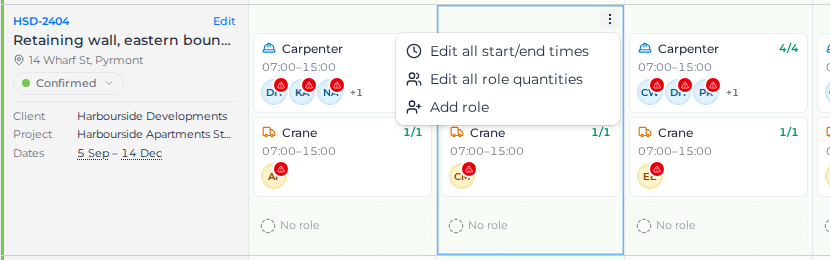
- Edit all start/end times sets the shift times for every role that day. Pick a time, or a preset (Day · 7–3, Early · 6–2, Late · 2–10, Night · 10p–6a), untick any role that should keep its times, and select Save. Roles already at that time are marked Unchanged. If you selected some roles on the card first, only those are included.
- Edit all role quantities sets how many of each role you need that day. You can also turn a role off for that day. Setting a role below the number already placed doesn't take anyone off; the card shows the role as over-filled instead.
- Add role adds a role for that day only. Choose Worker, Asset or Operator + asset, pick from Already on this order or Choose a role, set the times and select Add role.
- Attach files to this shift… opens the files for that order on that day. A past day still opens. A day outside the order's dates is greyed out, with "This day is outside the order's dates". See Share files with workers.
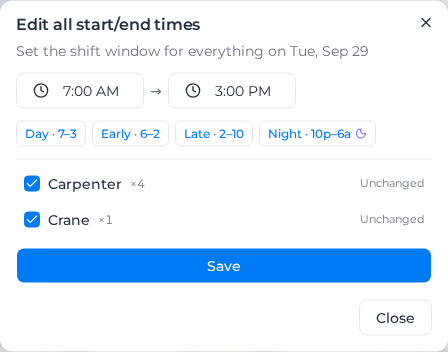
These change that day only. The order's usual pattern stays the same, and a day with different times is marked Retimed. If the order already has the role but it's off that day, Add role turns it on for the day instead of adding a second card. If you really do want a second card, select Add as a separate card instead.
Edit all start/end times, Edit all role quantities and Add role are greyed out on past days ("You cannot edit shifts in the past") and on days outside the order's dates ("This day is outside the order's dates").
Take someone off many shifts
- Select the person's initials on any of their shifts.
- Select Remove name from shifts….
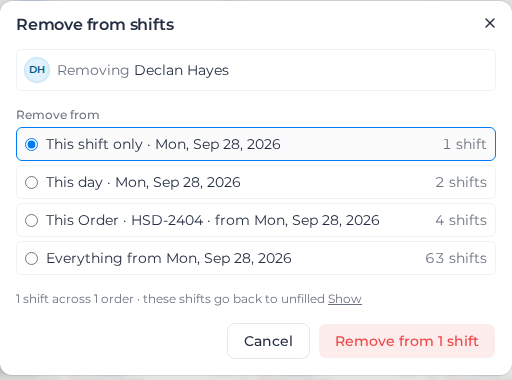
- Under Remove from, choose how far it goes. Each choice shows how many shifts it covers:
- This shift only
- This day: everything they hold that date
- This Order: every shift on this order from that date on
- Everything from that date: every shift they hold, on any order
- Check the summary, such as "4 shifts across 1 order · these shifts go back to unfilled". Select Show to list them.
- Select Remove from and the number of shifts.
When they're paired with a machine or operator on some of these shifts, Also remove the asset paired with them is ticked (on an asset's row, Also remove the operator paired with it). The partner is worked out shift by shift, because the same operator can run a different machine tomorrow. A pair comes off together, each on its own dates. For example, removing a worker booked Monday to Friday who is paired with a machine booked Monday to Wednesday removes the worker Monday to Friday and the machine Monday to Wednesday.
A pair comes off together or not at all. If either half is on a past day or has a filed timesheet, both are left in place and listed in the result. For a large change, you're asked to confirm with a tick that says how many shifts will go back to unfilled.
Right after, you can Undo it from the message, which stays up long enough to check the result. Undo puts back exactly what was removed, pairs included. It isn't offered when it couldn't put things back exactly: a shift with no times can't be recreated, and a shift whose filed timesheet you agreed to unlink can't be linked to it again.
Replace someone across many shifts
For leave or a handover:
- Select the person's initials, then Replace….
- Under Replace with, pick who takes over.
- Choose where: This shift only, This day, This Order · all upcoming or Everything upcoming.
- Select Replace and the number of shifts.
Shifts the replacement is already on are skipped (Already on this shift), and the result says how many were replaced and skipped.
Limits
- Everything above works from today onwards. Worked days are never rewritten.
- A choice that covers too many shifts at once can't be selected; the dialog says "Too many shifts to remove in one go" and asks you to pick a narrower one.
- Where a shift already has a filed timesheet, you're told what happens to it before you confirm. The timesheet is kept either way.
To change an order's usual pattern, dates or quantities for every day, edit the order instead. See Create and edit an order.