

Set up fatigue rules
Set your organization's fatigue limits — hours, rest, days in a row, night work and more — so the board warns you when a shift would break them.
Fatigue rules are your organization's own limits on how much people work and how much rest they get between shifts — for example "no more than 88 hours in any 14 days" or "at least 10 hours rest between shifts". Once you publish them and turn fatigue checks on, the board checks every worker's shifts against them and flags the shifts that break a rule.
Fatigue rules warn; they never stop you placing someone. When the board already knows a placement would break a rule it asks first, and you can place anyway; otherwise the shift saves straight away and the board warns you once its check has run. See Act on fatigue warnings for what the board shows.
Open the fatigue rules page
On the scheduling board, select the shield button (Fatigue rules) in the toolbar. Or, in the sidebar, select Settings, then General; under Operations, select Scheduling, then Set up fatigue rules.
Owners and Admins can set up fatigue rules. Everyone who can see the board sees the warnings they produce.
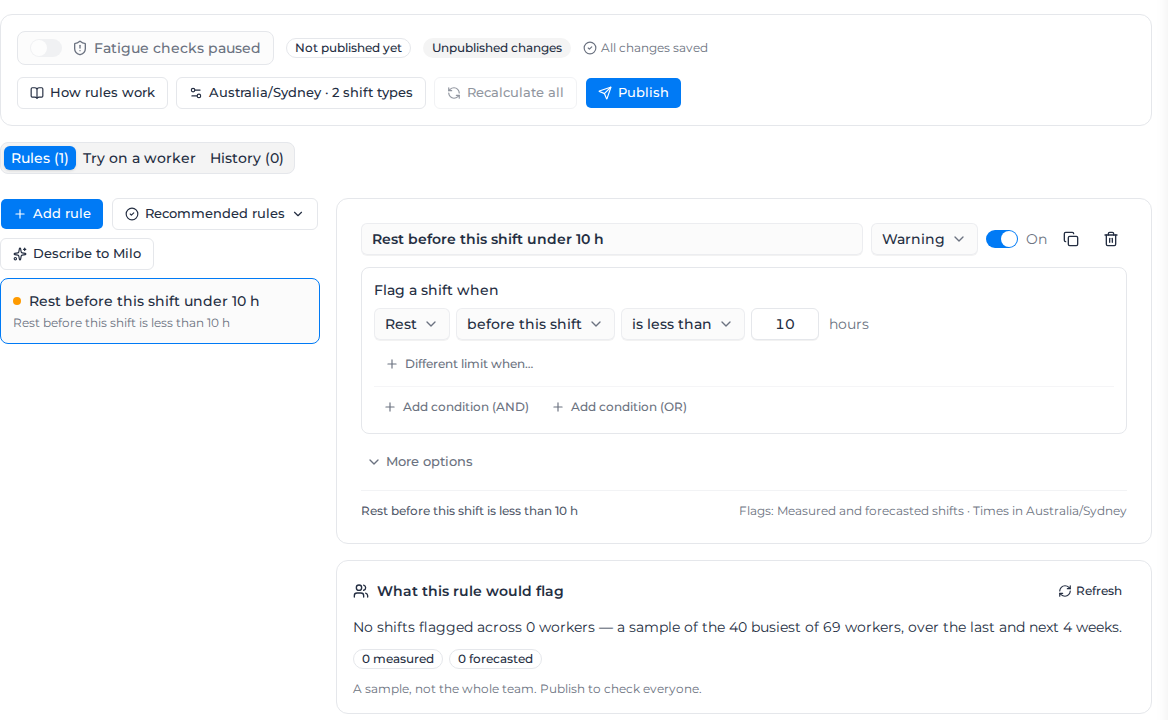
The page header shows where your rules stand:
- Live: version N is the published version the board checks against. Not published yet means nothing has been published.
- Unpublished changes means your draft differs from the live version. Editing the draft changes nothing on the board until you publish.
- Fatigue checks on or Fatigue checks paused says whether the board is checking at all.
Set up timezone, calendar and shift types first
Every rule shares one set of settings. Select the settings summary in the header (it reads your timezone and number of shift types, or No timezone) to open Timezone, calendar and shift types, then select Apply. Like rule edits, settings changes go into the draft and reach the board when you publish.
- Organization timezone — required before you can save or publish. A new policy starts on your organization's timezone from Settings → Localization (or, with none set there, the one worked out from its company address, region or UTC); change it here if your rules should run on another timezone. Shift times, calendar days and calendar weeks are read in this timezone. Rest and elapsed hours use real time, so daylight saving changes are handled.
- Week starts on — the first day of a calendar week, used by rules that count per calendar week.
- Count recorded breaks as worked hours — when off, recorded unpaid breaks are taken out of worked hours. A break inside a shift never counts as rest between shifts.
- Overnight shifts count on — The day they start or Every day they touch. This affects rules that count days, like days worked and days in a row.
- Shift types — named kinds of shift your rules can refer to, such as Night or Weekend. Select Add day, afternoon and night for a standard set, or Add a shift type to define your own.
Define a shift type
A shift type can be a time band, particular weekdays, a minimum length, or any mix:
- How the time band is read — Works during (any part of the shift falls in the band), Starts between, Finishes between, or Any time of day.
- Covers — the band, e.g. 22:00 to 06:00.
- On these days — the day the shift starts on. Leave all off for any day.
- At least — an optional minimum length in hours, e.g. 12 hours or more for a long shift.
You can't remove a shift type a rule still uses: you'll see "Used by N rules. Change those rules before removing it."
Add a rule
There are three ways to start a rule:
- Add rule adds a blank rule for you to build.
- Recommended rules offers ready-made rules to adjust, grouped as Shifts, Rest and recovery, Workload and Patterns: for example Shift length, Rest between shifts, Rest after night shifts, Recovery break, Days off, Quick returns, Hours in any 7 days, Average weekly hours, Days in a row and Nights in a row.
- Describe to Milo writes a rule from a sentence. See Ask Milo to write a rule.
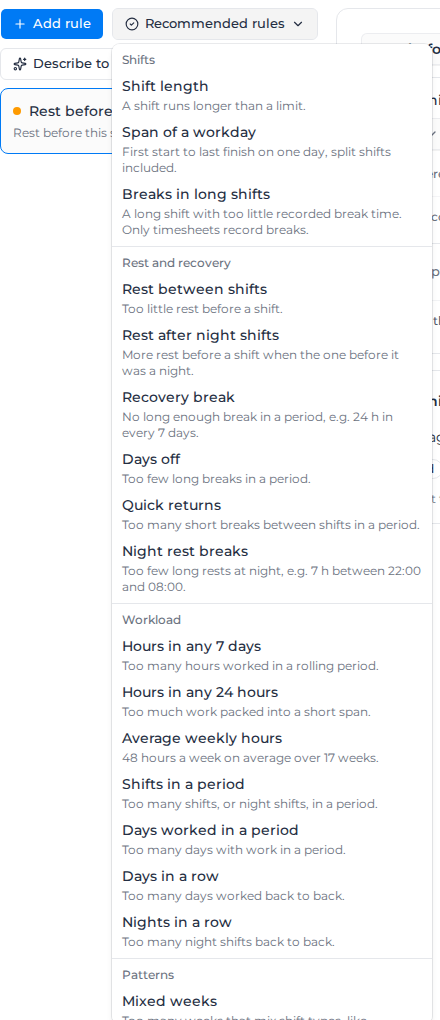
When your organization's region is Australia, Recommended rules also offers NHVR standard hours (solo drivers), and Add all 9 NHVR rules adds the full set at once. The region is the one shown under Localization in Settings: the region you saved there, or, if you've never saved one, your company's country. The rules cover standard hours for solo drivers of fatigue-regulated heavy vehicles; check them against your own obligations.
| NHVR rule | What it flags |
|---|---|
| NHVR: 5¼ h work in any 5½ h | A shift of 5½ h or more with less than 15 min of recorded break. |
| NHVR: 7½ h work in any 8 h | A shift of 8 h or more with less than 30 min of recorded break. |
| NHVR: 10 h work in any 11 h | A shift of 11 h or more with less than 1 h of recorded break. |
| NHVR: 12 h work in any 24 h | More than 12 hours worked in any 24 hours. |
| NHVR: 7 h continuous rest in any 24 h | No break of 7 hours or more in any 24 hours. |
| NHVR: 72 h work in any 7 days | More than 72 hours worked in any 7 days. |
| NHVR: 24 h continuous rest in any 7 days | No break of 24 hours or more in any 7 days. |
| NHVR: 144 h work in any 14 days | More than 144 hours worked in any 14 days. |
| NHVR: 4 night rest breaks, 2 consecutive, in any 14 days | Fewer than four nights with 7 h of rest inside your Night shift type in any 14 days, or no two on consecutive nights. Every night without work counts, including nights before the first shift in the 14 days. Set the Night shift type's window to 22:00–08:00. |
The three break rules only check shifts at least as long as their window, and they rely on breaks recorded on timesheets.
Recommended limits are examples, not legal requirements. Adjust the numbers to the ones your organization uses.
Build a rule
Each rule reads as a sentence under Flag a shift when. A condition is: what to measure, which shift or period, a comparison, and a limit — for example "Hours worked · in any 14 days · is more than 88".
What to measure:
| Measure | What it counts |
|---|---|
| Shift length | How long one shift is, from start to finish. |
| Shift type | Whether this shift, the previous one or the next one is one of your shift types, such as Night. Usually combined with another condition. |
| Break time | Break time recorded on the shift's timesheet. Only recorded breaks count. |
| Workday span | Hours from the first start to the last finish on one calendar day, gaps included. |
| Rest | Hours off between this shift and the previous one (before this shift) or the next one (after this shift). |
| Breaks between shifts | How many rests in the period match a length, such as rests shorter than 10 hours or of at least 24 hours. For rests of at least a length, any time without work in the period counts, including before the first shift, and a long rest counts as every break that fits in it: a week off is six or more 24-hour breaks. Inside a shift type, each night (or other band) with enough rest counts once. Rests shorter than a length count once each, between two shifts only. |
| Longest break | The longest rest between shifts in the period — use it for "at least one 24-hour break every 7 days". |
| Hours worked | Hours worked in the period. |
| Hours inside a shift type | Hours worked inside a shift type's time band, such as between 22:00 and 06:00. |
| Shifts | How many shifts were worked in the period. |
| Days worked | How many different days had work in the period. |
| Days in a row | How many days in a row had work, up to and including this shift's day. |
| Days or weeks containing | How many calendar days or weeks in the period contained certain shift types, such as weeks with both afternoon and night shifts. |
Rolling or calendar periods. In any is a rolling period: "in any 14 days" means every 14-day stretch, not one fixed block. Per calendar counts from the start of the calendar day or week (set by Week starts on) and starts again each period. Periods look back from the shift being checked and include it; later work is checked when its own shift is.
Comparisons are is more than, is at least, is less than and is at most.
Combine conditions. Select Add condition (AND) or Add condition (OR), or add a Group. All of these flags a shift only when every condition is met; Any of these flags it when at least one is. Groups can sit inside other groups.
A different limit for some shifts. Different limit when… gives a condition a second limit for shifts that match something else — for example a longer shift length allowed for one shift type.
Choose which shifts count. Under Which shifts count a condition can Only count some shift types, Never count others, Skip these days (by weekday), or Skip these dates such as public holidays.
More options:
- Which shifts to flag — Measured and forecasted shifts (the default), Measured shifts only, or Forecasted shifts only. See Measured and forecasted.
- Only flag these shift types — other shifts still count towards totals; they just aren't flagged.
Each rule also has a Rule name, a Severity (Warning or Information) and an On/Off switch. A rule that's off is kept in the draft but not checked. Use Duplicate rule to start a similar rule, or Delete rule to remove it from the draft.
Select How rules work on the page for the built-in guide, including worked examples you can copy.
Examples
| Rule | How to build it |
|---|---|
| No more than 88 hours in any 14 days | Hours worked · in any 14 days · is more than 88 |
| At least 10 hours rest between shifts | Rest · before this shift · is less than 10 hours |
| At least 12 hours rest after a night shift | All of these: Shift type · the previous shift · is Night; Rest · before this shift · is less than 12 hours |
| No more than 6 days in a row | Days in a row · is more than 6 (flags the seventh day and every day after until a day off) |
| At least two days off after 12 days in a row | All of these: Days in a row · is at least 12; Rest · after this shift · is less than 48 hours (flags the twelfth day when the next shift comes too soon) |
| No more than 60 hours per calendar week | Hours worked · per calendar 1 week · is more than 60 |
| A 1-hour break on shifts of 10 hours or more | All of these: Shift length · is at least 10 hours; Break time · is less than 1 hour |
| At least two days off in any 14 days | Breaks between shifts of at least 24 hours · in any 14 days · is less than 2 |
Measured and forecasted
Every rule reads one timeline for each worker: what was actually worked before now, from timesheets and check-ins, and the roster from now on. A forecast starts from real hours, not rostered ones.
Each breach is labelled Measured when everything behind it was actually worked, or Forecasted when any of it is still on the roster. A forecasted breach is a warning you can act on before the shift is worked.
Check a rule before you publish
- What this rule would flag — shown under the rule you're editing once the organization timezone is set. It checks a sample of your busiest workers over the last and next 4 weeks and shows how many shifts the rule would flag, split into measured, forecasted and couldn't be checked. It's a sample, not the whole team — once you publish with fatigue checks on, everyone is checked.
- Try on a worker — open this tab, pick a worker and a date, then select Check. You see each of their shifts in the four weeks either side of that date, which draft rules they break and why, and how that compares with the live rules. Nothing is saved.
Save and publish
The draft saves automatically as you edit — the indicator reads All changes saved when it's done. If it reads Fix the marked rule to save, open the marked rule and fix the highlighted part.
When the draft is ready, select Publish. The dialog lists what's New, Changed and Removed since the live version, then select Publish now. The new version goes live. If fatigue checks are on, every worker is re-checked against it and you see Version N is live. Re-checking workers now. — the board keeps showing the previous warnings, marked out of date, until each worker is done.
Every published version is listed under History.
Turn fatigue checks on or pause them
Fatigue checks start paused, and publishing doesn't turn them on. Use the Fatigue checks on / Fatigue checks paused switch in the header — it becomes available once you've published a first version.
- Turn on — the board starts flagging shifts against the live rules and every worker is re-checked.
- Pause checks — the board stops flagging shifts until checks are turned back on. Your rules are kept.
If you publish while checks are paused, you'll see "Version N is published, but fatigue checks are paused. Turn them on to start checking workers."
Recalculate every worker
While fatigue checks are on, a worker is re-checked automatically whenever their shifts, timesheets or check-ins change, when you publish a new version, and once a day so limits that depend on elapsed time stay current. To re-check everyone straight away, select Recalculate all, then Recalculate now. The dialog shows how many workers will be checked and roughly how long it will take; no credits are used. While it runs, the header shows Re-checking done/total.
If some workers couldn't be checked, they're retried automatically.
Send fatigue alerts
Alerts tell people as soon as a worker is heading for a breach, so the roster can be changed before the shift is worked. Select Alerts in the header (or Manage alerts on the fatigue card in Settings › Scheduling), then New alert.
- Name — what the alert is called in the list, for example "Rest breaches".
- Rules — the published rules that send this alert. Only published rules can be picked; publish a new rule before alerting on it. A rule that has since been removed from the published version shows as Removed rule — it no longer alerts, so remove it from the alert.
- People and Roles — who is told. If you choose people, roles are ignored. Leave both empty to alert everyone who can schedule (the Update orders permission).
Only people who can see fatigue warnings get alerts: the account owner, or someone whose role can view orders (so they can open the schedule the alert links to), and never a field, visitor, customer or supplier role. Anyone else is marked Cannot see fatigue warnings — will not be alerted and is skipped. Who will be alerted under the recipients shows exactly who gets this alert before you save.
How alerts are sent:
- Upcoming shifts first — an alert goes out when a worker gets a new breach, or a worse one, on one of the alert's rules. That's usually a forecasted breach on an upcoming shift after a roster change, but a breach revealed by timesheet hours, or by time passing, alerts too. Breaches on shifts that ended more than a day ago never alert, so switching on a new alert doesn't send a flood of old ones.
- Once per change — each breach alerts once. It alerts again only if it gets worse, or if it's fixed and later comes back. Fixed breaches never alert.
- Email and in-app — each person gets one email and one notification in Pay, even when several alerts cover the same rule. For a rest-between-shifts breach, the alert suggests the earliest start for the later shift that would restore the rest; nothing on the roster is moved for you.
Use the switch beside an alert to pause it without losing its settings, or the bin to delete it. Alerts only go out while fatigue checks are on.
Ask Milo to write a rule
Select Describe to Milo. Milo opens with "Help me write a fatigue rule:" filled in — finish the sentence in plain words, for example "at least 10 hours rest between shifts" or "no more than 4 nights in a row".
You can describe a rule as "if this, then that", for example "if someone works 12 days in a row, they need at least 2 days off". Milo writes it as one rule. When you ask for more than one day off, Milo counts each as 24 hours of rest and marks that limit for you to check.
When what you describe could mean more than one rule, Milo drafts each version and numbers them in its reply. For example, "60 hours a week" could mean any 7 days or each calendar week. Open only the version you want.
Milo replies with Milo's draft fatigue rules. Select Open in editor to add one to your draft; you'll see "Rule added — check the highlighted values." Milo marks anything you didn't state — the limit, the period, the shift types, the break length or which shifts are flagged — so check those, then publish as usual. Milo never saves or publishes your rules itself, and the drafts only open from the fatigue rules page.
Which shifts get checked
Results on the board cover shifts from 30 days before today and the roster ahead — about 5½ months out when a rule looks back over 23 weeks, and up to about 10½ months with shorter rules. Shifts further out show as not checked, never as clear. Each checked shift still has its whole period of history behind it.
If something a rule needs is missing, such as a finish time, that shift is shown as not checked rather than clear. A missing number is never counted as zero.
When something goes wrong
| What you see | What to do |
|---|---|
| Choose your organization's timezone before saving or publishing. | Select Choose timezone and set Organization timezone. A new policy fills it in from your organization's timezone; you see this if it was cleared, or if that timezone couldn't be worked out yet. |
| The rule "name" has a problem. Open it to fix the marked part. | Open the rule; the invalid part is marked, e.g. "Enter a limit of zero or more." or "Pick at least one shift type." |
| The shift type "name" is not complete. Check it in Settings. | Open the settings and finish the shift type. |
| Someone else saved this draft while you were editing. | Select Load their version to take their changes, or Keep mine to replace theirs with yours. |
| Couldn't save — your changes are kept here | Your edits are still on the page; keep the page open and it retries, or edit again. |
| Nothing has changed since the last version. | The draft already matches the live rules; there is nothing to publish. |
| This rule could not be read | The rule's stored form is damaged. Delete it and add it again. |
| The fatigue policy could not be loaded. Your rules have not been changed. | Select Reload. |