

Put plant on hire
Book a machine on an order for a continuous stretch, as a dry hire billed by the day or just parked on site, with mobilisation, stand-downs and the off-hire date.
Most plant is booked day by day, like people. Some machines go to site and stay there, around the clock, until they're collected: a crane on dry hire, or a site shed. For those, give the order an asset line that runs as a Duration rather than Daily.
Your organization may use other words for hire, on hire and off hire. The screens use the names set under Terminology in Settings; this page uses the defaults.
Add a duration line to the order
- Open the order and go to Roles & shifts (see Create and edit an order).
- Add an Asset line and choose its asset class.
- Select Duration. The weekday pattern goes away: the machine is on site every day, weekends included.
- Tick Dry Hire if you hire the machine to the client and bill them for the time. Select What changes to read what that means. Before you can put a machine on a dry hire line, your account needs its hire billing activities set up (see Bill a dry hire). Leave it unticked to park your own plant on a site: the machine is reserved so nobody else books it, and nothing is billed.
- Set the Start date & time. For a dry hire, the end is the Off-hire date & time (optional). It becomes the hire's first off-hire date, and you can move it later on the board. Leave it empty for an open-ended hire, for example when the client will nominate a return date later. For a machine that's just on site, it's the End date & time (optional).
- Add a Mobilisation date & time and De-mobilisation date & time if the machine is floated in and out. You can set these before any machine is assigned. Mobilisation has to be before the machine is needed, and de-mobilisation after the job ends.
- Save the order.
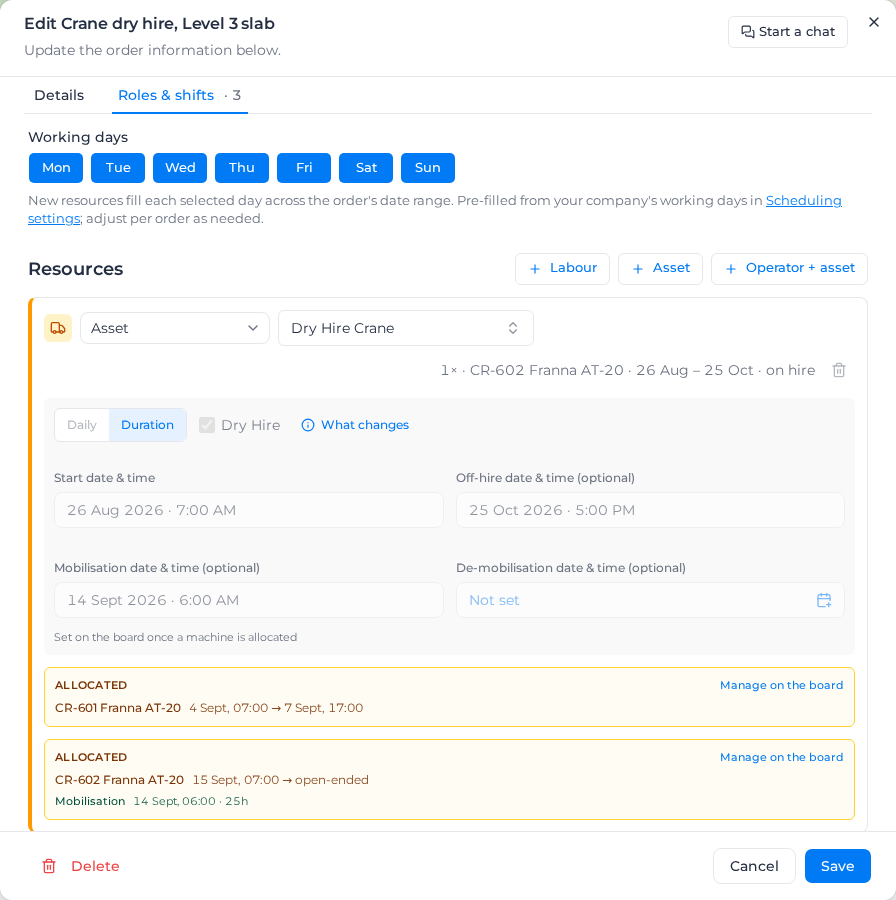
With Dry Hire ticked, the hire's charges are made from the schedule, not from timesheets. Your workers don't record equipment time for the machine, and its time adds up until it goes off hire.
Once a machine has been on the line, Daily, Duration and Dry Hire can't be changed, because that would change how its time was billed. Add a new line instead. The line's type is locked too: it stays an Asset line, because Operator + asset and worker lines can only be Daily. To send an operator with the machine, add a separate line for the operator.
Put a machine on hire
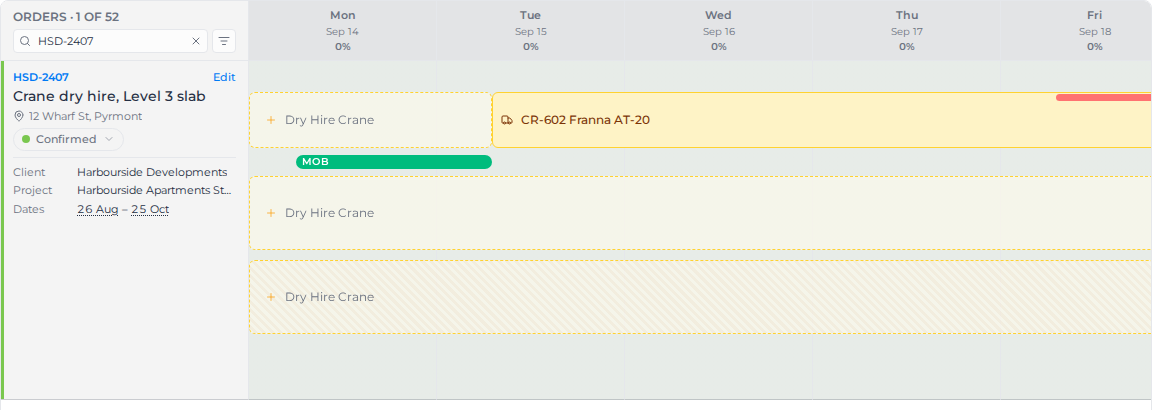
On the board, a duration line shows as a lane across the days, reading for example "Drag an asset here — open-ended hire, no off-hire date". Drag a machine from the Resources panel onto it. You see "On hire — the machine is booked for the whole span", and the machine shows as a bar across the days it's booked. The hire starts on the day you drop the machine, and the machine is booked for the whole span, nights and weekends included. It shows as busy on the Assets view and in the Resources panel, so nobody else books it. The bar shows a Dry Hire badge, the on-hire date, and the off-hire date or "open-ended". If that leaves earlier days of the line unbilled, the board asks first, for example "This starts the hire on 30 Sep and leaves 8 days from 22 Sep unbilled." Pick Start 22 Sep to bill from the start of the line, or Start 30 Sep if the machine really went out that day.
Manage the hire
Select the machine's bar to open the hire. It says whether it's still running: "The machine is still out. No off-hire date has been nominated, so the hire keeps accruing."
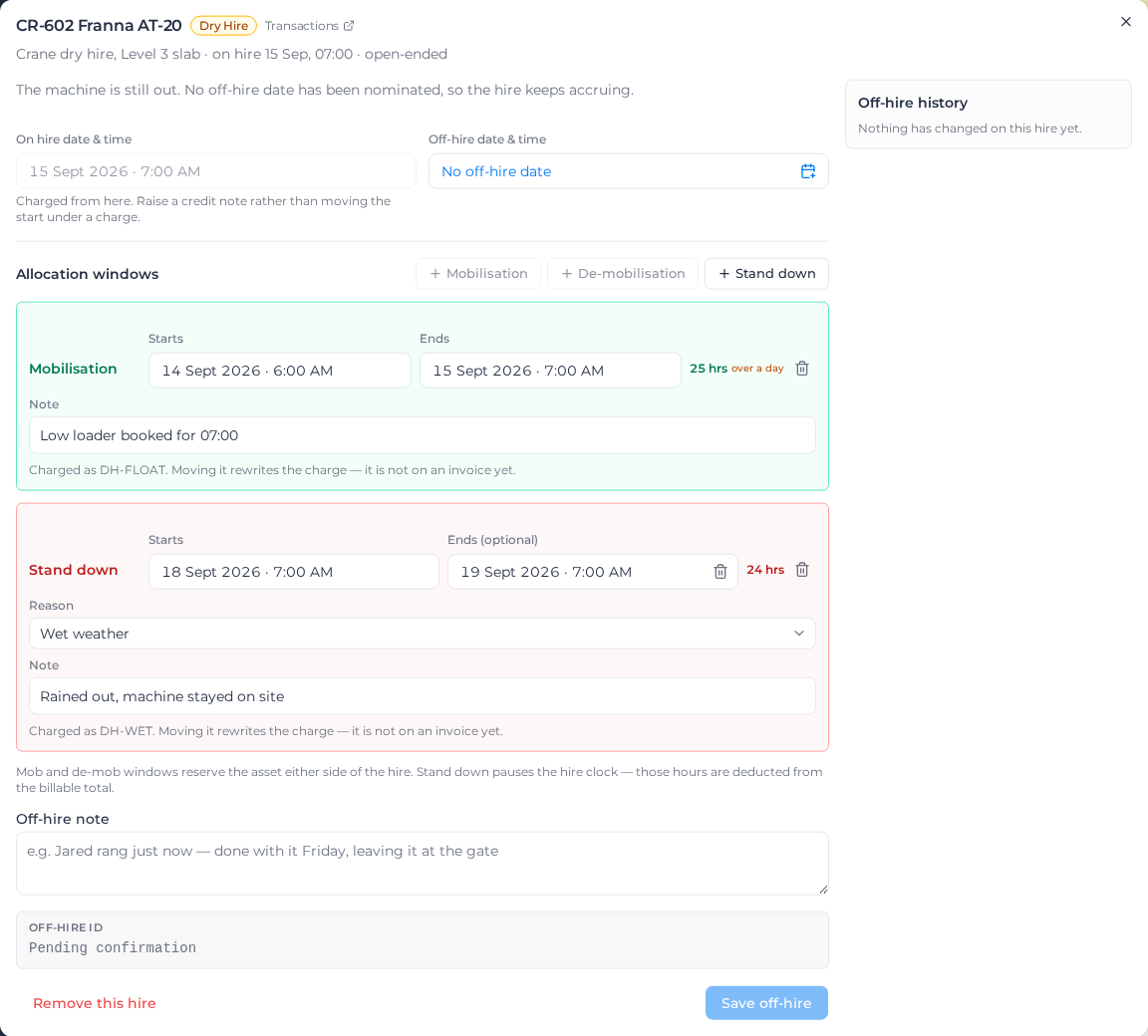
- On hire date & time is where charging starts. Once there's a charge, the start can't move under it: remove the charges past that point first, newest first. A charge on an invoice comes off only while the invoice is a draft (take its line off) or a draft or pending (cancel the invoice). See Bill a dry hire.
- Off-hire date & time: set it when the client nominates one, add an Off-hire note if you like, and select Save off-hire. The hire stops adding up at that moment.
- Under Allocation windows, add Mobilisation, De-mobilisation or Stand down. Mobilisation and de-mobilisation reserve the machine either side of the hire, so nobody books it while it's on the road. Mobilisation must finish by the time the hire starts, and de-mobilisation can't begin before the hire ends. Each can last up to three days. A longer one is almost always a mistyped date, and these windows bill by the hour, so the panel won't take it. A stand down pauses the hire, and those hours come off the billable total. Pick its Reason: Wet weather, Client not ready, Unable to access site or Breakdown. The reason decides whether the stand-down also bills as its own line (see Bill a dry hire).
- The panel won't take windows that don't fit the hire. A stand-down can't begin before the machine goes on hire and must fall within the hire, and on a hire that has ended, a stand-down needs an end too. The message says which date it clashes with.
- Each machine has its own windows. If you swap machines partway through a hire, each one keeps its own mobilisation, de-mobilisation and stand-downs.
- Nothing in the panel is saved until you select Save changes, and only what you changed is saved. If you leave the panel with unsaved changes, it asks first. If you close the tab or reload the page, your browser asks.
- Off-hire history lists every change to the hire.
- Transactions opens the hire's charges.
When the hire ends before the machine is collected
A hire can stop before the truck arrives. Turn off The allocation ends at the off-hire and set the De-mobilisation window for when the machine is actually collected. The board shows it as "off-hire, still on site", and the machine stays booked until the de-mobilisation ends, so nobody promises it to another job while it's still on site. To reopen a hire that has a de-mobilisation, remove the de-mobilisation first.
Remove a hire entered by mistake
Remove this hire takes the machine off the line and releases its days, along with any charge on it not yet invoiced. Use it for a hire that shouldn't exist; to end one that really happened, set its off-hire date instead.
Bill the hire
To choose which activities bill, cut charges from the running hire and invoice them, see Bill a dry hire.