

How to Use Payroll Tags
Guide to creating and managing payroll tags for organizing pay rates and timesheet entries
What This Feature Does
Payroll Tags provide a flexible way to categorize and organize your pay rates and timesheet entries. They act as labels that help you filter, group, and report on payroll data in ways that make sense for your business operations. Use tags to identify special pay conditions, project types, locations, or any other classification that helps you manage payroll effectively.
Initial Setup
First-Time Configuration
- Navigate to "Pay Rates" in the left sidebar
- Click on the "Payroll Tags" tab
- You'll see the payroll tags management interface
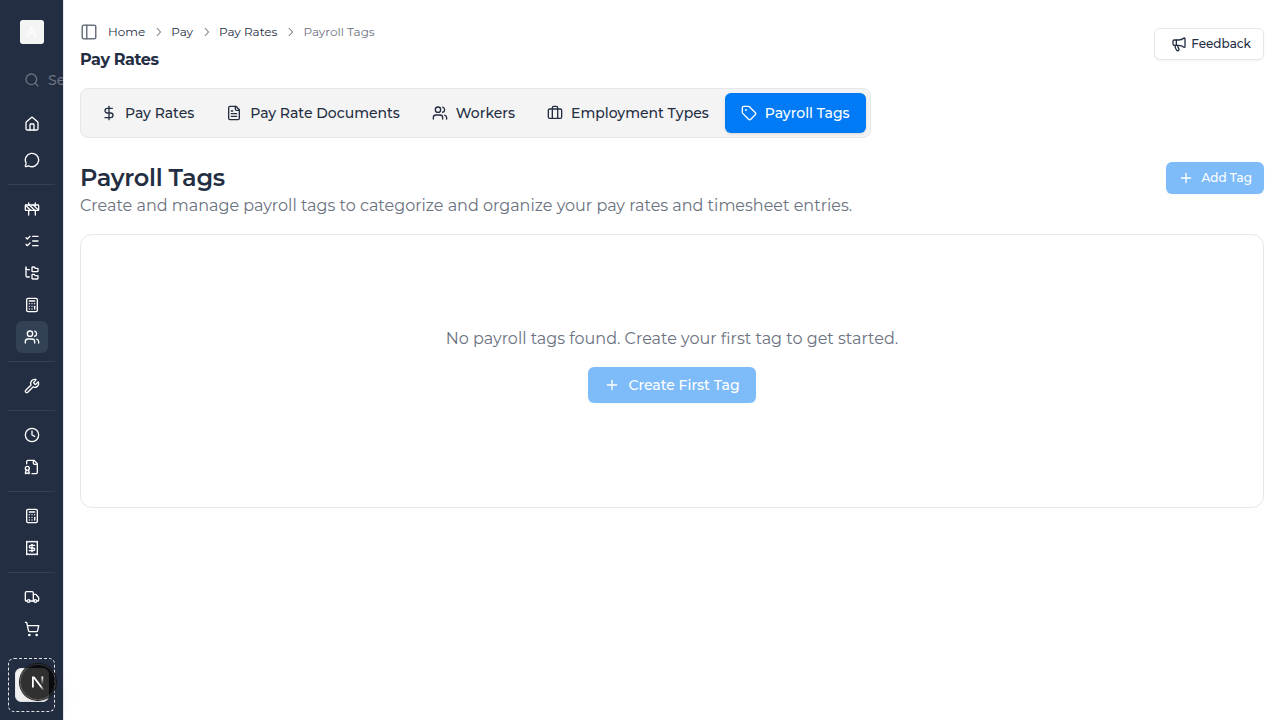
- Click "Add Tag" to create your first payroll tag
- Start with tags that represent your most common pay rate categories
Required Information
Before creating payroll tags, consider:
- Common pay rate variations in your business (overtime, public holidays, shift work)
- Location-based rate differences (remote work, specific sites)
- Project-specific rate requirements
- Special conditions that affect pay (training, standby, on-call)
Day-to-Day Usage
How to Create Payroll Tags
- Go to "Pay Rates" in the left sidebar
- Click on the "Payroll Tags" tab
- Click "Add Tag" button
- Enter the tag details:
- Tag Name: Clear, descriptive name (e.g., "Night Shift", "Remote Site", "Public Holiday")
- Description: Optional notes explaining when to use this tag
- Color: Optional color to help visually distinguish tags
- Click "Save" to create the tag
How to Edit Payroll Tags
- Find the payroll tag in the list
- Click the edit icon (pencil) on the right side of the row
- Update the tag name, description, or color
- Click "Save Changes"
- Changes will apply to all existing and future uses of this tag
How to Delete Payroll Tags
- Locate the tag you want to remove
- Click the delete icon (trash) on the right side of the row
- Review the warning about where this tag is currently used
- Confirm the deletion
- The tag will be removed from all associated pay rates and timesheets
How to Associate Tags with Pay Rates
- From the Payroll Tags screen, click the "Associate" button next to a tag
- Select the pay rates that should be tagged
- Click "Save Associations"
- Or, when creating/editing pay rates, select relevant tags from the tag selector
- Multiple tags can be applied to a single pay rate
Common Tag Categories
Time-Based Tags
Create tags for different time periods:
- "Weekday" - Standard weekday rates
- "Weekend" - Saturday and Sunday rates
- "Public Holiday" - Holiday premium rates
- "Night Shift" - Overnight work (e.g., 6pm-6am)
- "Day Shift" - Standard daytime hours
Location-Based Tags
Organize rates by work location:
- "Remote Site" - Rates for distant job sites
- "Metro" - Metropolitan area rates
- "Regional" - Regional area rates
- "Site A", "Site B" - Specific project locations
- "Travel Time" - Rates for time spent traveling
Condition-Based Tags
Track special pay conditions:
- "Overtime" - Overtime rate applications
- "Double Time" - Double time rate applications
- "Standby" - On-call or standby payments
- "Training" - Training session rates
- "Equipment Allowance" - Additional payments for using own equipment
Project-Based Tags
Categorize by project type:
- "Commercial" - Commercial construction projects
- "Residential" - Residential projects
- "Civil Works" - Infrastructure projects
- "Maintenance" - Maintenance and repair work
- "Emergency" - Emergency callout work
Using Tags in Practice
Filtering Timesheets by Tag
- Navigate to the Timesheets section
- Use the filter options to select specific payroll tags
- View only timesheets that match your selected tags
- This helps review specific types of work or pay conditions
Reporting by Tag
- Go to the Reports section
- Select payroll or timesheet reports
- Group results by payroll tags
- Analyze costs and hours across different tagged categories
- Export reports for further analysis or invoicing
Bulk Tagging
- When processing timesheets in bulk, apply tags consistently
- Use tag filters to quickly find and update entries
- Set up default tags for recurring pay rate scenarios
- This saves time and ensures consistent categorization
Advanced Tag Management
Tag Hierarchies
While tags are flat (no parent-child relationships), you can create logical groups using naming conventions:
- "Shift-Day", "Shift-Night", "Shift-Afternoon"
- "OT-1.5x", "OT-2x", "OT-2.5x"
- "Location-Metro", "Location-Regional", "Location-Remote"
Tag Combinations
Apply multiple tags to capture complex scenarios:
- A timesheet entry might have: "Weekend" + "Overtime" + "Remote Site"
- This allows flexible filtering and reporting across multiple dimensions
- Keep combinations logical and avoid over-tagging
Managing Inactive Tags
- When a tag is no longer needed, don't delete it immediately
- First, review where it's currently used
- Consider creating a new tag and migrating existing uses
- Only delete when you're certain it won't affect historical records
- Deleted tags will still appear in historical data but won't be available for new entries
Integration with Pay Rates
Automatic Tag Application
- Set default tags for specific pay rates
- When that pay rate is applied to a timesheet, tags are automatically added
- This ensures consistent categorization without manual tagging
- Reduces errors and saves time during timesheet processing
Tag-Based Rate Selection
- Filter pay rates by tags when processing timesheets
- Quickly find the right rate based on work conditions
- Use tags to narrow down rate options in large rate libraries
- Streamline the timesheet approval process
Troubleshooting
If tags aren't appearing
- Check that you have created at least one payroll tag
- Verify you're looking in the correct date range or filter
- Refresh the page to load the latest tag data
- Ensure you have the necessary permissions to view tags
If you can't delete a tag
- Tags currently used in active pay rates or timesheets may have restrictions
- Review where the tag is being used before deletion
- Consider archiving the tag instead of deleting
- Contact your administrator if you need to force delete a tag
If tag associations aren't working
- Verify the pay rates exist and are active
- Check that you have permission to edit pay rates
- Ensure you're saving changes after associating tags
- Try refreshing the page and attempting the association again
Best Practices
Naming Conventions
- Use clear, descriptive names that everyone understands
- Avoid abbreviations unless they're universally known in your organization
- Be consistent with capitalization and formatting
- Keep tag names concise but meaningful
Tag Organization
- Start with a core set of essential tags
- Add new tags only when there's a clear business need
- Regularly review and consolidate similar tags
- Document tag purposes and when they should be used
Team Training
- Ensure all team members understand available tags and when to use them
- Create guidelines for consistent tag application
- Provide examples of common tag combinations
- Review tag usage periodically to maintain consistency
Reporting and Analysis
- Use tags as a foundation for custom reports
- Track trends in tagged pay rates over time
- Identify cost drivers by analyzing tagged entries
- Support budget planning with tag-based historical data
Tips for Construction Teams
- Create tags for different types of construction work (concrete, framing, electrical)
- Use tags to track work on different project phases
- Apply location tags for multi-site projects
- Tag special conditions like height work, confined spaces, or hot work
- Combine tags with cost codes for comprehensive project costing
What's Next
After setting up payroll tags, you may want to:
- Apply tags to your Pay Rates for automatic categorization
- Use tags when processing Timesheets
- Create custom Reports filtered by tags
- Set up Cost Codes that work alongside your tags