

How to Manage Pay Rate Documents
Guide to uploading and managing pay rate documents for payroll processing and compliance
What This Feature Does
Pay Rate Documents allow you to upload, store, and manage official documents that define pay rates for your organization. This includes award rate schedules, enterprise bargaining agreements (EBAs), contracts, rate sheets, and other reference documents that govern worker compensation. Having these documents centrally stored ensures compliance, provides audit trails, and makes rate information easily accessible.
Initial Setup
First-Time Configuration
- Navigate to "Pay Rates" in the left sidebar
- Click on the "Pay Rate Documents" tab
- You'll see the pay rate documents management interface
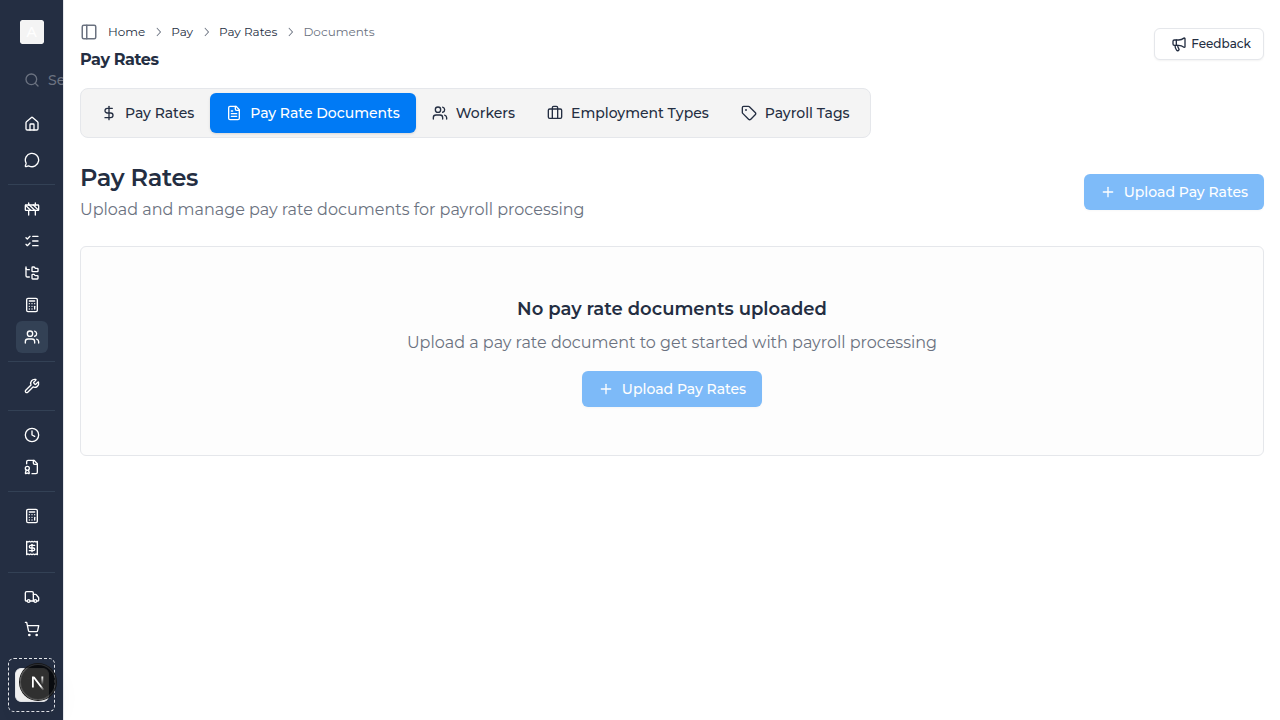
- Click "Upload Pay Rates" to add your first document
- Start with your most frequently referenced rate documents
Required Information
Before uploading documents, gather:
- Award rate schedules (e.g., Building and Construction General On-site Award)
- Enterprise bargaining agreements
- Company pay rate schedules
- Contractor rate agreements
- Client-specific rate sheets
- Historical rate documents for reference
Day-to-Day Usage
How to Upload Pay Rate Documents
- Go to "Pay Rates" in the left sidebar
- Click on the "Pay Rate Documents" tab
- Click "Upload Pay Rates" button
- Select the document file from your computer
- Supported formats include:
- PDF: Most common for official documents
- DOCX: Microsoft Word documents
- XLSX: Excel rate sheets
- Images: PNG, JPG for scanned documents
- Add document details:
- Document Name: Descriptive title (e.g., "Building Award 2024")
- Document Type: Award, EBA, Contract, Rate Sheet, Other
- Effective Date: When these rates become active
- Expiry Date: When rates expire (optional)
- Notes: Any relevant context or instructions
- Click "Upload" to save the document
How to View Pay Rate Documents
- Browse the list of uploaded documents
- Click on any document to view details
- Preview documents directly in the browser (for supported formats)
- Download documents to your computer if needed
- Search for documents by name or type
How to Organize Documents
- Use clear, consistent naming conventions:
- Include the document type
- Add the year or version number
- Specify applicability (e.g., "Metro Rates" vs. "Regional Rates")
- Set effective and expiry dates to track document versions
- Add notes explaining any special conditions or contexts
- Tag documents for easy filtering and discovery
How to Update or Replace Documents
- When rates change, upload the new document
- Keep the old document in the system for historical reference
- Set expiry date on the old document
- Set effective date on the new document
- Add notes explaining what changed between versions
Document Types
Award Rate Schedules
Upload official award documents that govern pay rates:
- Building and Construction Award
- Manufacturing Award
- Transport Award
- State-specific awards
- Contains legally mandated minimum rates
- Updated annually (usually July 1st in Australia)
- Must be accessible for compliance audits
Enterprise Bargaining Agreements (EBAs)
Store negotiated agreements between employers and employees:
- Company-specific EBAs
- Industry-wide agreements
- Union-negotiated rates
- Above-award conditions
- Typically valid for 3-4 years
- Supersede award rates where they're higher
Company Rate Schedules
Internal rate documents for your organization:
- Standard company pay rates
- Position-based rate structures
- Skill level progressions
- Regional rate variations
- Custom rate tables
Contractor Rate Agreements
Documents for contractor or subcontractor rates:
- Fixed-price agreements
- Schedule of rates for contractors
- Subcontractor rate schedules
- Labor hire rate sheets
- Special project rates
Client-Specific Rate Documents
Rate agreements tied to specific clients or projects:
- Client-mandated rates
- Project-specific rate schedules
- Contract rate attachments
- Prevailing wage schedules
- Government project rate requirements
Using Documents for Reference
During Timesheet Processing
- When processing timesheets, reference uploaded documents to verify correct rates
- Click on relevant document to view rate details
- Cross-reference worker rates against official schedules
- Ensure compliance with award or agreement requirements
For Rate Setup
- Open the relevant pay rate document
- Use the information to create or update pay rates in the system
- Copy rate amounts accurately from the document
- Set effective dates to match document dates
- Link created pay rates to the source document for audit purposes
For Compliance Audits
- Quickly locate all rate documents for a specific period
- Filter documents by effective date
- Download documents for auditor review
- Demonstrate rate compliance with source documentation
- Provide historical rate progression
Document Management
Version Control
- Keep all versions of rate documents in the system
- Use effective and expiry dates to track which version applies when
- Name documents with version numbers or dates
- Add notes explaining changes between versions
- Never delete historical documents - they're needed for audits
Document Search and Filtering
- Use the search bar to find documents by name
- Filter by document type (Award, EBA, Contract, etc.)
- Filter by effective date range
- Sort documents by upload date or name
- Create favorites for frequently accessed documents
Document Security
- Only authorized users can upload rate documents
- Access controls ensure sensitive documents are protected
- Audit trail tracks who uploaded, viewed, or modified documents
- Download history is logged for compliance
- Documents are securely stored and backed up
AI-Powered Document Processing
Automatic Rate Extraction
When you upload pay rate documents, the system can:
- Automatically extract rate information from the document
- Identify different rate types (ordinary, overtime, penalties)
- Recognize rate categories and classifications
- Suggest pay rate entries based on extracted data
- Save time by pre-populating rate forms
Document Chat with Milo
- Upload your pay rate documents
- Use the "Ask Milo" feature to query documents
- Ask questions like:
- "What's the overtime rate for electricians?"
- "What rates apply on public holidays?"
- "Show me the rates for Level 3 carpenters"
- Get instant answers backed by your uploaded documents
- Milo cites specific sections and pages for verification
Integration with Pay Rates
Linking Documents to Rates
- When creating or editing a pay rate, reference the source document
- Link specific rates to their governing document
- This creates a clear audit trail from document to applied rate
- Makes it easy to verify rate compliance
- Simplifies updates when documents change
Document-Driven Rate Updates
- Upload new rate document (e.g., updated award)
- System identifies affected pay rates
- Suggests rate adjustments based on new document
- Review and approve suggested changes
- Apply updates to maintain compliance
Compliance and Audit Support
Maintaining Audit Readiness
- Upload all official rate documents as soon as you receive them
- Keep documents organized and easily accessible
- Maintain complete version history
- Document any deviations or special arrangements
- Regularly review document library for completeness
Responding to Audit Requests
- Quickly locate requested documents by date or type
- Generate document index showing all rate sources
- Provide audit trail from document to applied rates
- Demonstrate compliance with awards or agreements
- Show historical progression of rates
Fair Work Compliance (Australia)
- Upload current awards applicable to your business
- Keep historical award versions for back-pay calculations
- Document any above-award agreements
- Maintain evidence of rate compliance
- Support penalty rate and overtime calculations
Troubleshooting
If document upload fails
- Check file size (maximum usually 50MB)
- Verify file format is supported (PDF, DOCX, XLSX, images)
- Ensure file isn't corrupted or password-protected
- Try a different browser if issues persist
- Contact support if problems continue
If documents aren't appearing
- Check that upload completed successfully
- Verify you're looking in the correct date range
- Refresh the page to load latest documents
- Ensure you have permission to view documents
- Check filters aren't hiding documents
If you can't delete a document
- Documents linked to active pay rates may be protected
- Check if document is set as a required compliance document
- Contact your administrator for deletion permission
- Consider archiving instead of deleting
Best Practices
Document Organization
- Use consistent naming conventions that include year/version
- Set effective and expiry dates for all documents
- Add detailed notes explaining document purpose and any special conditions
- Create a logical folder structure if your system supports it
- Review and clean up obsolete documents periodically
Compliance Management
- Upload new award rates as soon as they're published
- Review documents before effective date to prepare rate changes
- Keep all historical documents for at least 7 years (or as required by law)
- Document any custom arrangements or special agreements
- Regularly audit active rates against source documents
Team Access
- Ensure payroll team has easy access to rate documents
- Train staff on how to search and reference documents
- Create quick reference guides for most-used documents
- Share document upload responsibilities to keep library current
- Review access permissions regularly
Document Quality
- Upload clear, readable versions of documents
- Use official versions rather than scans when possible
- Include complete documents, not partial extracts
- Verify document accuracy before uploading
- Update documents promptly when new versions are released
Tips for Construction Teams
- Upload Building and Construction Award and all amendments
- Keep all EBAs for different trades
- Store client-specific rate schedules for each project
- Maintain contractor rate agreements
- Upload prevailing wage schedules for government projects
- Keep historical rate documents for variations and claims
- Document any project-specific rate agreements
What's Next
After uploading pay rate documents, you may want to:
- Use documents to create accurate Pay Rates
- Link documents to specific Workers or classifications
- Set up Employment Types that align with award classifications
- Generate Reports comparing actual rates to award rates
- Train team members on using the Chat with Milo feature to query documents