

Create and send invoices
Start an invoice, fill it from priced timesheets, materials and dockets or your own lines, then issue it, email it, record payment and show your client the evidence behind it.
An invoice bills a client for work your crew has done. You usually fill it from timesheets, materials and dockets that have already been priced against the client's schedule of rates, so the lines and totals come across for you. You can also add lines of your own.
Only Owners and Admins can see and create invoices.
Before you start
- Set up your tax rates and invoice numbering. See Set up your organization.
- Price the work you want to bill. Timesheets, materials and dockets only come across once they are priced against a schedule of rates. See Set up a schedule of rates.
Find an invoice
In the sidebar, select Revenue, then Invoices.
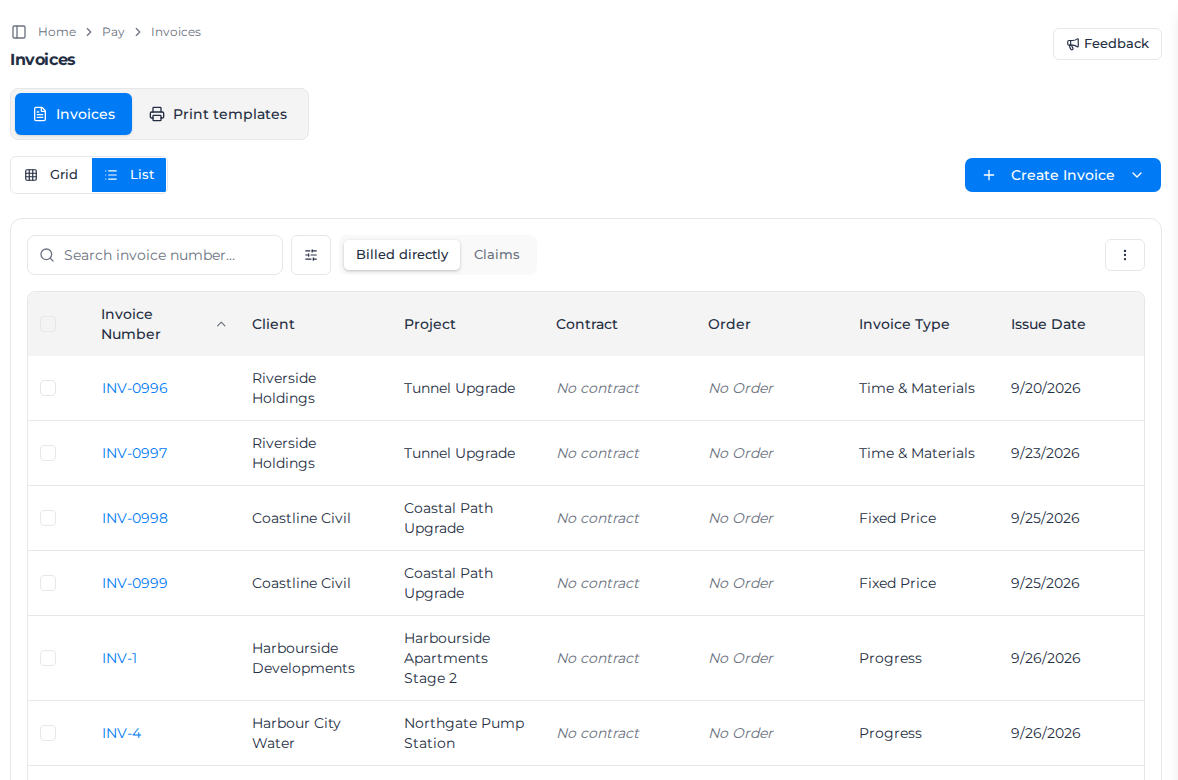
- Billed directly lists the invoices you create here, and bids invoiced in full. Claims lists progress claims made from a bid. For both, see Invoice a bid.
- Search invoice number… finds an invoice by its number.
- The filter button beside the search narrows the list by Status and by Age: Current, 1-30 Days, 31-60 Days, 61-90 Days or Over 90 Days.
- Grid and List switch between cards and a table.
Select an invoice's number to open it. The invoice has two tabs: Invoice shows the invoice itself, and Supporting Evidence shows the work behind it. See Check the evidence behind an invoice.
Export the invoice list
In List view, open the three-dot menu above the table, then select Export all and Export as CSV. The file contains the invoices on the current page that match your filters.
Commas, quotation marks and line breaks in a name stay together in one cell when you open the CSV in a spreadsheet.
Create an invoice
- Select Create Invoice, then Direct invoice. (Progress claim starts a claim against an approved bid instead.)
- Choose the Client. Project, Order and Contract are optional, and narrow which work you can add later.
- Check the Issue Date and Due Date. Both start on today's date, so set the due date to match your payment terms.
- To add tax, turn on Tax Settings and tick the rates that apply. More than one rate can apply at once, and they are added together.
- Choose the Print template for the PDF, and add any Notes for the client.
- Select Save.
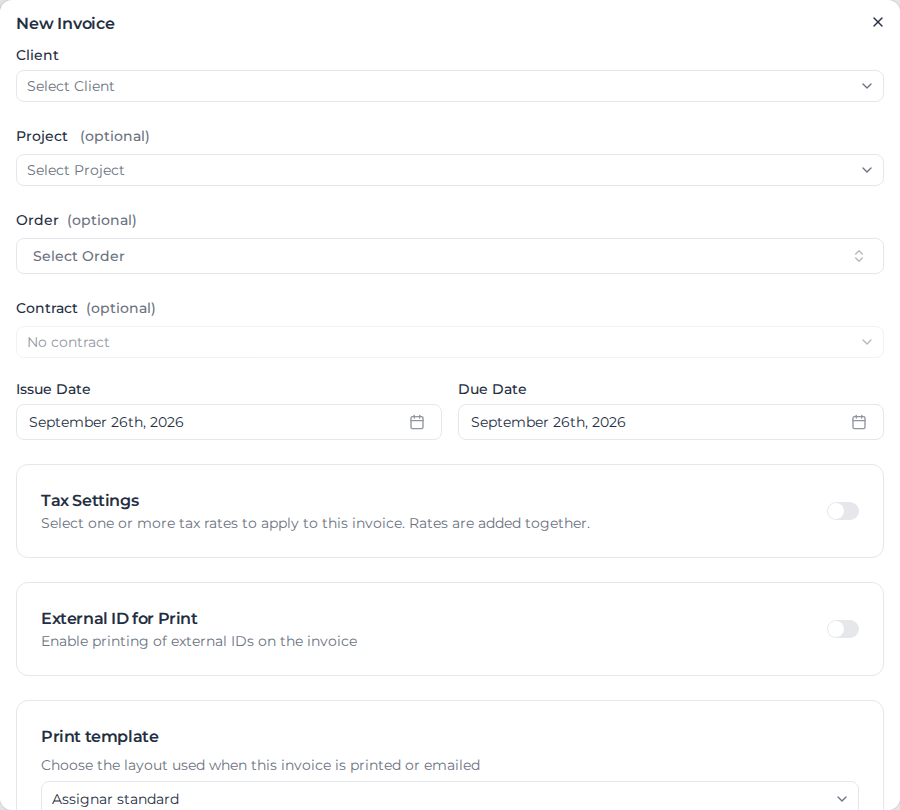
The invoice opens as a Draft, numbered from your invoice sequence.
Add lines
On a draft invoice, use the buttons above the lines:
- Add from Worker And Equipment Time lists the client's priced timesheets. Tick the ones to bill and select Add N selected. Completed shows only completed timesheets; turn it off to see the rest. A timesheet that is already partly invoiced shows what is left in Remaining, and you can bill the rest on this invoice.
- Add from Materials does the same for priced material transactions.
- Add from Dockets lists priced dockets. United States and Canadian accounts see Add from Field Tickets, and the button uses your organization's own name for them if it has set one under Terminology in Settings.
- Add Item lists your cost codes. Tick the ones you want and select Add N Items. Each becomes a line at the cost code's default rate, with a quantity of 1.
If Add from Worker And Equipment Time fails while the draft still has no lines, that draft is removed and you return to the invoice list. The message is Couldn't add the timesheets, so the empty invoice was removed. Those two names follow Terminology in Settings. A draft that already has lines stays open so you can try again.
Work always comes in one line per charge rate. For example, one shift can give an 8 hour normal-time line and a 2 hour double-time line. Change how they're shown with Group by (below).
A timesheet or material whose SoR Status shows Invalid can't be ticked. It has no schedule of rates matched to it, the match is too uncertain, or, for a material, the match gave it no price. Price it again from the Schedule of Rates first.
Materials and fixed fees on a docket
Some charges belong to the docket rather than to a worker: materials, such as five light towers, and fixed fees charged once per record, such as mobilisation. When you expand a record in Add from Dockets, they are listed under Docket charges, for example 5 × $1,250.00 = $6,250.00.
Each one is added as its own line, with its quantity and unit price, once per docket. Include Additional Charges doesn't affect them, and a charge of $0.00 is left off the invoice.
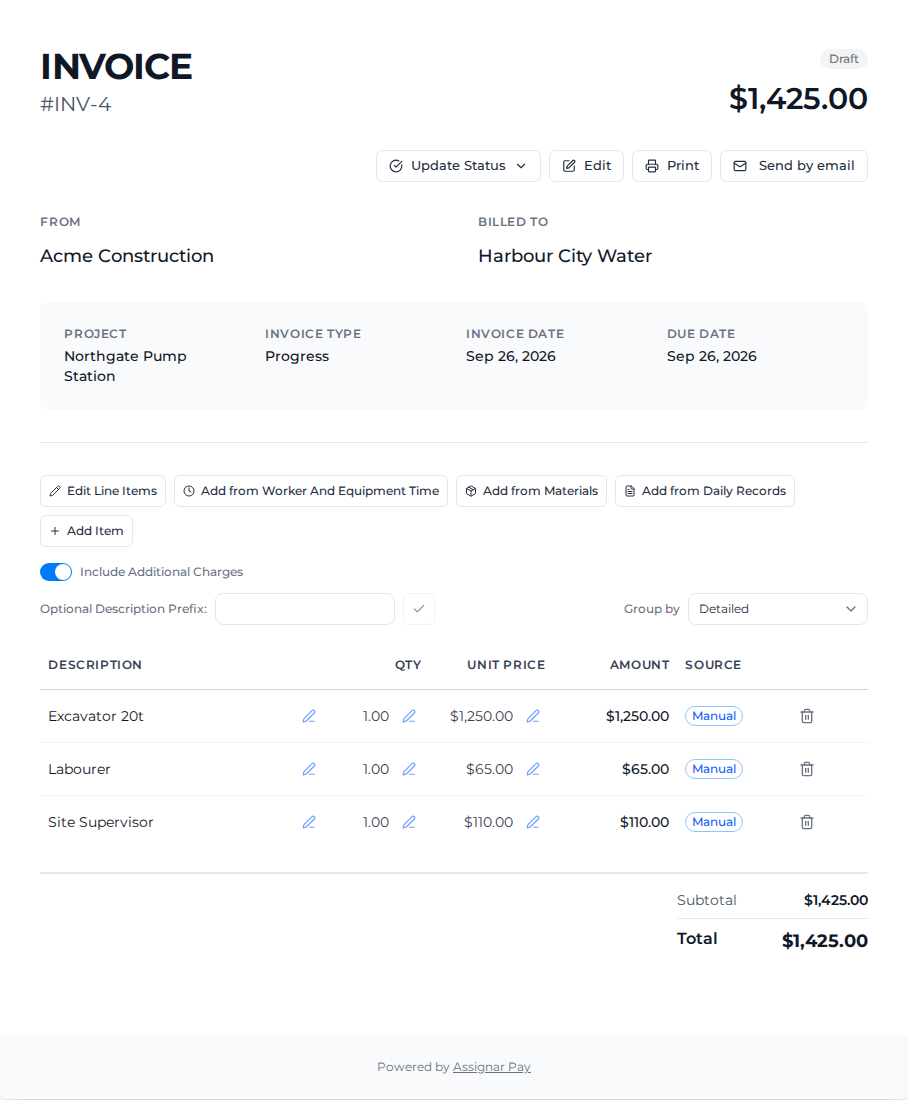
Three settings above the lines apply to what you add next:
- Include Additional Charges brings in the additional charges from your schedule of rates, such as levies, with each line. Turning it off removes any already on the invoice, after you confirm with Turn off & remove.
- Optional Description Prefix adds your text to the start of each new line's description. Type it and select the tick. It can't contain " - ".
- Group by changes how the lines are shown on screen, in the PDF and in the email. Detailed shows every charge rate as its own line and By description merges lines with the same description. By rate type and Summary appear once the invoice has timesheet or material lines, and By worker once it has docket lines. A docket's materials and fixed fees belong to no worker, so By worker keeps them as lines of their own. The grouping is saved on the invoice, so the PDF and the email match what you see.
Put the lines in order
New lines go to the bottom of the invoice. To move one, drag it by the handle at the start of its row. With a keyboard, focus the handle, press Space, move the line with the arrow keys, then press Space again. The new order saves straight away, and the PDF and the email list the lines in the same order.
When Group by isn't Detailed, the handle moves a whole group, and all of its lines go with it. Each group's lines end up next to each other, so the order in Detailed can change for lines you didn't move. To order the lines inside a group, switch to Detailed.
If someone else moved, added or removed a line while you had the invoice open, the move isn't saved and you see "The line items changed since this page loaded. Refresh and try again." Refresh the page and move the line again.
Change lines
- To change one value, select the pencil beside it.
- To change several at once, select Edit Line Items. You can change each line's description, cost code, quantity and unit price, then select Save changes. Changing a line that came from a timesheet, material or docket also updates that record's price, so the two stay the same. On a material from a docket, the quantity you enter becomes the record's quantity for that material.
- To remove a line, select the bin at the end of its row.
Once a timesheet, material or docket is on an invoice, even a draft one, you can't change its rates from its own rate details any more: change it with Edit Line Items on the invoice. Its rate details say "This transaction is on an invoice — edit its rates from the invoice's Edit Line Items so the invoice stays in sync."
Update lines after a timesheet is priced again
A timesheet on a draft invoice can be priced again later, for example by Auto-process Schedule of Rates after someone edits it (see Price transactions automatically). The draft keeps the amount the line was added with, so a warning appears above the lines, such as 2 line item(s) changed at the source, and each affected line shows a warning icon.
Select Refresh lines to update those lines to the timesheets' current charges. Their descriptions stay as they are. Refreshing needs permission to edit invoices and to see sell amounts.
Some lines can't be refreshed this way and keep their warning: remove them and add them again.
- A line that combines several charges.
- A line whose timesheet was deleted.
- A line whose charge has changed into a different one, for example when pricing the timesheet again gave it a different set of charges.
Lines for materials aren't checked or refreshed: if a material is priced again after you add it, remove its line and add it again. Issued invoices never change.
To change the client, dates, tax or print template, select Edit. The edit dialog also takes up to three attachments, 5 MB each.
Issue it and record payment
Select Update Status and choose the new status. The menu only offers the moves allowed from where the invoice is:
| Status | Means | Can move to |
|---|---|---|
| Draft | Being prepared. Lines can still change. | Pending, Cancelled |
| Pending | Issued to the client and waiting for payment. | Paid, Overdue, Cancelled, Exported |
| Overdue | Past due and not paid. | Paid, Exported |
| Paid | Payment received. | Exported |
| Exported | Sent on to your accounting system. | Paid |
| Cancelled | Void. | Nothing |
Moving a draft to Pending issues it, and it can't go back to Draft. From then on its lines can't be edited, regrouped or reordered, and neither can the prices of the timesheets, materials and dockets it bills.
Cancelling releases everything the invoice billed, so you can bill it again on another invoice. A cancelled invoice can't be reopened: create a new one. Marking an invoice Paid or Cancelled asks you to confirm, with an optional Reason.
To correct a price on an issued invoice, cancel it, fix the price, and invoice the work again.
Email an invoice
- On the invoice, select Send by email.
- Check To, CC, Subject and Message. To starts with the client's email address. If the client has none, the dialog says so and you type one in; separate several addresses with commas.
- Select Send.
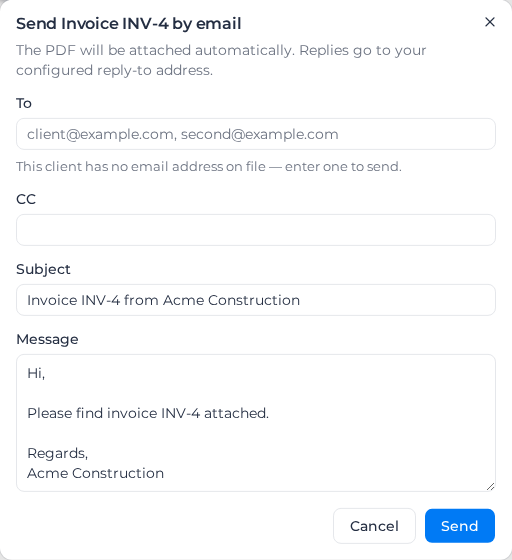
The PDF is attached for you. The email goes in the background and you get a notification when it has gone or if it fails. Sending doesn't change the invoice's status; issue it with Update Status.
The Email history card on the invoice lists every send with its status (Pending, Sent or Not sent). Download the exact PDF that went out from its row. To try a failed email again, select Send by email again.
With client financial controls enabled, a send can report Delivery outcome is uncertain. Check with the recipient before sending again. Check with your client before starting another send.
Print downloads the invoice as a PDF. An invoice that prints from an uploaded Word, Excel or PowerPoint template also has Download as Word, Download as Excel or Download as PowerPoint next to Print, which downloads it in that file's format.
Check the evidence behind an invoice
Open the invoice and select the Supporting Evidence tab. The number beside the tab is how many timesheets, dockets and materials the invoice bills.
Under Projects and Clients this invoice is associated with:, each project lists the timesheets, dockets and materials its lines came from, and how many of the invoice's line items they account for. Timesheets and dockets use your organization's own names for them if it has set them under Terminology in Settings.
Lines you added yourself, such as those from Add Item, have no evidence behind them. When some lines have none, a warning says how many, for example 1 of 4 line items have no supporting evidence. Manually added charges won't have any.
Let a client contact see the evidence
Your client's contacts can see the timesheets and dockets behind an invoice in the customer portal. Materials aren't shown there. Who can see this evidence, below the evidence, lists the client's contacts, each with a badge:
| Badge | Means |
|---|---|
| Has access | They can sign in to the portal. Can see: names the client or projects their access covers. |
| Invited | They have an invitation they haven't accepted yet. |
| Invitation expired | Their invitation ran out before they accepted it. |
| No access | They can't see anything in the portal. |
The bar under each contact shows how many of this invoice's line items their access covers, for example 3 of 4 line items.
A contact with no email address shows No email — cannot be given access. Add an email to them under Clients & Projects first. See Manage clients and projects.
To give a contact access:
- Select Give access on their row.
- Choose what they can see: All of the client, Everything this invoice references (when the invoice covers more than one project), or a single project.
A contact without a portal login gets an invitation email and sees Invitation sent. Access starts when they accept. An expired invitation shows Invitation expired: select Resend invitation to send it again with the same access, or Give access to choose new access, which replaces it. Give access is unavailable while an invitation is waiting, and once a contact can already see the whole client.
To take access away, select Remove on their row, then Remove access. This removes their access to the whole client, or to the projects you tick, not only to this invoice: they lose that client's or project's timesheets, dockets and invoices in the portal. For someone who is Invited, Remove offers Cancel invitation instead, and the link in their email stops working.
To add a contact who isn't listed yet:
- Select Add contact.
- Enter their First name, Last name and Email.
- Under Portal access, choose All of the client, or Only this invoice's projects.
- Select Add contact.
They get one invitation email, and also appear as a contact under Clients & Projects.
Everyone who can open the invoice sees these lists. The controls need these permissions:
- Give access needs Invite customer portal users.
- Remove and Resend invitation also need Manage invitations.
- Add contact needs both of those, and Create clients to give access to the whole client, or Create projects to give access to this invoice's projects.
See Customer role for what a contact sees once they sign in.
Work on several invoices at once
Tick invoices in the list, then:
- Change Status moves them all to one status. They must share a move they can all make; otherwise the dialog says "The selected invoices don't share a common status change. Select invoices that are in the same status."
- Send by email sends each invoice to its own client with the PDF attached, using your default subject and message. Invoices whose client has no email address are listed and skipped: add an address to those clients and send them again. One failed email doesn't stop the rest; a notification tells you how many went and how many failed, and you can send a failed one again from the invoice.
- Print either downloads the PDFs as one ZIP file or emails you links to them.
If your organization enables client financial controls, the email dialog keeps invoices that need approval available for an exception request. After approval, select Retry invoice for that invoice. Invoices already queued are excluded from the retry.
Set invoice defaults
In the sidebar, select Settings, then General, and open Invoice defaults under Financial.
- Default Invoice Type is the type new invoices get.
- Default Notes fills the notes of each new invoice.
- Under Email Settings, Reply-to address is where your clients' replies go. Leave it empty to use your company email. Always CC copies your own people into every invoice email; separate addresses with commas. Default Subject and Default Message fill the send dialog.
Select Save. Emails come from Assignar Pay on your behalf, with your organization's name.
To choose how the PDF looks, including a Word, Excel or PowerPoint file of your own, see Customize print templates. Print and Send by email use the layout stored on the invoice.