

Clients and projects
Add the clients you work for and their projects, find them again, add contacts, and edit or delete them.
Every timesheet, order, bid and invoice in Assignar Pay belongs to a client, and usually to one of that client's projects. You keep both in the sidebar under Clients & Projects, then Clients & Projects.
Owners, Admins and Managers can add, edit and delete clients and projects.
Find a client or project
The page opens on Cards: one card per client, 25 a page. Select the arrow on the right of a card to open it and see its projects, and each project's orders.
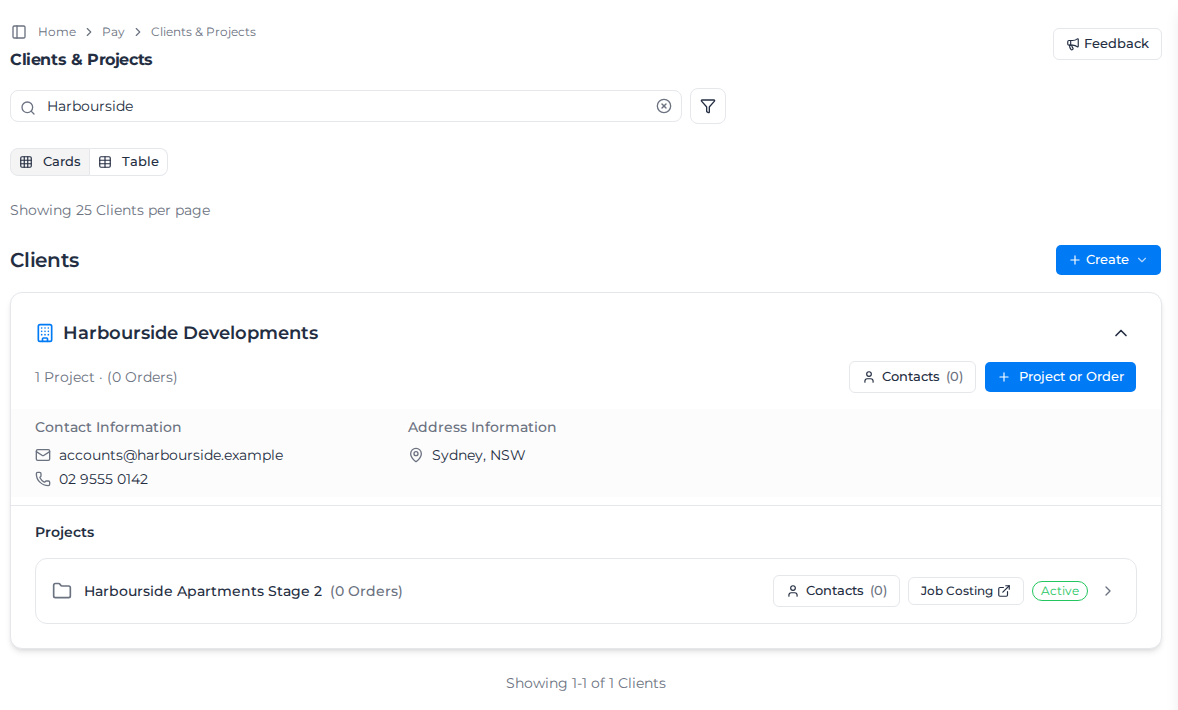
- Type in Search for Clients, Projects, Orders, or Contacts to narrow the list.
- Select the filter button beside the search box for more: client, project, order and contact filters such as name, status, dates, location and External ID.
- Select Table to see the same records as rows. Combined keeps clients at the top level so you can open each one; Client, Project and Order list every record of that kind. The budget and progress filters, At most, At least and Between, work in the Project and Order tables.
Add a client
- Select Create, then Client.
- Enter the Client Name. Everything else is optional: Email and Phone, Tax ID, the address, Owners (the people in your team responsible for the client), Tags and Business Unit.
- Select Create.
Assignar Pay shows Client "Harbourside Developments" was created successfully (with your client's name), and the client gets its own card.
To change a client later, open its page and select Edit Client; see Open a client. Every organization also has a Default Client, which can't be edited.
Add a project
- Select Create, then Project. From a client's card, you can instead select Project or Order, then Project, and the client is filled in for you.
- Choose the Client.
- Enter the Project Name, at least 2 characters.
- Set the Status: Planning (the default), Active, On Hold or Completed.
- If your account has more than one location, choose where the project Belongs to. It's required then, and doesn't appear otherwise. See Set where records belong.
- Optionally add a Project Code, Region, Start Date, Estimated End Date, Actual End Date, Description, Owners, Tags and Business Unit (see Manage Business Units).
- Select Create.
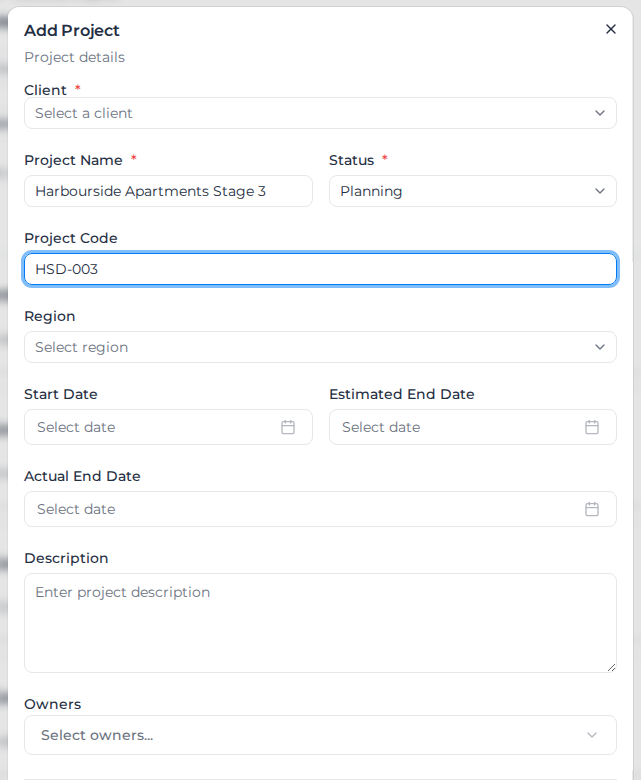
Assignar Pay shows Project created successfully, and the project appears on its client's card.
To add an order to a project instead, select Create, then Order; see Create and edit an order. If you use Assignar Operations, Create also has Import for bringing clients, projects and orders across; see Connect with Operations.
Add several clients or projects at once
You can add clients and projects in three ways:
- One at a time with Create, as above.
- From Assignar Operations, with Create, then Import, if your organization is connected to it.
- Up to 1,000 at a time by uploading a CSV or Excel file to Milo, or pasting the list into the chat. Import the clients first: each project row names its client, which must already exist. A row with the same name as an existing client or project updates it. See Import data with Milo.
Open a client
Select a client's name, on its card or in the Table view, to open its page. The top of the page shows the client's tags, how many projects and orders it has, its email and phone, and its owners. With GL coding turned on, it shows the client's Business Unit too. When a client has more than four tags, the rest sit behind a button that counts them, such as +5 more; select it to see them.
The page has two tabs:
- Overview: the client's details. To change them, select Edit Client at the top, make your changes and select Save changes, or Cancel to leave them as they were. If you try to leave the page with changes you haven't saved, Assignar Pay asks whether to save them first.
- Projects: the client's projects, with their status, dates and number of orders. Select a project to open its page, or Add Project to add one for this client.
If you can't edit clients, there's no Edit Client button.
When you can edit the client, Overview also has Print defaults. One row sets the layout for new quotes for this client, and Invoice default sets it for new invoices. Leave a row on Account default to use your organization's default. Select Save on the row you changed. Documents already created keep the layout they were given. A client with the Default badge can't be edited, so it has no print defaults.
Organizations that enable client financial controls also see an assessment and effective policies on Overview. The controls start switched off. See Set client financial policies.
Open a project
In the Table view, select a project's name to open its page. The page has these tabs:
- Contracts: the project's contracts. Select Upload Contract with AI to add one from a document; Assignar Pay reads the details from it and asks you to confirm them before it creates the contract.
- Contacts: the client's people for this project. See Add a contact.
- Details: the project and client fields.
- Photos: photos taken on the project.
- Documents: files shared with workers on every order under this project. See Share files with workers.
- Linked results: form and workpack results recorded against the project.
Organizations using the Subcontractor Hub or QR code forms also see a Subcontractors or Forms tab. If you can see workers' credentials, the page also has an Inductions tab; see Check inductions for a project.
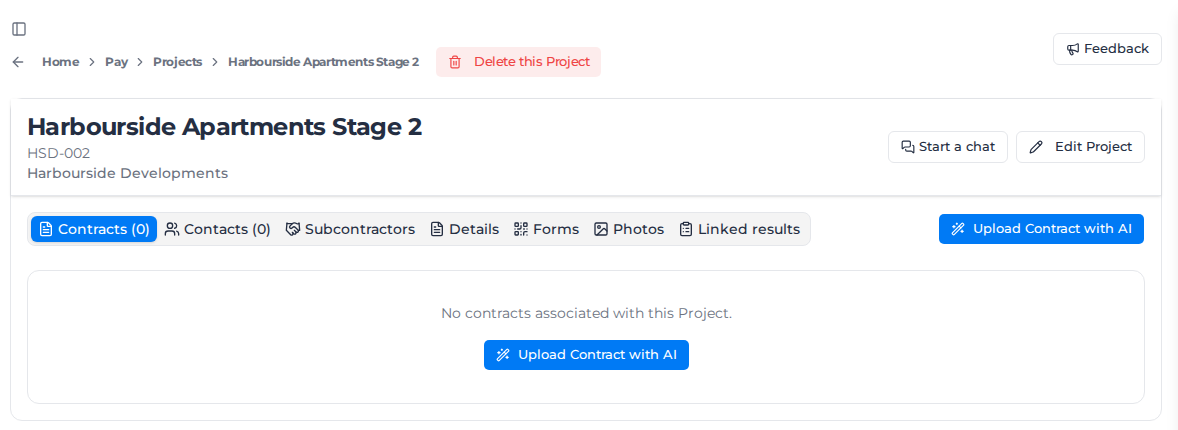
To change the project, select Edit Project. On a client's card, selecting a project's name opens the same editor.
If your crews photograph paper dockets, turn on Paper Dockets in the project's Details for each project that uses them. The setting must be on for your organization first; see Let workers capture paper dockets.
See projects and orders from other locations
When your organization limits access by location, you see the projects and orders that belong to your locations and Business Units. A project or order that belongs to another location stays hidden, with one exception.
If a worker or asset from one of your locations is booked on another location's order, that order and its project appear under the main list, in Projects via crew on the projects page and Orders via crew on Job Costing. Each row has a Via crew badge and shows the name, number, client, status, location and Business Unit.
These rows are read only. Select one to see its dates as well; you can't open, edit or delete it from there. Amounts, timesheets and rates stay with the location that owns the work. An order of another location with none of your workers or assets on it doesn't appear.
You don't see a project or order through your crew when it belongs to a Business Unit outside yours.
What belongs to a project follows the project. You see a project's safety and quality issues, with their actions, investigations and permits, its site register, its chat and the library documents linked to it only when the project belongs to your locations and Business Units. An order's chat and linked documents follow the order. A project you see through your crew shows its details only, never these.
Check inductions for a project
Everyone with shifts on a project needs the project's inductions and its client's. Open the project and select the Inductions tab to see who has them.
Required inductions lists each induction with its validity, such as 12 months or No expiry. A client's induction carries a From client badge. Each induction also shows the title of its induction form, which records workers as inducted when they pass it, or No induction form; see Link an induction form. If the list is empty, select Add an induction in Competencies and add one; see Add an induction.
Workers on shifts has a row for each worker with shifts on the project in the dates you pick. It starts at today and runs 30 days ahead; pick other dates, up to a year, with the date range above the table. Inductions are checked on the first day you pick, or today if that day has passed. Each induction shows one of:
- Current, with the expiry date or No expiry.
- Expiring: the worker has it, but it expires on or before the last day you picked.
- Expired, with the day it expired.
- Missing: the worker has no record of it that counts on that day, for example none was ever recorded, or it was rejected or revoked. Pending verification under the status means a record is waiting for someone to verify it.
Turn on Missing only to list just the workers with a missing or expired induction.
To record one, select Record induction under a missing or expired induction. The worker's record dialog opens with that induction already chosen; fill it in as in Record an induction. The table updates when you save. Record induction needs permission to add worker credentials. Select View record to open the worker's Roles & Competencies and see the record itself.
To report on inductions across projects and clients, use the Inductions report data source; see Report data sources.
Add a contact
- On the client's card, select Contacts, then Add Contact. On a project page, open the Contacts tab and select Add Contact.
- Under Add New, enter the contact's first name, last name, email address, phone and tags. To reuse someone already saved for this client, choose Select Existing instead.
- To let them sign in to the client portal and see their invoices, turn on Grant Client Portal Access. Assignar Pay sends them an invitation and shows Invitation sent successfully.
- Select Create.
If the contact doesn't accept before the invitation expires, their contact shows Invitation expired. Open the contact and select Update with portal access still on to send a new invitation.
Delete a project or client
To delete a project, open it and select Delete this Project, then confirm. This also deletes all of the project's orders and can't be undone.
To delete a client, open its page, select the More actions button (⋯) beside Edit Client, then Delete this Client, and confirm. This also deletes all of the client's projects and orders and can't be undone.