

Review supplier invoices
Approve or reject the invoices your suppliers send, enter or import invoices yourself, record payment, and raise credit notes.
Supplier invoices are the bills your suppliers send you. Most come in through the supplier portal against a purchase order. You can also enter one yourself, or read one from a PDF or a photo of a receipt. Your team checks each one and approves it for payment.
Owners, Admins and Managers can review, approve and enter supplier invoices.
When a supplier submits an invoice through the supplier portal, your Owners, Admins and Managers get a notification and an email with a link to review it. If your account limits access by location, only those who can see the invoice are told.
Find an invoice
In the sidebar, select Procurement, then Supplier Invoices.
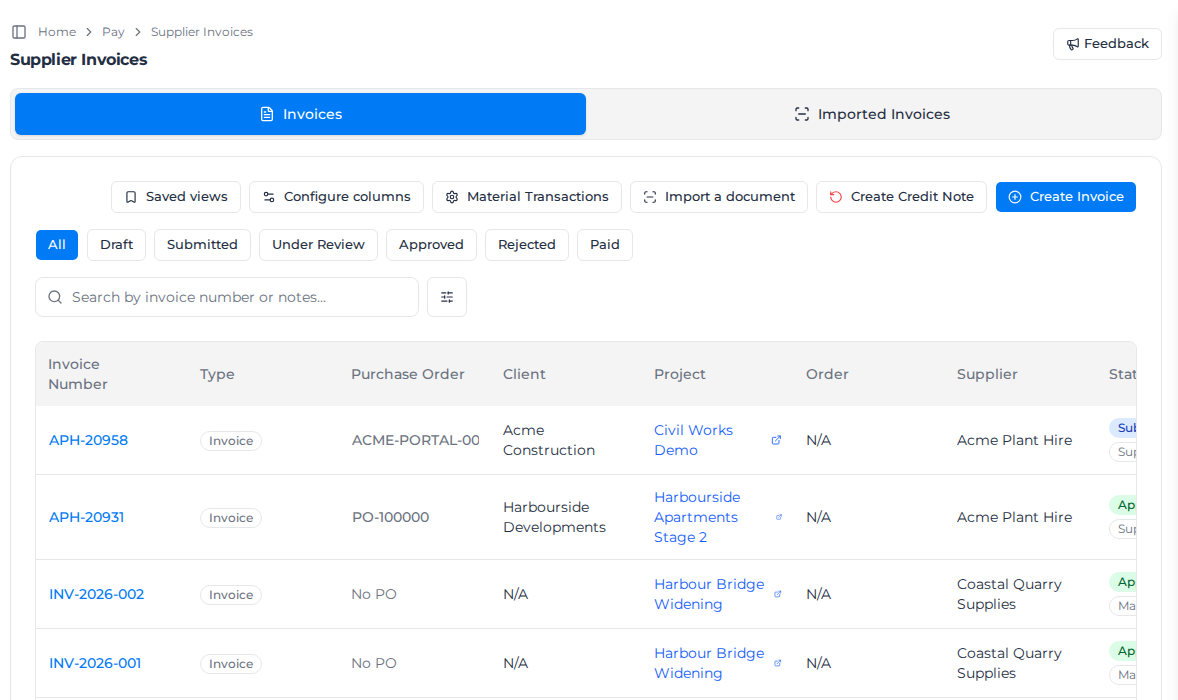
- The buttons above the list filter by status: All, Draft, Submitted, Under Review, Approved, Rejected and Paid.
- Search by invoice number or notes... finds an invoice. The filter button beside it narrows the list further.
- Saved views keeps a set of filters, and Configure columns chooses the columns.
Each row shows the purchase order the invoice is against and how it arrived: Supplier Portal, Manual (with PO), Manual (no PO) or AI Import. Credit notes are listed too, as type Credit Note.
Approve or reject an invoice
- Open the invoice by its number. Compare its lines with the purchase order and with what you have received; see Raise purchase orders.
- Select Review Invoice.
- Select Approve Invoice, then Approve to confirm. Or select Reject Invoice, enter a Rejection Reason, and select Confirm Rejection.
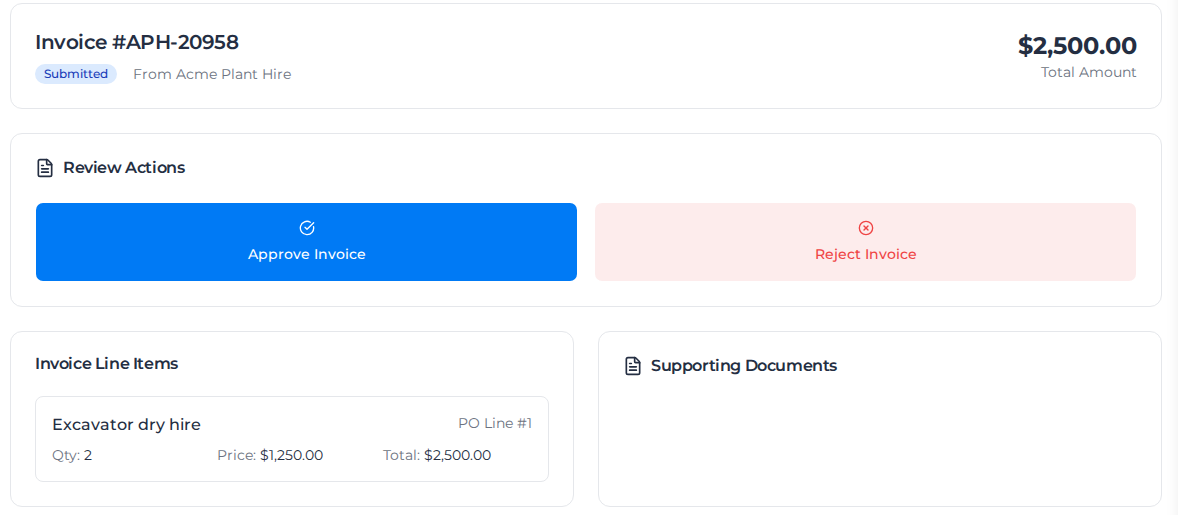
An approved invoice is recorded against the order's job costing. A rejected invoice is closed: the supplier sends a new one. You can't reject without a reason.
Check the invoice against approved time
When an invoice line is matched to a purchase order line that approved time uses up, the line shows how the invoice compares with that time. Within approved time means the supplier has invoiced no more than the time approved so far. When the invoices run ahead of the approved time, the line says so in red, for example Invoiced 10 hours, but approved time is 8 hours. Check the timesheets before approving the invoice. On a line consumed by value, the message compares the value without showing the amounts.
When the purchase order requires receipt before invoicing, an invoice can't claim more than the approved time on such a line.
Invoices that receive the purchase order
A purchase order line can be set to be used up by the supplier's invoice instead of by time; see How time consumes the line. Approving an invoice matched to such a line records the goods receipt on the purchase order. Move to Draft reverses it, and an approved credit note gives back what it credits. The invoice is refused if the line was already received by hand: a line is received one way only, decided by the first receipt.
When an invoice line would take its purchase order line past what was ordered, approving the invoice holds that line and the invoice stays in review, with a message naming the line. The line shows Held: over the purchase order limit. The invoice stays in review, and cannot be approved or paid, until a variation on the purchase order makes room for this line. Approving a variation that adds to the line releases it; then approve the invoice again. Editing the line, or Move to Draft, also ends the hold, and the line is checked again when the invoice is next approved. If your organization blocks approvals that go over, the invoice is refused instead; see Choose what happens when time goes over a line.
Record payment or correct an approved invoice
An approved invoice has these buttons:
- Mark as Paid records that you have paid it. Add a Payment reference (optional), such as the bank transfer ID.
- Move to Draft takes it back to draft so you can edit it. Its costs come off the job until you approve it again.
- Reject rejects it after all, with a reason. This can't be undone; enter the invoice again if you need to.
- Clone to Draft makes a new draft copy.
- Edit Tax in the Financial Summary changes its tax.
Move to Draft and Reject are refused once a credit note exists against the invoice, or once its materials have been invoiced to your client.
Enter an invoice yourself
For an invoice the supplier sent you by email or on paper:
- Select Create Invoice. To invoice against a purchase order, open the purchase order instead and select ⋮, then Manually Invoice; its lines and tax come across for you.
- Choose the Client and Supplier, and the Order and Project if it is for one.
- Enter the Invoice Number, Invoice Date and Due Date. Add the supplier's own External Purchase Order number if they quote one.
- Choose the Status. It starts on Approved.
- Add the lines: choose a Type, then enter the Quantity and Unit Price, and the Activity if the line is for one.
- Turn on Tax to add tax, and attach the supplier's invoice under Attachments (up to five files).
- Select Create Invoice. Tick Create another after saving to enter the next one straight away.
Import an invoice document
Assignar Pay can read a supplier invoice or receipt for you.
- Select Import a document, or open the Imported Invoices tab.
- Upload a PDF, or a photo of the document (PNG, JPG or WEBP), up to 25 MB.
- When its status shows Needs review, open it. The document shows beside what was read from it.
- Check each field against the document. Fields that don't add up or couldn't be read are marked. Correct them, and confirm the supplier and the purchase order it matched.
- Under Create as, choose Draft, Submitted or Approved, and select Create the invoice. Discard drops the import without creating anything.
Your organization may be set up so that some imports open on a short AI checks passed summary instead, when every check passed and no duplicate was found. This doesn't approve anything. Compare the summary with the document beside it, then select Confirm invoice to create the invoice as Submitted, ready for the usual review. Select Review details to check or correct every field first, and do so whenever the document is unclear. An import with a mismatch, an uncertain match or a possible duplicate always opens the full review.
On that review, when there are more matches than the list can show, it says There are more matches than this list can show. The ones you cannot see still block this invoice. Create the invoice stays unavailable.
If the document has a tax amount but your account has no default tax rate, the review shows No default tax rate and Create the invoice is unavailable. Select the link in the notice to open Tax Settings, set a default tax rate, then come back. You can also clear the tax amount.
If the status shows Could not be read, open it to see the reason. For a timeout or an unexpected reading failure, select Read it again. A HEIC or HEIF photo needs a new upload as a JPEG, PDF or screenshot instead.
If a PDF is refused for exceeding the 20-page limit, split it into smaller PDFs and upload them separately. You can also enter the invoice yourself.
If the document is a supplier's quote rather than an invoice, it shows Could not be read. If your account includes Procurement and you can create purchase orders, select Import as a supplier quote to open a new quote import for review. Check it before creating the purchase order; see Raise purchase orders.
To combine a supplier's receipt lines into one line on import, see Manage suppliers.
Raise a credit note
A credit note records money a supplier owes you back, such as for returned materials.
- Select Create Credit Note. To credit one invoice, open it and select Create Credit Note under Credit Notes instead.
- Choose the Supplier, and enter the Credit Note Number and Credit Note Date.
- Under Linked Invoices, choose the invoices it relates to, if any. Add the Client, Project and Order, and the Reason.
- Add the lines. Either enter them with Add Line Item, or select Import Lines from Invoices, choose approved invoices, tick the lines to credit and select Import Selected Lines. Each line shows how much is left to credit, and you can't credit more than that.
- Check the Subtotal, tax and Credit Total, and select Create Credit Note.
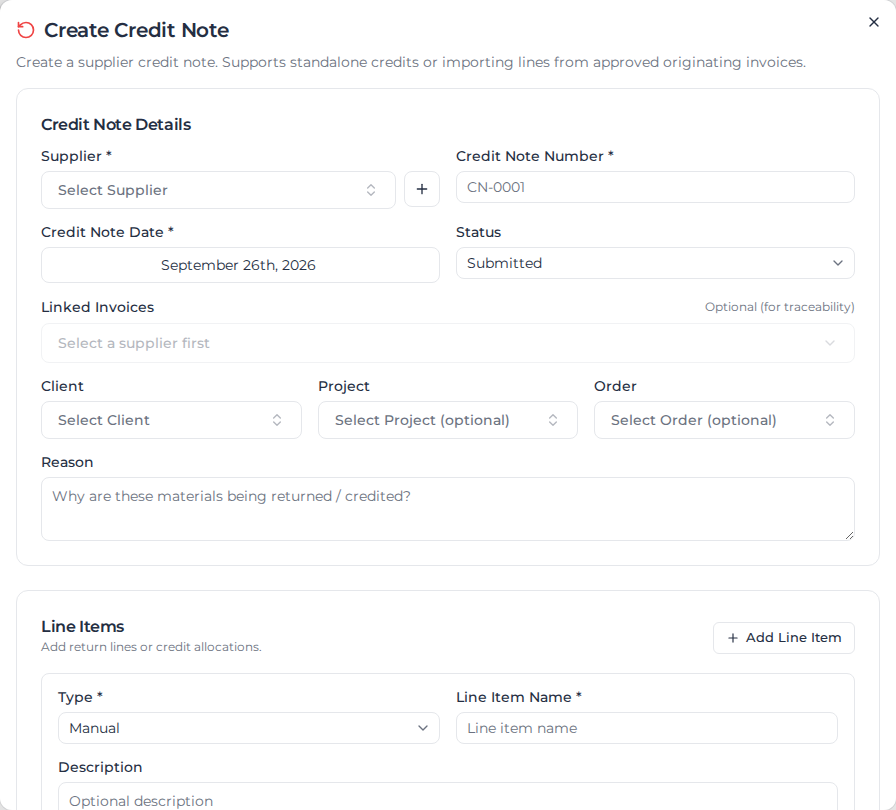
A credit note doesn't need a purchase order. Review it like an invoice: open it, select Review Invoice, then Approve Credit Note or Reject Credit Note. Once approved, it comes off the Net Payable of the invoices it credits; one that is still waiting for approval doesn't. A submitted credit note does already reduce what the purchase order shows as invoiced.
Create material transactions automatically
Select Material Transactions to choose whether approving an invoice records its material lines as material transactions, ready to price and bill to your client:
- Auto-create material transactions turns it on.
- Include line items without an activity and Include invoices without an order widen it to lines that would otherwise be left out.
Select Save.