

Customize print templates
Change how your invoice and purchase order PDFs look: layout, colours, fonts and the sections they include.
A print template sets how an invoice or purchase order looks as a PDF, whether you download it or email it. Without one, Assignar Pay uses its standard layout. You can keep several templates, for example one per client, and choose which one each document uses.
Owners and Admins manage invoice templates. Owners, Admins and Managers manage purchase order templates. Bids have templates of their own, built in the same editor; see Set up bids.
Create a template
- Open the templates:
- For invoices, select Revenue, then Invoices, and open the Print templates tab.
- For purchase orders, select Settings, then Procurement Settings, and select Manage templates.
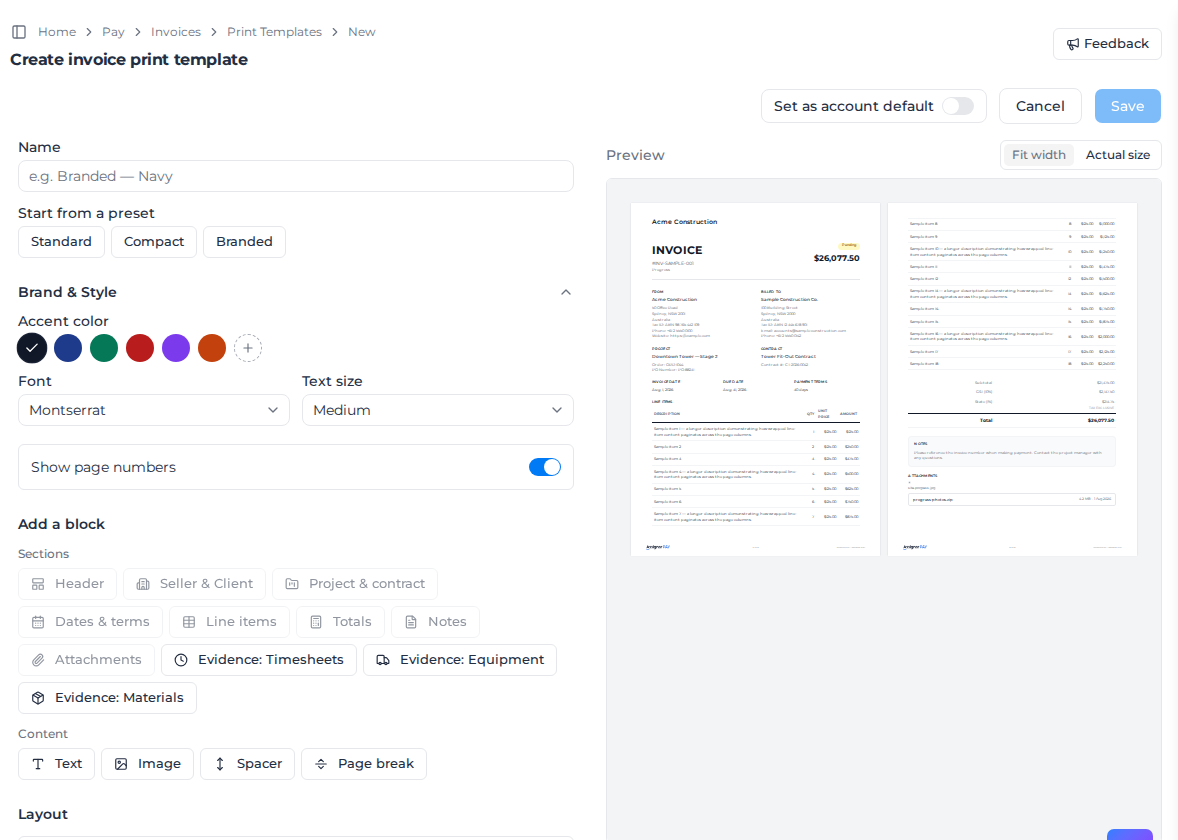
- Select Create print template.
- Give it a Name.
- Under Start from a preset, choose Standard, Compact or Branded as a starting point.
- Under Brand & Style, choose the Accent color, Font and Text size, and whether to Show page numbers.
- Under Add a block, add the parts you want on the page. Then put them in order under Layout.
- Check the Preview on the right. Fit width and Actual size change the zoom.
- To make it the template every new document uses, turn on Set as account default.
- Select Save.
Choose what goes on the page
Invoice templates are built from these blocks:
| Block | Shows |
|---|---|
| Header | Invoice number, type, status and total |
| Seller & Client | From and billed-to details |
| Project & contract | Project, order and contract details |
| Dates & terms | Invoice date, due date and payment terms |
| Line items | The table of invoiced items |
| Totals | Subtotal, tax and total |
| Notes | The invoice's notes |
| Attachments | Image and file attachments |
| Evidence: Timesheets, Evidence: Equipment, Evidence: Materials | The timesheets, equipment and materials the invoice billed, as an appendix your client can check the lines against |
| Text, Image, Spacer, Page break | Your own wording, your logo, extra space, and a new page |
A section block can be added once, so it greys out when it's already in the layout. Select a block in the layout to change its settings, such as the columns and grouping of an evidence block. A template holds a limited number of blocks; when you reach it, you see "You can add at most N blocks to a template."
Purchase order templates work the same way, with blocks for the purchase order's own details, such as the supplier's contact, address, phone and email.
Use a template
- On an invoice, choose the Print template when you create it, or later with Edit. Assignar standard is the plain layout, Built-in layouts are the templates you designed here, and Uploaded templates are Word, Excel or PowerPoint files you uploaded.
- On a purchase order, choose the Print template in the form. Purchase orders use the templates you design here.
- New documents start with your default template, unless the client has its own default. See Open a client.
From the templates list you can also set a template as the default, duplicate it, or delete it. Invoices and purchase orders that used a deleted built-in template go back to the standard layout.
Print an invoice from your own Word, Excel or PowerPoint file
On the invoice Print templates tab, Uploaded templates sits above the templates you design. It takes Word (.docx), Excel (.xlsx) and PowerPoint (.pptx) files.
Upload a file and it becomes the default for new invoices. Upload another and the earlier file stays in the Library. A file marked Default is the one new invoices use when neither the invoice nor its client names a layout. Available means the file is kept and can still be chosen on an invoice. Select Set as default to switch which file that is.
Built-in layout sends new invoices back to the templates you designed. The uploaded files stay in the library. Uploaded template sends new invoices to the default uploaded file.
Select Remove, then Remove file, to take a file off the list and off any client default that used it. Invoices that already name that file keep printing it. If a file cannot be turned into a PDF, the download fails and says so. It does not switch to the built-in layout.
Repeat a row for each invoice line
Copy the tags you need from Available tags on the tab, and paste them into your file. To repeat part of the page for each invoice line, put {foreach $lines as $row} at the start and {/foreach} at the end:
- Word: put the repeating section in a table row, with the opening tag in the row's first cell and the closing tag in its last.
- Excel: the rows from the opening tag to the closing tag repeat for each line. Formulas, totals ranges, merged cells and print areas adjust to the added rows.
- PowerPoint: the loop repeats the rows of a table, or the paragraphs of one text box.
Total the lines in Excel with a formula that covers the loop row and the row below it. A SUM over the loop rows alone shows #REF! on an invoice with no lines.
A loop has to start and end on the same sheet, slide, table or text box. When it doesn't, the template check on the tab lists it under Template errors, and the tags print as written.
Download an invoice as Word, Excel or PowerPoint
An invoice that prints from an uploaded template can also be downloaded in that file's own format. Next to Print, on the invoice page and in its quick view, select Download as Word, Download as Excel or Download as PowerPoint. The button names the type of the invoice's template, and isn't shown for an invoice on a built-in layout.
Print, Send by email and printing several invoices at once still make PDFs.