

Review billable units
See every priced timesheet and docket that is still to be invoiced, with totals by rate type, and correct hours and rates before you invoice them.
Billable Units lists the work your schedule of rates has priced, line by line, before it goes on an invoice. Use it to check what you are about to bill, and to fix an hour or a rate that came out wrong.
Only Owners and Admins can open Billable Units. Work only appears here once it has been priced; see Set up a schedule of rates.
Find the work to bill
In the sidebar, select Revenue, then Billable Units.
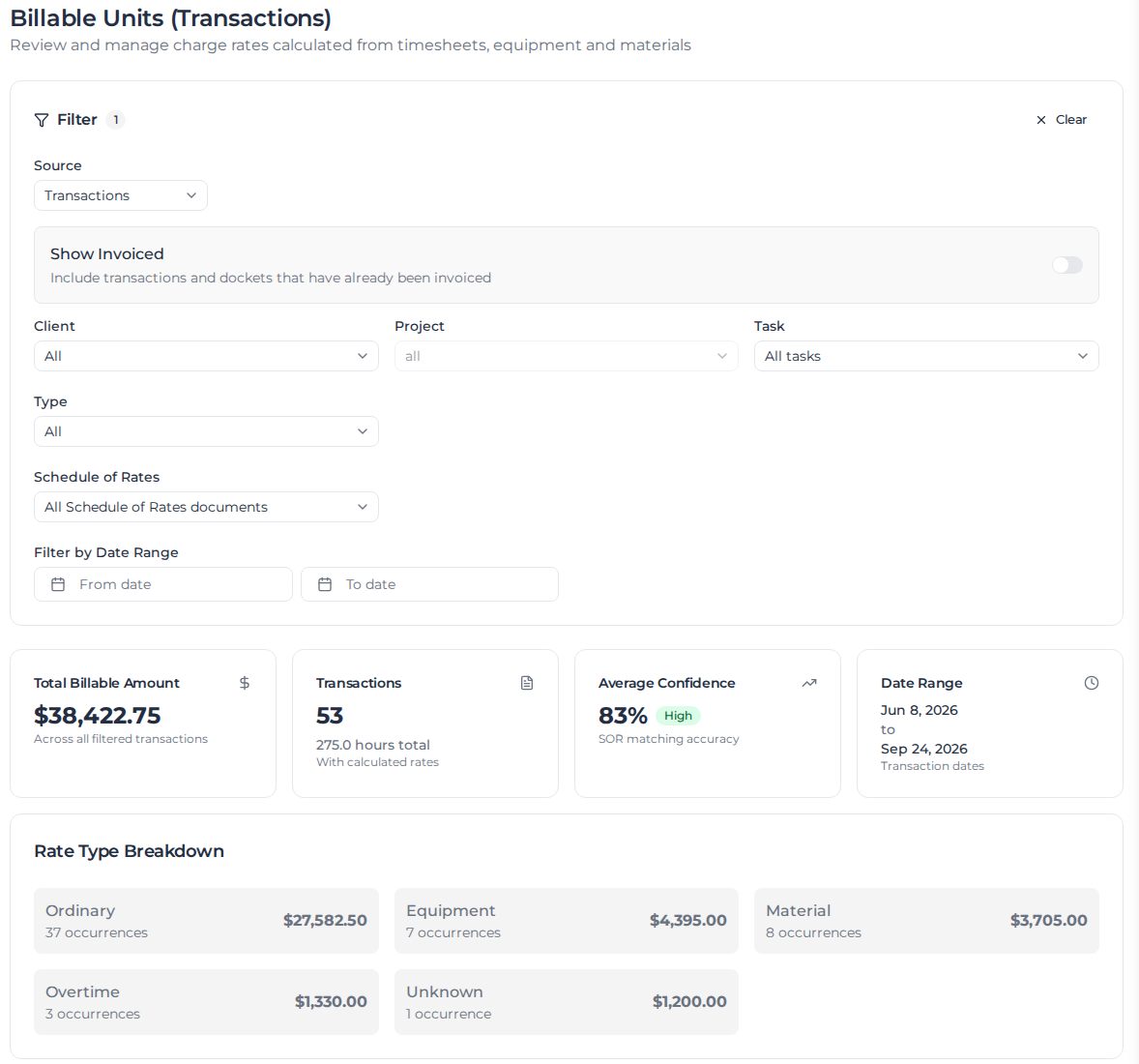
- Under Source, choose Transactions for timesheets, equipment and materials, or Dockets for dockets. United States and Canadian accounts see Field Tickets, and the list uses your organization's own name for them if it has set one under Terminology in Settings.
- Narrow the list by Client, Project, Task, Type and Schedule of Rates, and by date with From date and To date. Clear removes every filter.
- Turn on Show Invoiced to include work that has already been invoiced.
The cards below the filters total what is showing: Total Billable Amount, the number of Transactions and their hours, the Average Confidence of the schedule-of-rates match, and the Date Range the work covers. Rate Type Breakdown splits the total by rate type, such as ordinary time, overtime, equipment and materials.
The table lists each record with its client, project, order, role, Invoice Status and SoR Status, then its hours, rate and amount for each rate type. Search all columns... finds a record by any value in it.
Correct an hour or a rate
- Select the value you want to change, such as a rate type's hours or Rate Per Hour, and type the new value.
- Change as many values as you need. Nothing is saved yet.
- Select Save to keep your changes, or Discard to drop them.
You can't change a record that has already been invoiced. Material transactions are read only here. Hover over a value to see why it can't be changed.
Audit Trail lists the records whose hours or rates have been changed here. Select one to see who changed what, and the values before and after.
Export the list
Select ⋮ above the table, then Export all, and choose Export as CSV, Export as JSON or Copy for Excel.
Fullscreen expands the table to fill the browser window or the whole screen.
When the work looks right, bill it: see Create and send invoices.