

Raise purchase orders
Create and approve purchase orders, raise one from a supplier's quote, change them with variations, record deliveries against them, and put them on hold or cancel them.
A purchase order tells a supplier what you are buying, for which job, and at what price. Once you approve it, the supplier sees it in the supplier portal, you record deliveries against it, and the supplier invoices you against it.
Owners, Admins and Managers can create, approve and receive purchase orders. Add the supplier first; see Manage suppliers.
Find a purchase order
In the sidebar, select Procurement, then Purchase Orders.
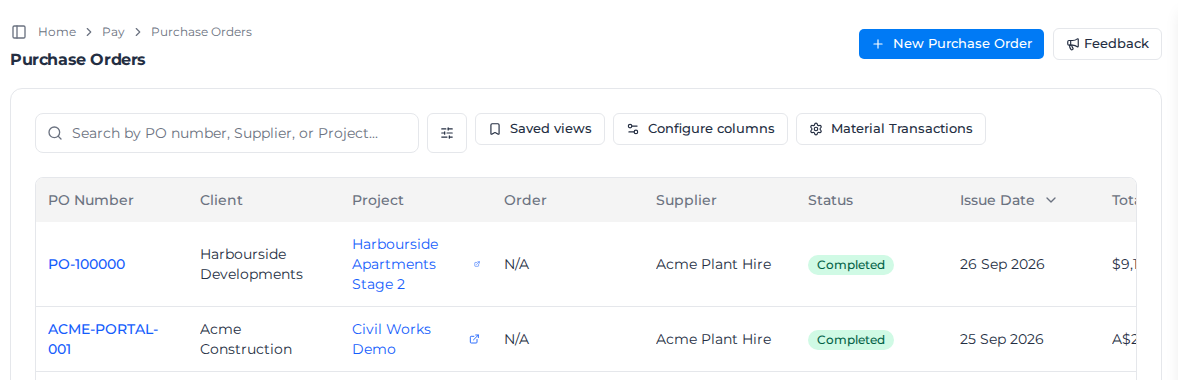
- Search by PO number, Supplier, or Project... finds an order. It also matches the Reference Number and External reference. The filter button beside it narrows the list.
- Saved views keeps a set of filters to use again, and Configure columns chooses the columns.
Select a PO number to open it.
Create a purchase order
- Select New Purchase Order.
- Choose the Client, then the Project or the Order the purchase is for. You need at least one of the two; without either you see "Select a project or an order".
- Choose the Supplier. The list shows each supplier's tags, and the search finds suppliers by tag as well as by name. Add a Supplier Contact if you have one.
- Check the Issue Date. Expected Delivery Date can't be before it.
- Check the Currency and Payment Terms (days), and choose the Print template for the PDF. Choose Terms & Conditions when this order should carry your standard terms. No terms & conditions leaves them off. A new order starts on your default terms when you have set one.
- Leave Require receipt before invoicing ticked for goods: the supplier can then only invoice what you have recorded as received. Untick it for services or pre-payments.
- Add the delivery details, a Reference Number, an External reference if the order comes from your ERP or accounting system (see Orders from your ERP or accounting system), and under Logistics the Ship Via, F.O.B. and Shipping Terms if you need them.
- Add the lines. See Add lines.
- To add tax, turn on Tax. See Add tax.
- Add Public Notes for the supplier, and Internal Notes that only your team sees.
- Choose the Status: Draft to finish it later, or Approved to issue it now.
- Select Create Purchase Order.
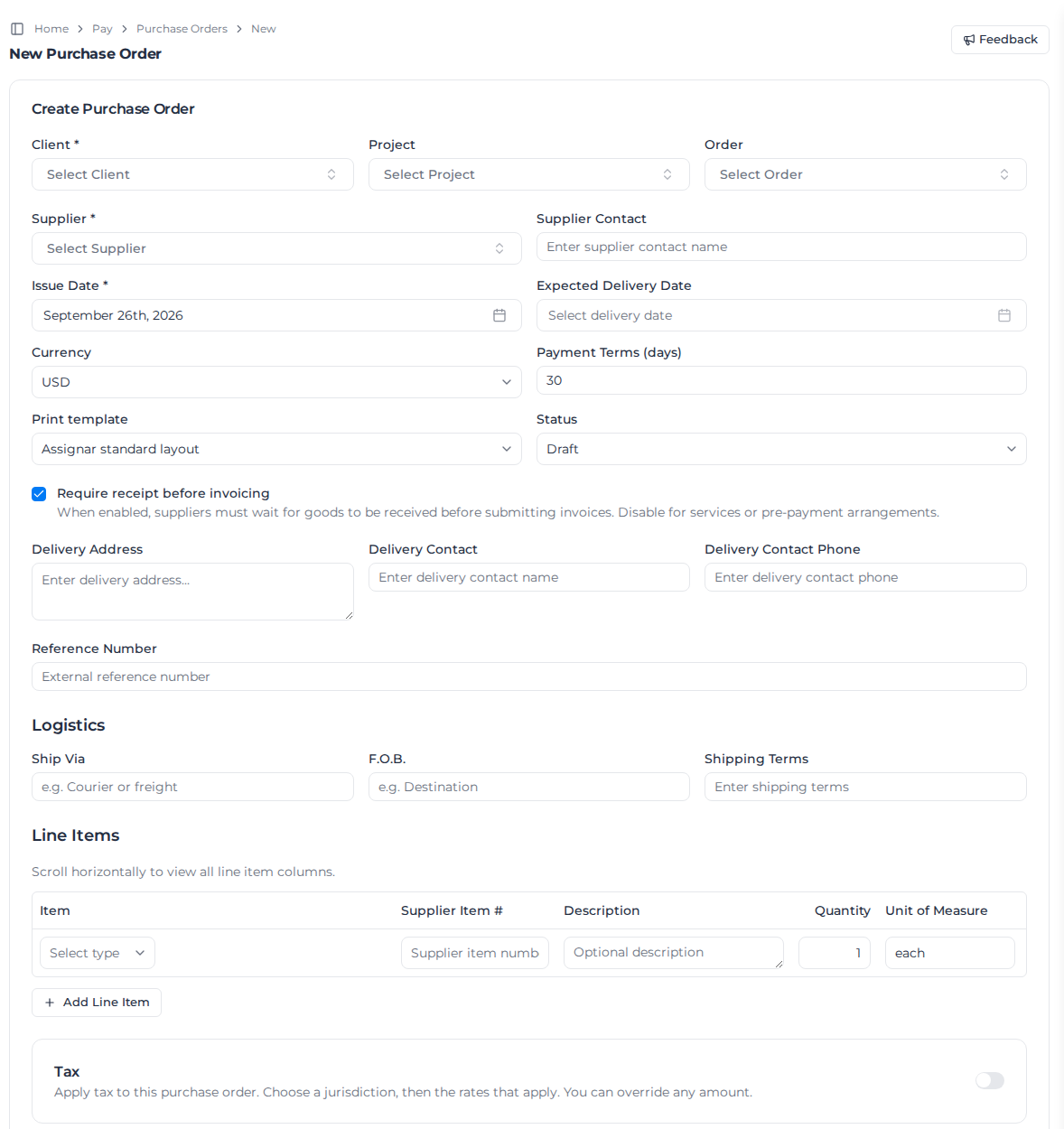
The order is numbered from your purchase order sequence. See Change the numbering.
Create a purchase order from a supplier's quote
When a supplier sends you a quote, Assignar Pay can read it and fill in a draft purchase order for you to check. This is part of the Procurement module, so you only see Import supplier quote if your account includes it.
- On Purchase Orders, select Import supplier quote. The button is also on the New Purchase Order page.
- Upload the quote: a PDF or a photo (PNG, JPG or WEBP), up to 25 MB, or a CSV or Excel (XLSX) file, up to 10 MB. An Excel workbook can have up to 20 non-empty sheets, 2,000 data rows across those sheets and 60 columns per sheet. A spreadsheet must also fit within 40,000 characters of cell text.
- The quote opens beside what is read from it. Reading a long quote can take a couple of minutes; you can leave and come back. Every quote you upload is listed on the Quote imports tab, and one that is ready shows Needs review.
- Check the Supplier it matched, and the Quote number, dates and prices against the document. Correct anything that is wrong.
- Under Where it is charged, choose the Client, then the Project or the Order. A quote rarely says which, so you choose it.
- Check the lines. Each line has a tick box that puts it on the purchase order. Lines the quote marks Optional start left off, unless the quote's own total counted them, in which case they start ticked. Lines priced Price on application always start left off. To put a price-on-application line on, tick it and enter the price you agreed.
- Select Save corrections.
- Select Create draft purchase order. Tick Create it approved first to skip approval, if you can approve purchase orders.
The purchase order opens. The quote number becomes its Reference Number, and the quote is attached to the order in its Activity Log. Approve and send it as usual; see Approve and send it.
A purchase order can't carry a discount, because its lines can't have a negative price. A discount line on the quote is marked as a discount and starts left off. To apply it, lower the price of the line it applies to. If you tick a discount line anyway, you see a message saying the same when you select Create draft purchase order, and nothing is created.
If a purchase order already exists for this quote number from this supplier, or the same document was imported before, the screen shows the match. A quote number matches either way around the capitals, so q-1001 and Q-1001 are the same quote. Check the match, then tick I have checked, and this is a different purchase order. to continue.
When the list cannot show every match, that tick is not there and Create draft purchase order stays unavailable. The notice says There are more matches than this list can show. The ones you cannot see still block this bid, so it cannot be turned into a purchase order from here.
If a line can't go on the order, you see why when you create it, for example "Line 3 was quoted as price on application. Enter the price you agreed, or leave the line off the purchase order."
If the document is not a quote, it shows Could not be read with the reason. When it is a supplier invoice and you can create supplier invoices, select Import as a supplier invoice to read it as one; see Review supplier invoices.
For a timeout or an unexpected reading failure, select Read it again. A file that cannot be read, such as a HEIC or HEIF photo, needs a new upload instead. Share the photo as a JPEG, or upload a PDF or screenshot.
If a PDF is refused for exceeding the 20-page limit, split it into smaller PDFs and upload them separately. Split a spreadsheet that exceeds the limits above before uploading it again. You can also select Discard and create the purchase order yourself.
Read it again isn't available while the quote is being turned into a purchase order; reload the page to see the result.
Tax on a quote
Purchase order prices exclude tax, so how the tax is handled depends on what the quote prints.
- The quote's prices exclude tax. They go across as printed, with the quote's tax amount if it shows one. If you leave some lines off, the tax is scaled down to the lines that are on the order.
- The quote's prices include tax and it shows a tax amount. The screen says so, and Convert prices to exclude tax is ticked. Each price has your default tax rate taken out. Untick it to put the prices on as printed, tax included; the purchase order then has no separate tax.
- The prices include tax but the quote shows no tax amount. Create draft purchase order stays unavailable until you enter the tax amount or tick Convert prices to exclude tax.
- The reader got the tax basis wrong. Prices include tax, in the totals, shows how the quote was read. Untick it when the prices actually exclude tax: they then go on as printed, plus tax, and you can enter the tax amount if the quote adds it on top. Tick it when the prices include tax but were read as excluding it.
- The converted prices don't add back up. If taking your default tax rate out of the prices, and adding the quote's tax, doesn't come back to the quote's total, the order is refused. The quote was probably taxed at a different rate, or a figure was misread. Check the tax amount and the total, or untick Convert prices to exclude tax.
- Your account has no default tax rate. Applying a separate tax amount or converting prices requires a default tax rate in force today. Create draft purchase order is unavailable without one. The screen shows No default tax rate for a separate tax amount, or a notice explaining that it cannot take tax out of the prices. Select the link to set a default tax rate in Tax Settings, then come back. For prices that include tax and show a tax amount, you can instead untick Convert prices to exclude tax to carry the prices across without separate tax.
Who can use the quote
You need permission to create purchase orders to import a quote. Quote prices are cost figures. If your access doesn't include cost figures, you can still import a quote and check its details, but someone who can see prices must create the purchase order.
You can't open the quote document or change a line's quantity or whether it is ticked without access to cost figures. The document area says it is hidden instead. You also can't use Read it again once a quote is ready for review, because reading it again could clear prices that someone else is reviewing. You can still retry a failed reading.
Set your terms
Purchase Orders, then Terms & Conditions, holds the wording you attach to an order: payment, delivery, insurance, and the rest.
- Select Create Terms and Conditions.
- Enter a Name and the Content.
- Tick Set as Default when new purchase orders should start with these terms.
- Select Create.
On a draft you can pick different terms, or No terms & conditions. An order shows the current wording of its terms, so editing them changes every order that uses them, approved or not. The terms print on their own page of the PDF, under Terms & Conditions. On the order, Basic Information names them and links to the library.
Add lines
Every purchase order needs at least one line.
- On the line, open Select type and choose Role, Material, Equipment, Activity, Cost Code or Manual.
- For every type except Manual, pick the record the line is for. Its unit of measure comes with it. For a Manual line, type a name and choose the Unit of Measure.
- Enter the Quantity and Unit Price, and add a Supplier Item # and Description if you need them. Unit Price takes up to 2 decimal places.
- Select ⋯ on the line for its Line details: an activity, Line Notes, and Time can be booked to this line.
- Select Add Line Item for another line.
Time can be booked to this line marks a line that labour time is booked against, such as consultant days or a labour-hire role. It is ticked for you on a Role line measured in hours or days, and unticked on every other line. Leave it off for materials, freight and anything else time should never use. A ticked line shows Time can be booked under its name, on the form and on the order.
How time consumes the line
When Time can be booked to this line is ticked, Line details also asks how that time uses up the line:
- What consumes this line: Approved time (the default) means approved time booked to the line consumes it, and the supplier's invoice is checked against that time. Supplier invoice means the approved supplier invoice consumes it, and time booked to the line is for reference only. A line is consumed one way only, so nothing is counted twice. Once the line has consumption, this can't change; add a new line for the other source instead.
- Time consumes the line by: Quantity (the default) counts time in the line's own unit, so the line must be measured in hours or days. Value counts time in money, at the supplier's rate.
- A day of this line is: for a line measured in days and consumed by quantity. Any time on a date counts as one day (the default) counts one day for each worker on each date they book time to the line. A set number of hours turns hours into days: with 8 hours, 4 hours of work is half a day.
If a line consumed by quantity is measured in anything other than hours or days, the form asks you to change its unit, consume it by value, or untick Time can be booked to this line.
On the order, a ticked line shows how it is consumed next to Time can be booked, for example Approved time · by quantity · a day = 8 h.
The units of measure are metric or imperial, following Units of measure under Localization in Settings.
You can also raise draft purchase orders from the lines of an order's job costing; see Track job costs.
Orders from your ERP or accounting system
When a purchase order is raised in another system first, put that system's PO number in External reference. Keep Reference Number for your own reference, such as a supplier quote. The PO number stays your Assignar Pay number.
The external reference shows under the order's title, and a line's reference shows on the line. To print it on the PDF, turn on Show external reference in the Delivery & terms block of your print template.
Two live purchase orders can't share an external reference. If another order already uses it, you see "Another purchase order already uses this external reference."
When your system sends the order through the Assignar Pay API with the same external reference, the existing order is updated instead of a second one being created. That includes an order you raised in Assignar Pay and typed the reference into. A draft takes the new content, lines included. An approved order only takes changes to its notes, dates, delivery and contact details, references, and whether and how time can be booked to each line; a change to what was ordered is refused.
Add tax
Tax on a purchase order is off until you turn it on, so an order shows the same total as the supplier's invoice.
- Turn on Tax.
- Choose the jurisdiction. Its rates are ticked for you; change which ones apply. Several can apply at once, such as GST and PST.
- To match the tax on the supplier's quote exactly, type the amount next to a rate. The line then shows as overridden.
Tax is added on top of the subtotal. The order's Financial Summary shows the tax for each jurisdiction, and so do the PDF, the CSV export and the supplier's view.
Your tax rates come from Settings; see Set up your organization.
Approve and send it
Open a draft purchase order and select Approve, then Approve again to confirm. Once approved, the order can't be edited, and the supplier sees it in the supplier portal. To change it, raise a variation (below), or move it back to draft while nothing has happened against it.
A few things on each line stay changeable after approval, because none of them changes what was ordered: tick or untick Time can be booked to this line; on a ticked line, select Consumption to change how time consumes it (see How time consumes the line); and select Add external reference or Edit external reference to set the line's reference. Each change is recorded in the order's Activity Log.
When you edit an older purchase order whose unit prices have more than 2 decimal places, the editor rounds those prices to 2 decimal places. Saving updates the line amounts and order total to match.
Until then, Edit changes a draft. Export downloads its lines as a CSV file, and Download PDF downloads it with your print template. When the order has terms, the arrow beside it offers Without terms & conditions.
If you have permission to view clients, the PDF includes the linked Client on both standard and custom print templates. For the default client, it uses your account's client terminology. Without permission to view clients, the PDF omits the client label and name.
On an approved order you can still change the tax with Edit Tax in the Financial Summary, until the supplier has invoiced against it.
Change an approved order with a variation
When an approved order needs more quantity, a new price or another line, raise a variation instead of editing the order or raising a second one. The order keeps its history: what it was first approved for, each change, who asked for it and who approved it.
- Open the purchase order and find Variations.
- Select Raise variation.
- Enter the Reason. Add the External reference when your other systems have their own number for the change, such as a variation PO number.
- Under Change existing lines, enter the Quantity change on each line that changes: a positive number adds, a negative number removes. Enter a New unit price only when the price changes. Leave the other lines blank.
- Under Add new lines, select Add line for each new line and fill it in the same way as a line on a new order. Time can be booked to this line is ticked for a Role line measured in hours or days; change it when you need to. The line keeps that setting when the variation is approved, and is consumed by approved time, by quantity. To change how time consumes it, select Consumption on the line once the variation is approved.
- Select Raise variation.
The variation is saved as a Draft, numbered from its own sequence. A draft changes nothing: the order's quantities, value and what can be received against it stay as they were. Until it is approved, select Edit to change it or Cancel variation to withdraw it.
To approve it, select Approve, then Approve again to confirm. The changes are applied to the order straight away, and its value moves to match. If the order was Completed, a variation that adds quantity or a line moves it back to Partially Received so you can receive the rest. An approved variation can't be undone; to reverse it, raise another one. Approving a variation also releases time and invoice lines held for going over the order; see When time or an invoice goes over a line.
Variations shows the order's Original value, its Approved variations and its Current value, all totals including tax, and lists every variation with its reason, its status and who raised and approved it. An approved variation shows what it changed the order's total by, including tax, with its line changes ex tax beneath; a draft shows its estimated change ex tax. Select the line count on a variation to see each change. Every variation raised, approved or cancelled is also recorded in the order's Activity Log.
Only people who can approve purchase orders can approve a variation, and only people who can see purchase order prices can edit a draft. A line can't go below what has already been received or invoiced against it; when a variation would do that, you see a message such as "Line 2 cannot go below the 12 already received or invoiced." A purchase order created from an accepted marketplace quote can't be varied.
Print a variation
Select Print on a variation to download it as its own PDF, with its reason, its changes and the order's value before and after. The purchase order's own PDF prints its current value and, after the totals, a list of its approved variations with the original value. To leave that list off, turn off Show variation summary on the totals block of your print template.
Record a delivery
- Open the approved purchase order and scroll to Goods Receipt.
- Select Receive on the line that was delivered.
- Enter the Quantity Received and Received Date. Add the Delivery Reference, such as the delivery docket number, and any Receipt Notes.
- Select Record Receipt.
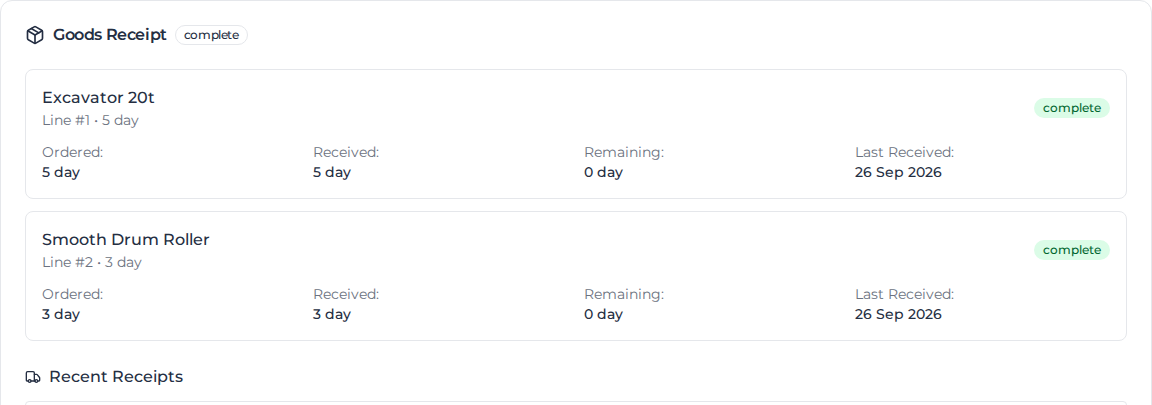
Each line shows what was ordered, received and remaining. Recent Receipts lists every delivery. When some lines are received the order becomes Partially Received, and once everything is received it becomes Completed.
Lines received automatically
A line that time can be booked to is received for you, so nobody receives the same work twice:
- Approved time lines are received when time booked to them is approved. Each approved timesheet adds one receipt for its hours or days, or for its supplier cost on a line consumed by value.
- Supplier invoice lines are received when the supplier invoice matched to them is approved. Each approved invoice line adds one receipt, and an approved credit note gives back what it credits.
A line is received one way only, and the first way it is received decides which:
- Once approved time or an approved supplier invoice has received a line, it has no Receive button and shows Received from approved time booked to this line, so it is not received by hand (or from approved supplier invoices).
- Until then you can still receive it by hand. Once you do, it shows Received by hand, time can no longer be booked to it, and approving time already booked to it, or an invoice matched to it, is refused with a message saying the line was received by hand. Book that time to another line, or match the invoice to another line.
The receipts follow the time and the invoices. Editing approved time adjusts its receipt; un-approving or deleting it, or moving the invoice back to draft, reverses the receipt. When that leaves a line with room again, the order goes back from Completed to Partially Received, or to Approved when nothing is received any more. An order you marked Completed yourself before everything was received stays completed, and takes no more time. Every receipt written, adjusted or reversed this way is recorded in the order's Activity Log.
In Recent Receipts, a receipt from time shows From timesheet · worker · date and one from an invoice shows From supplier invoice and its number. Select it to open the timesheet or the invoice. On a line consumed by value, the receipt shows the value received; it is hidden from anyone who can't see costs.
When time or an invoice goes over a line
Approved time and approved invoices can't take a line past what it was ordered for: its quantity, or its value on a line consumed by value. By default, Assignar Pay holds what would go over instead of refusing it:
- Approving time approves the part that fits and holds the rest. See Review timesheets.
- Approving a supplier invoice holds each line that would go over. See Review supplier invoices.
Held time and held invoice lines use nothing on the order. While anything is held against it, the order shows how much, for example Held: $1,200.00 / 16 h. The amount is hidden from anyone who can't see costs.
To release them, raise a variation that adds to the line and approve it. Held time is approved in the order it was held, under the person who first approved it. Held invoice lines are released in the same order, back to review: approve the invoice again to use the line. When the variation adds less than is held, it releases what fits and the rest stays held.
A supplier cost worked out after time was approved is always recorded, even when it takes a line consumed by value past its value. The order then says which line uses more than it commits; raise a variation to cover it.
To refuse these approvals instead, see Choose what happens when time goes over a line.
Put an order on hold, move it back or cancel it
Select ⋮ on the purchase order:
- Place on hold pauses an approved, partly received or completed order. You must give a reason, of up to 500 characters; it shows on the order as the Current hold, and the supplier sees it too. To take an order off hold, contact Assignar support. You can still Cancel a held order that nothing has been received or invoiced against.
- Move to Draft takes an approved order back to draft so you can edit it. The supplier no longer sees it until you approve it again. This only works while nothing has been received or invoiced against it and it has no variations; otherwise raise a variation.
- Cancel cancels an order that nothing has been received or invoiced against. You must give a Cancellation reason. There is no button to bring a cancelled order back, so to reactivate one, contact Assignar support.
- Manually Invoice enters the supplier's invoice for them. See Review supplier invoices.
When an order is placed on hold or cancelled, your Owners, Admins and Managers, apart from whoever did it, get a notification and an email. If your account limits access by location, only those who can see the order are told.
Choose what happens when time goes over a line
- In the sidebar, select Settings, then Procurement Settings.
- Under Time over the purchase order, set When approved time would go over a purchase order line:
- Hold the excess until a variation is approved (the default) approves what fits and holds the rest.
- Block the approval refuses an approval that would go over, and the message says how much is left. Raise a variation for more, or book the time to another line. Time on a line consumed by value is also refused until its supplier cost has been worked out.
The choice is saved as soon as you pick it, and it applies to time and to supplier invoice lines. You need permission to manage settings to change it.
Change the numbering
- In the sidebar, select Settings, then Procurement Settings.
- Under Purchase Order Numbering, set the Purchase Order Prefix and Starting Number. Next Purchase Order Number shows the number the next order gets.
- Select Save Sequence Settings.
Once purchase orders have been numbered, the prefix and starting number are locked. Select Enable editing to change them.