

Set client financial policies
Choose your own client financial statuses and decide which new commercial actions need a warning, approval or hold.
Client financial controls are optional and start switched off. Your organization can name its own financial statuses and choose what each status allows. Ordinary quoting, orders, scheduling and invoicing continue as usual until you enable the controls.
You can use manual assessments without connecting an accounting system. Automate client financial reviews with Assignar Connect to import accounting observations, maintain policies or send an exception to a reviewer. Integrations can also sync assessments through the API.
Define your statuses before switching on
Owners and Admins can configure statuses and policies by default. To change someone's access, see Adjust someone's access.
- Open Settings, then General. In the Financial group, select Client financial controls.
- Under Financial status catalogue, select Add financial status.
- Enter a Status name, such as Payment plan agreed. Set Display order to choose where it appears, with lower numbers first.
- Choose a policy for each action, then select Save status.
| Policy | What happens when someone attempts the action |
|---|---|
| Allow | The action proceeds with the person's usual access. |
| Warn | The person sees a financial warning and the action proceeds. |
| Require approval | The action waits for another eligible person's approval. |
| Block | The action stops. An override is available only when you enable overrides. |
Each status has separate policies for creating draft quotes, sending quotes, creating Pending planning orders, confirming orders, creating work orders, allocating or moving resources, and issuing or sending invoices. Extending a hire also follows the allocation policy. You can allow planning while holding later commitments.
Unassessed sets the policies for clients without a selected financial status. Stale sets the policies for unlocked assessments older than the number of hours you choose. A stale policy can make the existing restriction stricter; it cannot release an existing hold.
To permit exceptions to a blocked action, select Allow eligible approvers to grant exceptions to blocked actions. The person granting one also needs Override blocked client actions permission.
Creating a status or importing an assessment keeps enforcement switched off. When you are ready, select Enable client financial controls, then Save financial settings.
Assess a client
Owners, Admins and Managers can view and update assessments by default. Open the client from Clients & Projects and find Client financial controls on Overview.
- Select Edit assessment.
- Choose the Financial status and enter a Reason for this change.
- Leave Keep manual control selected to prevent integration updates from replacing your decision. Clear it and save with a reason when you want integration updates to resume.
- Add optional financial figures, then select Save assessment.
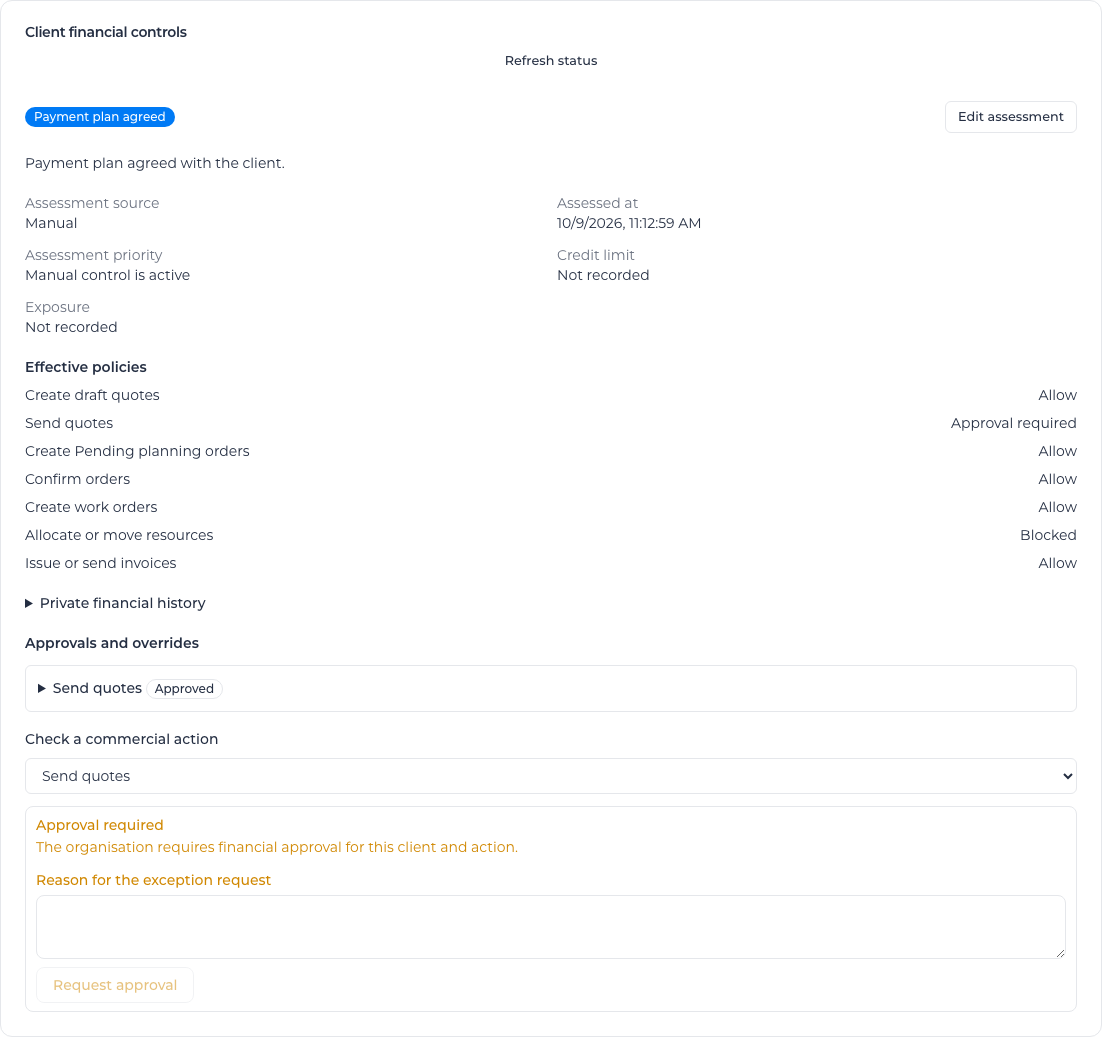
Effective policies shows the rules that currently apply. Private financial history records changes and their reasons. People who can view assessments also need See sell figures permission to see or change credit limits and exposure amounts.
To remove a status from the choices for future assessments, open it in the catalogue, clear Available for new assessments, then select Save status. Clients already using that status retain its policy. Renaming a status keeps its existing assignments.
Request and review an exception
When an action requires approval, enter a Reason for the exception request and select Request approval. For a blocked action that permits overrides, select Request an override instead. You can also use Check a commercial action on the client's page.
The request appears under Approvals and overrides. Owners and Admins can review requests by default. Open the request, enter a Reason for the decision, then select Approve, Grant override or Reject. A request that requires approval needs a different person from the requester; the page says Another eligible person must approve this request.
For an order-scoped request, Job scope shows the order number and name. Select the linked order to open its details. Order not available means the order has been removed or you cannot read it. Requests without an order scope omit this line.
When a workflow links the exception to an approval step, you can also open it from Connect → Approvals. The same financial review appears there, and you must both be nominated by the workflow and have the financial permission to decide it. See Review a financial exception.
A reviewer can add an Optional amount cap when the action has a monetary value. The page states whether the cap applies to the gross quote value, base contract value or payable invoice value. Enter the matching Currency (ISO code).
After approval, select Refresh status, then Retry action in the action dialog. An exception authorizes one matching action before its expiry. A request normally expires after 24 hours; changes to the assessment or policies can invalidate it. Request a fresh exception when the earlier one is no longer valid.
A reviewer can stop an unused approved exception with Revoke exception and a reason. If your request was rejected, revoked, used or expired, select New exception request to request permission again.
When you email several invoices, invoices that need permission remain in the dialog. Request the exception for each one, then select Retry invoice after approval. Invoices already queued are excluded from that retry.
Keep completed-work records available
Financial policies govern new commercial commitments. Your crew can still check in and out, submit timesheets and record completed work for a client on hold. Office staff can keep reviewing those records.
For Subcontractor Hub relationships, you assess your principal contractor as a client in your own organization. Your statuses, assessments and financial history stay private to your organization. See Your principal contractor.
Switch the controls off
Clear Enable client financial controls in Settings, then select Save financial settings. Normal commercial actions resume under their usual permissions. Your statuses and assessment history remain saved for later use.