

Use the supplier portal
What your suppliers see when they sign in to Assignar Pay, and how they invoice you against a purchase order.
The supplier portal is how your suppliers work with you in Assignar Pay. A supplier who signs in sees the purchase orders you have issued to them, and invoices you against them. They see nothing else of your organization. This page is written for the supplier, so you can send it to yours.
To invite a supplier, see Manage suppliers.
Sign in for the first time
- Open the invitation email from your customer and follow its link.
- Create your account and choose a password.
- Assignar Pay opens on Purchase Orders. Your customer's name shows at the top of the sidebar, marked Supplier portal.
If you already use Assignar Pay for your own business, your customer's portal appears as another organization. Switch to it from the organization menu at the top of the sidebar.
See your purchase orders
Procurement, then Purchase Orders, lists the purchase orders your customer has issued to you, with their Status, Total Amount and how much you have Invoiced so far.
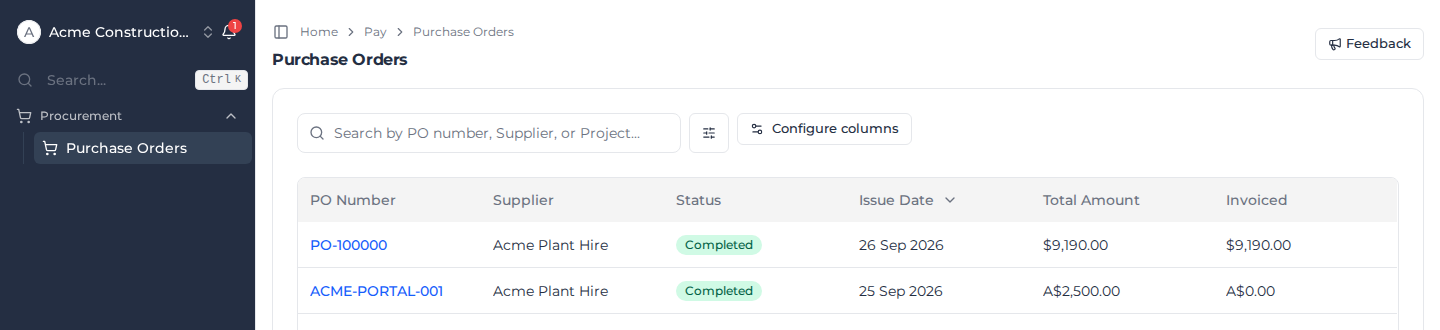
You see an order once your customer has approved it. Orders show as Approved, Partially Received (some of it delivered), Completed (all of it delivered) or On Hold (paused by your customer). Drafts and cancelled orders don't appear. When an order is on hold, your customer's reason shows on it under Current hold.
Search with Search by PO number, Supplier, or Project..., and choose the columns with Configure columns.
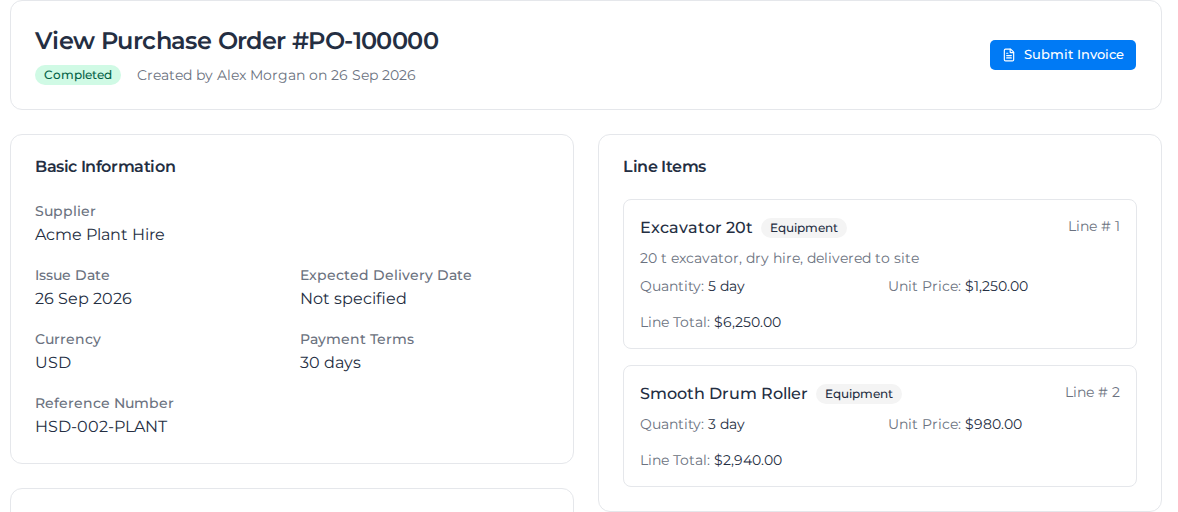
Open an order to see its dates, currency, payment terms and your customer's reference, every line with its quantity and price, and the Financial Summary with any tax.
Invoice a purchase order
- Open the purchase order and select Submit Invoice.
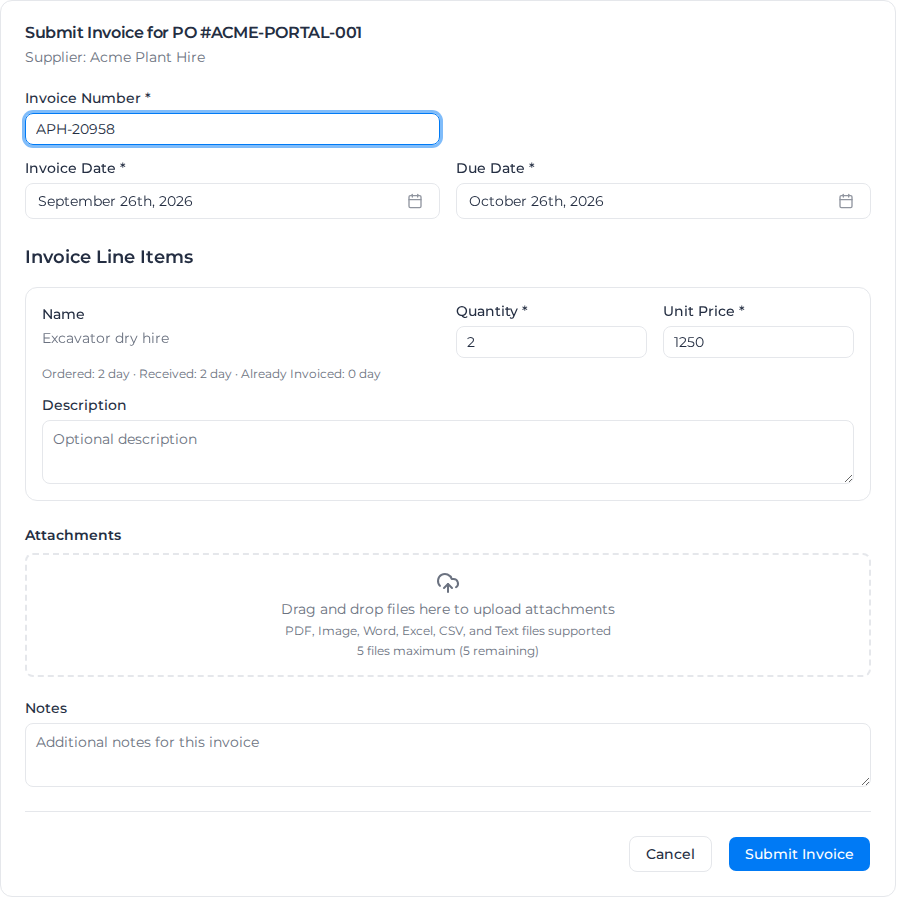
- Enter your Invoice Number, Invoice Date and Due Date. Each invoice you send this customer needs its own number; a number you have already used is refused.
- For each line, check the Quantity and Unit Price. Under each line you can see what was ordered, what your customer has received, and what you have already invoiced. Add a Description if you need one.
- Attach your invoice and any delivery dockets or certificates under Attachments: PDF, image, Word, Excel, CSV or text files, up to five.
- Add any Notes for your customer.
- Select Submit Invoice.
When the purchase order has tax, your invoice shows the tax worked out from the order, for the amount you are invoicing. You don't enter it yourself.
You can't change an invoice once you have submitted it. If something is wrong, ask your customer to reject it, then submit a corrected one.
When you can't invoice yet
Many purchase orders can only be invoiced for what your customer has recorded as delivered. Until they have, the order says "Goods receipt required by buyer before invoice can be submitted" and there is no Submit Invoice button. Ask your customer to record the delivery.
If everything received has already been invoiced, Submit Invoice shows "All received items for this Purchase Order have already been invoiced." You can invoice again once more is received.
Submit your workers' time
When your purchase order covers labour, you can send your workers' hours to your customer from the portal instead of emailing timesheets.
- Go to Procurement, then Submit time.
- Add a row for each worker. Choose the Worker and Role, then the Order the work was done on. The Order list shows only the orders your company has an open purchase order line for labour on.
- Add each Activities entry with its date and start and end times. Add Breaks and Comments if you need them.
- Attach your own timesheet document under Timesheet document if you have one.
- Submit the form.
You can only submit time for workers your customer has linked to your company, and only against an order that has an open purchase order line for labour time. If a row can't be saved, the message tells you why:
- "This worker is not one of your company's workers": ask your customer to link the worker to your company.
- "Choose the order this time was worked on": pick an Order for the row.
- "Time can only be filed against the chosen order's project and client": the row names a project or client that isn't the order's. Remove it and submit again.
- "There is no open purchase order line for your labour on this order": ask your customer to check the purchase order.
- "Your supplier access is no longer active": ask your customer to restore your access.
Time you submit goes to your customer for approval. Approved time counts against the purchase order line it was booked to. Only your customer can see and change a submission once you've sent it, and other suppliers never see your company's time.
If you work for your customer yourself and sign in to submit your own hours, you can submit time only for yourself, and Time lists only your own time.
If Submit time says supplier time submission isn't available, your customer has switched it off or your access has ended. Ask your customer.
For the customer: suppliers submit through the Supplier time (Assignar Default) form under Forms, created the first time a supplier opens Submit time. You can change its columns and labels. Unpublish the form, or take Supplier off the roles that can submit it, to switch supplier time off; undo either to switch it back on. Deleting the form switches supplier time off for good. A copy of the form, or a template made from it, is never used for supplier time.
Follow submitted time
Procurement, then Time, lists your workers' time that your company submitted or that is booked to your company's purchase orders, newest first, 50 entries a page. Use Next and Previous to move between pages. Each entry shows its Hours, its Work date, and the Purchase Order line it is booked to. Not booked yet means your customer still has to choose the line, which happens when more than one line could take the time.
Each entry has a Status:
- Submitted: waiting for your customer to approve it
- Approved: accepted, and counted against the purchase order
- Removed: your customer deleted the entry
Follow up an invoice
Open the purchase order. Submitted Invoices lists each invoice you have sent with its status:
- Submitted: waiting for your customer to review it
- Approved: accepted for payment
- Rejected: not accepted. Contact your customer for the reason, then submit a corrected invoice.
- Paid: your customer has recorded the payment
Select View Details on an invoice to see its lines and totals. The Activity Log on the order records each delivery, invoice and change of status.