

Invoice a bid
Bill an approved bid on one invoice exactly as quoted, or in claims one billing period at a time: progress on its fixed-price lines, the recorded work on its unit-rate lines, retainage, and the certifier's answer.
You can bill an approved bid in one of two ways, but not both:
- Invoice in full raises one invoice for the whole bid, exactly as quoted.
- Progress claim bills it in claims, one for each billing period.
To invoice a bid, you need permission to view bids and create invoices. By default, Owners and Admins have both.
Invoice the whole bid at once
- Open the approved bid and select Create Invoice, then Invoice in full.
- Pick the Invoice type. It starts at Fixed Price.
- Enter the Issue Date and Due Date, and any Notes.
- Select Save.
The client, project and order come from the bid and can't be changed here. Tax comes from the bid too. You land on the new invoice as a draft, and the bid moves to Invoiced.
Each line bills what your client saw on the bid. A fixed-price line bills its price. A unit-rate line bills its quantity times its rate. A unit-rate line with no quantity comes across at $0 with its rate in the description, so you can set the quantity on the draft. Headings and notes come across as $0 lines. Retainage isn't held back.
The timesheets, dockets and materials on the bid's orders then count as invoiced, including work recorded later. They no longer appear when you add priced work to other invoices. Cancelling the invoice releases them and puts the bid back to Approved.
The bid's fixed-price lines, and the sections they sit in, are locked from the moment you save, even while the invoice is a draft. You can still change unit-rate lines and the bid's details, and add new lines. To change a fixed-price line, cancel the invoice first.
Before you save, the form warns you when:
- "This Bid has already been invoiced": it says how many invoices were raised from the bid. Tick Create another invoice anyway to bill the whole bid again.
- "Some work is already billed": it gives how much work on the bid's orders is already on other invoices, and for how much. You can still save; check that the work isn't billed twice.
If the bid is already billed by progress claims, Invoice in full is greyed out with "This Bid is being billed by progress claims, so it can't also be invoiced in full."
See what has been invoiced
Once a bid is approved, Invoiced to date on the bid shows how much has been invoiced against it, such as "$4,000.00 invoiced of $10,000.00". It counts every invoice on the bid's orders, or on its project when the bid has no orders, drafts included and before tax. Cancelled invoices don't count. When the invoices add up to more than the bid, it shows how much over the bid they are.
The list under it shows each invoice's number, type, status and amount. Select a number to open the invoice. An invoice raised from the bid shows "Created from Bid" with a link back to the bid.
Bill the bid in claims
Each claim bills the bid two ways:
- Fixed-price lines by progress. You say how much of each line is done, and the claim bills that share of its price.
- Unit-rate lines by the work your crew recorded against them: approved timesheets and delivered material dockets, at the bid's rates.
Each claim builds on the ones before it, and the bid keeps the running total. Claims are invoices too: each is numbered from your invoice sequence and listed on the Claims tab under Revenue, then Invoices. For invoices that don't come from a bid, see Create and send invoices.
Open a bid's claims
Open the bid and select Create Invoice, then Progress claim. You can also pick Create Invoice from the ... menu on the bid's row in the list, or, under Revenue, then Invoices, select Create Invoice, then Progress claim, and choose the bid.
- Before the bid is approved the button is greyed out, with "Bid must be approved before it can be invoiced." Change its status to Approved first; see Send and track a bid.
- If the bid has no fixed-price line and no unit-rate line on a resource, you see "This Bid has nothing to invoice yet", with each line that can't be billed and why. Give a line a Fixed price, or put a Unit rate on a labor, equipment or material line rather than on the section above it.
Once a bid has claims, it shows "This Bid has progress invoices", and Open invoice editor takes you back to them.
A bid invoiced in full doesn't offer Progress claim. Starting a period on it shows "This Bid has been invoiced in full, so it can't also be claimed progressively. Cancel its invoice first to bill it by progress claims."
Start a billing period
- Select New Period.
- Select the first and last day the claim covers.
- Select Create Period.
Periods can't overlap, and each starts after the one before. If you pick an earlier start, you see "The next period must start on {date} or later." To move an open period, select the pencil beside its dates.
Each period is a tab at the top of the page, with its dates and status.
Claim progress on fixed-price lines
For each fixed-price line, enter the Work Completed This Period (C) as an amount or a percentage; the other fills in. The grid shows what the line is worth (Contract Sum (A)), what earlier claims billed (Previously Invoiced (B)), the running total and percentage complete, and the Balance to Finish.
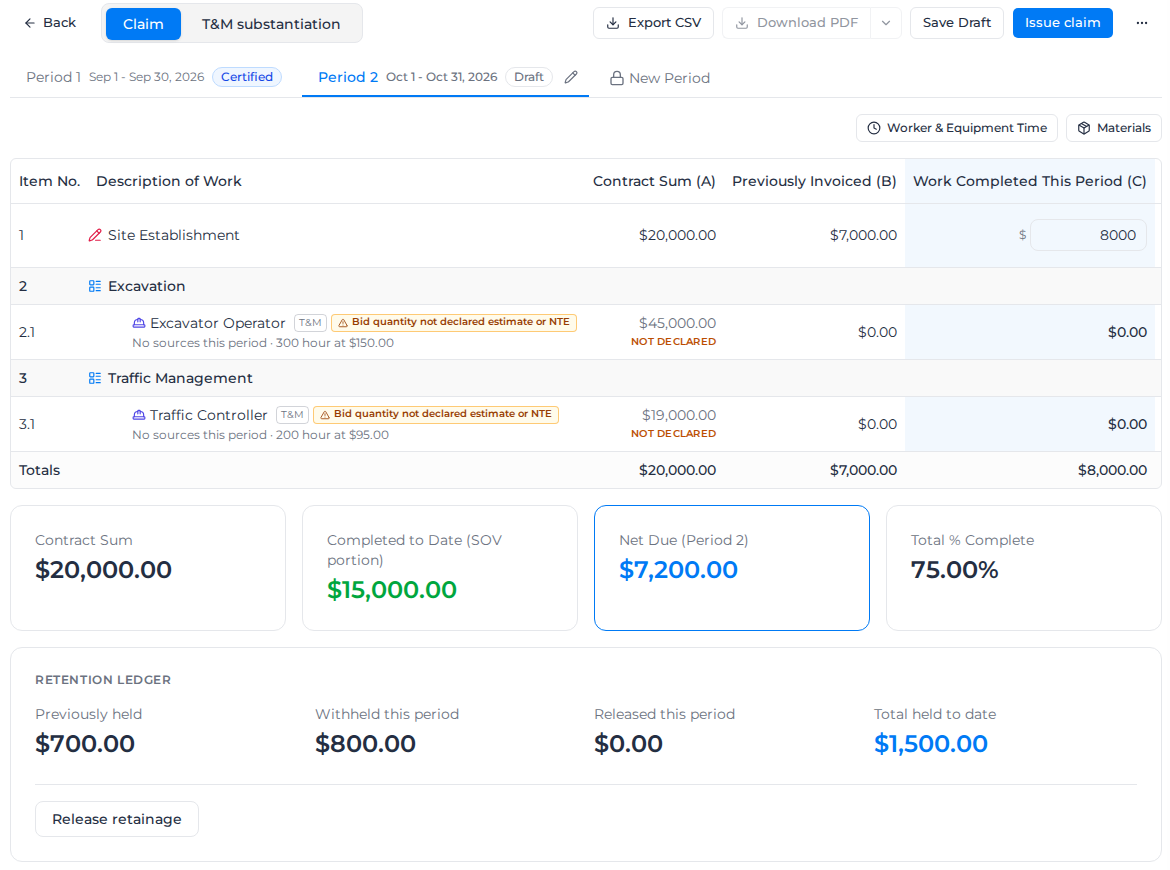
A line can't go below the percentage earlier claims already billed; the grid shows the floor, such as "Min 35.00% from prior periods". It can't go above its contract sum either: saving stops with "{line} exceeds its contract sum".
The cards under the grid show the Contract Sum, Completed to Date, the Net Due for this period and the Total % Complete.
Claim recorded work on unit-rate lines
- Select Worker & Equipment Time for timesheets, or Materials for material dockets. Each lists work dated in the period that hasn't been invoiced yet: approved timesheet entries, or delivered dockets.
- Tick the work to bill. Completed narrows the list by status. Work marked Not priced yet has no charge from schedule of rates matching, and a material marked Needs review has a match that still needs checking. Neither can be ticked until you price it from the Schedule of Rates.
- Check Allocates to, the bid line each piece of work bills against. It follows what job costing recorded; choose another line if it's wrong. Work with no matching line bills as off-bid, under Work with no Bid line.
- Select Add N to invoice.
Each unit-rate line then shows how many sources it bills and the amount. Select N transactions · edit to correct a quantity, rate or cost code. You give a reason, and the claim keeps what the field recorded alongside your change. The T&M substantiation tab lists every charge behind the period's unit-rate lines, and flags where a rule, such as a minimum or a standby rate, changed the charge.
A line marked NTE that goes over its quantity shows "Not to exceed exceeded". You must select Acknowledge and allow issue before you can issue the claim.
Hold and release retainage
Each line holds back its Retainage % of what it bills, shown in Retainage This Period (G). The Retention Ledger under the grid shows what was held before, what this period holds and releases, and the Total held to date.
To pay retainage back, select Release retainage, choose the lines and the amount to release from each, and select Apply release. A line can release up to what it holds, whether or not it is complete.
Issue the claim
Save Draft keeps your work on the period without sending anything. When the claim is ready:
- Select Issue claim.
- Check the Issue date and Due date.
- Select Issue claim.
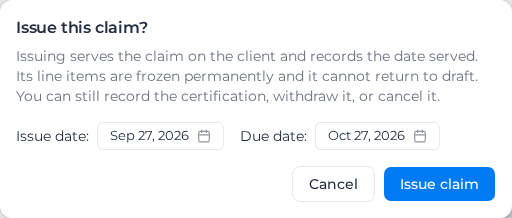
Issuing records the date the claim was served on your client and freezes its lines for good. It can't go back to draft. The period shows Awaiting certification, and the bid moves to Partially Invoiced.
Now you can send the claim:
- Download PDF makes the claim document. It is greyed out until the claim is issued.
- The arrow beside it offers AIA-style format, a payment application for fixed-price work. It isn't available when the period also bills unit-rate work.
- Export CSV downloads the period's lines.
Record the certifier's answer
When your client's certifier replies, select Record certification on the period and choose how to close it:
- Record what the certifier sent: enter the Certifying party, the Reference of their payment schedule or certificate, and the Certification date, then the Certified amount for each line. Any line certified above or below what you claimed needs a Reason, such as Progress not agreed or Defects.
- Deem the claim certified: treat it as certified at the amount you claimed. You give a reason, which stays on the claim, and enter nothing line by line.
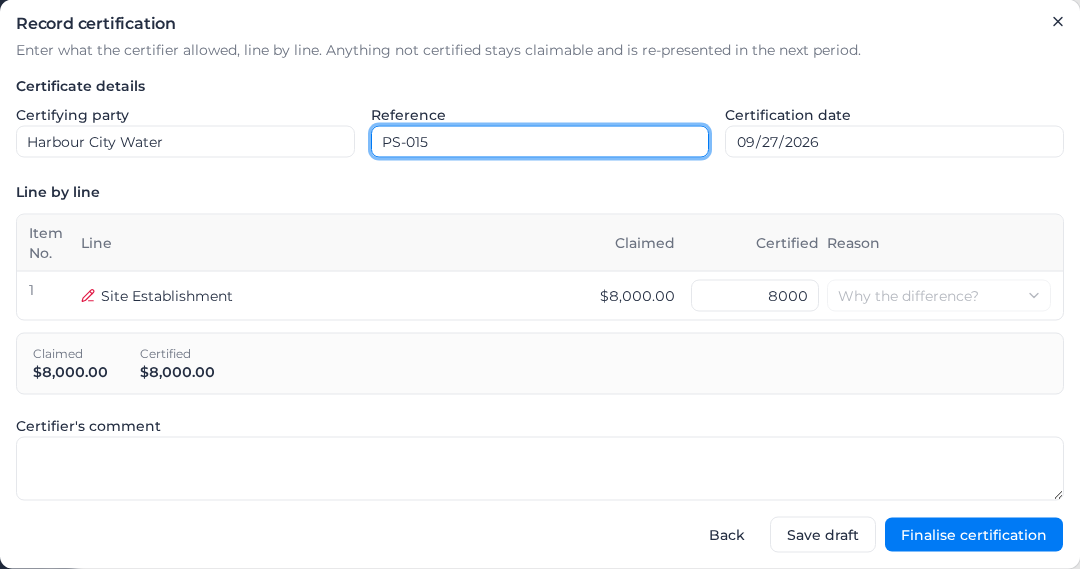
Select Finalise certification, or Save draft to finish later. Anything certified short is carried forward: it stays claimable and appears again on the next period.
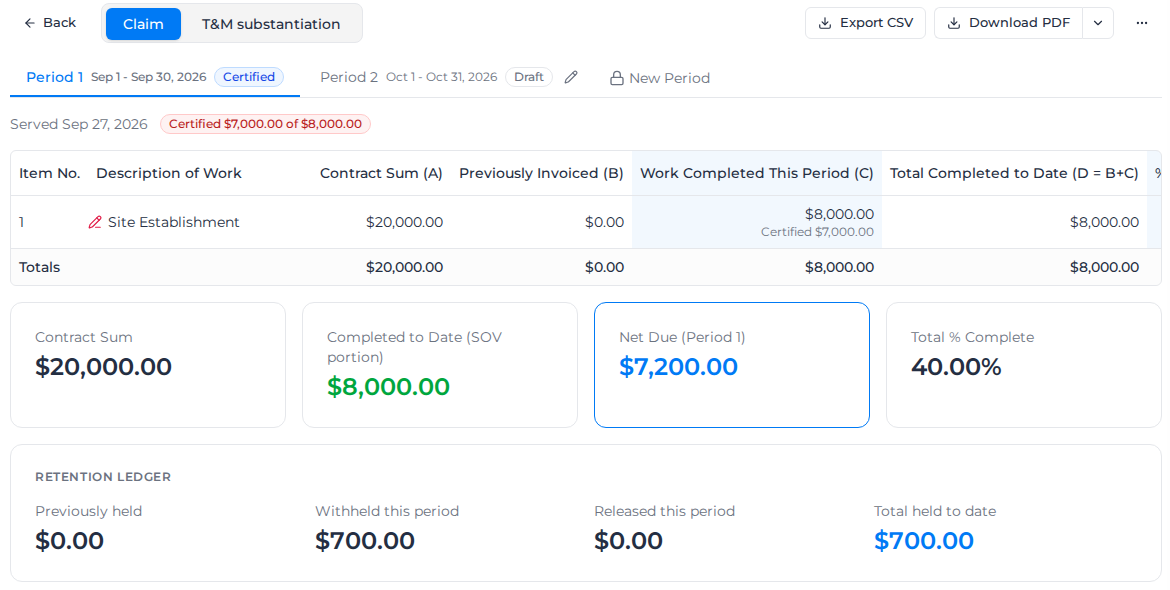
A certified claim offers Mark as paid and Mark as overdue in its ... menu.
Withdraw or delete a claim
- To take back an issued claim that hasn't been certified, open the ... menu and select Withdraw. Give a reason and select Withdraw and replace. The claim is voided but stays in the history, since your client has seen it; its work goes back to be billed, and a new draft for the same period takes its place.
- A draft that was never issued can be removed with Delete period in the same menu. Its work goes back to be billed, and nothing is kept.
When the bid changes
If you change the bid while a period is open, the claim picks up the change and shows "Line items updated to match the Bid". When it can't, you see "The Bid has changed": select Update line items. Amounts you already entered are kept.
Lines billed by an issued claim are locked on the bid. You can still change the bid's details and add new lines.