Requests for Information (RFIs)
Raise a formal question against a project, send it to the people who can answer it, collect their responses, and close it out — with a per-project RFI number and a full audit trail.
Requests for Information (RFIs)
An RFI is a formal question raised against a project — a clarification you need from a client, a designer, a supplier, or a colleague before work can proceed. In Assignar Pay an RFI is a workpack document type, so it lives alongside your ITPs and submittals, carries a per-project register number, and keeps a permanent record of who was asked, what they said, and when.
Unlike an ITP, an RFI has no inspection points and no approval chain. It is a question plus a list of people who owe an answer. That difference shapes everything on this page.
What an RFI Is For
Use an RFI when you need a documented answer on the project record — the kind of question that later has to be produced as evidence:
- A drawing conflicts with the specification and you need the designer's ruling.
- A site condition doesn't match what was tendered and you need the client to confirm the way forward.
- A supplier needs to confirm a substitution before you order.
An RFI is for questions whose answer should sit permanently in the project record with a number attached. If a quick conversation will do, it isn't an RFI.
Before You Start
- You need the Workpacks manage permission to raise an RFI, edit its draft, change who is asked, issue it, or close it. Viewing an RFI needs only Workpacks view. No separate RFI permission was introduced — see Permissions.
- An RFI must belong to a project. RFI numbers are minted per project, so the project field is required — you can't create one without it.
- RFIs are created blank, not from a template. There are no RFI templates; see Current Limitations.
Raising an RFI
- Click Workpacks in the left sidebar to open the Project workpacks list.
- Click New workpack.
- In the New project workpack dialog:
- Choose the Client, then the Project. Picking a client narrows the project list. The project is mandatory for an RFI, so the "No project" option isn't offered.
- Leave Template on No template — blank workpack.
- Choose Request for Information (RFI) as the Document type. This field only appears on a blank workpack.
- Give the RFI a Workpack name — a short summary of the question, for example "L3 slab — conflicting rebar cover".
- Click Create workpack. You land on the new RFI, which starts as a Draft.
Filling In the RFI
The RFI opens with a Request for Information card. Everything you fill in here is part of the question you're about to send:
- Question (required to issue) — the question itself. Be specific: this is what the person answering will read.
- Location — where on the job the question applies, for example "Level 3, grid C4–D6".
- Cost code (reference) — a cost code to file the question against. It's a free-text reference, not a link into cost control.
- Response due — the date you need an answer by. It's shown on the register and drives the overdue flag.
- Predicted impact — tick Cost impact and/or Schedule impact if you expect the answer to affect either, and use Impact notes to explain. This is your prediction as the person asking; the people answering record their own view separately.
- Who is being asked — the list of people who owe you an answer. See Who You Can Ask below.
Attach any drawings, photos, or specification extracts to the RFI's Attachments card. Everyone you ask can read those attachments once the RFI is issued — a question about a drawing isn't answerable without the drawing.
Click Save draft as often as you like. A draft is private to your team: nobody you've listed can see the RFI, or knows it exists, until you issue it. That's deliberate, so you can compose and revise the question first.
Issuing It
When the question is ready, click Save and issue. Pay saves your latest edits and then issues the RFI in one step.
Issuing does three things:
- Allocates the RFI number — the next number in this project's sequence (see RFI Numbering).
- Moves the RFI to Awaiting response.
- Notifies everyone you asked, in the app.
If anything is missing, Pay refuses the issue and tells you everything that's wrong at once, rather than one problem at a time. To issue, an RFI needs a project, a question, and at least one required assignee. Nothing is sent and no number is used up when an issue is refused, so you can fix the problems and try again.
Note: Once an RFI is issued, the question is frozen — you can no longer edit the question, location, cost code, due date, or predicted impact. The people you asked have already read it, so changing it underneath them would put a different question on the record from the one they answered. You can still change who is asked; see Changing Who Is Asked.
Who You Can Ask
You can ask anyone in these four groups:
- Internal team members — anyone on your own team account.
- Client users — people with client (customer-portal) access to your account.
- Suppliers — people with supplier access to your account.
- Linked subcontractors — internal members of any subcontractor organisation that has an accepted, active link with your account. See On-Site Execution for how organisation links are set up.
Two roles cannot be asked and never appear in the picker:
- Field users — the mobile, site-facing role.
- Visitors — share-link recipients.
Add people with Add assignee and take them off with Remove assignee. Each person can only appear on the list once.
Required and Optional Assignees
Every person you add carries a Required tick box:
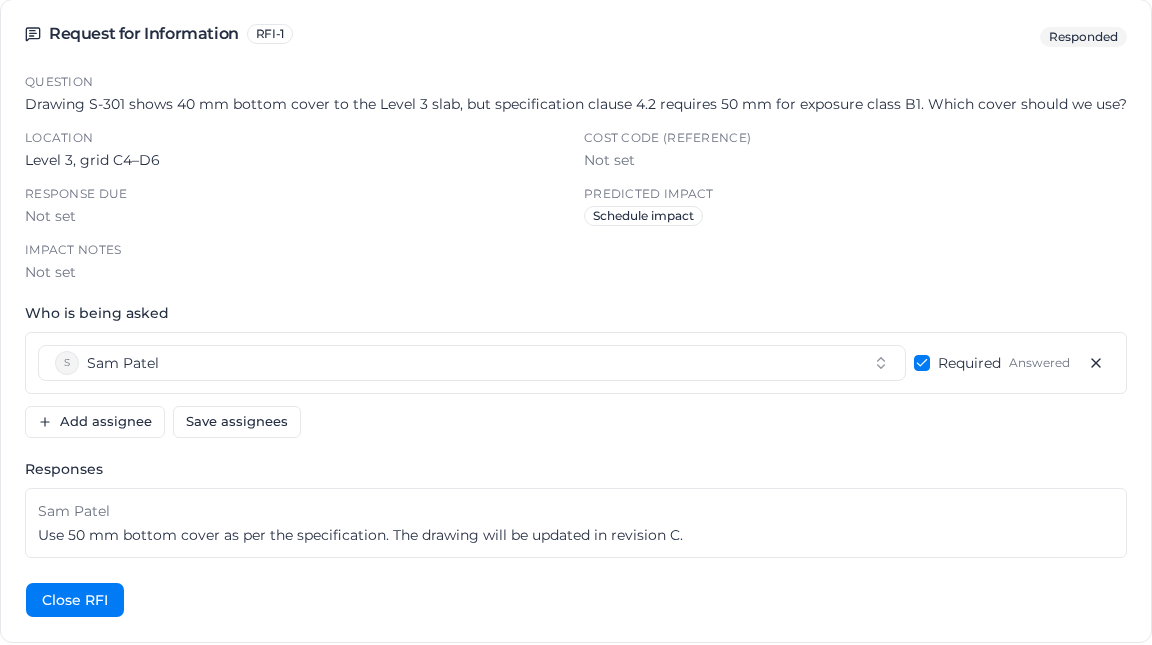
- Required — their answer is mandatory. The RFI can't be closed until they've responded.
- Optional — you'd like their input, but the RFI can be closed without it. An optional person can still answer right up until the RFI is closed, and their answer is recorded the same way.
An issued RFI must always keep at least one required assignee. If you try to demote or remove the last one, Pay refuses the change.
The RFI Lifecycle
An RFI moves through a short, predictable arc. The badge on the RFI itself shows where it is:
| Badge | What it means |
|---|---|
| Draft | Being composed. Private to your team — nobody you've listed can see it. |
| Awaiting response | Issued, and at least one required answer is still outstanding. |
| Responded | Issued, and every required assignee has answered. The RFI is ready for you to close. |
| Closed | Answered and closed out. No further answers are accepted. |
| Archived | Closed and then archived for the project record. |
Finding RFIs in the workpacks list
Filter the Project workpacks list to Request for Information (RFI) and it switches to a register layout, with the columns that matter for a question rather than an inspection plan:
- Register no. — the RFI number.
- Ball in court — who owes the next move: Assignees while answers are outstanding, and back to the Originator once every required answer is in.
- Response due — the date you asked for, flagged when it's overdue.
The Status column shows the underlying workpack status rather than the badge above, so an issued RFI appears there as Submitted and a closed one as Closed. Open the RFI to see the more specific state.
Answering an RFI
If you've been asked a question, you don't need any permission on the asking company's account — being named on the RFI is what gives you access.
Finding RFIs you've been asked
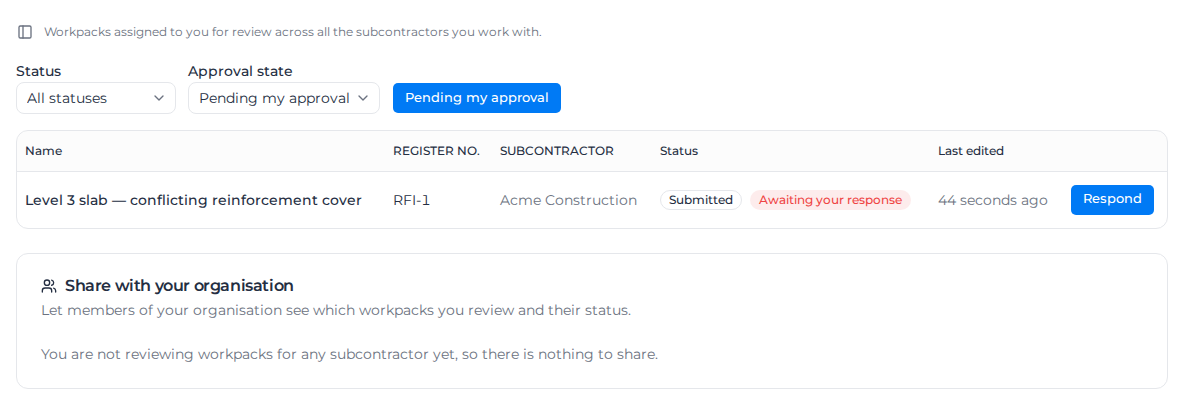
- My reviews (in your personal area) gathers everything assigned to you for review, across every company that has sent you something. RFIs waiting on you appear there flagged Awaiting your response (or Response optional, if your seat is optional) with a Respond button. This works for everyone who can be asked, whichever company they belong to.
- Client users with customer-portal access also see RFIs in that company's Incoming list, alongside the workpacks awaiting their approval.
- Members of the asking team can also answer straight from the RFI card on the workpack itself.
- The in-app notification you received when the RFI was issued links straight to the RFI.
An RFI you've answered stays visible to you afterwards — including after it's closed — so your answer remains on your record.
Recording your answer
Opening the RFI shows you the whole question: the question text, location, cost code, due date, the asker's predicted impact, the reference documents attached to it, and the full list of who else was asked.
To answer:
- Type your answer in Your response. An answer is required — you can't submit an empty response.
- Tick Cost impact and/or Schedule impact if, in your view, the answer carries either.
- Click Submit response.
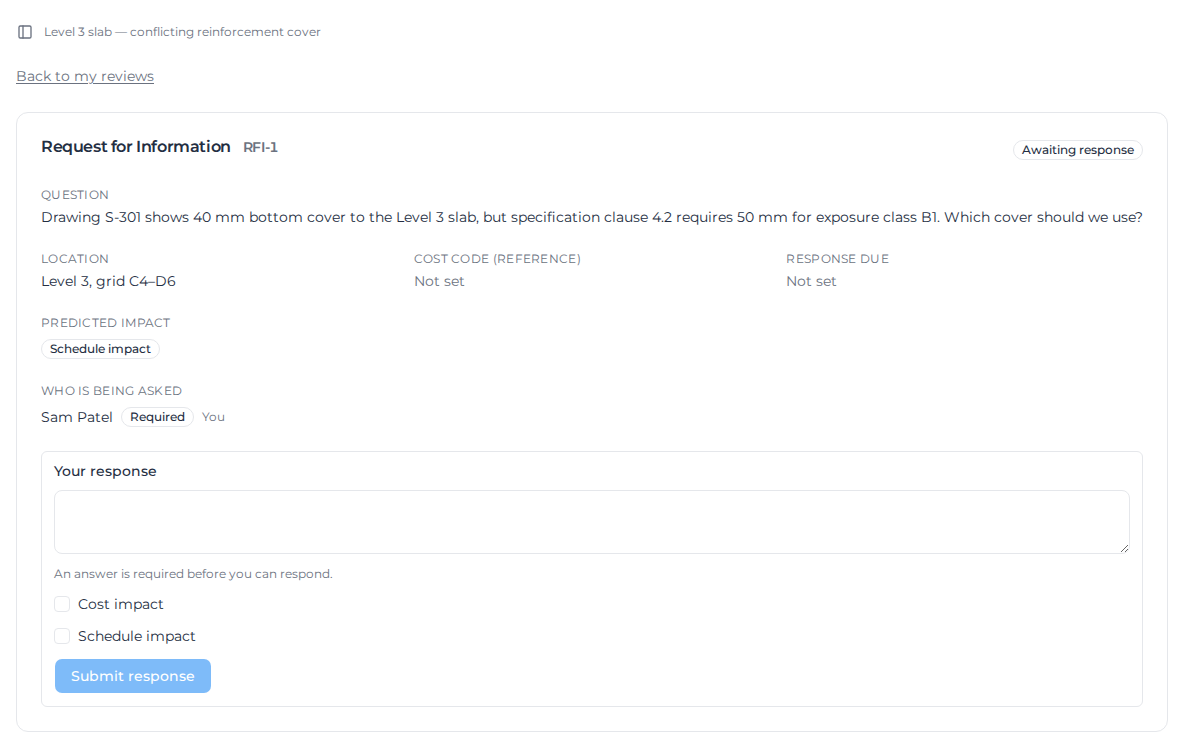
Your answer is recorded immediately and the person who raised the RFI is notified. An answer cannot be edited or withdrawn afterwards — it's a record of what was said and when. If you need to correct something, ask the originator to raise a follow-up RFI.
If your seat was marked optional, the page tells you so: your response is welcome, but the RFI can be closed without it.
Who sees what
- Everyone who can see the RFI can see who else was asked. That's the transmittal list, and it works the way a circulated paper RFI does.
- Answers are more private. Your own answer is always visible to you, and every answer is visible to the asking company's own team. One external party cannot read another external party's answer — a supplier can't read the client's reply, and two subcontractors can't read each other's.
Changing Who Is Asked
You can change the assignee list on an issued RFI as well as on a draft — people leave, or the wrong person was asked. Edit the list and click Save assignees.
- Newly added people are notified and can answer straight away. People already on the list are not re-notified.
- Removing someone who has already answered keeps their answer on the record as history.
- The list must always keep at least one required assignee.
This is the supported way to unblock a stalled RFI: if a required person can't or won't answer, demote them to optional (or remove them), promote someone who has answered, and then close.
Closing an RFI
Once every required assignee has answered, the RFI badge changes to Responded and a Close RFI button appears. Closing is a deliberate act — Pay never closes an RFI for you, even when all the answers are in.
You can't close an RFI while a required answer is outstanding. Chase the answer, or change who's required (above), and then close.
There is no reopen. A closed RFI stays closed; if the answer raises a new question, raise a new RFI.
Archiving and deleting
- Archive a closed RFI to move it out of the active list, exactly as you would any other workpack. An issued RFI can't be archived — close it first. Archiving keeps it readable by the people who were asked, so nobody loses access to their own answer.
- Restore puts an archived RFI back where it came from: one that was issued returns to Closed, and one that was never issued returns to Draft. A numbered RFI is never sent back to draft — that would hide it from the people who answered it, and its number can't be re-issued.
- Delete is available for an RFI that nobody has answered — for example one raised in error. Once there's at least one answer, the RFI can no longer be deleted, because deleting it would destroy the answers with it.
RFI Numbering
RFIs are numbered per project, starting at RFI-1 and counting up: RFI-1, RFI-2, … RFI-10. A different project starts its own sequence at RFI-1 again.
- The number is allocated at issue, not at creation — a draft has no number, and an issue that's refused doesn't use one up.
- The number is never reused or changed once allocated.
- Numbers are not zero-padded, so don't rely on sorting the register by number as text — sort by date instead.
- The RFI number is searchable from the Project workpacks list, so typing "RFI-12" finds it.
Reusing an RFI
RFIs have no templates, but you can Clone an existing RFI when you need to raise a similar question again. The clone is a fresh Draft on the same project, carrying the question, its details, and the list of people to ask. The RFI number, the due date, and every response are not copied — the clone is a new question, not a copy of an answered one.
Current Limitations
The first release of RFIs is deliberately narrow. These are known gaps, not bugs:
- No RFI templates. RFIs are always created blank, and Save as template isn't offered on an RFI. Use Clone to reuse a question.
- No printed RFI or transmittal PDF. There's no closeout or transmittal document for an RFI today; the record lives in the app.
- No manual status override. The Override status action is hidden for RFIs — the lifecycle only moves through Issue, Respond, and Close.
- No email notifications. Issuing an RFI and receiving an answer both notify in the app only. There's no RFI email yet, so make sure the people you're asking check their notifications.
- No field origination. Field users can't raise an RFI or be asked to answer one.
- No approval chain, activities, or on-site execution. An RFI is a question, so it has none of the ITP machinery — no Hold/Witness/Monitor points, no inspection parties, no approver chain, and no on-site execution screen.
Related Pages
- Workpacks Overview — how the workpack document types fit together.
- Creating Workpacks — the shared create dialog and the workpacks list.
- External Reviewers — the other way people outside your company take part in a workpack.
- Permissions — who can raise, answer, and close RFIs.