

Set up your catalog
Add the tickets, licences and inductions you track, decide what each one needs before it counts, group them into categories, and archive the ones you no longer use.
The catalog is your organization's list of competencies. Every ticket you record for a worker or require on a role starts here. Owners, Admins and Managers can add and edit competencies. Archiving one takes the Delete cost codes permission, which Owners and Managers hold by default.
In the sidebar, select Compliance, then Competencies. The page opens on the Catalog tab.
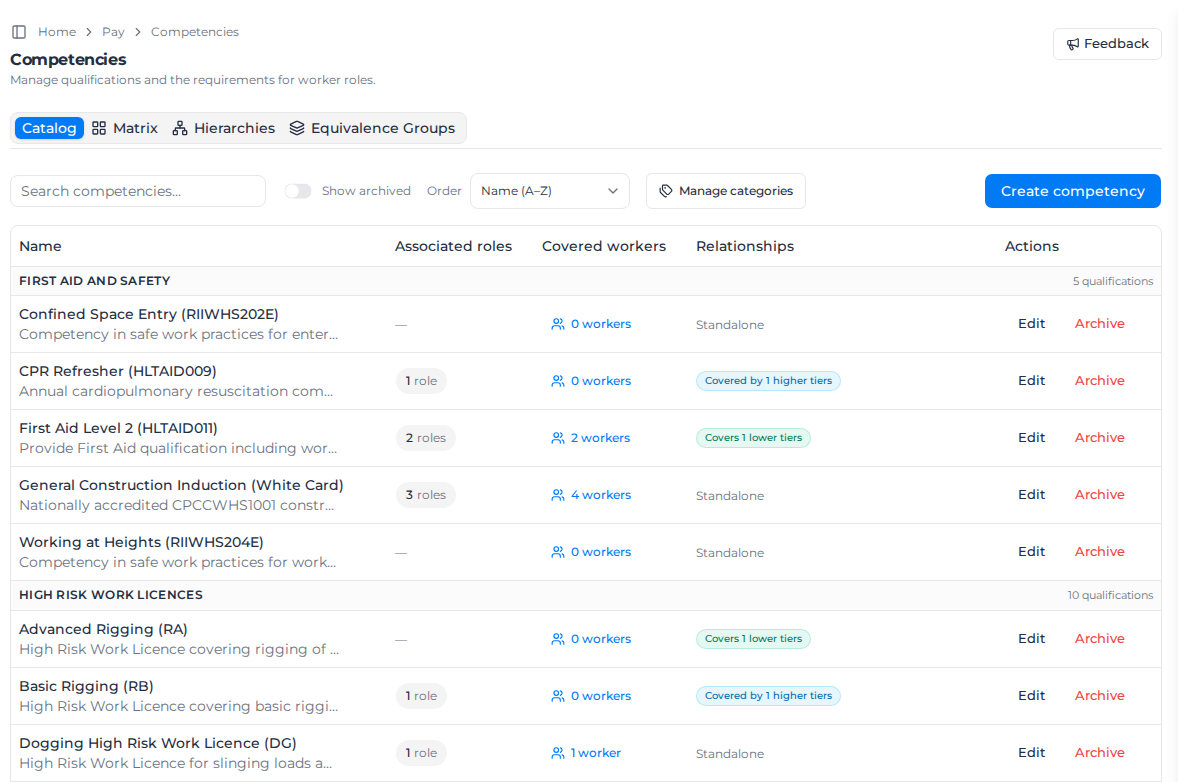
Each row shows:
- Name, with the description underneath. An induction also shows an Induction badge and the project or client it is for, for example Project: Joe's Site.
- Associated roles: how many roles need this competency.
- Covered workers: how many workers hold it. Select the number to record it for a group of workers.
- Relationships: Covers 1 lower tiers, Covered by 1 higher tiers, ≈ 2 Equivalent, or Standalone when it is not linked to anything. See Link related tickets.
- Edit and Archive.
Use Search competencies… to find one by name. Use the Type list to show All types, only Tickets, or only Inductions.
Add a competency
- Select Create competency.
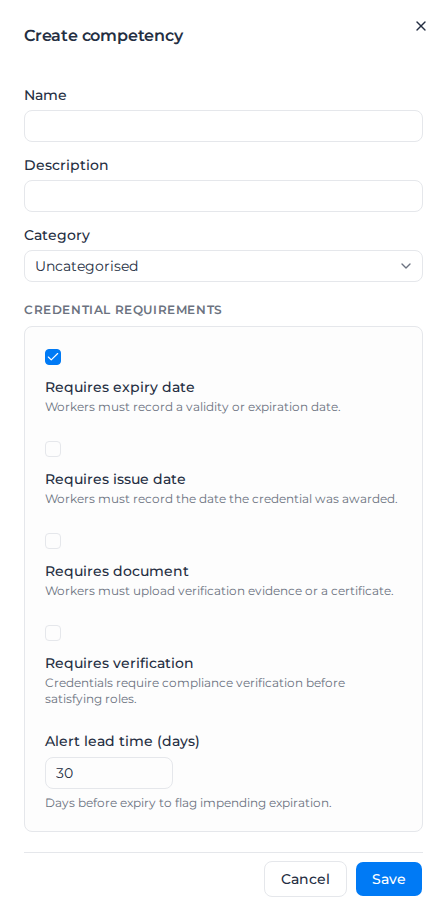
- Enter a Name, for example Working at Heights (RIIWHS204E). Names must be unique in your organization.
- Leave Type on Ticket for tickets, licences, medicals and anything else a worker carries from site to site. For a site or client induction, see Add an induction.
- Optionally add a Description, such as the issuing body or course code, and choose a Category.
- Under Credential requirements, tick what a worker's record of this competency must include:
- Requires expiry date (ticked by default): an expiry date must be entered. Untick it for tickets that never expire, like a White Card.
- Requires issue date: the date it was awarded must be entered.
- Requires document: a certificate or card photo must be attached.
- Requires verification: a new record stays Pending verification, and does not count towards any role, until an Owner or Admin verifies it.
- Conditional status: each worker's credential can be recorded as Full, Subject to review, Subject to conditions or Temporarily unfit, with a review date. Use it for credentials such as medicals, where "valid" is not the whole story. See Track medicals and other conditional competencies.
- Sensitive: only people with See sensitive worker data can open the documents on this competency's credentials. See Keep medicals and other documents private.
- Applies to workers (ticked by default): you can record this competency on a worker.
- Applies to assets: you can record it on an asset, including a calibration certificate. See Read the calibration register.
- Set Alert lead time (days): how many days before expiry the credential shows as expiring, on a worker and on an asset. The default is 30; you can enter 0 to 365.
- Select Save. Assignar Pay shows Competency saved.
If a competency with the same name already exists, the form shows "Could not save. Names must be unique. If this record changed, close this panel, refresh and try again." Choose a different name, or edit the existing one.
Add an induction
An induction belongs to one place: a project, or a client (for an induction that covers every project of that client). Project A's induction is a separate item from Project B's, so it never counts for Project B. A company-wide induction, such as a first-day employee induction, stays a Ticket.
- Select Create competency.
- Enter a Name that says which site it is for, for example Joe's site induction. Names must be unique in your organization, so two sites cannot share one name.
- Set Type to Induction.
- Under Inducted for, keep Project and choose the project, or choose Client and pick the client.
- Enter the Validity (months), for example 12. Leave it empty if the induction never expires.
- Fill in the description and category, choose whether it needs Requires verification, set the Alert lead time (days), then select Save.
For an induction, the form shows a note in place of Requires expiry date and Requires issue date: the completion date is always recorded, and with a validity set, the expiry date defaults to the completion date plus the validity. Without a validity, the induction never expires.
Applies to workers and Applies to assets are for tickets only. Setting Type to Induction hides them. An induction is always recorded for workers.
Requires document, Conditional status and Sensitive apply to tickets only. Setting Type to Induction hides them and switches them off; setting it back to Ticket shows them again, unticked. An induction saved earlier with one of them ticked still shows that option until you untick it and save.
Leave at least one of Applies to workers and Applies to assets ticked. If you clear both, Assignar Pay keeps Applies to workers when you save. Competencies you already have stay on workers until you tick Applies to assets.
Competencies you already have stay tickets, including ones with "induction" in the name. To track a site induction, add it with Type set to Induction.
Inductions cannot be linked to other competencies: they cannot be in an equivalence group, cover another competency, or be covered by one. See Link related tickets.
Edit a competency
Select Edit on its row. The panel opens on Details, with the same fields as when you added it; change them and select Save.
Changing what a competency requires applies to credentials recorded from then on. Credentials already recorded keep their details and are not invalidated.
Once any worker has a credential for a competency, its Type is locked, and so is an induction's project or client: the panel shows "Workers hold this induction, so its project or client can't change." An induction's validity, name and other settings can still change. To move an induction to a different place, add a new induction for that place and archive the old one.
The Relationships tab of the same panel shows what the competency is linked to: Also satisfies (lower tickets it covers), Satisfied by (higher tickets that cover it), Equivalence Group, and Role Requirements Impact (the roles that need it or one of its equivalents). For an induction, the tab says "Inductions can't be equivalents of, cover or be covered by other qualifications."
Record for Workers, at the top of the panel, opens bulk recording for this competency.
Link an induction form
Link a form to an induction, and every worker who passes it is recorded as inducted without anyone entering it by hand. Only an induction can have an induction form, and only a form with a Quiz field can be linked. An induction has one form, and a form can be linked to one induction.
- Select Edit on the induction's row.
- Under Induction form, choose the form. Type part of its title to search. A form that is not published yet shows Draft.
- Select Save induction form. Assignar Pay shows Induction form saved.
Linking the form doesn't send it to anyone. Workers with the Field role only see forms that are on their shifts, so also add the form on the Required forms tab of the induction's project or client. It then shows on the worker's shifts there and under Forms, Submit a Response.
Other required forms open on the day of the shift. An induction form can be opened from a shift on a later day too, so a worker can do the induction before they arrive on site. Their submission counts for that shift.
A worker who already holds the induction isn't asked for its form. While their record of the induction is current on the day of a shift, the form isn't listed on that shift, on the web or in Pay Mobile, and the office doesn't see it as outstanding for them. This applies on every shift where the form is required for each worker, whichever project it is on. The form is listed again once the record expires, or if it is revoked, archived, replaced or rejected. A record that is still Pending verification doesn't count, so the form stays on the shift until someone verifies it. A form required once per crew or from the supervisor is still listed.
When a worker submits the form and passes every quiz on it, the induction is recorded on their profile:
- Completed is the day they submitted the form.
- Expires is the completion date plus the induction's Validity (months). Without a validity, the record never expires.
- If the induction has Requires verification, the record stays Pending verification until someone verifies it.
- Passing the form again later renews the record.
The record usually appears as soon as the form is submitted. When many workers submit at the same moment, some records can take about ten minutes to appear.
Nothing is recorded when the worker fails the quiz or only saves a draft, when someone else edits the worker's submission, or when the person who submitted has no worker profile. A quiz needs at least one question with a correct answer set: a quiz with no correct answers records nobody.
To use a different form, choose it and select Save induction form. To stop the form recording the induction, select Remove. Records already made stay on the workers' profiles. Archiving the induction also removes its form, so you can link that form to another induction; restoring the induction doesn't bring the form back.
If the linked form is deleted, the panel marks it (deleted) and it records nothing more. Choose another form or select Remove.
A form already linked to another induction isn't offered under Induction form. To use it here, remove it from that induction first. If someone links it elsewhere while you are choosing, saving shows "This form is already linked to another induction. A form can induct for only one induction: remove it there first."
A form can't provide a document, so an induction saved earlier with Requires document ticked can't have an induction form. Saving one shows "This induction requires an attachment, which a form can't provide. Stop requiring an attachment to link a form." Untick Requires document, select Save, then link the form.
Once a form is linked, changing the induction's Type to Ticket is refused: "An induction form is linked to this induction, so its type can't change. Remove the form first." Select Remove under Induction form first, then save the induction.
Anyone who can open the catalog but not edit it sees the linked form, without the controls. Each project's Inductions tab also shows which form each induction uses.
Track medicals and other conditional competencies
Some competencies are not simply held or not held. A medical can be clear, clear subject to a review, clear with conditions, or temporarily failed. Switch on Conditional status for that competency, when you add it or with Edit. It then carries a Conditional tag in the catalog.
For a conditional competency, whoever records a worker's credential also chooses a Status and an optional Review date. See Record a conditional credential.
| Status | Counts as compliant? | Default colour |
|---|---|---|
| Full | Yes | Emerald |
| Subject to review | Yes, with a warning | Amber |
| Subject to conditions | Yes, with a warning | Amber |
| Temporarily unfit | No | Rose |
A status never overrides an expired, revoked, archived or unverified credential; those show as they always do. A worker with no credential is still shown as missing it. If you switch Conditional status off later, statuses already recorded are ignored.
To use your own words for the four statuses, for example Cleared with restrictions, go to your organization's settings, Terminology, and fill in Competency statuses. A blank field keeps the default. Your names show on badges, the matrix, the scheduler and the matrix CSV export.
To change the colours, select Status colors beside Order, pick a colour for each status, and select Save colors. Reset to defaults puts the defaults back. Colour only changes how a status looks, never whether a worker counts as compliant. Status colors shows for people with the Update cost codes permission.
How conditional credentials show on the matrix is covered in Read the compliance matrix.
Keep medicals and other documents private
A medical certificate can say more about a worker than your office should see. Switch on Sensitive for that competency, when you add it or with Edit. It then carries a Sensitive tag in the catalog.
Changing Sensitive needs the See sensitive worker data permission, which Owners and Admins hold by default. Without it, the switch is greyed out with "You need See sensitive worker data to change this.", but you can still edit the competency's other settings.
For a Sensitive competency:
- Only people with See sensitive worker data and View payroll can open the documents on its credentials. Everyone else sees "Documents on this competency are restricted to people with See sensitive worker data." where the documents would be.
- Everything else about the credential stays visible as before: its status, dates and whether the worker is compliant.
- Its documents are left out of evidence packs exported by anyone without the permission, and are never shared with a linked organization.
- Its credentials waiting for verification appear in Pending Verifications only for people with See sensitive worker data, and only they can verify or reject them.
- The worker can still open their own documents in My Competencies.
Switching Sensitive on also hides documents already uploaded. Switching it off shows them again to everyone who could see them before.
Group competencies into categories
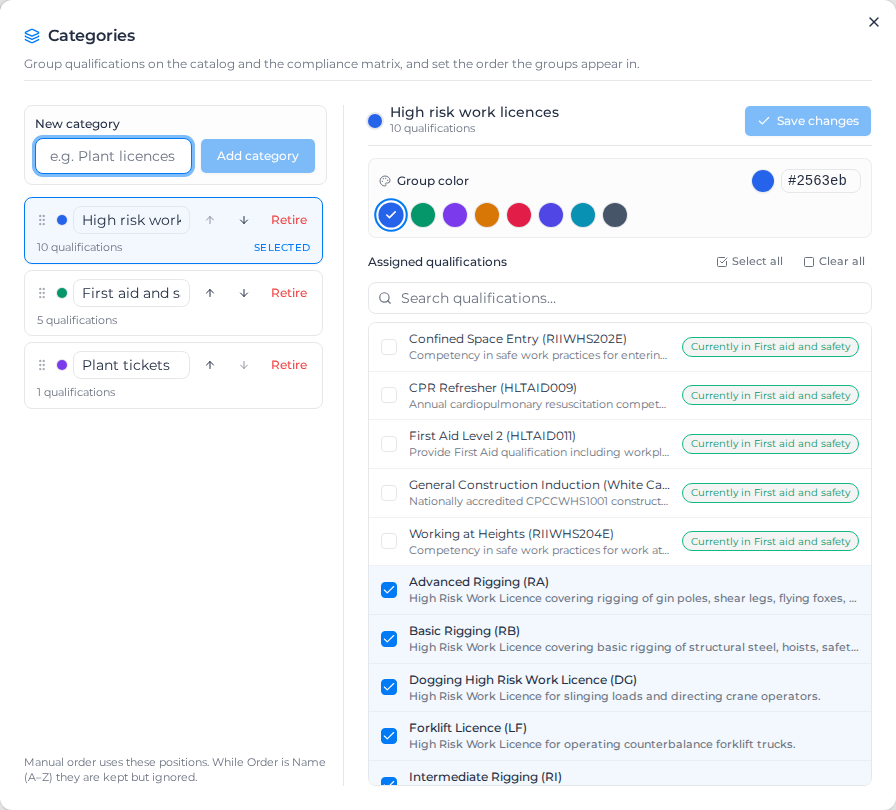
Categories group the catalog into sections, such as High risk work licences and First aid and safety. They also group the columns on the Matrix tab, where Filter categories… narrows the columns to the groups you pick. Until you add a category, the catalog is one flat list.
- Select Manage categories.
- Under New category, enter a name and select Add category. New categories go to the end of the list.
- Select a category on the left to set it up on the right:
- Choose a Group color.
- Under Assigned qualifications, tick the competencies that belong in it. A competency already in another category shows Currently in and that category's name; ticking it moves it here.
- Select Save changes.
- To rename a category, change its name in the list and select Save beside it.
You can also choose a competency's category from the Category field when you add or edit it. Uncategorised leaves it out of every category. Uncategorised competencies are listed last, under Uncategorised.
Retire or restore a category
Retiring a category removes it from the catalog and the matrix. Its competencies are not archived; they move to Uncategorised.
- In Manage categories, select Retire on the category. Only people with Delete cost codes see this button.
- Select Retire category to confirm.
A retired category stays in the list with an Archived badge. Select Restore to bring it back in its old position, with the competencies that were in it.
Choose the display order
The Order list beside Manage categories sets the order for everyone in your organization, on the catalog and the matrix:
- Name (A–Z): categories, and the competencies inside them, in alphabetical order.
- Manual: the order you set.
To set a manual order, choose Manual, then:
- In Manage categories, use Move up and Move down on a category, or drag it.
- In the catalog, use Move up and Move down on a competency's row to move it within its category. These arrows show only while Order is Manual.
Switching back to Name (A–Z) keeps your manual order, so choosing Manual again restores it.
Archive a competency
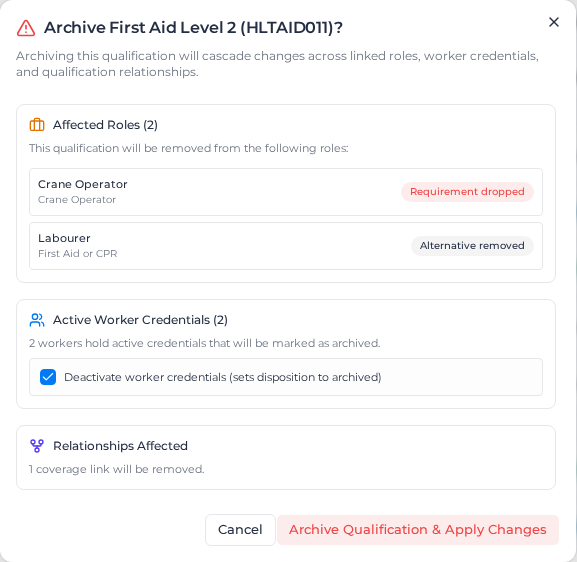
Archive a competency you no longer use. Archiving cannot be undone from the catalog, so check what it affects first.
- Select Archive on its row.
- The dialog lists what will change:
- Affected Roles: every role that needs it. Requirement dropped means the role loses that requirement. Alternative removed means the role still accepts another ticket in its place.
- Active Worker Credentials: how many workers hold it. With Deactivate worker credentials ticked (the default), their credentials are marked archived; their certificates are kept. Untick it to leave the credentials as they are.
- Relationships Affected: how many coverage and equivalence links are removed.
- Select Archive Qualification & Apply Changes.
To see archived competencies, turn on Show archived. They appear with an Archived badge and a View button instead of Edit.