

Set role requirements
Choose the competencies each worker role needs, and mark each one as mandatory or recommended.
A role, such as Crane Operator or Labourer, lists the competencies a worker in that role needs. Every worker given the role gets a checklist built from this list on their profile. Owners, Admins and Managers can change it.
Add the competencies to the catalog first; a role can only use what is in the catalog.
Inductions are not role requirements: the project or client an induction belongs to requires it, so Add Competencies to Role doesn't list them. If a saved role somehow requires an induction, saving it shows "Inductions can't be role requirements. A project or client requires an induction instead. Remove it from this role and save again." For the same reason, a competency a role requires can't be changed into an induction in the catalog.
Choose the competencies a role needs
- In the sidebar, select Resources, then Roles.
- Select the role's name to open Edit Role, or select Create Role for a new one.
- In the Competencies section, select Add Competencies.
- In Add Competencies to Role, tick each competency the role needs. Use Search competencies... to find one. The count at the bottom shows how many are ticked.
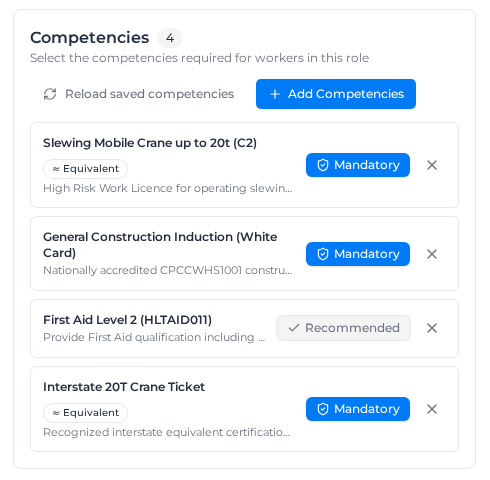
- Select Done. Each competency appears as its own card, set to Mandatory.
- For each card, choose Mandatory or Recommended (see below). To take one off, select the X on its card.
- Select Save.
The Requirements column on the Roles list shows how many competencies each role needs.
Add several roles at once
You can add roles in two ways:
- One at a time with Create Role on the Roles list.
- Up to 1,000 at a time by uploading a CSV or Excel file to Milo, or pasting the list into the chat. Each row needs the role's name and its cost code, which must already exist as a Role cost code. A row with the same name as an existing role updates it. Add each role's competencies afterwards, as above. See Import data with Milo.
Mandatory or recommended
- Mandatory: the worker must hold it, current and not expired, for the role to show as complete. Each missing one counts towards the role's outstanding number on the worker's profile.
- Recommended: shown on the worker's checklist under Recommended Qualifications (Optional), but never stops the role from being complete.
Select the button on a card to switch between the two.
A card marked ≈ Equivalent is in an equivalence group. A worker holding any ticket in that group meets it. Higher tickets that cover a competency also meet it, so you only need to add the lowest ticket the role accepts.
The editor lists every competency as a separate requirement. If a role's checklist shows a requirement as Accepts: A or B, the editor shows A and B as two cards, and saving the role makes the worker need both. To keep "either ticket" behaviour, put the two tickets in an equivalence group and add only one of them to the role. An equivalence group applies to every role, not just this one.
Who can remove a saved competency
Taking a saved competency off a role needs the Delete cost codes permission, which Owners and Managers hold by default. Without it you can still add competencies and change their level, but a saved one's X is greyed out and it cannot be unticked in Add Competencies to Role.
If someone else changed the catalog
If the catalog or the role changes in another window while you are editing, the section shows "Competencies changed in another session; reload before saving". Select Reload saved competencies. This replaces your unsaved changes with the saved list, so make your changes again, then select Save.