

Send and track a bid
Email a bid as a PDF, download it, follow it through its statuses and history, and turn an approved bid into orders.
Once a bid is priced, you send it to your client, record what they decide, and on a yes turn it into the orders your crew works to. All of this happens on the bid itself: open it from the Bids list under Clients & Projects.
Email a bid
- Open the bid. If you have unsaved changes, you're asked to save them first.
- Select Send by email.
- Check To. It starts with the client's email address; separate several addresses with commas.
- Add anyone to CC for this send. People in your Always CC setting are copied as well.
- Check the Subject and Message, which start from your email defaults.
- Select Send.
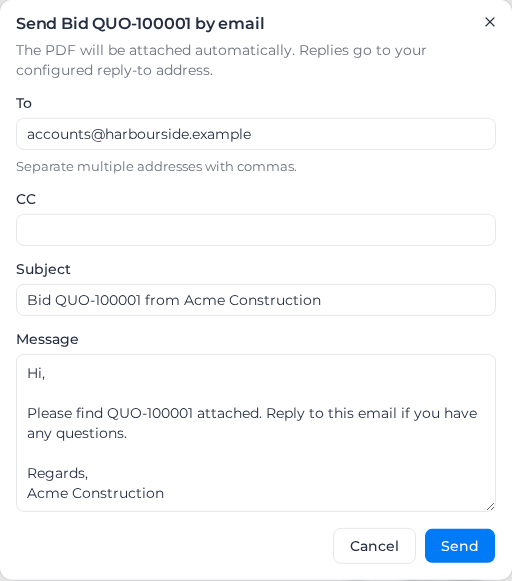
The PDF is made from the saved bid with its print template and attached for you. The email comes from Assignar Pay on your organization's behalf, and your client's replies go to your reply-to address. To set these defaults, see Set up bids.
Sending happens in the background. When it finishes you get a notification, and a Draft bid moves to Sent. If the send fails, the status stays as it was and the notification says so; open the bid and send it again. You can email a bid in any status, but only a Draft changes status when you do.
Download the bid
Select Download PDF. It uses the print template chosen on the bid, or the standard layout if there isn't one, and saves your changes first. A bid whose Print Template is an uploaded file prints from that file.
A bid that prints from an uploaded template can also be downloaded in that file's own format. Select Download as Word, Download as Excel or Download as PowerPoint next to Download PDF. It saves your changes first, like Download PDF. If you've changed the bid's Print Template and not saved yet, the button is hidden until you save. Emails still attach a PDF.
If the bid uses a built-in layout and you have print templates, the arrow beside Download PDF lets you download with a different built-in layout just this once. The bid's own template is marked Assigned, and Assignar standard is the plain layout. Choosing one here doesn't change the bid. That arrow isn't shown when the bid prints from an uploaded file.
Track what the client decides
Change the bid's Status field and select Update Bid. A bid can be:
| Status | Means |
|---|---|
| Draft | Still being priced. New bids start here. |
| Sent | With the client. Emailing a draft sets this for you. |
| Approved | The client said yes. You can now create its orders and invoice it. |
| Lost | The client said no. |
| Partially Invoiced, Invoiced, Paid | Being billed. Issuing a claim moves an approved bid to Partially Invoiced, and to Invoiced once every fixed-price line is claimed in full and it has no unit-rate work. |
Once a bid has claims against it, it can't go back to Draft, Sent or Lost. To list bids in one status, select the filter button beside the search box, then Status.
See a bid's history
Open the bid and select Activity & History. Every save is a numbered revision showing what changed, with the emails sent, status changes and notes. The buttons at the top show one kind at a time, and Inspect Frozen Snapshot shows the bid exactly as it was at that revision.
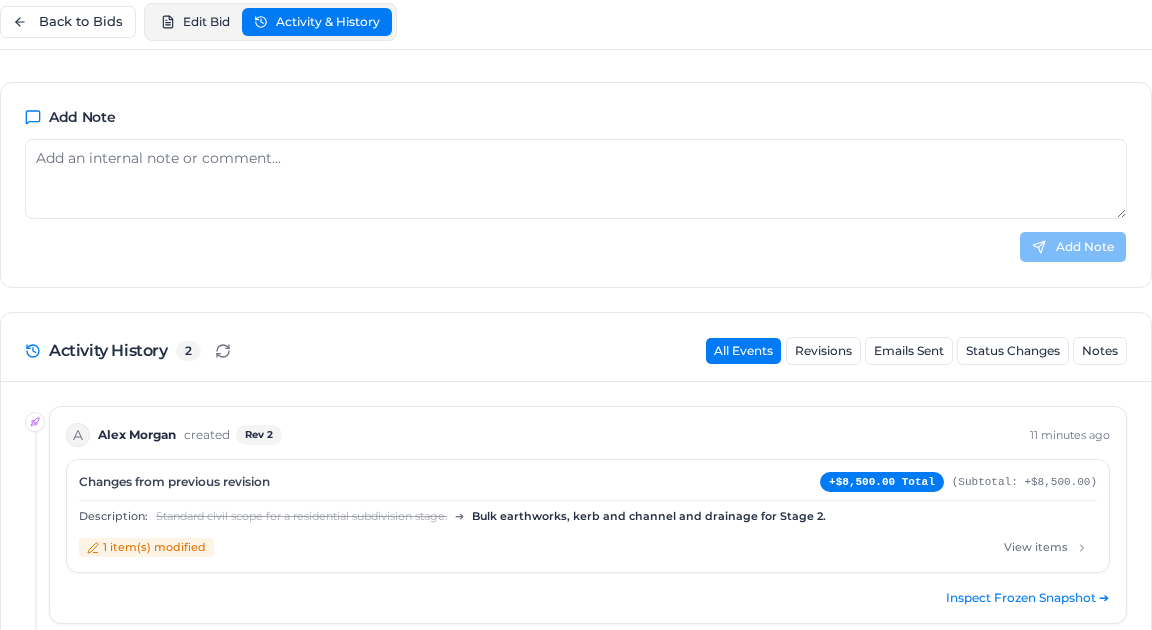
To leave a note for your team, type it under Add Note and select Add Note. Your client never sees these.
Turn an approved bid into orders
An approved bid shows "This Bid is approved. No orders yet." above its dates. Orders are what your crew works to and what job costing tracks against.
- On the approved bid, select Manage orders.
- Set how many orders you want and select the create button, such as Create 3 orders. New orders are created under the bid's project. To use an order that already exists, select Search orders, find it, and select Add.
- Select an order in the list on the left to fill in its name, dates, status and location. Select Add description to give it a description.
- Drag each section onto the order in the list that should hold it. Or select the Move to button on the section and choose the order.
- Select Save.
The first time, every section starts in the first order. Once the bid has orders, sections that are on none of them wait under Unassigned at the top of the list.
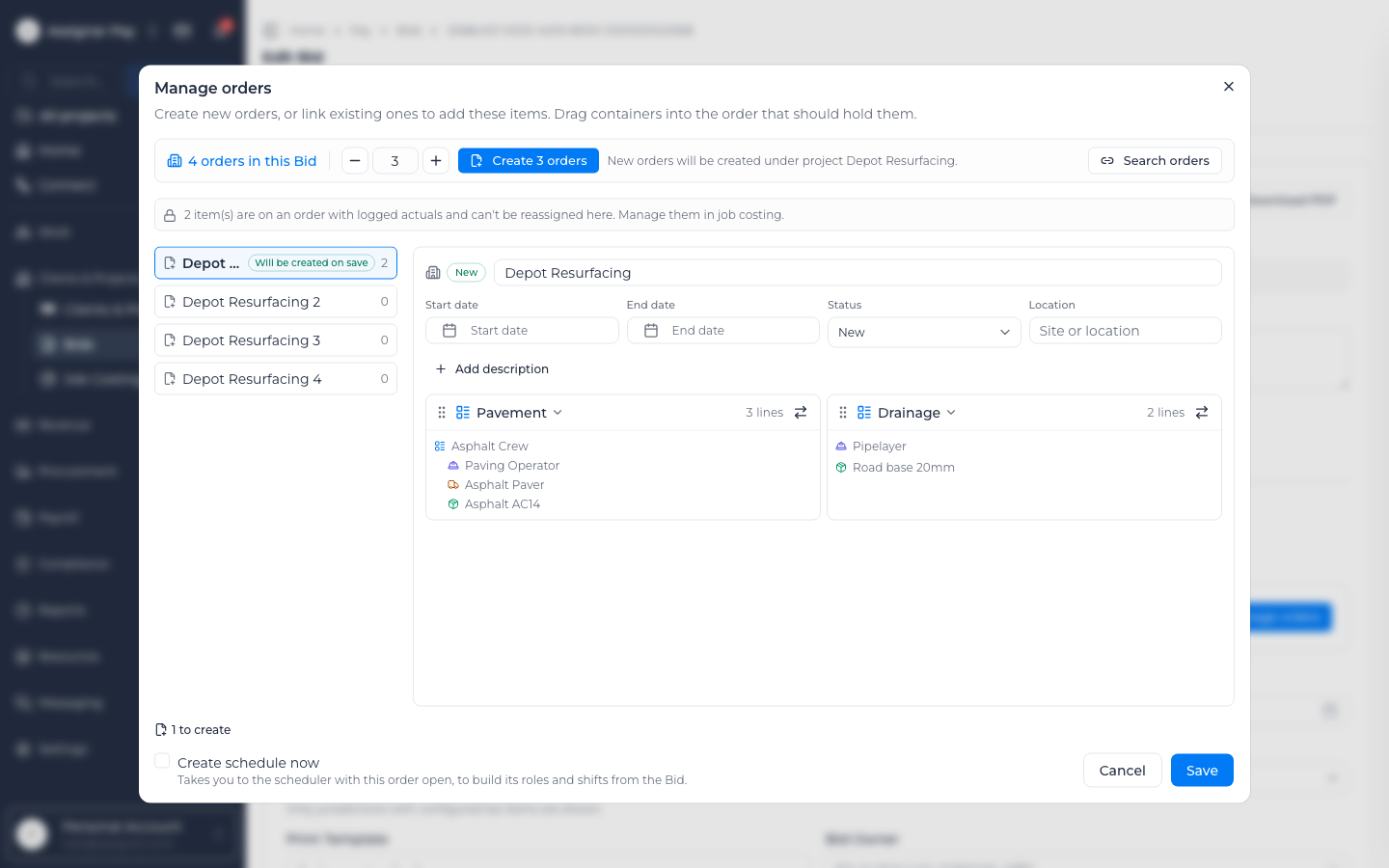
Each order in the list shows how many sections it holds, and "Will be created on save" or "Will be updated on save" when Save will change it. An order with a warning dot can't be saved yet: its end date is before its start date.
If your organization has Scheduling, each order in Manage orders also shows its schedule, such as "3 roles scheduled" or "No schedule on this order yet.", and Open roles & shifts opens the scheduling board in a new tab with that order's roles ready to plan from the bid. See Create and edit an order.
The bid then lists its orders, and Open order takes you to one. When every resource is on an order the bid says "All resources are on an order". Lines without a cost code are left off the orders, with a message saying how many; add a cost code on the bid to include them.
If your organization is connected to Assignar Operations, Manage orders also has Push new orders to Operations, ticked to start with. While it's ticked, Save also sends the new orders to Operations, and the message names the Operations order each one became, such as "Pushed to Operations as order 4521". View in Operations opens that order in a new tab. When an order can't be sent, the message says how many, such as "1 order(s) couldn't be pushed to Operations"; the order is still saved in Assignar Pay.
You can only change which orders hold which sections while the bid is Approved. Once it moves on to Partially Invoiced, Invoiced or Paid, the list of orders and Open order stay, but Manage orders is gone.
Once a bid has orders, its client and project are locked, and changes you save to the bid are copied to its orders. A line whose order already has costs recorded against it can't be moved to another order or deleted until those costs are cleared in job costing.