

Text your crew
Send SMS broadcasts to your team, reply to their texts from a shared inbox, save templates and groups, buy credits, follow the consent rules and check who can receive texts.
SMS puts a message on your team's phones, such as a shift change, a weather call-off or a gate code, and brings their replies back to a shared inbox. In the sidebar, select Messaging, then SMS.
SMS texts phone numbers and uses credits. To reach people who have a Pay login, in the app and with nothing to buy, use Messages instead. When you pick one person in Compose, Message in app opens a conversation with them there.
The SMS menu has three parts: Conversations (Inbox, Outbox, Compose), Library (Templates, Groups) and Account (Usage).
Two things must be in place before your first message goes out:
- A sender number. Assignar sets one up for your organization. Until then, Compose shows SMS not configured (and the SMS tab in Billing shows SMS not provisioned) with "Ask your Account Manager to provision a sender number for this account."
- Each person's consent. Every recipient has to add their own mobile number and opt in. Anyone who hasn't is skipped, and you can check who has.
Owners, Admins and Managers can send messages by default. Only Owners and Admins can manage templates and groups, and buy credits.
Ask your team to opt in
Carriers and regulators require that everyone you text has agreed to receive messages from your company. Having someone's number is not consent, and you cannot opt in for someone else.
Each person opts in themselves, in their own account settings, so a worker needs a login first: see Give a worker a login. On the web:
- Open your account menu at the bottom of the sidebar and select Settings. Field users select Settings, then Profile, in their sidebar.
- Under Mobile number, enter your mobile in international format in Mobile (E.164), for example
+61412345678. - Tick both boxes: the first agrees to receive operational text messages from your company, the second accepts the Terms of Service and Privacy Policy.
- Select Save mobile.
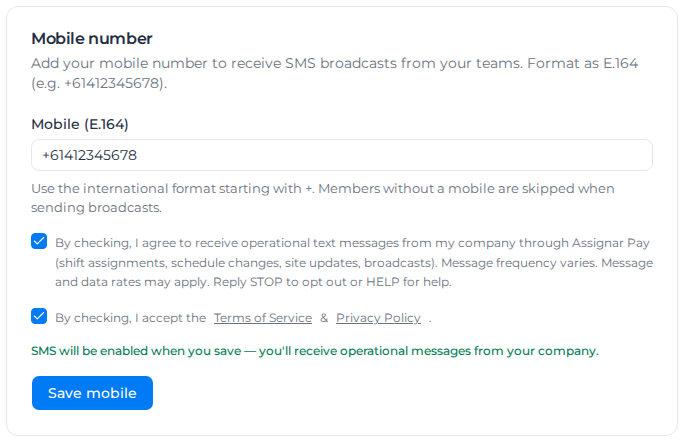
In the Pay app, tap your avatar at the top of Home to open Account, which has the same Mobile number card.
With both boxes ticked, the card reads "SMS will be enabled when you save — you'll receive operational messages from your company." With one or none ticked, the number is saved but no messages arrive: "Your number will be saved, but you won't receive SMS messages. Tick both boxes above to opt in."
To opt out, a person replies STOP (or STOPALL, UNSUBSCRIBE, CANCEL, END or QUIT) to any message, or selects Clear on their mobile number. Replying to opt back in doesn't work: they tick both boxes again and save.
Keep SMS to operational messages, which is what your team agreed to. Message history is kept for 12 months.
Check who can receive texts
Under Resources, then Users, the SMS column on the Worker Profiles and Members tabs shows whether each person can be texted. Owners, Admins and Managers see it by default, once your organization has a sender number.
| Status | What it means |
|---|---|
| Opted in | They have added a mobile number in their account settings and agreed to receive SMS. |
| Not opted in | They have a mobile number but haven't agreed, or they replied STOP. Only they can opt in, as described above. |
| No mobile | They haven't added a mobile number in their account settings. |
| Invite pending | The worker has been invited and hasn't accepted yet. Once they join, they add their number and opt in. |
| No login | The worker has no login to your organization, or theirs was removed. Invite them or link them with Invite / Link in the Member Account column. A worker needs an email address before you can invite them. |
Invite pending and No login appear only on Worker Profiles, because everyone on Members already has a login. An archived worker, or a pending invitation on Members, shows a dash.
Hover over a status to see why. On a phone or tablet, where you can't hover, open the worker instead: from the … menu beside their name, select Edit. Under Account link, Text messages (SMS) shows the same status with the reason written out.
If the column heading has a warning sign and every row shows a dash, the statuses couldn't be loaded ("SMS status couldn't be loaded"). Reload the page to try again.
Send a message
- Go to SMS, then Compose, and select Open compose dialog. From the Inbox, New message opens the same dialog.
- To start from a saved message, choose it under Template (optional).
- Write your Message. Under Insert variable, add
{first_name},{last_name},{full_name},{account_name},{sender_name}or{today}; each person gets their own values. - Under Recipients, pick groups, individuals or both. The summary counts unique recipients, so someone in two groups gets one message. People who haven't opted in are marked Not opted in.
- Check the counter under the message: characters, segments and credits.
- Select Send now. To send later, turn on Schedule for later, pick a time between 15 minutes and 7 days from now, and select Schedule send.
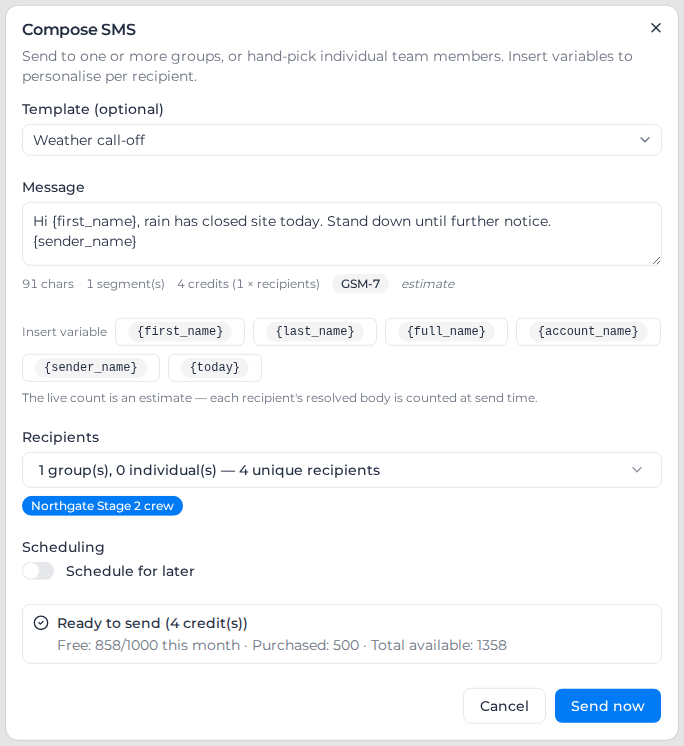
Before you send, the dialog warns about anyone who will be skipped, by reason, for example "2 recipient(s) will be skipped" with "1 member(s) without a mobile on file" and "1 member(s) who have not opted in to SMS". The credits it shows are only for the people the message will reach.
Assignar Pay confirms "Broadcast sent to 4 recipient(s)." or "Broadcast scheduled — 4 recipient(s) queued." with your own count. If anyone was skipped, it adds how many: "Broadcast sent to 4 recipient(s). 2 skipped: no valid mobile or not opted in."
The counter is an estimate. Each person's message is measured when it is sent, because names differ in length.
Reply to a text
Replies arrive in SMS, then Inbox. Select a conversation, type your reply, and press Enter to send; Shift+Enter starts a new line. The cost of your reply shows as you type.
If the other person hasn't opted in, the conversation shows "This recipient has not opted in to SMS broadcasts. Replies in this thread will be refused until they enable SMS in their profile." Ask them to opt in first.
Check what was sent
SMS, then Outbox, lists every broadcast with its Status: Scheduled, Queued, Sending, Sent, Delivered, Undelivered, Failed or Canceled. Open one to see each recipient's status, send and delivery times, and credits.
To stop a scheduled broadcast, select Cancel, then Cancel broadcast. Messages already sent can't be recalled: if some had gone out, the confirmation gives both numbers, for example "3 canceled, 2 already sent."
Save templates and groups
For a message you send often, go to SMS, then Templates, and select Create template. Enter a Template name and the Body (up to 300 characters, variables included), then select Save template. It is offered in Template (optional) straight away. Changing or deleting a template doesn't change broadcasts already sent with it.
For a crew or site you message often, go to Groups and select Create group. Enter a Group name, pick the Members, and select Save group. Only people with a mobile on file can be added, and a group holds up to 500 people. People who haven't opted in are marked Not opted in: you can add them, but every send skips them until they opt in. For a bigger list, make several groups and pick them all when you compose.
Buy credits
Each message segment costs about one credit, for each person you send it to. A message of up to 160 characters is one segment; a longer one is split into segments of 153 characters. An emoji or an unusual character switches the whole message to a set that fits 70 characters in one segment, or 67 per segment once split, so one emoji can double the cost of a long message. A message can be up to 1,600 characters. The counter in Compose shows the cost before you send.
Usage in the SMS menu opens Billing on the SMS tab. The Credit balance card shows:
- Free remaining: your monthly allowance, which resets on the 1st of each month
- Total purchased and Purchased remaining: credits you bought, which never expire
- Available now: what you can spend
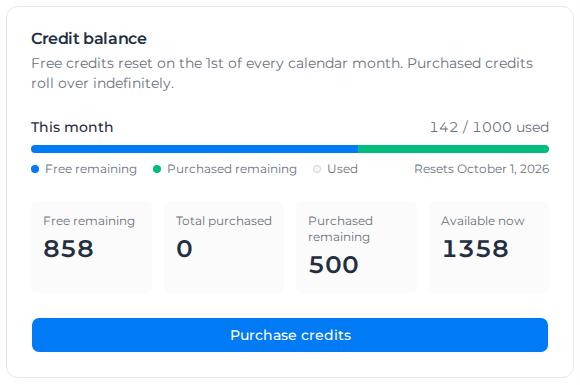
To buy more, select Purchase credits, choose a pack of 500, 1,000 or 5,000 credits or enter a custom amount up to 10,000, and select Continue to checkout to pay.
Below the card, Monthly usage, By sender and History show who has been sending and what each broadcast cost.
When a message doesn't go out
"No eligible recipients — everyone was skipped." Nobody you picked can be texted. They have no mobile on file, a mobile that isn't in international format, or haven't opted in, and the dialog lists how many for each reason. Ask them to add their number and tick both boxes.
"Not enough credits to send. Top up to continue." Open Usage and select Purchase credits.
"Recipient has not opted in to SMS — reply was not sent." The person needs to opt in before you can reply.
"Carrier rejected the message." The mobile network refused it. Check the number is right.
"You do not have permission to send SMS on this account." Your role can view SMS but not send. Ask an Owner or Admin.
If someone stops receiving messages, they most likely replied STOP or cleared their number, and their SMS status reads Not opted in or No mobile. Ask them to tick both boxes and save again.