

Review dockets
Show dockets in Schedule of Rates, find and check them, map their form fields for pricing, price them and invoice them.
A docket is the signed record of a crew's shift: who worked, their tasks and hours, and anything else the form asked. Dockets come across from Assignar Operations, or your crew fills them in on a docket form in Assignar Pay. You price them against a schedule of rates and invoice them, the same way as timesheets.
This page uses the default name, Dockets. United States and Canadian accounts see Field Tickets instead, and if your organization has set its own name under Terminology in Settings, the sidebar and screens use that. See Name your dockets.
Show dockets
Dockets have their own tab under Revenue, then Schedule of Rates, once your organization shows them:
- In the sidebar, select Settings, then General, and go to the Payroll section.
- Under Rate calculation, set Schedule of Rates Display Mode to Dockets or Both. Timesheets hides the tab.
- Select Save Changes.
If the tab is hidden and someone opens it from a link, they see Enable Dockets with a Go to Settings button.
Find a docket
Open the Dockets tab. It opens on the last 7 days, newest first, with the workers, their roles, the shift, and the project, client and order for each record.
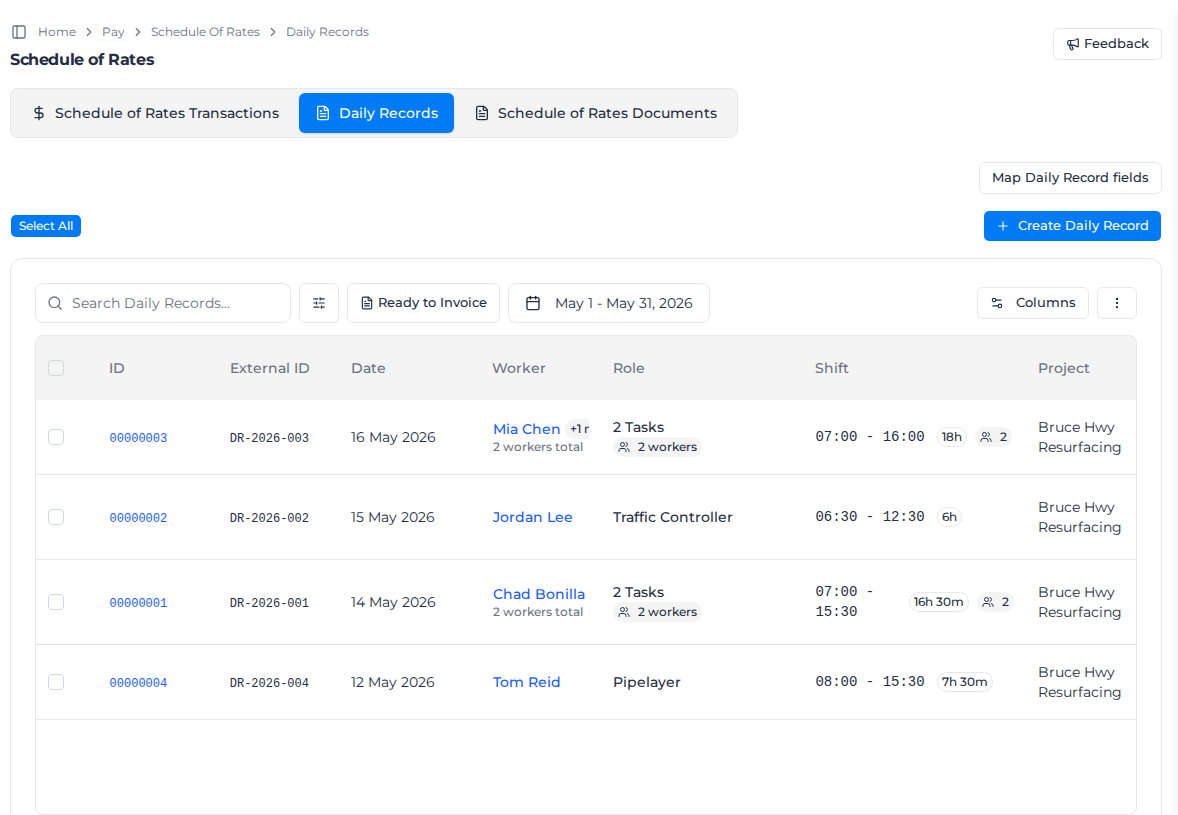
- Search Dockets... finds records by worker, task, client, project, invoice number or order, including the Assignar Operations order ID, for example
1530. - The date button changes the period.
- The filters narrow the list by Source, Status, Order Status and Invoiced Status. Under Order, each option starts with the Operations order ID, then the order description, so you can type the ID to keep only that order's records.
- Ready to Invoice shows only completed records that are not invoiced yet.
The Ops Order ID column shows the Operations order ID on each row. Select its heading to sort by it, and use Columns to show or hide it. A CSV export includes every column you have showing, so leave Ops Order ID showing if you need it in the file. The Schedule of Rates Transactions tab has the same search, Order filter and Ops Order ID column.
To see a record in full, select ... on its row, then View Details. The panel lists each worker with their task, shift time and total time, and the answers to any custom questions on the form.
Map a form's fields for pricing
Custom questions on a docket form, such as a crew size, travel hours or materials used, only change the price once you say what each one means.
- Select Map Docket fields.
- Choose the Schedule of rates and the Docket template.
- Select Suggest mapping to have Assignar Pay suggest one, or Map manually.
- For each field, choose what it Maps to, for example Crew size (family rate) or Travel hours.
- Select Run price preview to price a sample record, check the total, then select Save mapping.
You need an active schedule of rates first; see Set up a schedule of rates. A form with no custom questions still needs its empty mapping saved before its records can be priced.
Price and invoice dockets
- Tick the records you want, or select Select All.
- Select Process SoR (N) to price them against your schedule of rates. The SoR Status column shows the result.
- Select Create Invoice (N Dockets) to start an invoice from them.
You can also add priced dockets to a draft invoice with Add from Dockets. Each worker's hours come in as their own lines, and so do the record's materials and fixed fees, such as mobilisation. See Create and send invoices.
Add a docket
Select Create Docket, choose a published docket form, and select Continue. Assignar Pay opens the form for you to fill in. If you have none, the dialog says No published Docket forms are available. Publish a Docket form first. and Open Forms takes you to your forms.
If you use Assignar Operations, the tab also has Import Dockets for bringing them across; see Connect with Operations.
To remove a record, select ... on its row, then Delete.
Let workers capture paper dockets
Crews who still fill in paper can photograph it from the mobile app. Turn paper capture on for your organization, then for each project that uses it. Both start off.
- In Settings, under Operations, open Paper Dockets. Turn on Enable paper Dockets and select Save paper Docket settings. You need permission to manage settings.
- Edit each project that uses paper. In Details, turn on Paper Dockets and select Update. You need permission to update projects.
Anyone assigned to a shift on an enabled project can then capture a paper docket from My Shifts in the mobile app. Publish a docket form in Forms so the office can read the uploads into it.
Turning the organization setting off stops new captures on every project. Your project choices and existing uploads are kept, and the uploads can still be reviewed.
Read a paper docket into a record
When you have a completed paper docket to enter, upload a photo or PDF of it and Assignar Pay reads it into a docket form for you to check. You need permission to create timesheets and a published docket form.
- On the Dockets tab, select Upload paper Docket.
- Choose the Template the paper should fill. Your account's default form is selected when there is one. Select Choose a photo and pick a photo or PDF, up to 25 MB.
- Wait for the upload to reach Needs review, then select Review. Reading can take a minute; you can leave and come back through Paper Dockets, which lists every upload with its status.
- Compare every answer with the photo beside the form. Check these points you to names that couldn't be matched. Complete any required fields the paper didn't supply. If the sheet's date differs from the record's, a warning says so; check it's the right sheet.
- To read small handwriting, select the photo or the expand button above it. The photo opens full size, where you can zoom, drag and rotate it.
- Submit the form. The upload becomes Confirmed, and Open the record takes you to the saved record.
The photo or PDF stays on the record, signatures included, under Original paper Docket. Select View to open it full size. Anyone who can view timesheets can open it, as can the person who uploaded it. Nobody can replace or delete it.
If you see In review by and a colleague's name, they have already opened the review. Let them finish, or select Discard to abandon the upload. A discarded upload writes nothing to a docket, and its review form can no longer be submitted.
| Message | What to do |
|---|---|
| That file is larger than 25 MB. | Choose a smaller photo or PDF. |
| This account has no published Docket template, so a paper Docket cannot be read yet. | Publish a docket form in Forms, then upload again. |
| This Docket could not be read | Upload the photo again, or enter the record yourself with Create Docket. |