

Deploy a crew
Save a group of workers and plant that work together, each with the role they fill, and place the whole crew on an order's day in one drop.
A crew is a saved group of workers and assets, each with the role or asset class they fill. Instead of placing six people one at a time, you drop the crew on a day and the board puts each member into the matching role.
Crews live on the Crews tab of the Resources panel. The tab shows how many crews you have, for example Crews (4), whichever tab is open.
Build a crew
- Open Resources from the toolbar and select Crews.
- Select Build a crew.
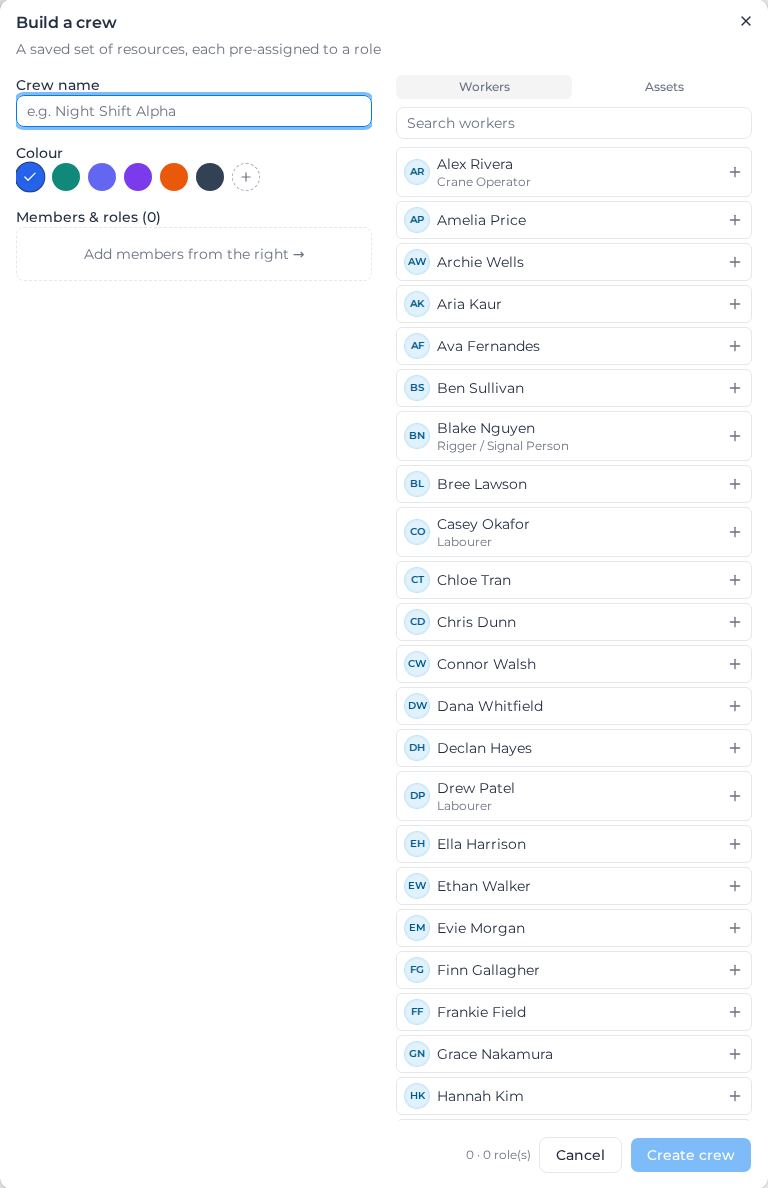
- Enter a Crew name and choose a Colour. The colour is how you'll recognise the crew on the board.
- Add members from the Workers and Assets lists on the right. Each worker needs a role and each asset an asset class; the crew can't be saved until they have one ("Every worker needs a role", "Needs an asset class").
- To send a worker out with a particular machine, select Link a machine on the worker. A linked worker and machine are placed as an operator pair.
- Select Create crew.
To change a crew, select it on the Crews tab, make your changes and select Save crew. Delete crew removes it; shifts it has already placed stay on the board.
Place a crew on a day
- Drag the crew from the Crews tab onto an order's day.
- Deploy shows the shift's Start and End and how many members will land in a matching role.
- Select Deploy crew.
Each member goes into a role on that day that matches their role or asset class, and linked pairs land together. You then see how many were placed, for example "Deployed 5, skipped 1 — role already full". A member is skipped when:
| Reason | Means |
|---|---|
| already on this order today | They already have a shift on this order that day. |
| no matching role | The order has no role for them that day. |
| role already full | Their role already has as many people as it needs. |
| role is off on this day | The order has the role, but not on that day. |
Before that happens, the dialog offers to make room:
- Expand this day when a role is full, for example "Carpenter — 1 member(s) don't fit at 1". It raises the quantity for that day only, starting at the number the crew needs, and keeps the role's own shift times. A linked worker and machine take one operator place, not a worker role plus an asset class.
- Turn on for this day when the order has the role but it's off that day.
- Add missing roles? when the crew has roles the order doesn't have. Confirm the shift times and select Add 2 role(s) & deploy (the number varies), or Skip missing roles.
These add to the order for that day only; its usual pattern doesn't change. Leave them off and those members are reported as skipped.
See and remove a crew on the board
In the card view, a crew's members show as one chip in the crew's colour instead of separate names. Anyone you placed by hand, or who was already on the order before you deployed, still shows by name. Select the chip for Edit and the crew's name, or Remove crew name from this day, which takes off every shift the crew placed on that order that day. On a past day it says "Can't remove — this day has passed".
You can also drag a crew's chip to another order on the same day to move the whole crew.
Renaming or recolouring a crew changes the chips already on the board. Changing its members doesn't change shifts already placed, and deleting it leaves its shifts in place under the members' own names.