

Accept an invitation
For subcontractors: accept a principal contractor's invitation, create your organization if you need one, and submit your company details for approval.
When a principal contractor invites your company, the email goes to one person. That person accepts on behalf of your organization, then submits your company details for the principal contractor to approve. Once approved, they can engage you on their projects.
Open the invitation
Select the link in the invitation email and sign in with the address it was sent to. If you are already signed in, Clients & Projects shows "You have an invitation from" the principal contractor, with Review invitation.
The invitation page shows who invited you and any message they wrote. What you do next depends on where you stand.
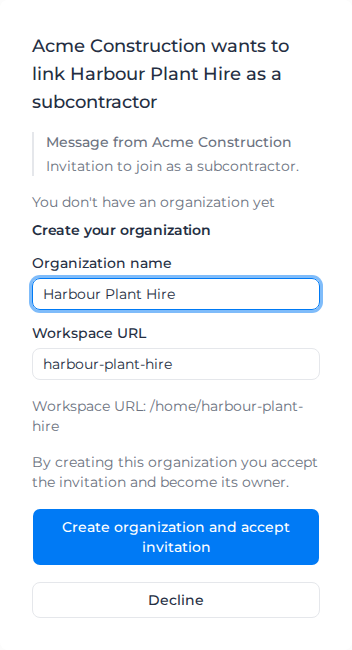
You don't have an organization yet. The page says "You don't have an organization yet" and shows Create your organization:
- Check the Organization name. It starts as the name the principal contractor typed.
- Check the Workspace URL, the short name in your organization's web address. It is made from the name; use lowercase letters, numbers and hyphens.
- Select Create organization and accept invitation. You become the organization's Owner and land on its Home page.
You are an Owner or Admin of an organization. The page shows it under Accept as; if you run more than one, choose which. It also shows "What" the principal contractor "will see": your organization's name, ABN, address, phone and you as the primary contact. Select Accept and submit for approval. If the principal contractor is a different business from the one you run, select Create a new organization instead.
You are a member but not an Owner or Admin. The page says "You're part of" your organization and asks you to get an Owner or Admin to accept.
To turn the invitation down, select Decline, then Decline invitation. The principal contractor is told, and the invitation is closed.
If the page says "This invitation was sent to a different address", sign out and sign in with the invited address. If it says "This invitation has expired", ask the principal contractor to resend it.
If you created your organization from the invitation
An organization created from an invitation starts on an assignment-only plan. You can do the work your principal contractor gives you: add workers and assets and nominate them to their projects. You can't create your own clients, projects, forms, bids, invoices, pay rates or reports. Those pages show "Assignment-only plan" with Email Sales; contact Assignar to upgrade.
Submit your details
The principal contractor approves your company details, so fill them in first.
- In Settings, under Company details, enter your ABN and Company Address, then select Save Company Details. The Company Phone and Website are optional but shown to the principal contractor too.
- Open the principal contractor from Clients & Projects: select the Principal contractor badge on their card.
- Check the checklist under "What" they "will see": Organization name, ABN, Address and Valid ABN each need a tick. Edit organization details takes you to Settings; Refresh updates the checklist when you come back.
- Select Submit for approval. It stays unavailable until every item has a tick. The status becomes Submitted, awaiting approval.
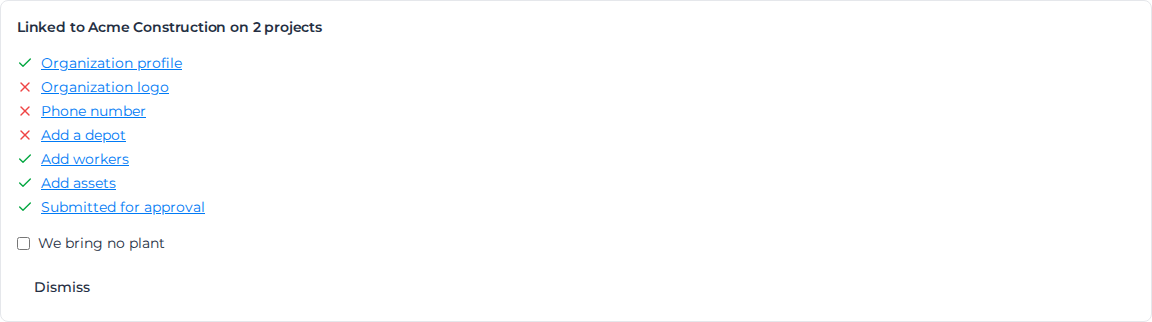
The Home page shows a checklist too, while you have a principal contractor. It links to the settings for your profile, logo and phone number, to Add a depot, Add workers and Add assets, and has its own Submit for approval. If you don't bring plant, tick We bring no plant. Once you are approved, Dismiss hides the card.
If they ask for changes
You get a notification, and the status becomes Changes requested. Open the principal contractor from Clients & Projects: their Feedback is shown word for word.
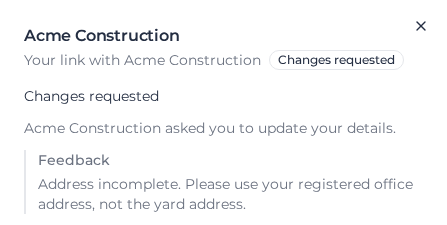
Fix your details in Settings, then select Update details and resubmit.
If they reject your details, the panel shows Not approved with their reason. That relationship is over; they would need to invite you again.
Once approved, the status becomes Active and you get a notification. Next, see Work with your principal contractor.