

Set up bids
Choose how bids are numbered, what bid emails say, the terms you attach and how the PDF looks, before you send your first bid.
Four things are worth setting before you send your first bid: its numbering, the email your client receives, the terms you offer the work on, and how the PDF looks. All of them live on tabs of the Bids page, under Clients & Projects, then Bids.
Tax on a bid comes from your organization's tax jurisdictions, and a new bid starts on your Default Tax Jurisdiction. If the Tax Jurisdiction list on a bid is empty, or you want every bid to start on one, set them up first; see Set up your organization.
Number your bids
- Open the Settings tab.
- Under Bid Numbering, enter the Number Prefix, such as
QUO-. Use capital letters, numbers, hyphens and underscores only. - Enter the Starting Number for the next bid.
- Select Save Changes.
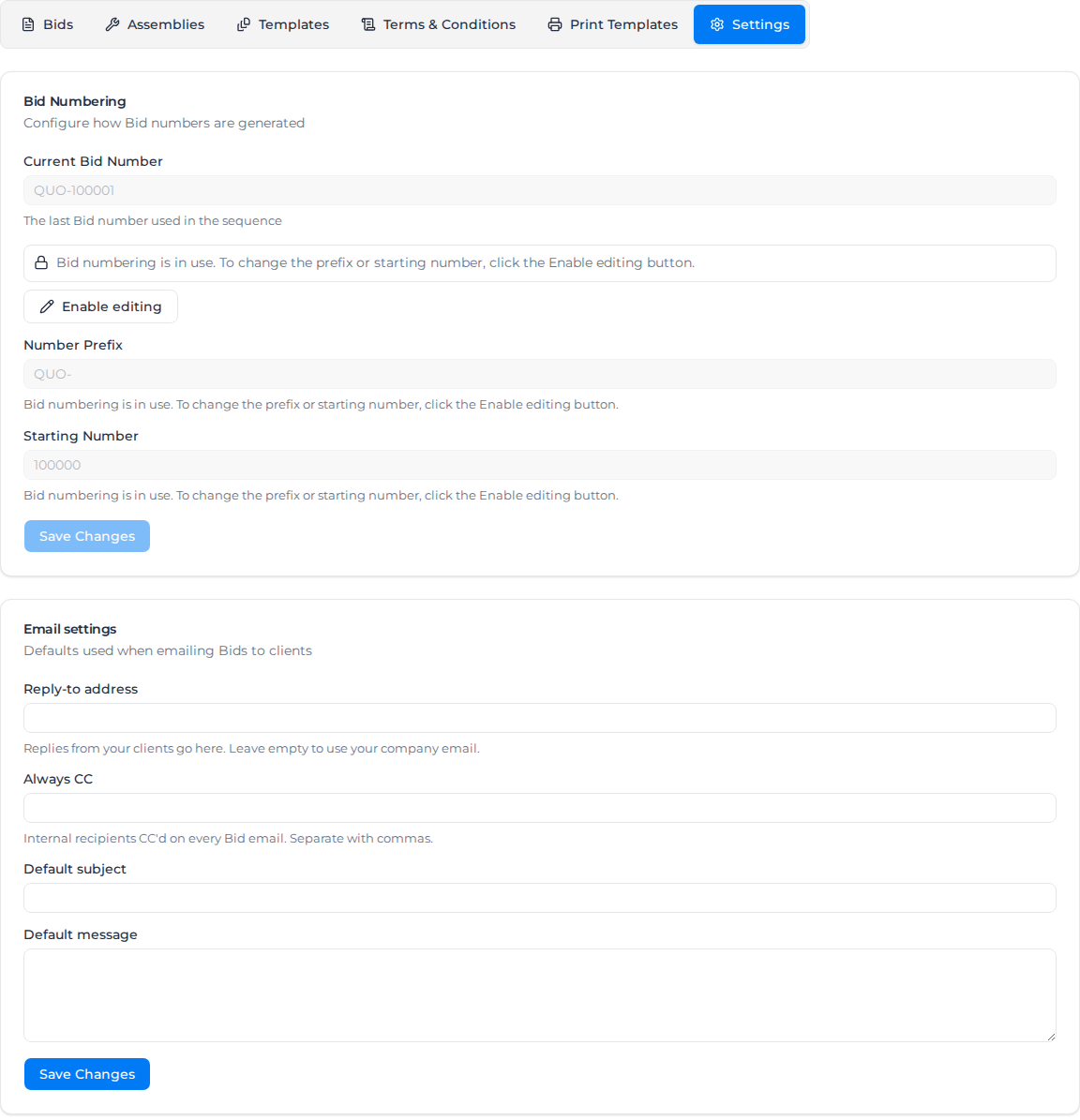
Current Bid Number shows the last number used. Once bids have been numbered, both fields are locked; select Enable editing to change them. The new starting number must be higher than the current number, and higher than any existing bid that already uses the new prefix.
Set what bid emails say
The Email settings card on the same tab sets the defaults for every bid you email:
- Reply-to address is where your client's replies go. Leave it empty to use your company email.
- Always CC copies people in your organization on every bid email. Separate addresses with commas.
- Default subject and Default message fill in the send dialog. You can still change them on each send.
Select Save Changes under the card. Bid emails come from Assignar Pay on your organization's behalf, so the reply-to address is what your client sees when they answer.
Set a default retainage
If your clients hold back retainage on fixed-price work, enter the usual Retainage % under Default Retainage and select Save Changes. New fixed-price lines start with it, and you can change it on each line.
Add your terms and conditions
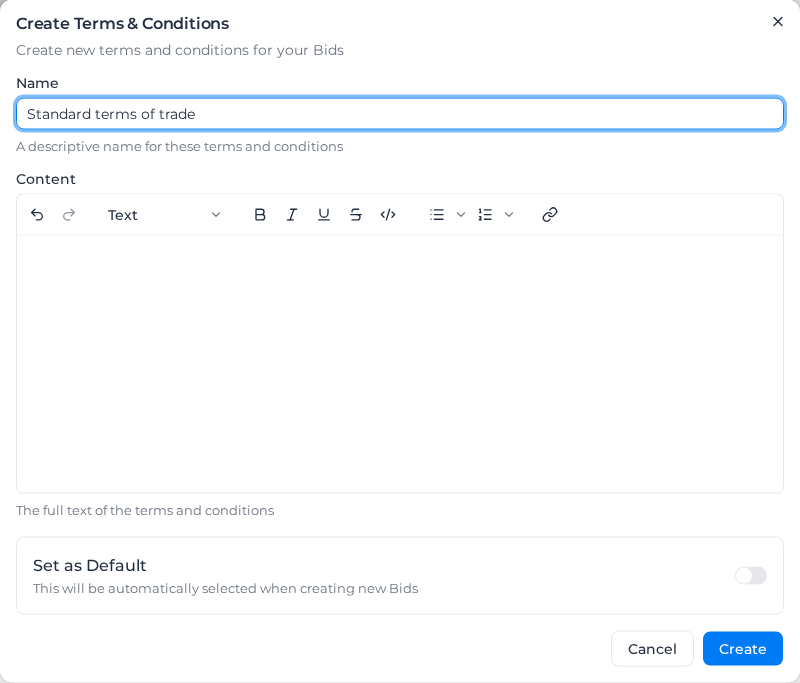
- Open the Terms & Conditions tab and select Create Terms and Conditions.
- Give the terms a Name, such as "Standard terms of trade", and type or paste the Content.
- To have them chosen on every new bid, turn on Set as Default.
- Select Create.
Choose the terms for a bid in its Terms & Conditions field. From the list you can edit a set, make another set the default, or delete it.
Use the formatting toolbar in Content for headings, lists, links and emphasis. Selecting text also opens a toolbar for that selection.
Design the bid PDF
A print template sets how a bid looks when you download it or email it. Bids have their own templates, built in the same editor as invoice templates; see Customize print templates for how the editor works.
- Open the Print Templates tab and select Create Print Template.
- Give it a Name, and under Start from a preset choose Classic, Modern or Letter.
- Set the Brand & Style, add blocks under Add a block, and put them in order under Layout.
- To use it on every new bid, turn on Set as account default.
- Select Save.
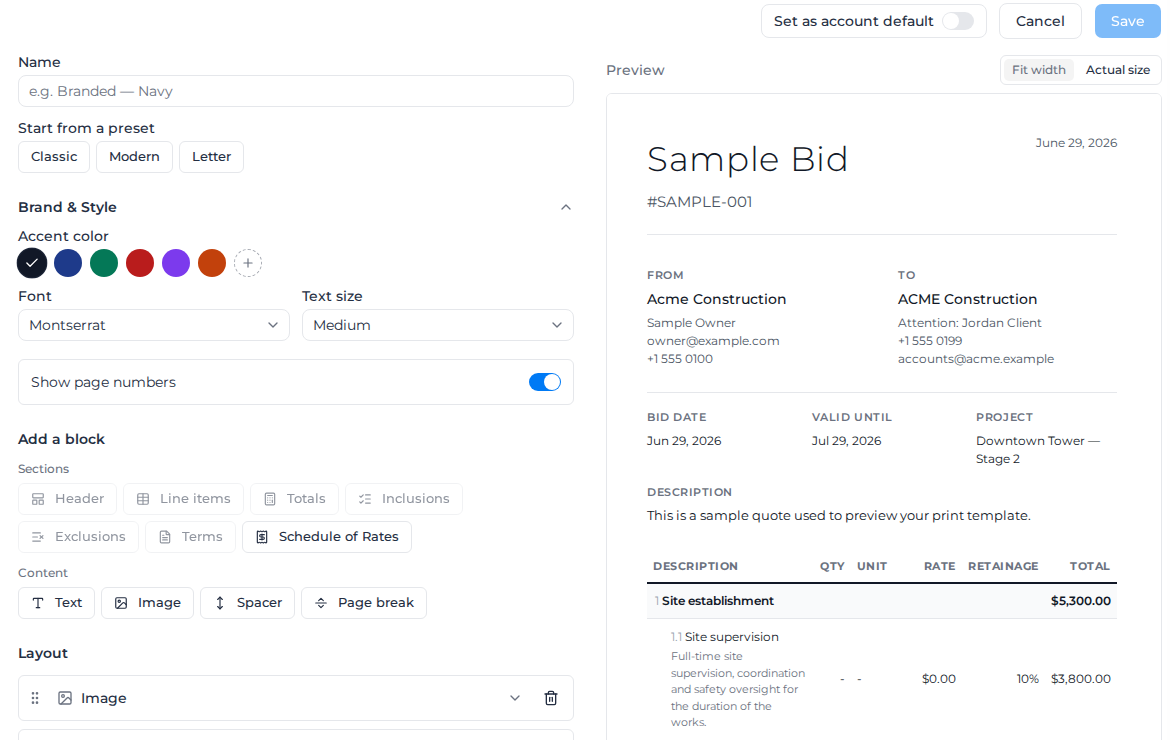
Bid templates are built from these blocks:
| Block | Shows |
|---|---|
| Header | Your company and client details, the bid number, issue and valid-until dates, project and description. Each detail can be turned off. |
| Line items | The priced lines. Line item detail is Summary (priced items) or Detailed (show resources), and you choose whether to show Description of work, Item subtotals, the Retainage column and other columns. |
| Totals | Subtotal, tax and total, with or without the Tax breakdown |
| Inclusions, Exclusions, Terms | What the bid includes and leaves out, and its terms and conditions |
| Schedule of Rates | The schedule of rates generated from the bid, so the client sees the rates they are agreeing to. Nothing prints until the bid has one. |
| Text, Image, Spacer, Page break | Your own wording, your logo or an image of up to 2 MB (PNG, JPG, WebP or SVG), extra space, and a new page |
Choose a bid's template in its Print Template field. Assignar standard is the plain layout, Built-in layouts are the templates you designed here, and Uploaded templates are Word, Excel or PowerPoint files you uploaded. If you delete a built-in template, bids already using it keep their look and new bids go back to the standard layout.
Print a bid from your own Word, Excel or PowerPoint file
On the Print Templates tab, Uploaded templates sits above the built-in templates. It takes Word (.docx), Excel (.xlsx) and PowerPoint (.pptx) files. Upload a file and it becomes the default for new bids. Upload another and the earlier file stays in the Library.
- A file marked Default is the one new bids use when neither the bid nor its client names a layout. Available means the file is kept and can still be chosen.
- Select Set as default on an available file to make it the one new bids use.
- Built-in layout sends new bids back to the templates you designed. The uploaded files stay in the library.
- Uploaded template sends new bids to the default uploaded file.
- Select Remove, then Remove file, to take a file off the list and off any client default that used it. Bids that already name that file keep printing it.
Lines repeat the same way as on an invoice template, with {foreach $lines as $row} and {/foreach}. See Repeat a row for each invoice line for how this works in Word, Excel and PowerPoint.
If a file cannot be turned into a PDF, the download fails and says so. It does not switch to the built-in layout.
A client can have its own default for new bids. Open the client and set it under Print defaults. See Open a client.