

Use bid templates
Save the lines, terms and inclusions of a job you price often as a template, and start new bids from it.
A template is a bid without a client: the sections, lines and prices of a job you price often, with the terms and inclusions that go with it. Start a new bid from it and you only fill in who it's for and what's different this time.
Templates are on the Templates tab of the Bids page, under Clients & Projects, then Bids.
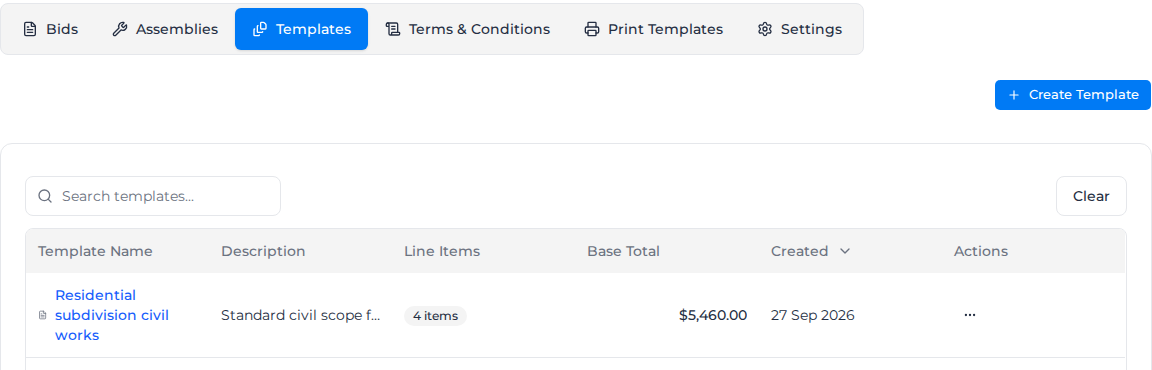
Create a template
- Open the Templates tab and select Create Template.
- Enter the Template Name and a Description. Bids made from the template start with this description, so write it for the client.
- Choose the Terms & Conditions that bids from this template should start with, and fill in Inclusions & Exclusions if they're the same every time.
- Build the lines exactly as on a bid, including assemblies. See Create a bid.
- Select Create Template.
A template needs at least one line with a title. Without one you see "Please add at least one line item with a description".
Use the formatting toolbar in Inclusions and Exclusions for headings, lists, links and emphasis. Selecting text also opens a toolbar for that selection.
Save a bid as a template
When a bid you've already built is the one you want to reuse, save it as a template instead of building it again.
- On the Bids tab, open the ... menu on the bid's row and select Save as template.
- Keep the suggested Template name, or enter your own.
- Select Save template, then Open template on the message that appears to see it.
The template gets the bid's lines, with their sections, prices and cost codes, and its description, terms, inclusions and exclusions. The client, project, contacts and dates stay with the bid. The bid itself doesn't change.
Save as template is greyed out if you can't create templates. If some prices on the bid are hidden from you, you see "Some prices are hidden from you, so this can't be saved as a template.", and someone who can see every price has to save it.
Start a bid from a template
- On the Bids tab, select the arrow beside Create Bid, then From Template.
- In Select Bid Template, select the template and then Use Template.
- The new bid opens with the template's lines, description, terms and inclusions. Enter the Bid Name, choose the Client, and change anything that's different for this job.
- Select Create Bid.
You can also open the ... menu on a template's row and select Convert to Bid. It opens the same new bid.
The bid is a copy. Changing or deleting the template later doesn't change bids made from it, and changing the bid doesn't change the template.
Change or delete a template
Select a template's name, or Edit in its ... menu, to change it, then select Update Template. Delete in the same menu removes the template and its lines for good.