

Create a bid
Start a bid, fill in who it's for, build its lines as sections and resources, and set a fixed price or a unit rate on each.
A bid has two parts: the details at the top (who it's for, its dates, terms and look) and the lines underneath, which say what you'll do and what you'll charge. You can type the lines in, start from a template, drop in assemblies, or import them from a bid document you already have.
Start a bid
- In the sidebar, select Clients & Projects, then Bids.
- Select Create Bid. To start from a template instead, select the arrow beside it, then From Template.
- Enter the Bid Name and choose the Client. Both are required. Use + beside Client or Project to add one that isn't in the list yet.
- Fill in the rest of Bid Details:
- Project is optional. Once a client is chosen, Contacts (Optional) lists that client's contacts to include on the bid.
- Bid Date starts on today and Valid Until a month later.
- Status starts at Draft. See Send and track a bid for what each status means.
- Tax Jurisdiction starts on your organization's Default Tax Jurisdiction, when it has tax rates for the bid's dates. Otherwise it starts on No tax jurisdiction. The list shows only jurisdictions that have tax rates set up.
- Terms & Conditions and Print Template start on your defaults. See Set up bids.
- Bid Owner is the person whose details print in the bid's From section. Choose No owner (use company info) to print your company details instead.
- Inclusions & Exclusions opens two text boxes for what the price covers and what it doesn't.
- Add the lines (below), then select Create Bid.
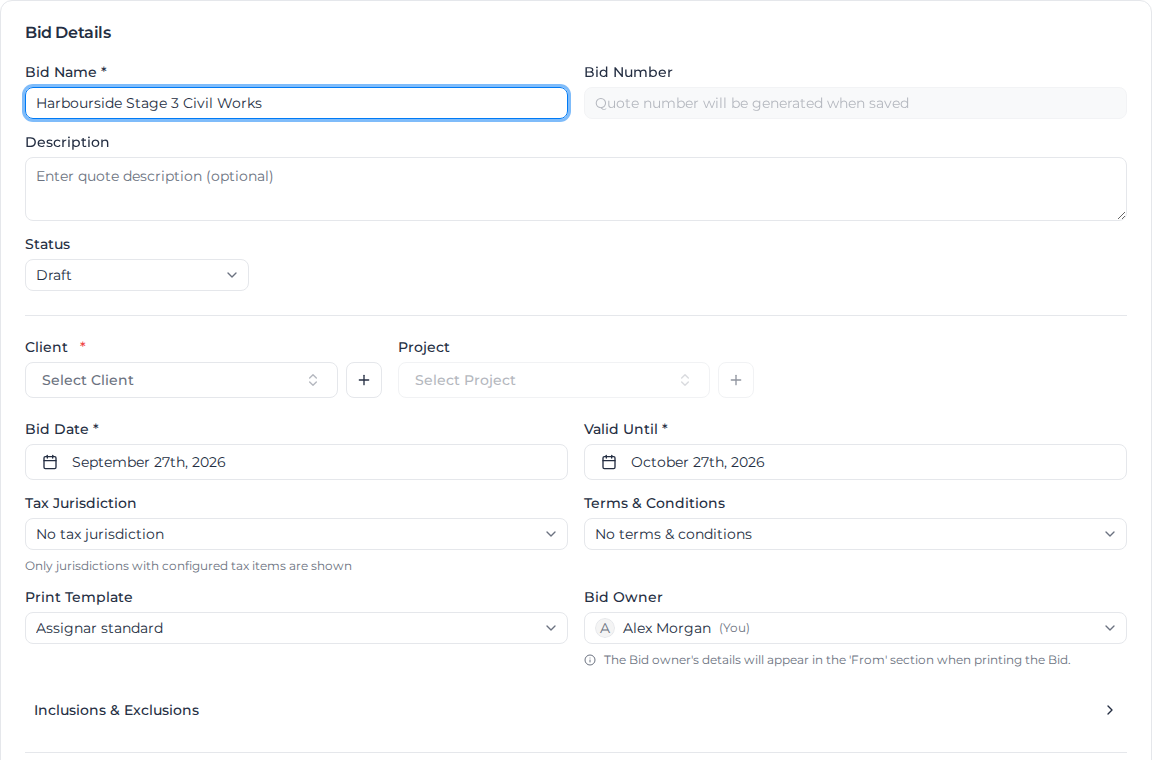
The Bid Number is given from your numbering sequence when you save. The bid then opens as Edit Bid, where you keep working on it and save with Update Bid.
Use the formatting toolbar in Inclusions and Exclusions to add headings, lists, links and emphasis. Select text to format it with the toolbar that appears beside your selection.
Build the lines
Lines nest. An Item is a section of work, such as "Site establishment", and can hold other items, activities and resources underneath it. The No. column numbers them 1, 1.1, 1.1.1 and so on.
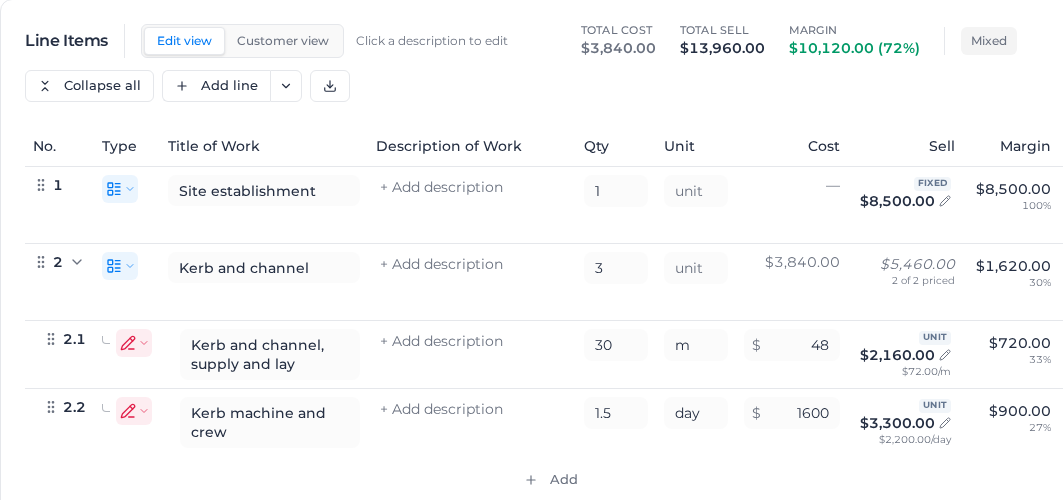
- Add line adds a blank line at the bottom. Choose its type with the picker in the Type column: Item, Activity, Labor, Equipment, Material, Other (a cost code line) or Text.
- The arrow beside Add line opens Add to Bid. Select a card to add that kind of line at the bottom, or drag it onto a line to put it underneath.
- The + at the end of a line adds a line underneath that one.
- Drag the handle at the start of a line to move it. Collapse all folds every section.
- On a long bid, once you scroll past Add line, a copy of it stays at the top right of the lines, so you can add a line or open Add to Bid without scrolling back up.
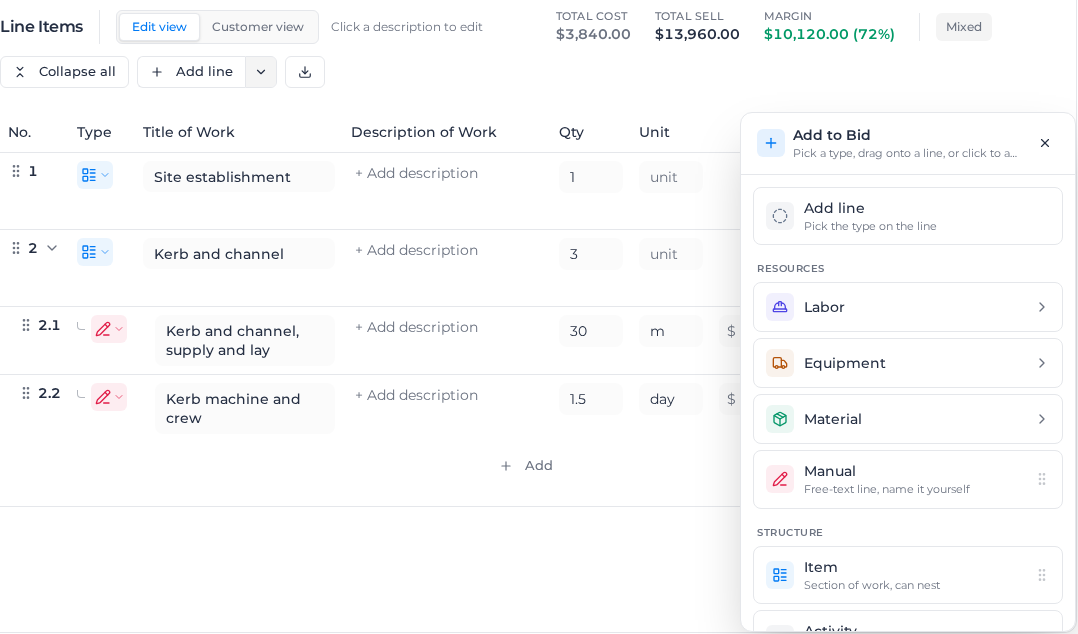
In Add to Bid:
| Card | Adds |
|---|---|
| Labor, Equipment, Material | A resource from your roles, equipment or materials. Search the list, or create a new one; it is added to your resource library too. |
| Manual | A line you name yourself |
| Item, Activity | A section of work, or an activity such as a concrete pour |
| Assemblies | A saved bundle of lines, scaled to the quantity you need. See Build assemblies. |
| From SoR Document | Lines from one of your schedules of rates. See below. |
To add rates from a schedule of rates, select From SoR Document and choose the document under Select SoR Document. Enter a Qty against each rate you want, and a Margin % if needed, then select the add button, which shows how many items you picked. Each rate becomes a line with the document's description, unit price and unit.
You can only add rates from a V2 document. A V1 document is listed but can't be picked, and if the bid is already priced against one you see "Items can only be added from a V2 SoR document. Convert this one to V2 to use its rates." Choose Convert to V2 on the document in your schedule of rates list first.
Every line needs a type before you save. A blank line you never touched is dropped when you save; one you gave a type must be finished.
Price a line
Each line has a Title of Work, a Qty and Unit, and a Cost you pay. Select Set in the Sell column (or the price, once there is one) to price it:
- Choose how it's charged:
- Fixed is one amount for the whole line, whatever it takes. Fixed lines are billed by progress, as a percentage complete; a bid with one shows a Hard Bid tag in the list.
- Unit rate is a price per unit. Your client is charged for the hours and materials your crew records against the line.
- Enter the Total or Unit rate. Switch $ to % to enter a margin on the cost instead of a price.
- Enter the Retainage % your client holds back, if any. Fixed lines start on your default retainage.
- Check the Cost, Sell and Margin below, and select Apply price. Remove price clears it.
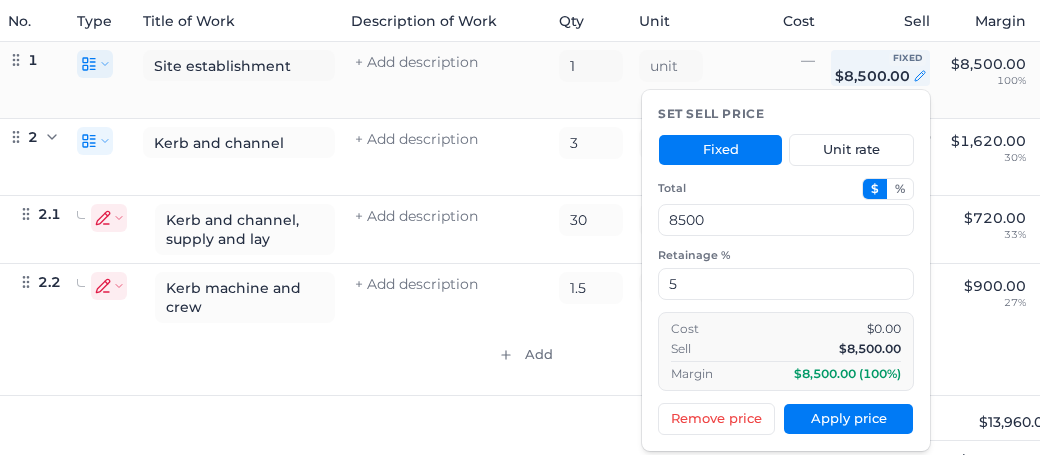
A section that isn't priced itself adds up the lines inside it and shows how many are priced, such as 2 of 2 priced. When a section has a price of its own, the lines inside it show Included. The totals above the lines show Total Cost, Total Sell and Margin for the whole bid.
The Unit rate column beside Sell shows what each priced line charges per unit, including margin. On a Fixed line it is the total divided by the quantity. Customer view shows it as well.
A unit-rate line also says how firm its quantity is: Est (an estimate, and work may bill above it), NTE (do not exceed, so billing above it needs authorization) or No qty (no forecast; bill what the work takes). Estimate and do-not-exceed lines need a quantity. A No qty line has no total to show, so Sell shows its rate instead, such as $40.00 / hour.
Price labor and equipment by the hour, day or week
A Labor or Equipment line's Unit is Hour, Day or Week. When you change it, the quantity converts so the hours and the total stay the same, and the cost and sell rates change to match. For example, 130 hours at 8 hours a day becomes 16.25 days, and $72.00 an hour becomes $576.00 a day. A fixed-price line keeps its lump sum.
The hours in a day or a week come from the line's cost code or, when the cost code sets none, from your organization's job costing hours (8 and 40 unless you change them). Each line keeps the hours it was created with, including when the bid becomes an order, until you change them on the line or pick a different resource for it. Changing the cost code or the organization's hours later only affects new lines.
To change the hours on one line, select the clock icon beside its unit and enter Hours per day and Hours per week. The same works on templates and assemblies. See Change a line's job costing hours.
Describe the work
- + Add description on a section or activity is the Description of Work your client sees under that line. It takes bold, lists and links.
- + Add note on a resource is for your team only. It never appears on the PDF or in Customer view.
Descriptions save as you type. Next item moves to the next line without closing the editor.
Customer view shows the bid as your client will read it: resources hidden, descriptions full width. Turn on Show resources to see them. Edit view takes you back.
Import lines from a bid document
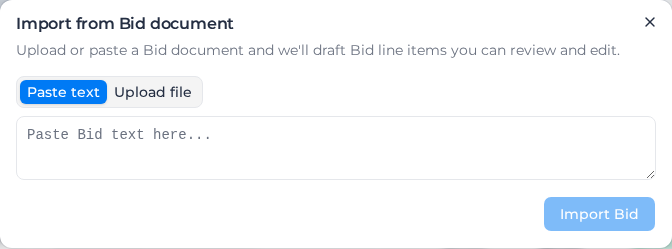
When you already have the priced bid as a file or text, Assignar Pay can draft the lines for you. This is only on a new bid, before you first save it.
- On Create Bid, select Import from Bid.
- Choose Paste text and paste the bid, or Upload file and choose a PDF, DOCX, XLSX, CSV or TXT file of up to 10 MB.
- Select Import Bid, and keep the window open while it works. It can take a minute.
- Check the drafted lines. Items and activities keep the quantity, unit and description from the document, and a price the document states for an item or activity stays on that line. Import notes on the line items shows or hides the notes on lines the import adjusted, such as a line named after a close match in your catalog, or an activity with no match in your catalog that comes across as an item.
- Finish any line that still needs a type, then select Create Bid.
If the document prices its lines at cost and states its price only as a total (a cost report with a markup summary, for example), the lines come across at cost with no sell price, and an import note gives the document's total price so you can set the sell.
If the lines read from a spreadsheet don't match its rows, the window says These lines don't match the document and shows the row count and the sell and cost totals, the document's figures beside the ones that were read. Select Don't add these lines to leave the bid unchanged, or Add them anyway and check the draft yourself.
If nothing comes across, you see "No line items found": try a clearer copy of the document, or add the lines yourself. After a file import, View Bid document on the saved bid opens the file you imported.
Draft lines with Milo
On a new bid, Draft with Milo offers suggestions such as "Add a Site Supervisor at $85/hr for 40 hours". Select one, or ask Milo in your own words, and Milo changes the lines for you. Check them, then select Keep, or Undo to put them back.
Charge work on the bid's orders at its rates
The Schedule of Rates section decides how work on the bid's orders is priced once the bid is approved. Create a Schedule of Rates from this Bid is on by default: when the bid is approved, its rates are copied into a schedule of rates of their own, and timesheets on its orders are charged at them.
Each unit-rate line becomes one rate per hour, day or week, as the line is priced. To keep overtime, weekend and night rates, choose an existing document under Select SoR Document; a line can then use Link SoR rate to reprice just that rate. See Charge work at the bid's rates.
If the bid won't save
| Message | What to do |
|---|---|
| "Bid name is required" or "Client is required" | Fill in the field at the top. |
| "At least one line item is required" | Add a line. |
| "Choose a type for every new line before saving" | Pick a type for each new line, or delete the line. |
| "Give every estimate and not-to-exceed rate line a quantity, or declare it as no quantity" | Enter a Qty, or change the line to No qty. |
Duplicate a bid
To bid the same job again, for another client or as a fresh version, duplicate an existing bid instead of starting from scratch.
- On the Bids tab, open the ... menu on the bid's row and select Duplicate.
- The copy opens as Edit Bid, named "Duplicate - " followed by the original's name. Rename it, change what's different, and select Update Bid.
The copy is a new Draft with its own Bid Number. Bid Date is today and Valid Until a month later, and tax is worked out again for those dates. It keeps the original's lines and prices, client, project, contacts, terms, inclusions and exclusions, and print template. Orders, claims and the original's history stay with the original.
When the original is priced from a schedule of rates, the copy is priced from the same one.
Duplicate is greyed out if you can't create bids. If some prices on the bid are hidden from you, you see "Some prices are hidden from you, so this can't be duplicated."
If you see "Bid duplicated, but some details weren't copied", open the copy and check its Print Template.
Change or delete a bid
Open a bid from the list to change it, and select Update Bid to save. Once the bid has orders, its client and project are locked. Once a claim has been issued against it, the lines that claim billed are locked too; you can still change the bid's details and add lines.
To delete a bid, open the ... menu on its row in the list and select Delete. This can't be undone.