

Record worker credentials
Give a worker their roles, record their tickets and inductions with certificates, see what is missing, verify credentials, track conditional statuses such as a medical, keep private notes, and renew, revoke or archive them.
A credential is one worker's copy of a competency: their ticket number, dates and certificate. You record credentials on the worker's profile, and the profile shows, role by role, what they hold and what is missing. Only Owners and Admins can see and record credentials, because they sit with the worker's payroll record.
Open a worker's checklist
- In the sidebar, select Resources, then Users, and open the Worker Profiles tab.
- Select the worker's name.
- Select the Roles & Competencies tab.
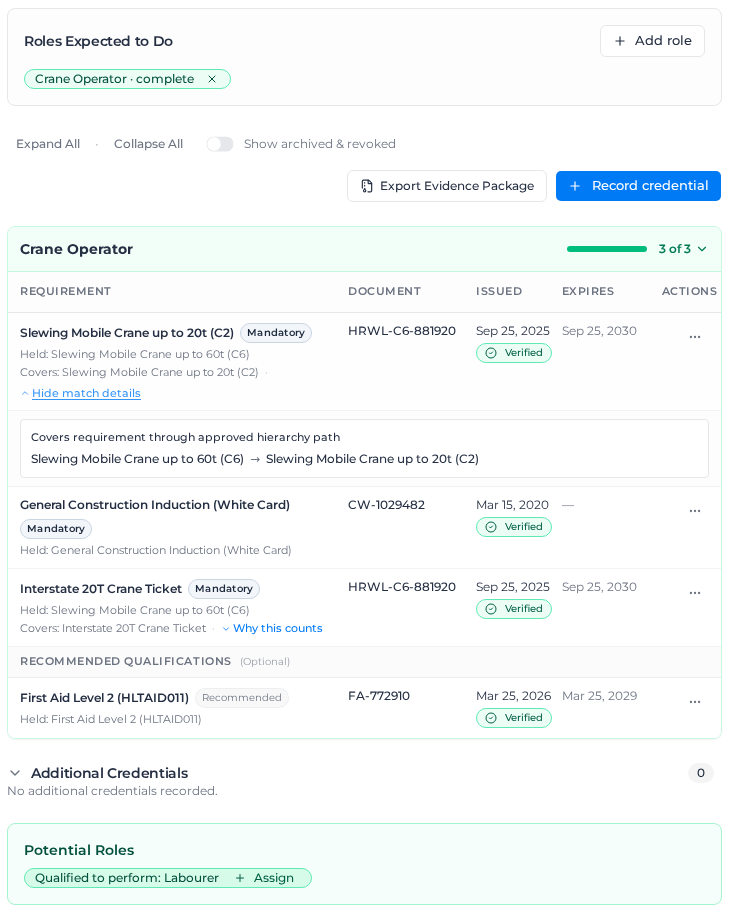
Roles Expected to Do, at the top, lists the worker's roles. Each one reads complete, the number outstanding, or not assessed when the role needs no competencies. To give the worker a role, select Add role, choose Add roles, tick the role and select Review impact. To take a role away, select the X beside it.
Below that, each role has its own table, with a bar showing how many mandatory requirements are met, for example 3 of 3. Select Expand All or Collapse All to open or close every role.
Read the checklist
Each row is one requirement from the role, marked Mandatory or Recommended. Recommended ones are listed under Recommended Qualifications (Optional) and never make the role outstanding.
When the worker meets a requirement, the row shows the credential they hold, with its number, dates and status:
- Held: and the competency, when they hold exactly what the role asks for.
- Held: a higher ticket, then Covers: the requirement, when a higher ticket covers it.
- Equivalent to: and the requirement, when they hold a ticket in the same equivalence group.
Select Why this counts to see the chain, and Hide match details to close it.
A requirement that accepts more than one ticket shows Accepts: and the options, for example First Aid Level 2 (HLTAID011) or CPR Refresher (HLTAID009).
A credential only counts when it is current. An expired, revoked or archived credential, or one still waiting for verification, does not meet the requirement, and the row says why, for example Excluded from compliance: Expired on and the date.
Select a certificate's name in the Document column to open it in a new tab. If nothing opens, your browser blocked the pop-up: the app shows "Popup blocked by browser. Please allow popups for this site."
For a competency marked Sensitive, such as a medical, only people with See sensitive worker data can open the documents. Everyone else sees "Documents on this competency are restricted to people with See sensitive worker data." instead; the credential's status and dates still show.
Inductions lists the worker's inductions, after the role tables. Each row shows the induction, the project or client it is for (client inductions carry a Client badge), the Completed and Expires dates, its status, such as Expired or Pending verification, and the same actions menu (...) as any other credential. The section only appears once the worker holds an induction.
Additional Credentials lists the other credentials the worker holds that none of their roles needs. Inductions are never listed there. Potential Roles lists roles whose mandatory requirements they already meet; select Assign to give them the role.
Record a credential
- On the Roles & Competencies tab, select Record credential. To record against one requirement, select Upload on its row instead; the competency is filled in for you.
- On the Single Credential tab, choose the Competency.
- Enter the License / Reference Number, the Issued and Expires dates, and any Notes. Fields the competency requires are marked with an asterisk. The worker can read these notes; see Notes on a credential. For a competency with Conditional status switched on, also choose a Status and an optional Review date; see Record a conditional credential.
- Under Certificate Evidence, add the certificate or card photo: PDF, DOCX, PNG or JPG, up to 20 files.
- Select Save Credential.
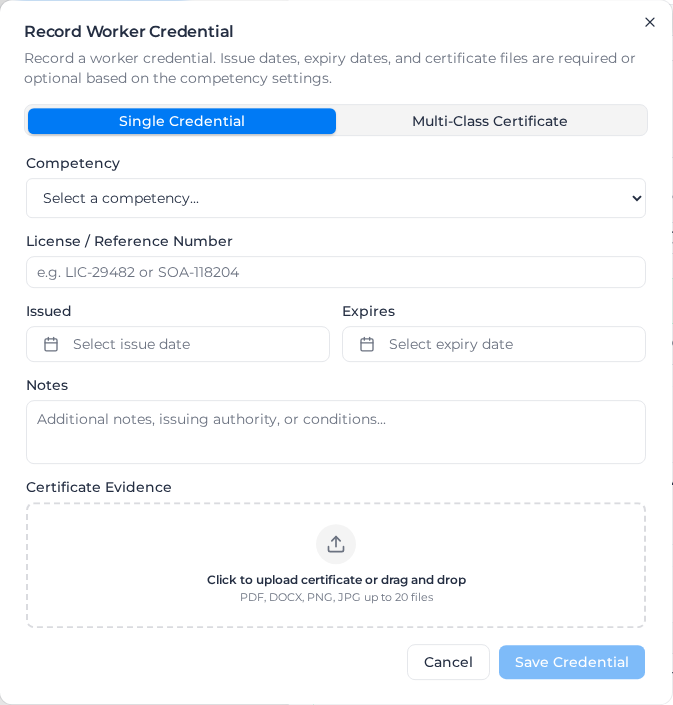
If a required date or file is missing, the dialog shows "Date is required for this competency" or "Document attachment is required for this competency". What is required is set on the competency in the catalog.
On Issued, Expires and Review date, type the date or choose the month and year. A date that is not a real day shows "Enter a date as" and the form to use. A date outside the years the calendar offers shows "Enter a date between" and the earliest and latest days.
If the competency needs verification, the dialog says so and the button reads Record (Requires Verification). The credential is saved as Pending verification and does not count until it is verified. See Verify a credential.
Record an induction
An induction is recorded the same way as a ticket. Once your catalog has inductions, the Competency list splits into Tickets & licenses and Inductions, and each induction shows the project or client it is for, for example Joe's site induction — Joe's Site.
For an induction, Issued reads Completed: enter the day the worker was inducted. If the induction has a validity, Expires fills in with the completion date plus the validity. You can change it like any other date; a date you pick yourself is kept when you change the completion date. If the induction has no validity, leave Expires empty.
The credential belongs to the worker, not to the project. Which project or client it is for always comes from the induction itself. Once saved, it is listed under Inductions on the Roles & Competencies tab, not under Additional Credentials.
An induction with an induction form records itself: when a worker submits that form and passes its quiz, the induction is added to their profile, with the day they submitted it as Completed. You only record it by hand for someone who was inducted another way.
Record a conditional credential
For a competency with Conditional status switched on, such as a medical, the Record Worker Credential dialog has two more fields above Notes:
- Status: Full, Subject to review, Subject to conditions or Temporarily unfit. A new credential starts at Full. Your organization may have renamed these.
- Review date: optional. When the credential is due to be looked at again. It is separate from Expires.
On the checklist, a credential that is Subject to review or Subject to conditions shows a badge with its status and Review and the date. It still counts, and the worker stays compliant. A Temporarily unfit credential does not count: the requirement stays outstanding until you change its status. Once the Review date has passed, the credential also shows Review overdue, as a warning only.
The status only matters on a credential that would otherwise count. An expired, revoked, archived, replaced or unverified credential, or one whose start date hasn't come, shows as that whatever its status.
Change the status of a credential
When a worker's medical is reviewed, change the status instead of recording a new credential:
- Open the actions menu (...) on the current credential and select Change status.
- In Change Credential Status, choose the new Status and, if needed, a new Review date.
- Optionally enter a Reason (optional), for example Review completed. Anyone who can see the credential's history can read it, so keep medical detail out and put it in a sensitive note instead.
- Select Save status. The button stays greyed out until you change the status or the date.
Assignar Pay shows Status updated and records the change in the credential's history. Change status appears only on current credentials of a conditional competency.
If someone changed the credential while the dialog was open, it shows "This credential has changed. Refresh to see its current state." Close it, refresh the page and try again.
Record one certificate that covers several tickets
A single card often covers several classes, for example a high risk work licence for dogging and basic rigging. Record them together so they share the card's details and scan.
- Select Record credential, then the Multi-Class Certificate tab.
- Under Certificate Evidence, add the card or certificate.
- Under Shared Certificate Details, enter the License / Reference Number, the Issuer / RTO (for example SafeWork NSW), and the Issued and Expires dates.
- Tick Supersede existing active holdings if the worker already has current credentials for these tickets and this card replaces them.
- Under Select Competencies, tick every ticket the card covers. The ticked ones are listed under Customize dates & details; if one class has different dates, select Customize beside it.
- Select Save Credential. The button shows how many credentials it will create.
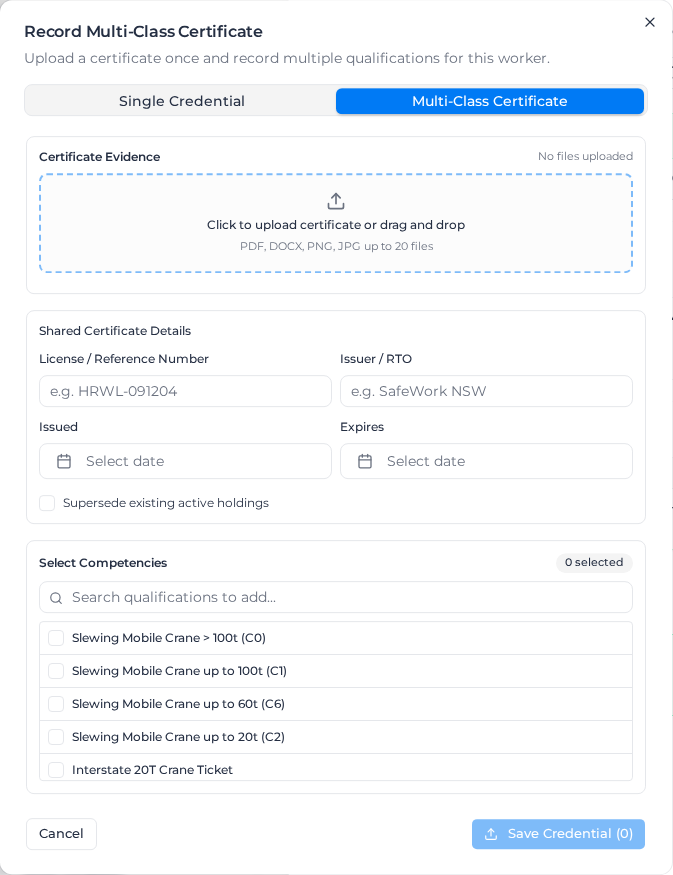
A multi-class certificate has no Status field: every credential it creates is recorded as Full, even for a conditional competency. To record another status, use Change status afterwards.
If some tickets could not be saved, they stay ticked and the rest are saved; fix the problem and select Save Credential again. If the connection dropped while saving, the dialog warns that a credential "may have already been created"; check the worker's checklist before you save again, so you do not record it twice.
To record the same ticket for a group of workers, see Record for a whole crew.
Verify a credential
Credentials for competencies that need verification wait in the sidebar under Compliance, then Pending Verifications. Owners and Admins can verify them.
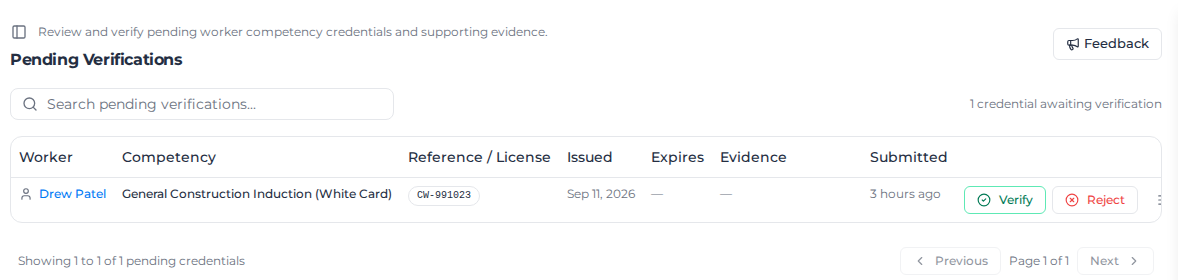
- Check the credential, and its certificate under Evidence. View in Drawer opens the worker's full checklist.
- Select Verify. Assignar Pay shows Credential verified, and the credential counts from then on.
- Or select Reject, enter a Reason for rejection, and select Reject. The credential is marked Verification rejected and does not count.
Credentials for a Sensitive competency are listed only for people with See sensitive worker data, and only they can verify or reject them.
You can also verify or reject from the worker's checklist: open the credential's actions menu (...) and select Verify or Reject.
Renew, revoke, reinstate or archive a credential
Open the actions menu (...) on the credential's row.
- Edit / Renew / Update: opens Renew / Update Credential. Enter the new dates, number or certificate and select Save Credential. A renewal is saved as a new credential that replaces the old one, and the old one is kept in the worker's history. For a conditional competency, the dialog starts with the old credential's Status and Review date; change them if the renewal differs. A renewal recorded as Temporarily unfit doesn't replace the old credential until you change its status, because it does not count.
- Revoke: for a licence that has been suspended or cancelled. Enter a Reason for revocation and confirm. The credential stops counting straight away.
- Archive: for a credential recorded in error or twice. A reason is optional. The credential stops counting, and its certificate is kept.
To bring back a revoked credential, turn on Show archived & revoked, open its actions menu, select Reinstate, and enter a Reason for reinstatement.
To send a worker's credentials to a client, see Export an evidence pack.
Notes on a credential
A credential can carry two kinds of note, for different readers.
Notes are what you enter when you record or renew a credential. They show in the credential's details on the Matrix tab, and the worker can read them in My Competencies. Write nothing there you would not show the worker.
Sensitive notes are for detail the worker and most of your office should not see, such as the reason behind a medical status. They sit in the Sensitive notes section at the bottom of the Roles & Competencies tab, with an entry for each competency and a count of its notes.
- Only people with See sensitive worker data see the section. Everyone else sees no sign that sensitive notes exist. Owners and Admins have the permission by default.
- Reading the notes also needs View payroll for that worker. Adding or deleting one needs Update payroll.
- To add one, expand the competency's entry, write under Add a sensitive note, and select Add note. A note can be up to 5,000 characters; an empty or longer one shows "Write a note of 1 to 5000 characters."
- Each note shows who wrote it, when, and which credential it was written against. To remove one, select the bin icon and confirm Delete note. A deleted note can't be restored.
- Sensitive notes belong to the worker and the competency, not to one credential, so they stay when you renew it.
Sensitive notes are never included in evidence packs, the Pending Verifications list, or anything the worker sees.