

Set up public holidays
Keep calendars of public holidays, RDOs and picnic days, so work on those days is paid at the right rate and days off still reach payroll.
A public holiday calendar lists the special days in your year: public holidays, rostered days off (RDOs) and picnic days. When you apply pay rates, a timesheet on one of those dates is paid at the matching rate from its pay rate document, with nobody flagging it by hand.
Holidays differ between states and regions, so you can keep several calendars and link each one to a worker tag. Calendars are under Settings, then General: under Financial, select Public holidays. Owners and Admins can manage them by default.
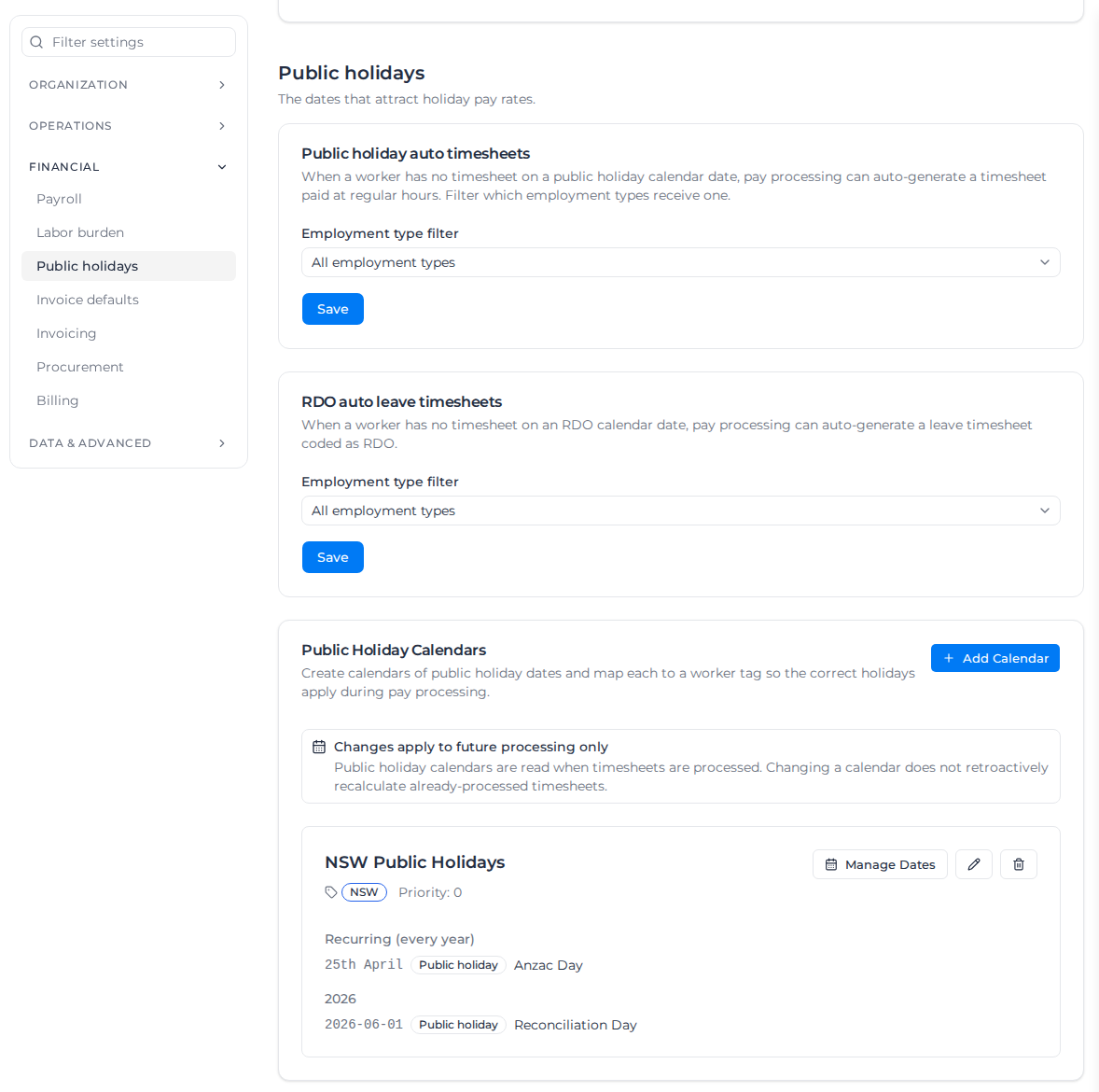
Changes to a calendar only affect timesheets you apply pay rates to afterwards. To repay a period already processed, apply pay rates to it again.
Create a calendar
- Under Public Holiday Calendars, select Add Calendar.
- Enter a Calendar Name, for example "NSW Public Holidays".
- Choose a Mapped Tag (optional). Workers with that tag use this calendar. Leave it as No tag (all workers) for a calendar every worker uses.
- Set a Priority if a worker could match more than one calendar. Lower numbers win.
- Leave Active on. Inactive calendars are ignored.
- Select Create.
To change or delete a calendar later, use the pencil or the bin on its card.
Duplicate a calendar
If a new calendar shares most of its dates with one you already have, copy it instead of adding every date again.
- On the calendar's card, select the copy icon, between the pencil and the bin.
- Calendar Name starts as Copy of followed by the original name. Keep it or enter a new one.
- Select Duplicate. You see Calendar duplicated.
Each calendar needs its own name. If another calendar already has it, you see A calendar with this name (or tag mapping) already exists. Enter a different name and select Duplicate again.
The copy has every date from the original, both recurring and one-off, with the same date types and names, and the same Priority. It starts inactive with no mapped tag, so it doesn't change pay until you're ready.
To put the copy to use, select its pencil, choose a Mapped Tag (optional) that no other calendar uses, turn Active on, and select Update. Then add, change or remove dates on the copy; the original calendar isn't affected.
Add dates
- On the calendar's card, select Manage Dates.
- Choose the Date type: Public holiday, RDO or Picnic day.
- For a holiday on the same date every year, such as Anzac Day, turn on Recurs every year and choose the month and day. For a one-off date, leave it off and pick the Date.
- Enter a Name and select Add.
A one-off date is shown in your organization's date format. A date that repeats every year is shown as the day and month.
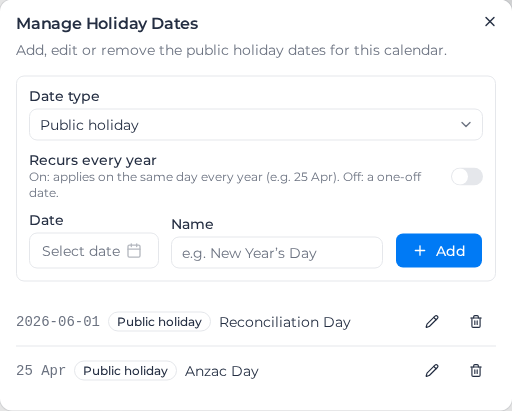
Use the pencil beside a date to change it, or the bin to remove it. If one date is listed as more than one type, public holiday wins over RDO, and RDO over picnic day.
Workers in more than one calendar
Each worker uses one calendar only; dates on their other calendars are ignored for them. Assignar Pay picks it like this:
- A calendar mapped to a tag the worker has beats one with no tag.
- If several are left, the lowest Priority number wins.
Two things follow:
- Keep a group's dates on one calendar. With two untagged calendars, say one for public holidays and one for RDOs, only the one with the lower priority number is used, and every date on the other is ignored. Put all the dates on one calendar and tell them apart with the Date type.
- A tagged calendar wins even when it is empty. A worker with its tag doesn't fall back to the untagged calendar, so give a tagged calendar every date its workers need.
How it affects pay
On a date from the worker's calendar:
- Public holiday hours are paid under the rule group's Public Holiday rule. See Public holiday loading.
- RDO and Picnic day hours are paid at the rule group's RDO or picnic day rate, when the pay rate document has one. These rates come from the document you upload; the Rule Groups tab has no field for them.
A calendar picks the days; the pay rate document sets what they are worth. If the document has no rate for a type, marking a date on the calendar doesn't change pay.
Change one timesheet
To treat particular timesheets as a public holiday, or not, whatever the calendar says:
- Under Payroll, select Pay Rates, then Table View, and tick the timesheets.
- Select Set Public Holiday.
- Under Public holiday treatment, choose Public holiday, Not a public holiday, or Use calendar to go back to the calendar, and select Apply.
This choice wins over the calendar, and stays when the timesheet is synced again from Assignar Operations.
Timesheets for days not worked
When you apply pay rates, Assignar Pay can add a timesheet for a calendar day a worker had off, so the day still reaches payroll:
- Public holiday: a worker with no work timesheet on the date gets one for 7:36 hours (7:00 to 14:36), paid as ordinary time. To pay it on a public holiday pay item instead, see Pay public holidays not worked on their own pay item.
- RDO: a worker with no timesheet at all on the date gets a leave timesheet coded as RDO, for the same hours. It is paid by the rule group's RDO leave rule; see Leave rules and RDO rules.
A day is only added when:
- it is on the calendar that worker uses (see Workers in more than one calendar);
- the worker has at least one real work timesheet in the period being processed, so people who have left or were away all period get nothing;
- the worker's employment type is included. The Public holiday auto timesheets and RDO auto leave timesheets cards at the top of this settings section each have an Employment type filter; set each one and select Save. They are separate, so setting one doesn't set the other. With Include only selected types, a worker with no employment type gets nothing;
- the worker's employment type isn't excluded from payroll.
If a real timesheet later arrives for that date, the added one is removed the next time you apply pay rates. Picnic days never get one.
This happens when pay rates are applied, by hand or automatically, not when timesheets are imported.
Pay public holidays not worked on their own pay item
Most payroll systems want a public holiday not worked on its own pay item, not on ordinary time. Give these timesheets a role, and price that role with a leave rule:
- Add a role for these days, for example "Public Holiday".
- In each rule group that pays permanent staff, add a leave rule for it: Paid Leave ticked, Rate Multiplier 1, the public holiday pay item as its cost code, and a Daily Hour Cap if a day is worth less than 7:36 hours. Link the role to the rule with the Link button beside Roles.
- On the Public holiday auto timesheets card, choose that role under Role for public holiday auto timesheets and select Save.
The next time you apply pay rates, every public holiday timesheet added in the period carries the role and is paid by the leave rule. Timesheets already added get it too, for the workers you apply pay rates to, so applying pay rates to a period again recodes them. A timesheet whose role you set, changed or removed by hand keeps what you set, even when you picked the same role, and so does one whose pay you coded by hand.
The role doesn't change the timesheet's classification, so its base rate stays the same as it was without the role. Anything that looks at the role does see it: the leave rule, and any allowance or RDO rule limited to particular roles.
These days are now leave, so the leave rule's Counts toward weekly overtime threshold and Counts toward daily overtime threshold decide whether they count toward overtime, and each allowance's Leave Eligibility decides whether it is paid on them. Check both before you next apply pay rates.
A weekly RDO rule counts these days toward its minimum only when Include leave is on, the rule doesn't count Overtime Hours Only, and Limit to leave types is left at All leave types or includes Other. Otherwise the week now misses these hours, which used to count as ordinary time, so a worker can fall short of the minimum in a public holiday week.
If the worker accrues an RDO on these days, set up the daily RDO rule to count this leave: turn on Include leave and Apply on leave days, and set Limit to leave types to Other. A role named "Public Holiday" counts as Other. Without that limit, the rule also accrues on annual, sick and other leave days that reach its minimum. If the rule already counts other leave types, add Other to them and check that applying on those leave days is what your agreement says. Without Apply on leave days, the day is now leave and accrues nothing.
To go back to ordinary time, choose No role (pay as ordinary time) and select Save. The role comes off the added timesheets the next time you apply pay rates.
If the role you chose is deleted, the card says so, and these timesheets go back to ordinary time the next time you apply pay rates. Choose another role, or keep No role, and select Save.