

Sign in to Assignar Pay
Sign in with your password, a login code sent to your email, or your Google or Microsoft account, and create an account if you don't have one.
You sign in on the Sign in to your Assignar Pay account page. It offers three ways in, and they all lead to the same account as long as you use the same email address:
- your email address and password
- a login code sent to your email
- your Google or Microsoft account
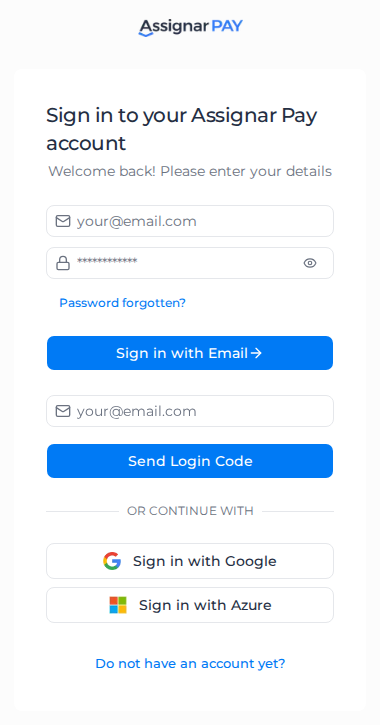
When you have signed in on this browser before, the page reminds you how, for example You last signed in with email and password.
Sign in with your password
- Enter your email address and password in the first two fields.
- Select Sign in with Email.
If the email or password is wrong, Assignar Pay shows Sorry, we could not authenticate you and The credentials entered are invalid. Select Password forgotten? to reset your password, or sign in with a code instead.
Sign in with a login code
A login code works without a password and in any browser.
- Enter your email address in the field below Sign in with Email.
- Select Send Login Code.
- Open the email titled Sign in to Assignar Pay and copy the 6-digit code.
- Enter the code and select Verify Code.
To have a new code sent, select Request New Code and send it again. Use the code from the newest email.
If no account uses that email address, the page shows You don't have an account with us yet. Sign up instead. Check the address, or create an account.
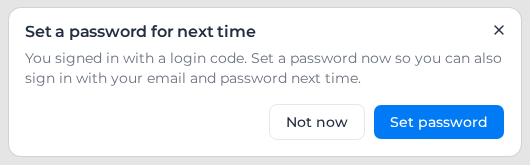
Until you have set a password, Assignar Pay asks you to Set a password for next time after you sign in with a code. Select Set password to go to your settings and choose one. Not now hides the message on that browser for a day; it comes back until you set a password.
Sign in with Google or Microsoft
Below Or continue with, select Sign in with Google or Sign in with Azure. Use Sign in with Azure for a Microsoft work or school account, such as your company Microsoft 365 login.
Choose the Google or Microsoft account whose email address matches your Assignar Pay account.
When you are asked for a verification code
If you have turned on Multi-Factor Authentication, Assignar Pay shows Verify your account after any of the sign-in methods above. Enter the 6-digit code from your authenticator app. See Set up MFA.
Accept an invitation
If a teammate invited you, you don't need to create an account first. Start from the link in their invitation email.
- Select the link in the email. A page titled You've been invited to join opens.
- Select Continue. Assignar Pay signs you in with the email address the invitation was sent to, and creates your account if you don't have one yet.
- On Accept Invitation to join followed by your team's organization name, select Continue as followed by your email address.
- If you have no password yet, Assignar Pay asks you to Set a password. Enter one and select Set password, or select Skip for now and then Continue to set it later in your settings.
The link does nothing until you select Continue, so a company mail system that checks links before you open them does not use it up.
If you are already signed in with a different email address, you see Invitation Account Mismatch. See Fix sign-in problems.
Create an account
To create an account without an invitation:
- On the sign-in page, select Do not have an account yet?
- Enter your email address, then your password twice. It must be at least 8 characters.
- Select Sign up with Email. The page shows We sent you a confirmation email.
- Open the email titled Confirm your email and select Confirm Email. On the Confirm your email address page that opens, select Continue.
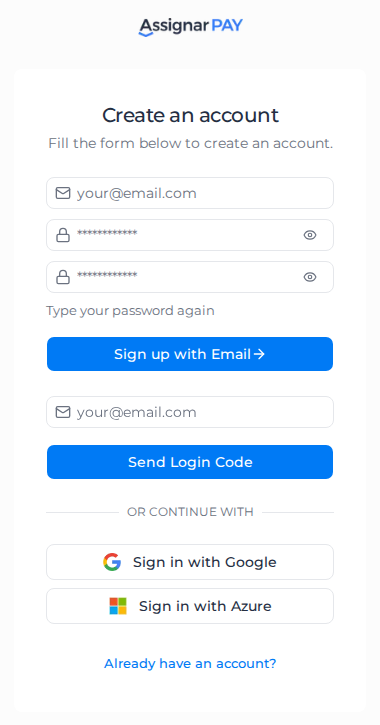
You can also create your account with Send Login Code, or with Sign in with Google or Sign in with Azure, on the same page.
If a password field shows Invalid input, the password is shorter than 8 characters or the two passwords don't match. If the page shows This credential is already in use. Please try with another one., you already have an account with that email address: go back with Already have an account? and sign in.
Once your email is confirmed you arrive on your home page, outside any organization. To set one up for your business, see Create your organization.
Next steps
- Reset your password if you have forgotten it, or change it from your settings.
- Change your email when you start using a new address.
- Set up MFA to protect your account with an authenticator app.
- Fix sign-in problems if a link, code or invitation doesn't work.