

Custom activity rules
Pay particular activities, such as travel or training, at a different rate or to a different cost code from the rest of a worker's day.
A custom activity rule picks out activities by name, such as travel, training or inclement weather, and pays those hours differently from the rest of the day. It can pay them at a multiple of the base rate, or code them to one of the classification's rate types, so travel is paid and costed as overtime wherever it falls in the day.
Custom activity rules belong to a rule group: open the pay rate document, select the Rule Groups tab, and find Custom Rules.
Add a rule
- Under Custom Rules, select Add Rule.
- Enter a Rule Name, such as "Travel".
- Under Activity Name Patterns, enter the activity names to match. Use
*as a wildcard:*Travel*matches every activity with "Travel" in its name. A rule with no pattern doesn't change any hours. - Choose how the matched hours are paid:
- Leave Use rate tree off and enter a Rate Multiplier (1.5 for time and a half), or
- Turn on Use rate tree and choose a Rate tier (see Code an activity to a rate type).
- Optionally limit the rule to some Roles. With roles and patterns both set, a timesheet must match both.
- Choose whether to Count hours toward overtime (see below).
- Optionally add Conditions so only some of the matched hours are changed.
- Select Create Rule.
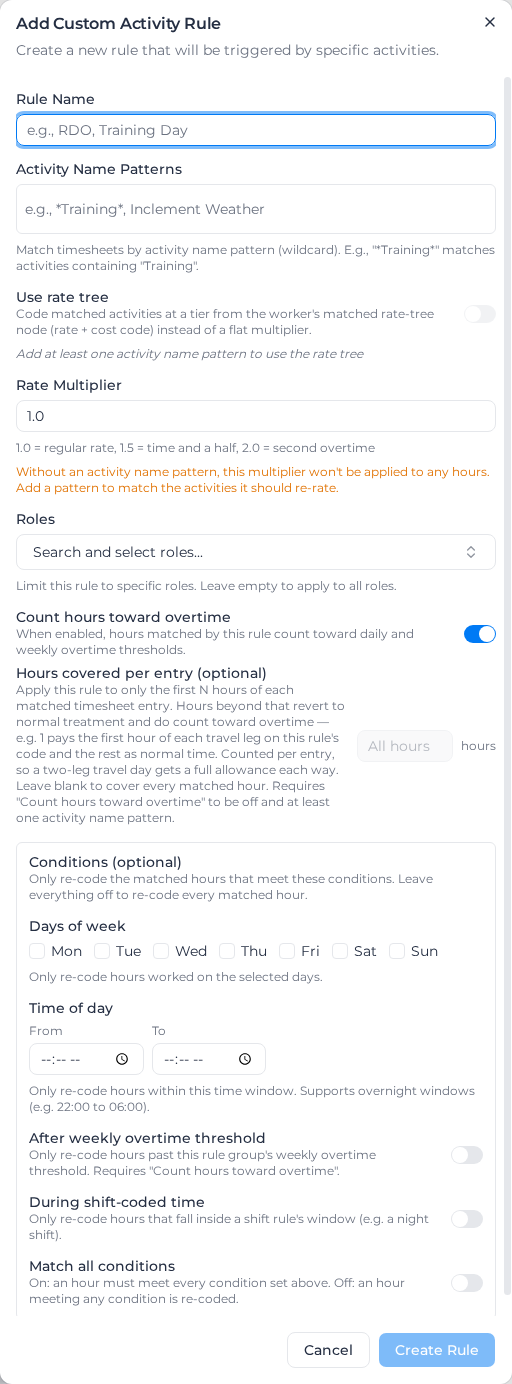
To change a rule, open the menu beside it and select Edit.
Pay at a multiplier
With Use rate tree off, matched hours are paid at the base rate times the Rate Multiplier.
When Count hours toward overtime is on, only matched hours that would otherwise be paid as ordinary time are changed. Matched hours that have already become overtime, or fall on a weekend or public holiday, keep that rate.
When it is off, the matched hours are taken out of the overtime count altogether, and every matched hour is paid at the multiplier.
Code an activity to a rate type
With Use rate tree on, matched hours take the rate and the cost code of the chosen tier from the worker's classification: Regular, Overtime, Second Overtime, Saturday, Sunday, Public Holiday, Weekly Overtime, Weekly Second Overtime, Fortnightly Overtime, Fortnightly Second Overtime or Custom. The fortnightly tiers only work when the rule group has a fortnightly threshold.
Use rate tree needs at least one activity pattern. Removing the last pattern turns Use rate tree off and the rule goes back to a multiplier.
The chosen tier always wins, even when it pays less. Saturday travel that the day rule would pay at double time is paid at time and a half if the rule codes it to Overtime. The Saturday and Sunday tiers pay one rate for all the matched hours: the day rule's rate for its remaining hours. If a tier should only apply in some situations, add a condition.
Give each role its own cost code
The Custom tier is for hours that need a cost code of their own, for example an "RDO worked" code that differs for each role. Hours are paid at the base rate times the Rate Multiplier, and coded to:
- the cost code set for that classification on the Rate Tree tab, where each classification shows a tile for every Custom tier rule;
- otherwise, the rule's Default cost code.
With neither, the hours take the classification's Regular cost code, and the tile shows Not linked so you can spot it before a pay run. A tile covered by the rule's default shows Default: and that code.
Moving a rule off the Custom tier clears its default cost code and every per-classification code.
Count hours toward overtime
Count hours toward overtime decides whether the matched hours count toward the daily and weekly overtime thresholds. It is independent of how the hours are paid: travel coded as Overtime can still count, so later site work reaches overtime sooner.
Cover only the first hours of each entry
Hours covered per entry (optional) applies the rule to the first hours of each matched activity entry only. The rest of that entry is paid normally and counts toward overtime. It needs Count hours toward overtime off and at least one activity pattern.
It counts per entry, not per day: with travel to site and back entered separately, each gets the full allowance. There is no daily limit on top, so six travel entries in a day get six allowances.
For example, with 1 hour covered, a worker enters 1.5 hours of travel to site, 8 hours of site work and 1.5 hours of travel back:
- the first hour of each travel entry is paid on the rule and doesn't count toward overtime;
- the other half hour of each travel entry is paid as ordinary time and does count;
- that makes 9 counted hours, so past an 8-hour daily threshold the last hour is overtime: half on the travel home and half on site work.
Hours past the allowance also count across timesheets on the same day, so an overtime line can appear on a later timesheet because of travel on an earlier one.
Conditions
By default a rule changes every matched hour. Under Conditions (optional), you can limit it to hours that are:
- Days of week: on the days you tick.
- Time of day: between From and To. Windows can run overnight, such as 22:00 to 06:00. An activity partly inside the window is split at its edge.
- After weekly overtime threshold: past the rule group's weekly overtime threshold. This needs Count hours toward overtime on. An activity that crosses the threshold is split where it crosses. Hours a Saturday, Sunday or public holiday rule paid at its own rate still count as past the threshold if the worker had already passed it.
- During shift-coded time: inside a shift rule's window, such as a night shift.
With Match all conditions off, an hour meeting any condition is changed; with it on, it must meet all of them. Matched hours that meet no condition keep their normal pay.
Several rules for the same activity
Rules are applied in the order they are listed. Each hour goes to the first rule whose conditions it meets, and no hour is changed twice. Put the rule that should win first.
The exception: if the first rule that matches an activity has Count hours toward overtime off, only that rule applies to it, and the timesheet's rate details say which other rules were skipped.
The timesheet's Rate Calculation Details show which activities each rule changed and how.
Pay only the overtime part of an activity differently
A custom activity rule changes every matched hour. To change only the overtime part of the day, depending on the activity, use Split overtime by activity on a Daily Overtime tier instead (see Configure rule groups).
For example, a salaried worker's first 7.6 hours are always ordinary, but overtime in the office is covered by their salary while overtime on site is paid:
- Daily overtime after 7.6 hours.
- A split for the Office activity with multiplier
0and a "salary inclusive" cost code. - A split for the Work on job site activity with multiplier
1.5and your paid overtime cost code.
Each split names one or more activities, a Multiplier and, optionally, a cost code; without one, the tier's own overtime code is used. Hours below the threshold never change, and overtime on activities you haven't listed keeps the tier's rate. A split only affects its own tier. Split overtime by activity isn't offered when the tier uses the Loading method.
To do the same for hours past the weekly threshold, optionally only at certain times of day, see Pay overtime on some activities at a different rate.