

Minimum engagement rules
Pay a guaranteed minimum number of hours for a day's work, even when the worker works less.
A minimum engagement rule guarantees a worker is paid for a minimum number of hours. If a casual is called in for 2 hours and the award guarantees 4, the worker is paid for the 2 hours worked plus a 2-hour top-up on its own pay line.
Minimum engagement rules belong to a rule group: open the pay rate document, select the Rule Groups tab, and find Minimum Engagement.
Add a minimum engagement rule
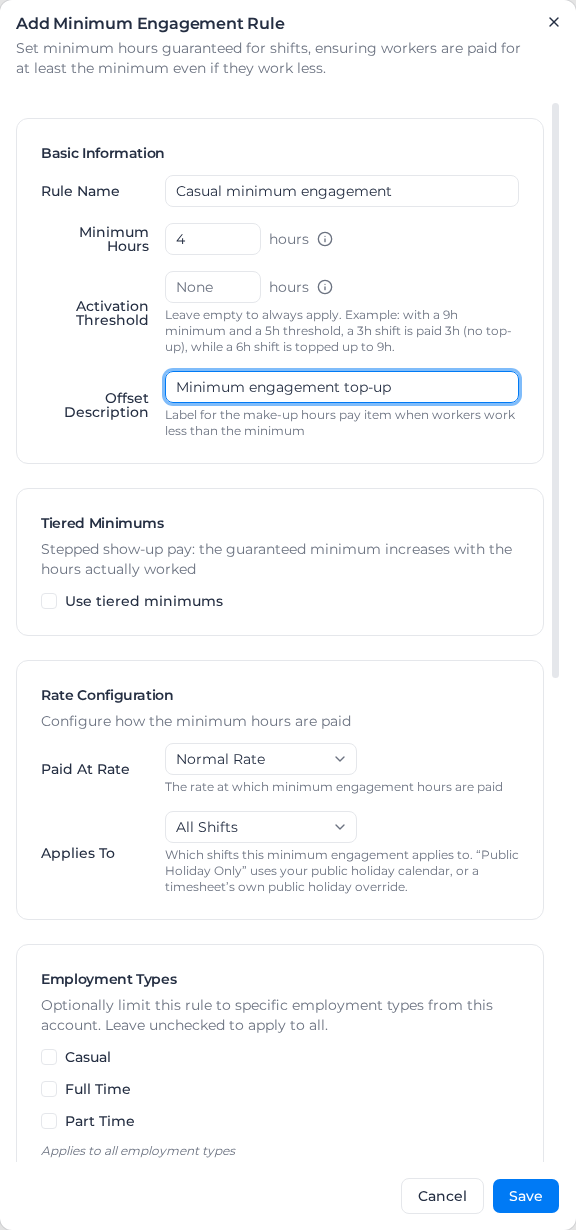
- Under Minimum Engagement, select Add Rule.
- Enter a Rule Name and the Minimum Hours.
- Optionally enter an Activation Threshold (see below).
- Enter an Offset Description: the name of the top-up line, such as "Minimum engagement top-up".
- Optionally turn on Use tiered minimums (see Stepped minimums).
- Choose Paid At Rate: Normal Rate, Overtime Rate or Double Time Rate.
- Choose Applies To: All Shifts, Weekday Only, Weekend Only or Public Holiday Only.
- Optionally tick Days to limit the rule to particular days (see Pay different days differently).
- Optionally tick Employment Types to limit the rule to them.
- Optionally set an Activity Filter and a Role Filter (see below).
- Optionally choose a Cost Code for the top-up. With No cost code (inherit from shift), it takes the shift's cost code.
- Select Save.
To change or remove a rule, open its menu and select Edit or Delete.
How the minimum is worked out
The minimum is for the day, not for each timesheet. When a worker has more than one timesheet on a date, such as a split shift or a shift and a leave block, their hours are added together and checked once. A day that falls short gets one top-up line: 2.5 hours in the morning and 2.5 in the afternoon against an 8-hour minimum is one 3-hour top-up, not 3 hours on each.
When you apply pay rates, for each day:
- Hours the rule's filters don't count are left out.
- If the day's counted hours are below the Activation Threshold, the rule doesn't apply.
- The guaranteed hours are the Minimum Hours, or the tier the day reaches.
- If the day is short, the difference is paid as a top-up at the Paid At Rate, to the rule's cost code.
A timesheet with no worked hours recorded is never topped up.
By default every hour counts, including non-payable activities such as training or excused time, because the worker was still at work.
Overtime Rate uses the rule group's first daily overtime multiplier, or 1.5× when the first tier is not set or is turned off. Double Time Rate uses its second daily overtime multiplier, or 2.0× when the second tier is not set or is turned off. The timesheet's rate details say when a default multiplier was used. Only the top-up hours are paid at the Paid At Rate: the hours worked keep the rate they earned, such as a public holiday rate.
In the pay rate summary, a top-up paid at Overtime Rate is under Overtime and one paid at Double Time Rate is under Second Overtime, unless its cost code's category decides the column.
When the day's timesheets are paid at different base rates, the top-up is paid at their average, weighted by hours: 2 hours at $40 and 2 hours at $80, against an 8-hour minimum, pays the 4-hour top-up at $60 an hour. With Overtime Rate or Double Time Rate, the multiplier applies to that average. Leave counts toward the minimum but not toward the average rate. Timesheets under another rule group, shifts the role filter leaves out, and classifications set up for quantities only (no dollar rates) are left out of the average too. The timesheet's rate details show the blended rate when one is used.
Only top up longer shifts
By default even a very short shift is topped up to the minimum. With an Activation Threshold, the rule only applies once the worker has worked at least that many hours.
With a 9-hour minimum and a 5-hour threshold:
| Hours worked | Paid |
|---|---|
| 3 | 3 (below the threshold, no top-up) |
| 6 | 9 (3-hour top-up) |
| 10 | 10 (already above the minimum) |
Stepped minimums
Some agreements guarantee more hours the longer the worker stays, such as "up to 2 hours worked pays 2, over 2 to 4 pays 4, over 4 to 6 pays 6". Turn on Use tiered minimums and add a row per step with Add Tier: Over the hours worked, and the hours guaranteed. The Minimum Hours field then follows the top tier.
The highest tier the day reaches sets the guarantee. With tiers of over 0 → 2, over 2 → 4 and over 4 → 6: 1 hour pays 2; exactly 2 hours stays in the first tier and pays 2; 3.5 hours pays 4; hours at or above the top guarantee are paid as worked.
Guaranteed hours must rise from tier to tier. With an Activation Threshold, no tier may start below it: start the first tier at the threshold.
Public holidays and the day scopes
A public holiday is its own kind of day, not a weekday or weekend day, so Weekday Only and Weekend Only rules both still apply on a public holiday. Public Holiday Only uses your public holiday calendar or a timesheet's own public holiday setting. RDO and picnic days are not public holidays.
Pay different days differently
Tick Days to limit a rule to particular days within its Applies To. With none ticked, the rule applies on every day Applies To covers. Ticking every day is not the same as ticking none: the rule is then checked before rules with no days ticked, and it applies on a public holiday only when the holiday falls on a ticked day. Days offers only the days Applies To reaches: Monday to Friday for Weekday Only, Saturday and Sunday for Weekend Only. It isn't offered for Public Holiday Only.
A shift counts on the day it starts, so a shift from 10pm Saturday to 1am Sunday uses the Saturday rule. Changing Applies To unticks any day it no longer covers.
To pay Saturday at overtime and Sunday at double time, add two rules. With a $40 base rate and the default 1.5× and 2.0× overtime tiers:
| Rule | Hours worked | Top-up |
|---|---|---|
| 4 hours, Days Saturday, Overtime Rate | 3 on Saturday | 1 hour at $60 |
| 4 hours, Days Sunday, Double Time Rate | 2.5 on Sunday | 1.5 hours at $80 |
A rule with Days ticked still applies on a public holiday that falls on one of its days, unless a Public Holiday Only rule applies first.
Filter which hours count
Activity Filter: pick activities, then choose a Filter mode:
- Exclude selected Activities (the default): the picked activities don't count; everything else does.
- Include only selected Activities: only the picked activities count. You must pick at least one. This is checked per timesheet: a timesheet with none of the picked activities isn't topped up, even if another shift that day had them, and nor is a timesheet with no activity breakdown. Leave isn't a picked activity, so it doesn't count either: 3 worked hours and 5 hours of leave against an 8-hour minimum gets a 5-hour top-up on top of the paid leave. Use Exclude if leave should count.
For example, 4 hours of Excused time and 5.6 hours of Labour against an 8-hour minimum: with nothing excluded, 9.6 hours count and there's no top-up; with Excused excluded, 5.6 hours count and 2.4 hours are added.
Role Filter works the same way with Exclude selected roles and Include only selected roles, but for whole shifts: a shift in an excluded role adds nothing to the day and never gets the top-up. With an 8-hour site minimum that excludes Office, a 5-hour site shift and a 4-hour Office shift count as 5 hours, and the 3-hour top-up goes on the site shift. Leave and other timesheets with no role don't count toward an include-mode role filter. A shift is matched by its role, or by the task name on the timesheet when it has no role (as on some CSV imports). Renaming a role doesn't affect rules whose roles you picked in the dialog; rules read from an uploaded agreement match roles by name until you open and save them once.
With both filters set, the role filter decides which shifts count, then the activity filter decides which hours of them count.
An exclude filter only applies to the timesheets the rule covers. A same-day timesheet under another rule group, or outside the rule's employment types, counts in full. An include filter applies to the whole day.
Employment types
Employment Types lists your account's own employment types. With none ticked, the rule applies to everyone. Matching ignores capitals, hyphens and spaces, so "Part Time" matches "Part-Time", and renaming a type doesn't stop a rule saved in the dialog from applying. A worker with no employment type is treated as Full Time, and the timesheet's rate details say so. An employment type the rule names that no longer exists shows ticked with "(not in this account)"; untick it, because a rule limited to a type nobody has applies to nobody.
More than one rule in a group
A rule group uses the first rule, in list order, whose filters match and whose minimum the day hasn't already reached. Public Holiday Only rules are checked first, then rules with Days ticked, then the rest. So a Sunday rule applies on Sunday even if an All Shifts rule is listed above it.
The first rule that isn't yet met wins, even when it is the broader one. If a general 8-hour minimum is listed above a 4-hour minimum for Trades Assistants only, a 2-hour Trades Assistant shift is topped up to 8. List the narrower rule first.
A public holiday rule or a rule with Days ticked is a scope, not an override: if the day already meets it, the other rules are still checked. A Saturday 4-hour rule met by 5 hours worked, next to an All Shifts 8-hour rule, still tops Saturday up to 8 hours at the All Shifts rule's rate.
To see why a top-up was or wasn't paid, open the timesheet's Rate Calculation Details: they name the rule applied and any rule skipped, and why.