

Higher duty settings
Pay a worker's whole day at a higher role's rate once they work that role for a set number of hours.
Many awards say that a worker who does enough of a higher-graded job in a day is paid the higher rate for the whole day. Higher duty settings do this for you: once a worker has worked a higher duty role for its minimum hours in a day, every timesheet they have that day is paid at that role's rates, not just the hours in that role.
Higher duty settings belong to a rule group. They only appear when the pay rate document's rate tree has a Role level (for example Employment Type then Role), because the higher rate comes from the role's own classification.
Turn on higher duty
- Open the pay rate document and select the Rule Groups tab.
- Under Higher Duty Settings, select Add Higher Duty Settings. Once higher duty is on or any role is saved, the button reads Edit Higher Duty Settings.
- Turn on Enable higher duty.
- Select Add Role, choose the Role, and enter the Min Hours it must be worked in a day. Add each higher duty role the same way; each role can be added once.
- Select Save.
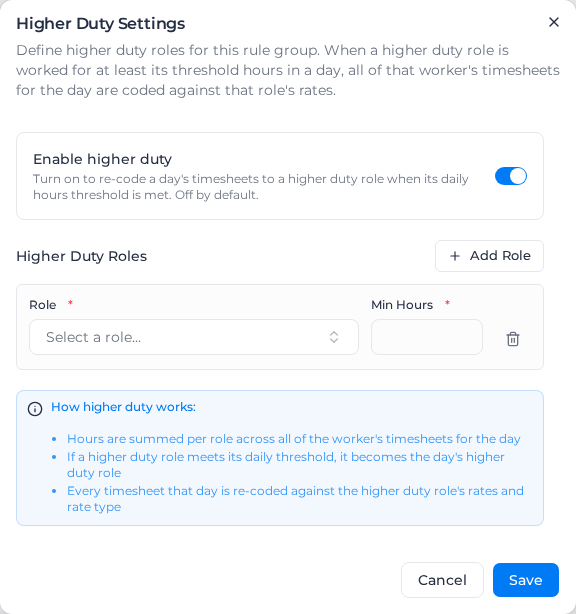
The rule group then shows the roles and their thresholds. To pause higher duty without losing the roles, turn Enable higher duty off and save. The roles stay listed, greyed out, while higher duty is off.
Change or remove a higher duty role
- Under Higher Duty Settings, select Edit Higher Duty Settings, or select any of the roles listed under it. Both open the same dialog.
- Pick a different Role, change its Min Hours, or select the bin beside it to remove it.
- Select Save.
While higher duty is on, at least one role must stay. To remove them all, also turn Enable higher duty off before you select Save.
A role read from your award or agreement may not be linked to one of your roles yet. Its Role shows the name from the document, greyed out. You can save other changes while higher duty is off and leave it unlinked. Before you turn higher duty on, pick a Role for it or remove it.
The change applies the next time you apply pay rates. Timesheets already worked out keep their pay until you apply pay rates to them again. Timesheets marked as reviewed or edited by hand keep their pay until you reset their pay items.
You need the Update payroll permission to change higher duty settings. If someone else changes the pay rate document while you're editing, your changes aren't saved: the latest settings load, and you can open the dialog again to redo them.
How a day is worked out
For each worker and each day:
- Hours are added up per role across all the worker's timesheets that day. Leave is not counted.
- A higher duty role whose hours reach its Min Hours becomes the day's higher duty role.
- Every timesheet that day, whatever role it was worked in, is paid at that role's rates and rate type. Leave timesheets are left as they are.
Overtime, shift rules, allowances and the other rules then apply as usual, using the higher duty role's rates.
For example, Supervisor is a higher duty role with Min Hours of 6. A worker records 4 hours as a Labourer and 8 hours as a Supervisor on the same day. The Supervisor hours reach 6, so all 12 hours are paid at Supervisor rates. Had they worked 5 hours as a Supervisor, each timesheet would be paid at its own role's rates.
When more than one role qualifies
If several higher duty roles reach their minimum on the same day, the one that pays most wins. If two pay the same, the one with more hours that day wins, then the one with the higher Min Hours.
Higher duty never lowers pay
A timesheet whose own role already pays more than the higher duty role stays on its own role. The other timesheets that day still move up. The timesheet's rate details note when this happens.
Client and project rate overrides
A timesheet moved to the higher duty role still gets its own client's or project's rate override on that role's classification, not the override of the client whose hours triggered higher duty. A timesheet whose client has no override is paid the classification's standard rate.
A Role override works the other way: the whole day is paid as the higher duty role, so every timesheet that day gets that role's override, not the override for the role it was worked in.
Check a day
After you apply pay rates, open one of the worker's timesheets for that day. Its Rate Calculation Details say that it was paid at the higher duty role, and the hours that met the threshold.