

Engage on a project
Put an approved subcontractor on one of your projects, see the workers and plant they nominate, set the competencies they need, and end the engagement.
Engaging a subcontractor puts them on one of your projects. The project then appears in their workspace, under your organization as their client, and they can tell you which of their workers and plant are coming. You can engage the same subcontractor on as many projects as you like.
Engage a subcontractor
- Open the project from Clients & Projects and select its Subcontractors tab.
- Select Engage subcontractor.
- Choose the organization. Only Active subcontractors that aren't already on this project are listed. If some are still waiting for approval, the dialog says how many.
- Add Notes if you like, then select Engage.
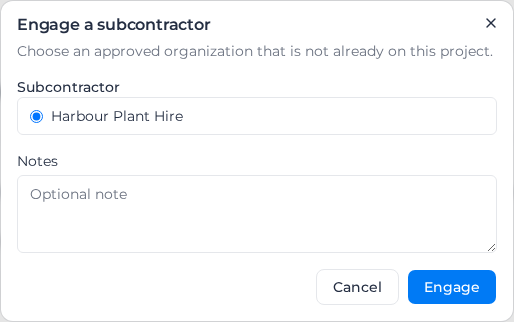
If no subcontractor can be engaged, the dialog says "No approved subcontractors are available to engage." Approve one first.
You can also engage from the Subcontractors list: select View on the row, then Engage on a project, and choose the Project.
See who and what is coming
On the project's Subcontractors tab, select Show crew and plant under the organization's name.
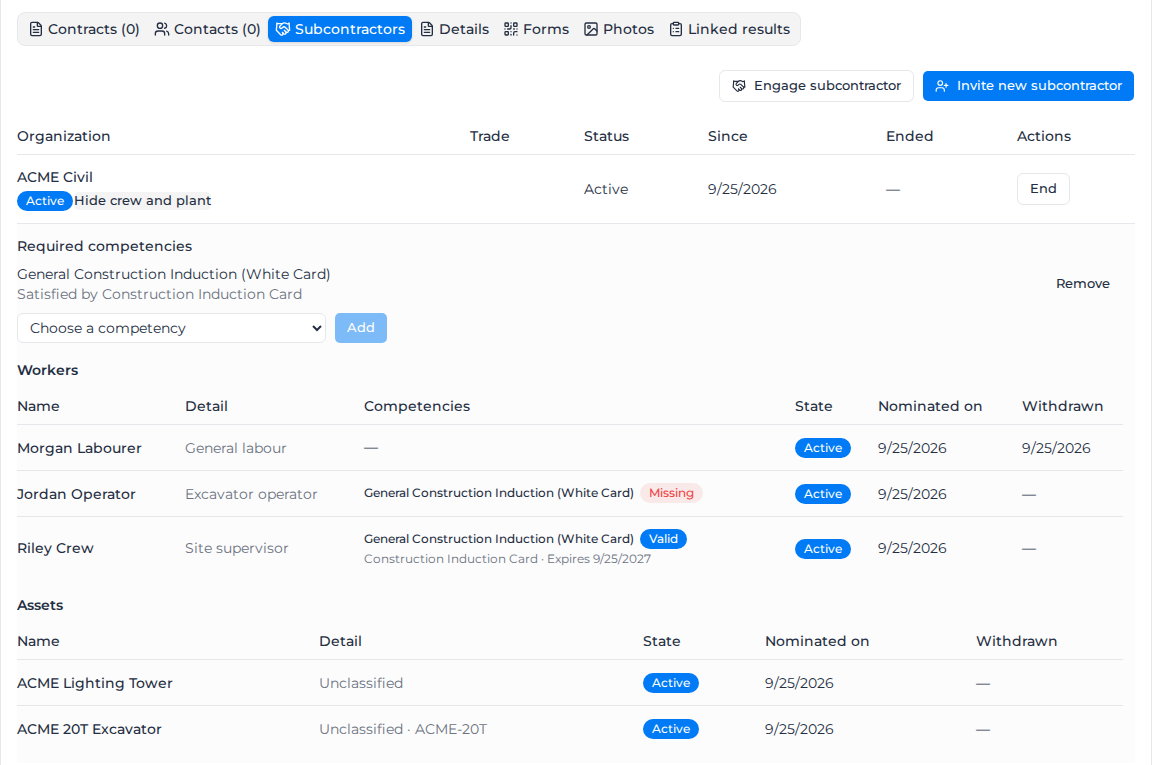
Workers lists each person they have nominated, with their role on the project, their competencies, whether they are Active or Inactive in the subcontractor's workspace, and when they were nominated. Assets lists each machine with its class and registration plate.
A nomination is the subcontractor telling you who is coming, not asking for approval: there is nothing to accept or reject. When they nominate workers or plant, you get a notification that opens this tab. When they withdraw someone, the row stays with the date in Withdrawn, so you can still see who was on the job.
Set the competencies they need
Required competencies at the top of the list are the tickets you expect every nominated worker to hold on this project, taken from your competency catalog.
- Choose a competency from Choose a competency.
- Select Add.
The subcontractor keeps its own competency catalog, so they map one of their competencies to each requirement. The requirement then shows "Satisfied by" and the name of theirs. Each worker's Competencies column shows a status for each requirement: Valid, Expiring, Expired, Pending, Rejected or Missing, with the expiry date. If they share the file behind a credential, View file opens it.
Some competencies, such as medicals, carry a conditional status in the subcontractor's records. A credential recorded as Subject to review or Subject to conditions counts like any other and reads Valid or Expiring. One recorded as Temporarily unfit doesn't count: the requirement shows another credential that qualifies, or Missing if there is none. You never see the conditional status itself.
Remove takes a requirement off the engagement.
End an engagement
When their part of the job is done, select End on their row, then End engagement. The row stays on the tab with the date in Ended, and the project is marked Completed in their workspace. They remain an active subcontractor, and you can engage them on this project again later.
To end the relationship with them altogether, see End a relationship.
Limit who sees the project
Below the subcontractors, Project access shows who in your own organization is limited to this project, with Add people. It controls which projects your people can open; it doesn't restrict their timesheets, orders, forms or reports. See Limit someone to specific projects.