

Your principal contractor
For subcontractors: find your principal contractor on Clients & Projects, work the projects they engage you on, share your insurance certificates, and leave when the work is over.
Once you accept an invitation, the principal contractor is one of your clients. You find them on Clients & Projects, with a Principal contractor badge and the status of your relationship beside their name.
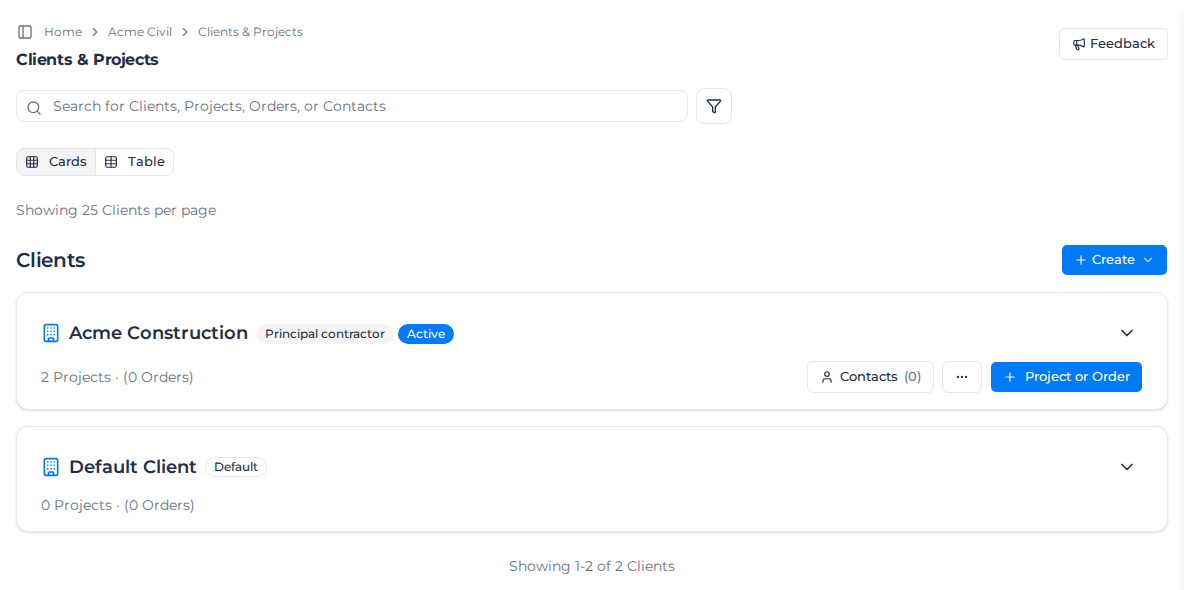
While the relationship is open, their name and tax ID come from their own organization and you can't change or delete that client. Contacts and tags on it are yours to edit.
Open the principal contractor panel
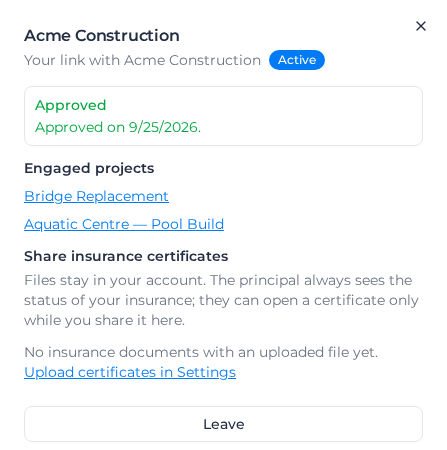
Select the Principal contractor badge on their card, or ⋯ then Principal contractor. The panel shows where the relationship stands, the details you submitted, Engaged projects, and an Activity list of everything that has happened between you.
Work their projects
When the principal contractor engages you on one of their projects, a matching project appears under their client. Select it in Engaged projects to open it.
- Its name, code, status and dates come from their project and are locked. The edit form says "This project is managed by" the principal contractor. You can't delete it or move it to another client.
- It has a Crew & plant tab, where you nominate your crew and plant.
- When they end the engagement, the project is marked Completed. If they engage you on it again, it comes back.
Your own projects, and your other clients, are not affected.
Assess the principal contractor as your client
Your organization can opt into client financial controls and assess this client on Overview. Your financial statuses, policies, assessment reasons and history stay private to your organization. You can update that assessment while the principal contractor's name and tax ID remain locked.
Share your insurance certificates
The principal contractor always sees the status of the insurance documents in your compliance register, in Settings: whether each one is current, expiring, expired or missing, and when it expires. They can open a certificate only if you share it.
In the panel, under Share insurance certificates, turn on each certificate you want them to be able to open. Turn it off to stop sharing. The files stay in your account. If you haven't uploaded a certificate yet, the panel says "No insurance documents with an uploaded file yet." with Upload certificates in Settings.
Only Owners and Admins can change what is shared.
If the relationship is paused
If the principal contractor's organization switches the Subcontractor Hub off, the panel shows "Temporarily unavailable". You can still see the relationship and stop sharing certificates, but you can't submit details, nominate anyone or leave until they switch it back on.
Leave a principal contractor
- Open the principal contractor panel.
- Select Leave.
- The dialog warns that your workers and assets will no longer be visible to them. Add a Reason (optional), up to 2,000 characters, then select Leave.
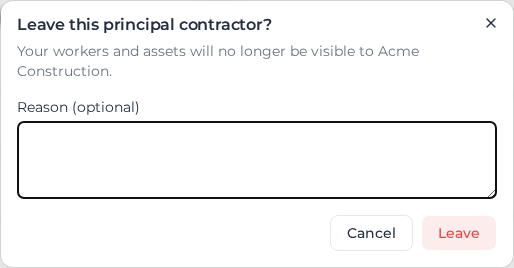
Your engagements end straight away, and their side shows the relationship as Revoked. Their client becomes an ordinary client you can rename or delete. Your workers, assets and nominations stay in your workspace. Only Owners and Admins see Leave.