

Invite a subcontractor
Send an invitation to a contact at a subcontractor, follow it up, change the address or withdraw it.
You invite a subcontractor by email. The person you invite accepts on behalf of their organization, or creates one if they don't use Assignar Pay yet. Nothing is shared with them until you approve their details.
Send an invitation
- In the sidebar, select Procurement, then Subcontractors.
- Select Invite.
- Enter the Organization name and the contact's Email. Contact name, Trades or tags, Project and Message are optional.
- Select Send invite. You see "Invitation sent." and the organization appears in the list with the status Invite sent.
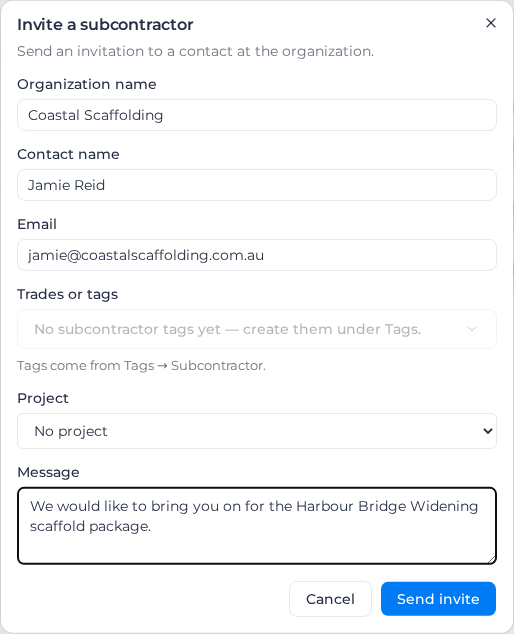
The contact gets an email with a link to the invitation. Only that email address can accept it.
Trades or tags lists your subcontractor tags, such as Scaffolding or Plant hire. You create them under Settings → Tags, in the Subcontractor category; until you do, the field says "No subcontractor tags yet — create them under Tags." The tags show in the Trade column.
Choose a Project if you already know where they will work. When you approve them, they are engaged on that project automatically. You can also invite from a project: on its Subcontractors tab, select Invite new subcontractor, and the project is filled in for you.
Read the list
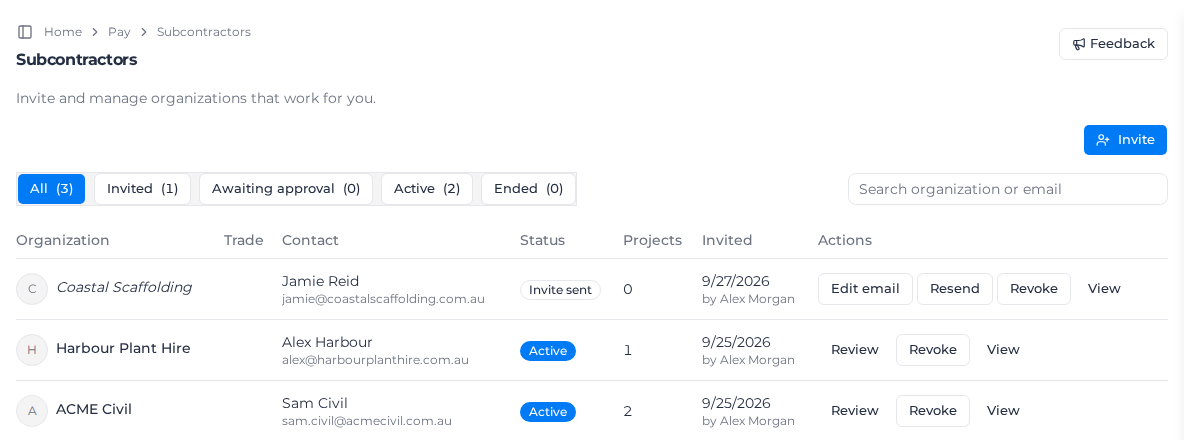
Each row shows the organization, its trade tags, the contact you invited, the status, how many of your projects it is engaged on, and when and by whom it was invited. Use the tabs to narrow the list:
- Invited: invitations not yet accepted, including expired ones
- Awaiting approval: accepted, submitted, or waiting for changes
- Active: approved subcontractors
- Ended: declined, not approved or revoked
Search organization or email finds a row by organization name or contact email.
Follow up an invitation
While an invitation is open, its row offers:
- Resend, to send the email again. Invitations expire after 30 days; resending an expired one gives it another 30 days. You can resend once an hour. Sooner, you see "This invitation was sent less than an hour ago. Please wait before resending it."
- Edit email, if you typed the wrong address. Enter the new one and select Update and resend: the first invitation is withdrawn and a new one goes to the new address.
- Revoke, to withdraw the invitation. This happens straight away, with no confirmation, and you see "Invitation withdrawn." The row moves to Ended.
Once they have accepted but haven't submitted their details, or after you have asked for changes, the row offers Nudge instead. It sends them a reminder, at most once a day.
If the invitation doesn't send
The dialog shows "Could not send the invitation" followed by the reason:
| Message | What to do |
|---|---|
| "That email already has a pending invitation. Revoke one of them before changing the address." | Find the open invitation in the list and resend it, or revoke it first. |
| "That email belongs to an organization you are already linked with." | The organization is already in your list. |
| "That organization already links to yours as your principal contractor, so it cannot also be your subcontractor." | Two organizations can only be linked one way round. |
| "This organization already has the maximum number of pending invitations. Revoke one or wait for a reply before inviting another." | You can have 25 open invitations at once. Revoke an old one. |
Next, when they accept and submit their details, review and approve them.