

Approve a subcontractor
Review the company details a subcontractor submits, approve them or ask for changes, check their insurance, and end the relationship when the work is over.
After a subcontractor accepts your invitation, they submit their company details to you. Approving them makes the relationship Active, and only then can you engage them on a project. You get a notification when their details arrive, and it opens the review.
Review their details
- In the sidebar, select Procurement, then Subcontractors.
- On a row with the status Submitted, awaiting approval, select Review.
The Review submission panel shows what they submitted: ABN, Address, Phone and Contact, the person who submitted it. The ABN carries Self-declared, or Verified via ABR with a date when their organization has verified it. Look up ABN opens the public ABN register in a new tab so you can check it yourself.
If the organization name or the accepting email differs from what you invited, the panel marks it with Name differs or Email differs. Previous rounds lists every earlier submission with your decision and your feedback.
Approve, ask for changes or reject
At the bottom of the panel:
- Approve asks "Approve this organization? They will become an active subcontractor." Select Approve again. You see "Subcontractor approved." and the status becomes Active. If you invited them against a project, they are now engaged on it.
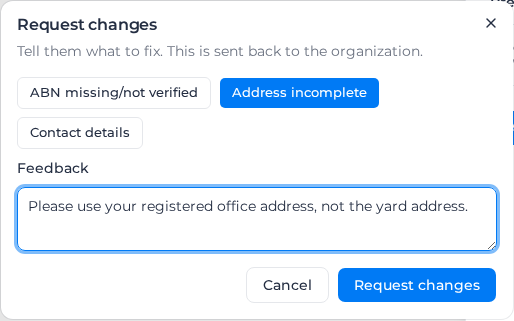
- Request changes sends your feedback back to them. Pick any of ABN missing/not verified, Address incomplete or Contact details to start the note, then write what to fix in Feedback and select Request changes. The feedback must be between 10 and 2,000 characters. The status becomes Changes requested until they resubmit, and your feedback shows on their row.
- Reject ends the relationship. Enter a Reason, between 10 and 2,000 characters, and select Reject. The status becomes Not approved, they see your reason, and you would need to send a new invitation to work with them.
What you approve is kept as it was on the day. If they later change their ABN, name, address or contact, their row shows Details changed and a Re-review button. It opens the panel with Details changed since approval, so you can compare; the relationship stays Active either way.
Check a subcontractor's insurance
Select View on any row to open its details: the contact you invited, who invited them, the name you approved, the number of active projects, and an Activity list of everything that has happened between you.
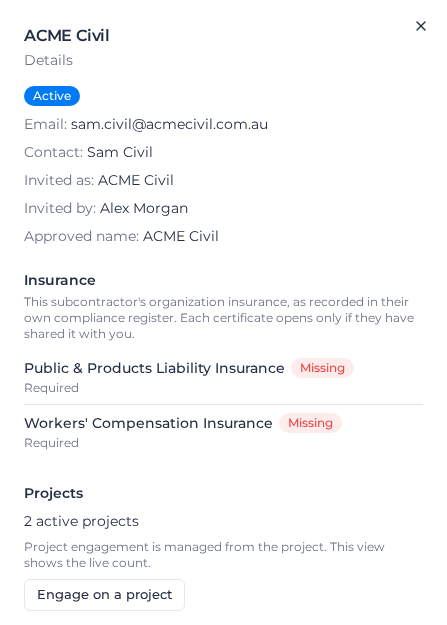
Insurance lists the insurance documents in the subcontractor's own compliance register, marked Required or Optional, with a status of Current, Expiring, Expired or Missing, the cover amount and the expiry date. You always see the status. You can open a certificate with View file only while they share it with you.
When they upload a renewed certificate, it shows Renewed — review. Once you have checked it, select Mark reviewed.
Engage on a project in the same panel engages an active subcontractor on one of your projects. See Engage a subcontractor on a project.
End a relationship
Select Revoke on an active subcontractor's row. It happens straight away, with no confirmation:
- all their project engagements end, and the projects are marked Completed in their workspace
- their crew and plant register on your projects empties, and shared files no longer open
- the row moves to Ended with the status Revoked
Nothing is deleted. The row, its activity and the engagement history stay in your list. The subcontractor can end the relationship from their side too, with Leave.
If your organization's Subcontractor Hub module is switched off, the Subcontractors page is not available and you can't revoke. Your subcontractors see the relationship as paused. When the module is switched back on, everything is as it was.