

Record your insurance
Keep your organization's insurance policies, licences and certificates in the compliance register in Settings, so the principal contractors you work for can see they are current.
The compliance register holds your own organization's insurance policies and company certificates, such as your workers' compensation cover or a builder's licence, with each policy's details, expiry date and certificate file. Every organization has one, whether or not it uses the Subcontractor Hub.
When you work as a subcontractor, the principal contractor sees the status of each document in your register, and can open the certificates you choose to share. Keeping it current is how you show them you are covered.
Open the register
- In the sidebar, select Settings, then General.
- In the settings list, open Data & advanced, then Compliance documents.
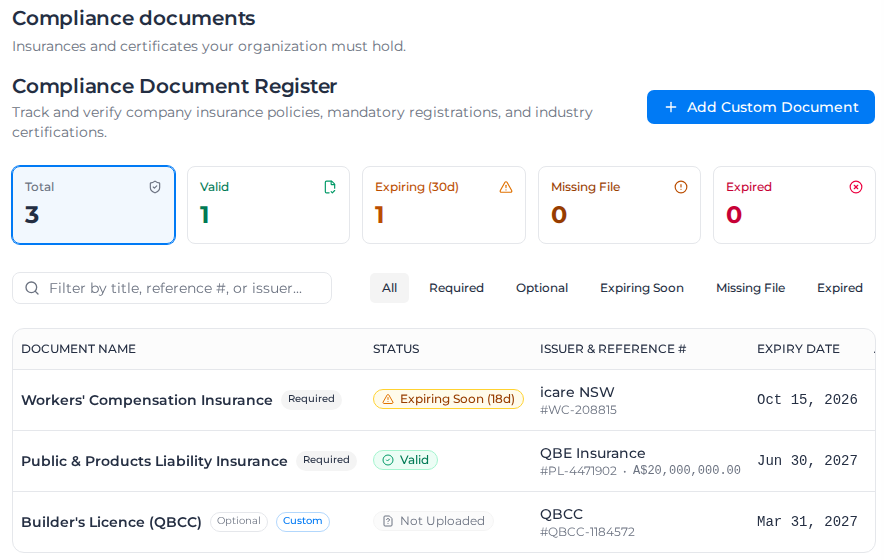
Two documents are always there and always Required: Workers' Compensation Insurance and Public & Products Liability Insurance. Until you upload their certificates they show Missing File.
Owners and Admins can change the register. Managers can see it but not change it.
Record a policy
- On the document's row, select the actions menu (⋯), then Upload Certificate. For a document that already has a file, it is Edit Details.
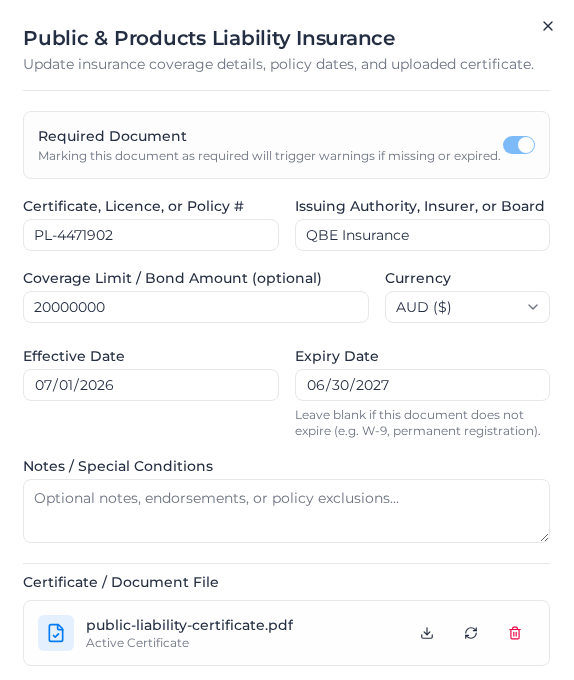
- Fill in what applies:
- Certificate, Licence, or Policy #
- Issuing Authority, Insurer, or Board, for example your insurer's name
- Coverage Limit / Bond Amount (optional) and its Currency
- Effective Date and Expiry Date. Leave Expiry Date blank if the document does not expire.
- Notes / Special Conditions, such as endorsements or exclusions
- Under Certificate / Document File, select Click to upload certificate or drag and drop and choose the certificate. It must be a PDF, PNG or JPG of 4 MB or less.
- Select Create Document the first time you save a document, or Save Changes after that.
If the file is the wrong type, you see "Unsupported file format. Please upload a PDF, PNG, or JPG file." If it is too big, "File exceeds the 4MB limit." If the effective date is after the expiry date, the form says "Effective date cannot be after expiry date".
To renew a policy, open Edit Details, change the dates and policy number, and replace the certificate with Replace File (the arrows beside the file name). Principal contractors you share the certificate with see that it was renewed. Remove File (the bin) asks "Remove Certificate File?" and takes the file off, but keeps the document and its details in the register.
Add another document
- Select Add Custom Document.
- Choose a Document Category: Commercial General Liability, Professional Indemnity, Plant & Equipment Insurance, Motor Vehicle / Fleet Insurance, or Custom Document for anything else, such as a licence or an accreditation. Categories already in the register are marked (Already added).
- For a custom document, enter its Document Title, for example Builder's Licence (QBCC).
- Turn on Required Document if you must always hold it. A required document without a file shows Missing File; an optional one shows Not Uploaded.
- Fill in the details and file as for a policy, then select Create Document.
To take a document out of the register, select ⋯, then Archive Document, and confirm. You can't archive the two documents that are always required.
Check what needs attention
Each document shows a status:
| Status | Meaning |
|---|---|
| Valid | A certificate is uploaded and it has not expired, or it has no expiry date |
| Expiring Soon | It expires in the next 30 days. The number of days left shows beside it |
| Expired | Its expiry date has passed. The number of days since shows beside it |
| Missing File | It is required and no certificate is uploaded |
| Not Uploaded | It is optional and no certificate is uploaded |
The counters above the list, Total, Valid, Expiring (30d), Missing File and Expired, also filter the list when you select one. You can filter with All, Required, Optional, Expiring Soon, Missing File and Expired, or search with Filter by title, reference #, or issuer....
To download a certificate, select the download button on its row.