

Nominate crew and plant
For subcontractors: tell your principal contractor which workers and plant are coming to each project, map your competencies to theirs, share credential files and withdraw a nomination.
On each project your principal contractor engages you on, you nominate the workers and plant you are bringing. They see a summary: each worker's name, role, competencies and whether they are active, and each asset's name, class and registration plate. They never see your workers' email addresses, payroll details or tags, or your assets' serial numbers or VINs.
Nothing needs their approval. A nomination tells them who is coming.
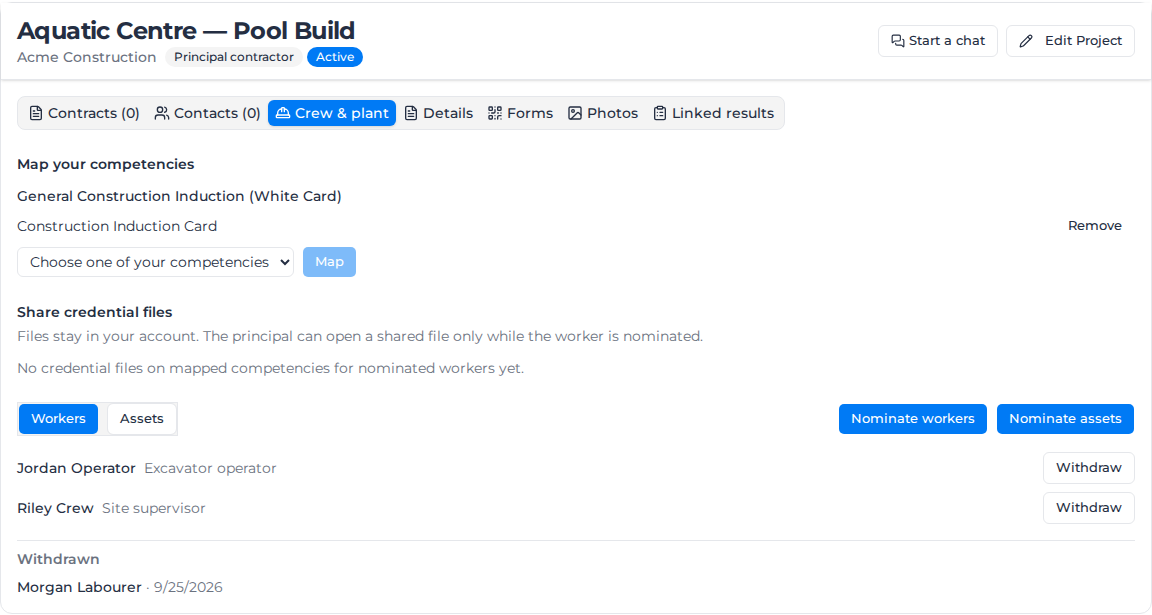
Open the Crew & plant tab
- In Clients & Projects, open the project under your principal contractor's client, or select it in Engaged projects in the principal contractor panel.
- Select the Crew & plant tab.
Nominate workers
- On the Workers list, select Nominate workers.
- Tick the people you are bringing. Search finds them by name, and Select all ticks everyone listed.
- Each person you tick gets an Optional role box. Type their role on this project if you like, such as Excavator operator.
- Select Nominate.
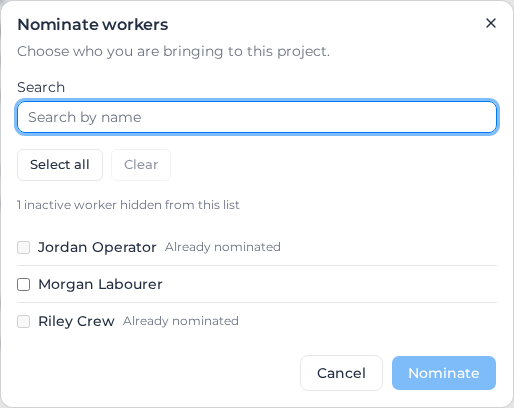
People already on the project show Already nominated and can't be ticked again. Inactive workers aren't listed; a line says how many were hidden. If you nominated people on an earlier engagement of the same project, a button such as Re-nominate the 3 from the previous engagement ticks them all again.
Nominate plant
- Select Assets, then Nominate assets.
- Tick the machines you are bringing, then select Nominate.
Plant has no role on the project. The principal contractor sees each machine's class and registration plate, or Unclassified when it has no class.
Map your competencies to theirs
The principal contractor can list Required competencies for the engagement, such as a construction induction card. Their competency names come from their catalog, not yours, so you say which of yours counts.
Under Map your competencies, for each of their requirements:
- Choose one of yours in Choose one of your competencies.
- Select Map.
Your competency now shows under their requirement. The principal contractor sees, for each nominated worker, whether that competency is valid, expiring, expired or missing, and when it expires. Remove undoes a mapping. To record your workers' tickets, see Record worker credentials.
Share credential files
Under Share credential files, you choose which files behind those competencies the principal contractor can open, such as a scanned ticket. The list shows the files of your nominated workers, on the competencies you have mapped. Turn each one on to share it; the files stay in your account, and the principal contractor can open a shared file only while that worker is nominated. Until there is something to share, it says "No credential files on mapped competencies for nominated workers yet."
Only Owners and Admins see this section.
Withdraw a nomination
Select Withdraw next to a worker or machine. It moves to Withdrawn on your tab, and the principal contractor still sees it with the date it was withdrawn. You can nominate them again later.
Owners, Admins and Managers can nominate, map and withdraw. Other members see the lists. If the engagement has ended, or the principal contractor has paused the Subcontractor Hub, the lists are read-only.