

Use the built-in reports
Read the ready-made Invoice Summary and Procurement Analytics reports, and download their data as CSV.
Two reports come ready-made, with nothing to set up: Invoice Summary for what you have billed, and Procurement Analytics for what you have bought. Both read your data live each time you open them.
Check your invoicing with Invoice Summary
- In the sidebar, select Reports, then All Reports.
- Select the Invoice Summary card.
The report opens as a spreadsheet with three sheets, listed along the bottom:
- Invoice Details: one row per invoice, with its client, project, type, issue and due dates, subtotal, tax and status.
- Summary: totals invoiced, paid and outstanding, the average invoice, how many are overdue, and a count and amount for each status.
- Aging Analysis: unpaid invoices grouped into Current (0-30 days), 31-60 days, 61-90 days and 90+ days, with a count and total value for each.
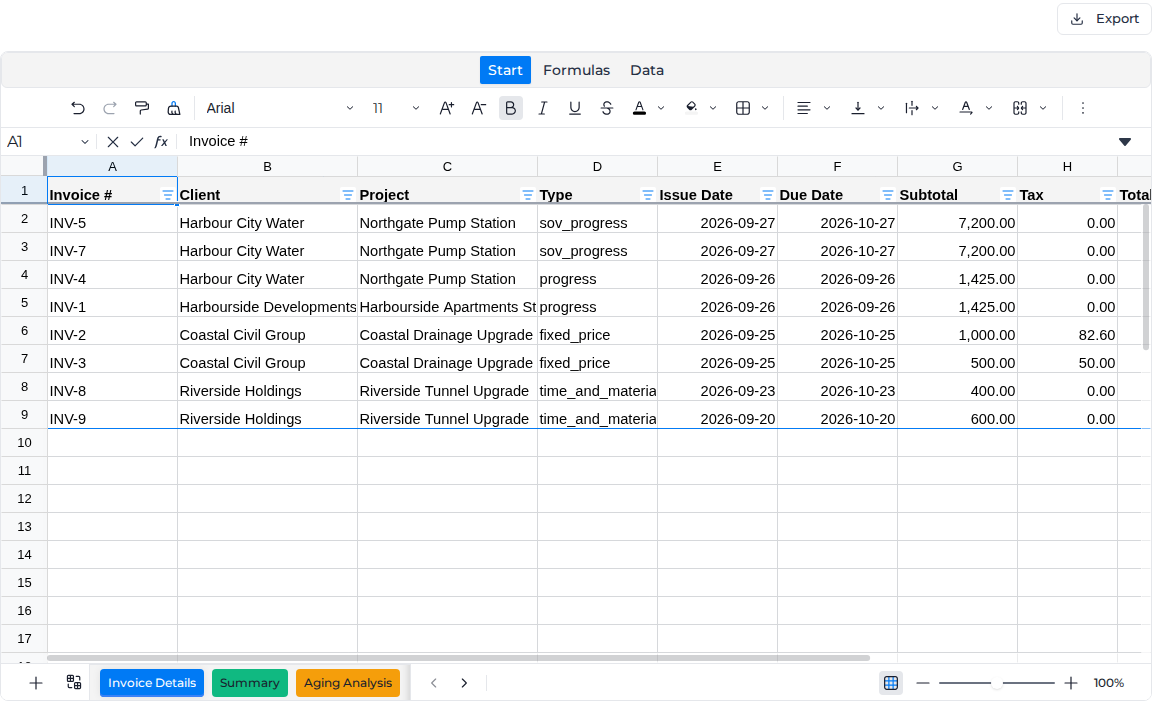
You can sort, filter and format the sheets, but there is no Save button: the layout resets the next time you open the report. To keep a layout of your own, build a custom report from the Invoices data source.
To take the data elsewhere, select Export, then Export to CSV. The file has one row per invoice with its number, client, project, type, dates, amount, tax and status.
If your account has no invoices yet, the report shows "No invoice data available for this account" until you raise your first invoice.
Track spending with Procurement Analytics
- In the sidebar, select Reports, then Procurement Reports.
The four cards across the top count your purchase orders, their total value, your active suppliers and the supplier invoices waiting for review. Outstanding Items below them shows approved purchase orders not yet fully received, those past their expected delivery date, supplier invoices submitted or under review, and approved invoices awaiting payment.
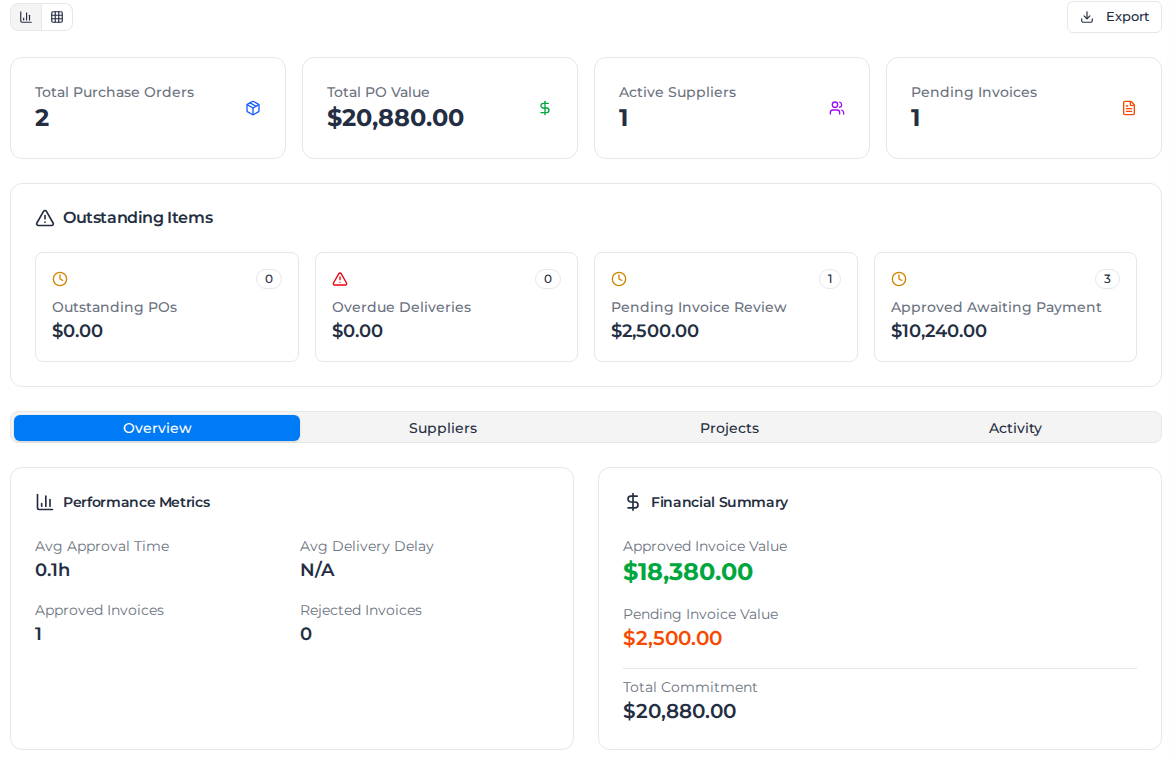
The tabs break the figures down further:
| Tab | What it shows |
|---|---|
| Overview | Average approval time and delivery delay, approved and rejected invoice counts, and approved, pending and committed value |
| Suppliers | Top Suppliers by Spend, with PO value, PO count, delivery performance and last activity, and each supplier's approval rate |
| Projects | PO value, invoiced and outstanding amounts, and supplier count for each project |
| Activity | The latest purchase orders created, goods received and supplier invoices submitted |
Every tab ends with Procurement Spend Trends, which totals spend and PO count month by month. The two buttons above the cards switch between these charts and cards and a spreadsheet view of the same figures.
Export, then Export to CSV, downloads the Top Suppliers by Spend list: supplier, PO value, PO count, delivery percentage and last activity.
Who can open Procurement Analytics
Procurement Analytics needs permission to view purchase orders, which Owners, Admins and Managers have, and it belongs to the procurement module your organization adds to its plan. Without the module the page shows "Procurement Module Not Available" with buttons to contact Assignar sales above the figures, and the Procurement Reports tab is missing from the tab bar. For purchase orders themselves, see Raise purchase orders.