

Build a custom report
Create a spreadsheet report that pulls live data from your account, add your own sheets and formulas, save it, share it with your team, and export it to Excel or CSV.
A custom report is a spreadsheet saved in Assignar Pay. You pull live data into its sheets from your account, lay it out the way you want, add formulas and summary sheets, and come back later to bring the numbers up to date. A monthly invoice pack, a job-cost reconciliation or a list of tickets due to expire are typical uses.
Create a report
- In the sidebar, select Reports, then All Reports, and select the Report Templates card.
- Select New Report. If there are no reports yet, you can also select Create First Report. A blank workbook opens, named Untitled Report, with one sheet called Sheet 1.
- Type a name in the box at the top left, for example Monthly Invoice Pack.
- Select Save. You see "Report saved".
There is no autosave. Until you save, a dot and Unsaved changes show beside the Save button, and closing the tab loses your edits. When the name box is empty, saving stops with "Please enter a report name before saving."
Pull in data from your account
- Select Import from data source at the top of the report, or Import in the toolbar and then Import from data source.
- Pick a data source from the panel. Sources are grouped by area, and the search box at the top narrows the list. Report data sources describes each one.
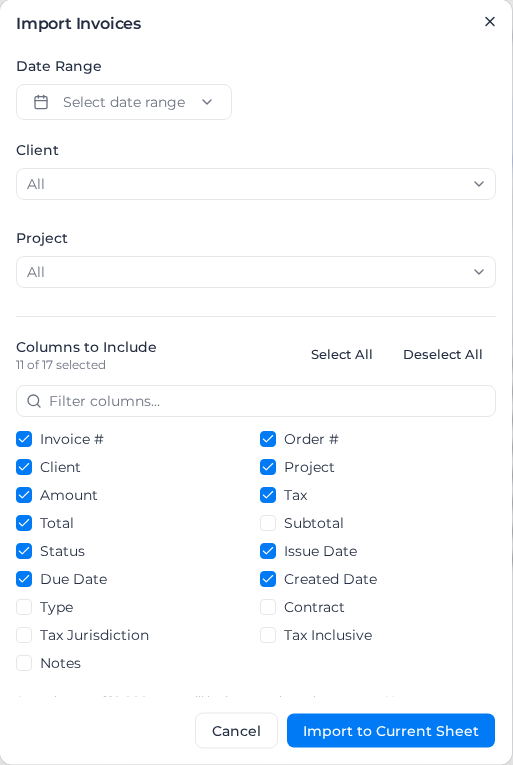
- In the dialog, set the filters the source offers, such as Date Range, Client and Project. Date Range offers This Month, This Quarter, Year to Date, Last Year and Custom Date Range. On Pay Rates it also offers Last Pay Period and This Pay Period, which follow your payroll cycle. A quick range keeps its name: when you open the filter again it shows the name, with the dates it covers today underneath.
- Under Columns to Include, tick the columns you want. Select All and Deselect All change them all at once, and Filter columns… finds one by name.
- Select Import to Current Sheet.
The data lands on the sheet you are on, starting at cell A1, with a header row. An import brings in at most 10,000 rows; when your filters match more, you see "Results are partial: an import brings in at most 10,000 rows, and stops sooner when your access is limited by location. Narrow your filters to see the full dataset." If Access by location limits what the person who last set up the refresh schedule can see, a scheduled refresh checks up to 100,000 records for ones they can see, so it can stop before 10,000 rows. The sheet's connection bar then shows the same message until a refresh completes in full. When nothing matches, you see "No data found for the selected filters".
The sheet is now connected to its source. A bar above the spreadsheet names the source, shows the filters applied (for example 1 filter applied) and how long ago the data was loaded, and holds Refresh, Edit Filters (the sliders icon) and Disconnect (the broken-link icon).
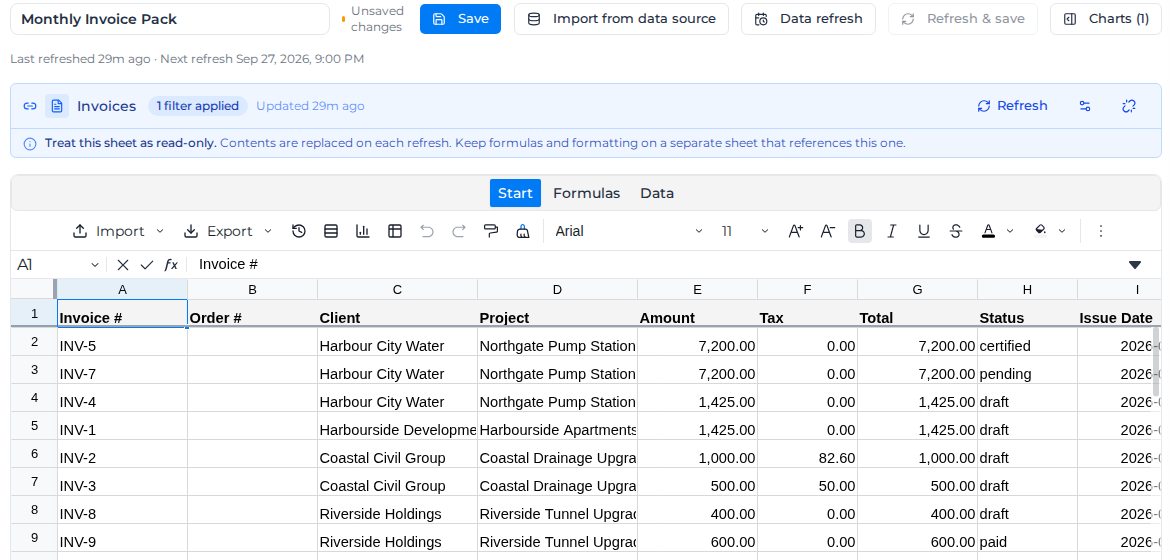
The bar also says "Treat this sheet as read-only." Every refresh replaces the sheet's contents, so anything you type or format on it is lost. Put your own formulas on a separate sheet that refers to this one.
To change what a connected sheet holds, select Edit Filters on the bar, change the filters or columns, and import again. To keep the data but stop it refreshing, select Disconnect and confirm "Remove datasource connection? Data will remain in the sheet."
The sheet lays out its columns in the order listed under Column Order and Names in the same dialog. A column you tick takes its usual place in that list, so it can push every column after it one place to the right, unless you have already dragged the columns into your own order. If another sheet reads this one by cell reference, drag the new column to the end under Column Order and Names before you import.
For how to bring a connected sheet up to date, by hand or on a schedule, see Keep report data current.
Import a file
To bring in data that is not in Assignar Pay, such as a budget kept in Excel, select Import, then Import from file, and choose a .csv, .xlsx or .xls file. Its contents replace the sheet you are on, starting at A1.
A file import is a one-off copy. It is not connected to anything, so it never refreshes.
Work with sheets and formulas
The editor works like Excel. Add a sheet with the + at the bottom left; right-click a sheet's tab to rename, copy, delete, colour, hide or protect it. The Start, Formulas and Data tabs above the grid hold formatting, functions, sorting and filtering.
A common layout keeps each data source on its own connected sheet and adds a Summary sheet of formulas that refer to them:
=SUM(Invoices!G2:G500)totals column G of the Invoices sheet.='Invoice Details'!C2refers to a sheet whose name has spaces; wrap the name in single quotes.=SUMIF(Invoices!C:C,"Harbour City Water",Invoices!G:G)totals one client's invoices.
When a connected sheet refreshes, the formulas that refer to it recalculate.
Most Excel functions work. If the exported file will be opened in Excel, Google Sheets or LibreOffice, these are known to come across cleanly: SUM, SUMIF, SUMPRODUCT, ROUND, MIN, MAX, ABS, INT, MOD, COUNT, COUNTA, COUNTIF, AVERAGE, IF, IFERROR, CONCATENATE, LEFT, RIGHT, MID, LEN, TRIM, UPPER, LOWER, VLOOKUP, HLOOKUP, INDEX, MATCH and TODAY.
A sheet starts with 100 rows. To make room, select Add rows in the toolbar (the icon with the tooltip "Add rows to the current sheet"), enter the Number of rows to add, and select Add rows. A sheet can hold up to 100,000 rows. Right-clicking a row header inserts rows at that point, up to 1,000 at a time.
The editor is built for a computer. On a phone or tablet you can open and export reports, but editing is limited.
Share a report with your team
A new report is private: only you can see it. On the Report Templates list, a lock beside a report's name means private and a globe means your team can open it.
To change it, hover over the report's card and select the lock or globe button beside the delete button. You see "Report is now visible to team" or "Report is now private". Only the person who created a report has this button.

Anyone with access to reports can open and edit a team report. Two people editing at the same time overwrite each other: the last to select Save wins.
Export a report
Select Export in the toolbar, then:
- Export to Excel (.xlsx) for the whole workbook, every sheet with its formulas and formatting.
- Export to CSV or Export to text (.txt) for the values on the sheet you are looking at.
CSV and text exports keep both the date and time for cells formatted to show both.
An exported file is a copy. It does not update when the report does, so export again when you need new numbers. Reports can't be emailed on a schedule; to send figures regularly, put them on a dashboard and email the dashboard.
See who changed a report
Select Activity Log in the toolbar (the clock icon). It lists when the report was created, each save with the parts that changed, and each change between private and team, newest first, with who made it and when.
Delete a report
On the Report Templates list, hover over the report's card, select the delete button, and confirm "Are you sure you want to delete 'Monthly Invoice Pack'? This action cannot be undone." with Delete. You see "Report deleted". Anyone with access to reports can delete a team report, not only its creator.
Import a report from Insights
With the Assignar Operations reporting add-on (see Reports), Import from Insights sits beside New Report. It lists the reports and dashboards your organization built in Assignar Insights. Pick a report, or a dashboard and then one of its tiles, and select Import: its structure is copied into a new private report. The dialog then lists what came across, such as "12 columns imported, 2 not imported · 3 filters applied", with the columns and filters it could not bring over. Review them, then select Open report.
An Insights filter that matches text containing any of several values comes across as contains, and one that matches text containing none of them comes across as doesn't contain. A filter that mixes the two, or matches only the start or end of the text, is listed as not brought over. If an earlier import listed one of these filters as not brought over, import the report again to apply it.