

Share a dashboard
Give people outside your organization a read-only link to a dashboard, find boards shared with you, and email a dashboard on a schedule.
You can let people see a dashboard without joining your organization, with a read-only link, and you can email a board to your team on a schedule. Both need View finance reports, the same as building a dashboard. To build one first, see Build a dashboard.
Share a link
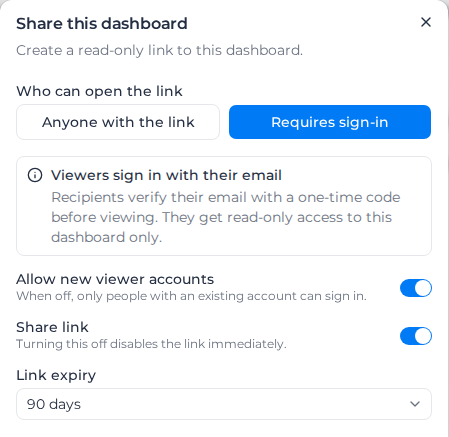
- Open the board under Reports → Dashboards and select Share.
- Under Who can open the link, choose:
- Anyone with the link: opens a read-only view without signing in. The dialog warns "Anyone with the link can view", so share it only with people you trust.
- Requires sign-in: viewers verify their email with a one-time code before viewing, and see this dashboard only.
- For a sign-in link, choose whether to Allow new viewer accounts. Off, only people who already have an Assignar Pay account can sign in.
- Turn on Share link. You see "Share link updated", and the link appears under Share link URL.
- Choose the Link expiry: 7 days, 30 days or 90 days. A sign-in link can also be Never expires, which it starts on. The date shows under the link, for example "Link expires on 12/26/2026", or "This link never expires."
- Select Copy link beside the link and send it.
Changing Link expiry while the link is on makes a new link and stops the old one, so set it before you send the link.
While a link is on, the board shows a Shared badge beside Share.
What viewers see
Viewers get the board's read view: no editing and no settings. The tiles show what you, the person who shared it, can see, and a tile you cannot see stays empty. Site weather and Chat with Milo do not work on a shared board and say "Not available in the shared view".
If your account limits access by location and your own access is limited, the tiles show only the records inside your locations. A table or chart built from a report sheet connected to a data source that is limited by location, such as timesheets, orders or invoices, stays empty, because a saved sheet can't be narrowed to your locations.
A viewer on a sign-in link enters their email under "View this dashboard", then the 6-digit code from the email under "Check your email". When new viewer accounts are off and the email has no account, they see "This link only allows existing accounts to sign in. Contact the person who shared it with you."
A link that has expired or been turned off shows "This link is unavailable".
Stop sharing
- To stop a link working at once, turn off Share link. Turning it on again makes a new link; the old one stays dead.
- If a link has reached people it should not have, select Rotate link. It makes a new link and stops the old one in the same step. On a sign-in link, previous viewers need the new link to sign in again.
Find dashboards shared with you
Signed-in viewers find every board shared with them under Shared with me in their personal account's sidebar, with the organization that shared it and the date its link expires. A board disappears from the list when its link expires or is turned off. With nothing shared, the page says "No dashboards have been shared with you yet."
Email a dashboard on a schedule
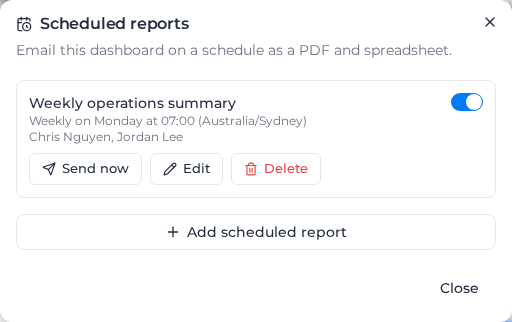
- Open the board and select Schedule, then Add scheduled report.
- Give it a Name, such as Weekly operations summary.
- Choose the Frequency: Daily, Weekly with a Day of week, or Monthly with a Day of month from 1 to 28. Then choose the Time and Timezone. Reports go out on the hour.
- Under Recipients, choose up to 20 people. You can choose anyone in your organization who has access to reports. The report shows what the person who last saved the schedule can see, and everyone who receives it gets that same copy.
- Add a Message (optional) of up to 2,000 characters. It shows near the top of every email.
- Under Attachments, tick what to send:
- Dashboard PDF (board snapshot): the whole board as a PDF, charts included.
- Spreadsheet (tables): the board's table tiles as data; one table arrives as a CSV, several as one Excel workbook with a sheet each.
- Link to the live dashboard: a link into Assignar Pay, for recipients who sign in.
- Select Save schedule. You see "Scheduled report saved".
A board can have several schedules, for example a daily one for the site team and a monthly one for management. The list shows each one's frequency and recipients.
When a board has nothing to put in a PDF, or no tables, that attachment cannot be ticked: "This board has nothing that can be rendered into a PDF." or "This board has no table data to export." When no one else in your organization has access to reports, Recipients says "No one in this account can receive scheduled reports yet. Give a team member access to reports first."
In the emailed PDF, each tile shows the exact date and time its data is from, rather than "Updated 2h ago".
If your account limits access by location, the report includes only the records inside the locations of the person who last saved the schedule, and tiles built from a report sheet stay empty as on a shared board. A recipient whose own access doesn't cover all of that person's locations doesn't receive the report, and the schedule doesn't show that they were left out. Give them access to those locations, or have someone with the same or narrower access save the schedule.
Send, pause or change a schedule
- Send now emails the report straight away, which is a good way to check it before the first scheduled run. It is also the way to get a PDF of a board on demand; there is no download button. The next scheduled send still happens at its usual time.
- The switch on each schedule pauses it; a paused schedule shows Paused and sends nothing until you switch it back on.
- Edit changes the schedule, and Delete removes it after "Delete this scheduled report?". Recipients stop receiving it.